This Week's Sponsor:

Turbulence Forecast

Know before you go. Get detailed turbulence forecasts for your exact route, now available 5 days in advance.


Posts tagged with "iPadOS"

Black Friday 2025 App Deals

There’s more than just gadgets on sale this Black Friday. There are also hundreds of excellent app deals from collections and bundles to one-off sales. We’ve gathered some of our favorites for you here, which are generally available through Monday, December 1, but check for details on the websites linked below:

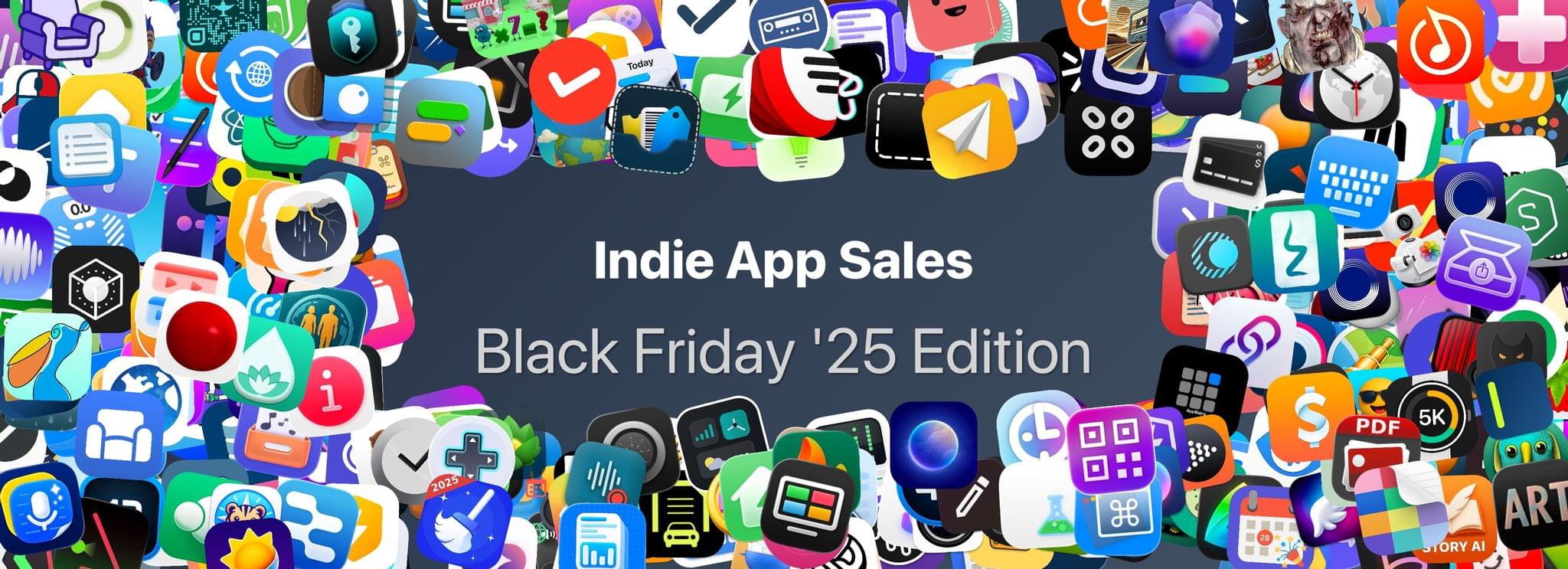
The biggest collection I’ve seen is from Indie App Sales with ouver 475 app deals. Indie App Sales has been curating a list of apps from indie developers for years now, and there are always a bunch of gems on this list. Be sure to check it out for deals on apps like:

There are hundreds more deals in the Indie App Sale, so be sure to visit the site to browse through them all.


There are other great sales happening elsewhere too, including the following:

Happy deal hunting!


Festivitas Brings Fresh Whimsy to Your Mac, iPhone, and iPad for the Holiday Season

Last year, Simon Støvring released Festivitas, a Mac app that lets you string holiday lights from your menu bar and across the top of your Dock. This year, Simon is back with an update to the Mac app and a new version for the iPhone and iPad.

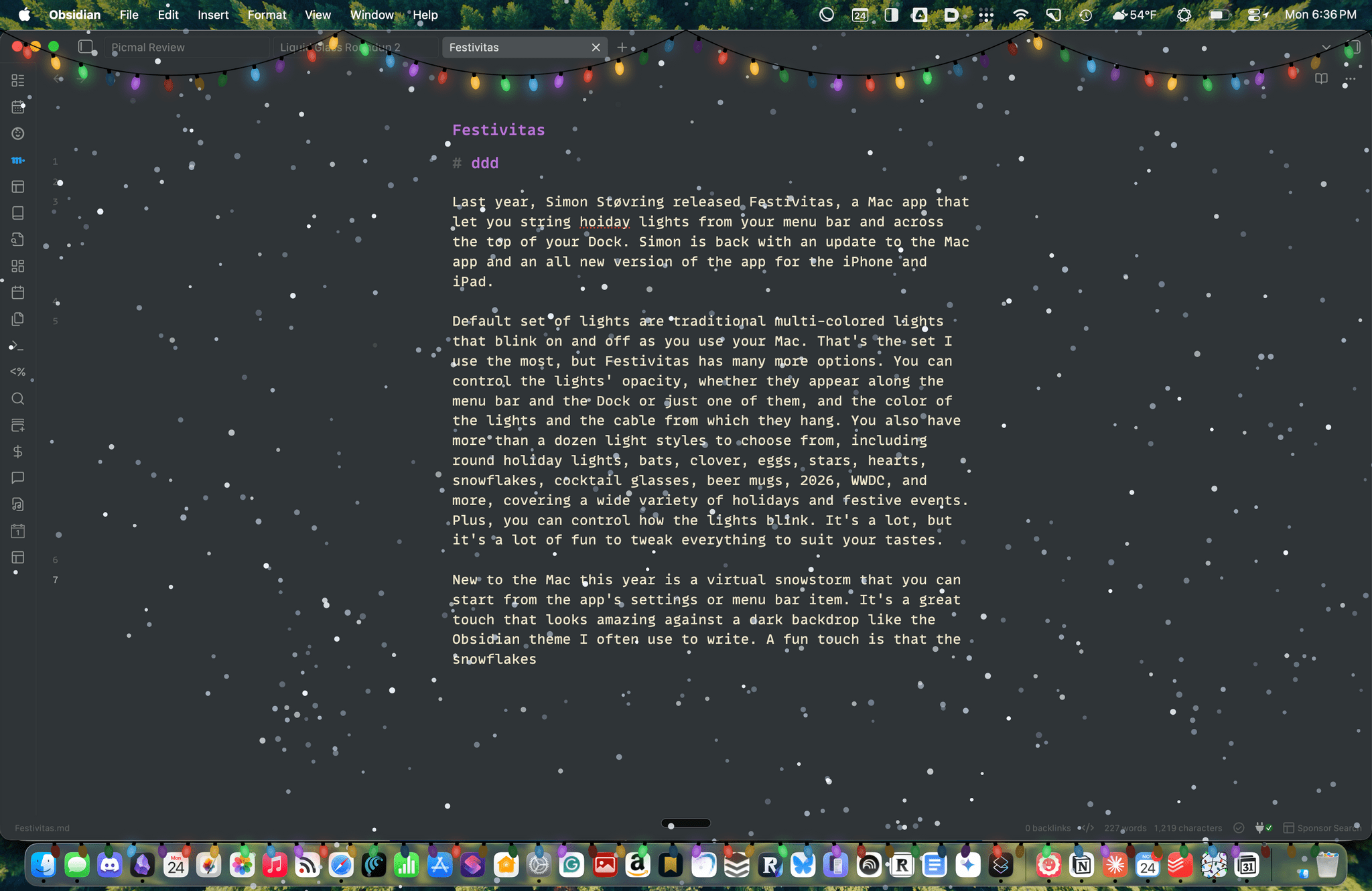
The default set of lights consists of traditional multi-colored bulbs that blink on and off as you use your Mac. That’s the set I use the most, but Festivitas offers many more options. You can control the lights’ opacity, whether they appear along both the menu bar and the Dock or just one of them, and the colors of the lights and the cable from which they hang. You also have more than a dozen light styles to choose from, including round holiday lights, bats, clovers, eggs, stars, hearts, snowflakes, cocktail glasses, beer mugs, “2026,” “WWDC,” and more, covering a wide variety of holidays and festive events. Plus, you can control how the lights blink. It’s a lot, but it’s also just plain fun to tweak everything to suit your tastes.

This year, the Mac app adds a virtual snowstorm that you can start from the app’s settings or menu bar item. It’s a great addition that looks amazing against a dark backdrop like the Obsidian theme I often use to write. A fun touch is that the snowflakes avoid your pointer, and you can adjust the sensitivity of this feature in settings. You can also use your pointer to push around the lights hanging from the menu bar, which is handy for those times when they obscure Safari’s menu bar or other content.

The snow is lovely. I highly recommend pairing it with the Animal Crossing Snowy Day soundtrack on Nintendo Music. It’s an incredibly peaceful and relaxing combination.

Festivitas supports Shortcuts, too. Simon has created some fun example automations that you’ll find in the app’s settings to do things like turning on the snowstorm when snow is forecast and activating your lights when you play music.

Festivitas on iPhone.

Festivitas on iPhone.

New this year is a Festivitas app for the iPhone and iPad. The app lets you build small, medium, and large widgets to place on your Home Screen. You can either frame a photo with twinkling lights or create a transparent-style widget so the lights frame an element of your Home Screen. I love that the lights framing the photos are animated, an effect I know isn’t easy to do with a widget. You can also add text and make other adjustments to each widget.


Festivitas isn’t going to help you get more done. In fact, it might even slow you down a little bit, and maybe that’s the point. Taking a moment to enjoy the app’s lights and be mesmerized by the falling snow is a good reminder to slow down a little and have some fun.

Festivitas for the Mac is available directly from the app’s website for any price you want to name between $3.99 and $9.99. The iPhone and iPad version is a free download on the App Store with a range of in-app purchases from $3.99 to $9.99 to create a similar name-your-price system.


“The iPad’s Software Problem Is Permanent”

I love my iPad Pro, but, as you know, lately I’ve been wondering about what comes after iPadOS 26. We have much better multitasking now, and key workflow limitations such as file management, audio recording, and long-running background tasks have been addressed by Apple this year. But now that the user-facing system’s foundation has been “fixed”, what about the app ecosystem?

Over at Snazzy Labs, Quinn Nelson has been wondering the same, and I highly recommend watching his video:

Quinn makes a series of strong, cogent arguments with factual evidence that show how, despite multitasking and other iPadOS 26 improvements, using apps on an iPad Pro often falls short of what can be achieved with the same apps on a Mac. There is so much I could quote from this video, but I think his final thought sums it up best:

There are still days that I reach for my $750 MacBook Air because my $2,000 iPad Pro can’t do what I need it to. Seldom is the reverse true.

I’m so happy that Apple seems to be taking iPadOS more seriously than ever this year. But now I can’t help but wonder if the iPad’s problems run deeper than windowing when it comes to getting serious work done on it.

Permalink

iPadOS 26.2 Beta Restores Drag and Drop Gestures for Split View and Slide Over

Following the comeback of Slide Over in iPadOS 26.1, Apple is continuing to iterate on iPadOS 26 multitasking by restoring functionalities that had been removed from the launch version of iPadOS 26.0 in September. Yesterday, in the third developer beta of iPadOS 26.2, the company brought back drag and drop gestures to put app windows directly in Split View and Slide Over without having to interact with additional menus. To understand how these old gestures work in the context of iPadOS 26, I recommend watching this video by Chris Lawley:

As you can see, the gestures are pretty much the same ones as iPadOS 18, but the interaction is slightly different insofar as the “pull indicator” for Slide Over (re-introduced in iPadOS 26.1) now serves two purposes. That indicator now acts both as a signal that you can drop a window to instantly tile it as one half of a Split View, and it’s also a drop target to enter Slide Over right away. The design is clever, if maybe a little too hard to discover…but that’s always been the case with multitasking gestures that aren’t exposed by a menu – which is exactly why Apple is now offering plenty of options in iPadOS 26 to discover different multitasking features in different menus.

I’m glad to see Apple quickly iterate on iPadOS 26 by finding ways to blend the old multitasking system with the platform’s new windowing engine. Based on the comments I received after publishing my iPadOS 26 review, enough people were missing the simplicity of Split View and Slide Over that I think Apple’s doing the right thing in making all these multitasking systems coexist with one another.

As I argued on last week’s episode of Connected, and as Myke and Jason also elaborated on this week’s episode of Upgrade, the problem with the iPad Pro now is that we have a great foundation with iPadOS 26 and very few third-party apps that take advantage of it beyond the usual names. I suspected as much months ago, when I explained why, in a world dominated by web apps, the iPad’s next problem was going to be its app ecosystem. The web services I use on a daily basis (Slack, Notion, Claude, Superhuman, Todoist – the list goes on) simply don’t make iPad apps of the same caliber as their desktop/web counterparts. So I find myself using Safari on the iPad to get my work done these days, but, for a variety of reasons and dozens of small papercuts, Safari for iPad simply isn’t as good as Safari on the Mac.

Given how the third-party app ecosystem story for iPad is outside of Apple’s control and how most companies aren’t incentivized to make excellent native iPad apps anymore, now that multitasking has been largely “fixed” in iPadOS 26.2, I hope Apple turns its attention to something they can control: making Safari for iPad truly desktop-class and not a baby version of Safari for Mac.

Permalink

Reports of Slide Over’s Death Were Greatly Exaggerated

Well, that didn’t take long.

In yesterday’s second developer beta of iPadOS 26.1, Apple restored the Slide Over functionality that was removed with the debut of the new windowing system in iPadOS 26.0 last month. Well…they sort of restored Slide Over, at least.

In my review of iPadOS 26, I wrote:

So in iPadOS 26, Apple decided to scrap Split View and Slide Over altogether, leaving users the choice between full-screen apps, a revamped Stage Manager, and the brand new windowed mode. At some level, I get it. Apple probably thinks that the functionality of Split View can be replicated with new windowing controls (as we’ll see, there are actual tiling options to split the screen into halves) and that most people who were using these two modes would be better served by the new multitasking system the company designed for iPadOS 26.

At the same time, though, I can’t help but feel that the removal of Slide Over is a misstep on Apple’s part. There’s really no great way to replicate the versatility of Slide Over with the iPad’s new windowing. Making a bunch of windows extra small and stacked on the side of the screen would require a lot of manual resizing and repositioning; at that point, you’re just using a worse version of classic windowing. I don’t know what Apple’s solution could have been here – particularly because, like I said above, the iPad did end up with too many multitasking systems to pick from. But the Mac also has several multitasking features, and people love the Mac, so maybe that’s fine, too?

Slide Over will be missed, but perhaps there’ll be a way for Apple to make it come back.

The unceremonious removal of Slide Over from iPadOS 26 was the most common comment I received from MacStories readers over the past month. I also saw a lot of posts on different subreddits from people who claimed they weren’t updating to iPadOS 26 so they wouldn’t lose Slide Over functionality. Perhaps Apple underestimated how much people loved and used Slide Over, or maybe – like I argued – they thought that multitasking and window resizing could replace it. In any case, Slide Over is back, but it’s slightly different from what it used to be.

The bad news first: the new Slide Over doesn’t support multiple apps in the Slide Over stack with their own dedicated app switcher. (This option was introduced in iPadOS 13.) So far, the new Slide Over is single-window only, and it works alongside iPadOS windowing to put one specific window in Slide Over mode. Any window can be moved into Slide Over, but only one Slide Over entity can exist at a time. From this perspective, Slide Over is different from full-screen: that mode also works alongside windowing, but multiple windows can be in their full-screen “spaces” at the same time.

On one hand, I hope that Apple can find a way to restore Slide Over’s former support for multiple apps. On the other, I feel like the “good news” part is the reason that will prevent the company from doing so. What I like about the new Slide Over implementation is that the window can be resized: you’re no longer constrained to using Slide Over in a “tall iPhone” layout, which is great. I like having the option to stretch out Music (which I’ve always used in Slide Over on iPad), and I also appreciate the glassy border that is displayed around the Slide Over window to easily differentiate it from regular windows. I feel, however, that since you can now resize the Slide Over window, also enabling support for multiple apps in Slide Over may get too confusing or complex to manage. Personally, now that I’ve tested it, I’d take a resizable single Slide Over window over multiple non-resizable apps in Slide Over.

Between improvements to local capture and even more keyboard shortcuts, it’s great (and reassuring) to see Apple iterate on iPadOS so quickly after last month’s major update. Remember when we used to wait two years for minor changes?

Permalink

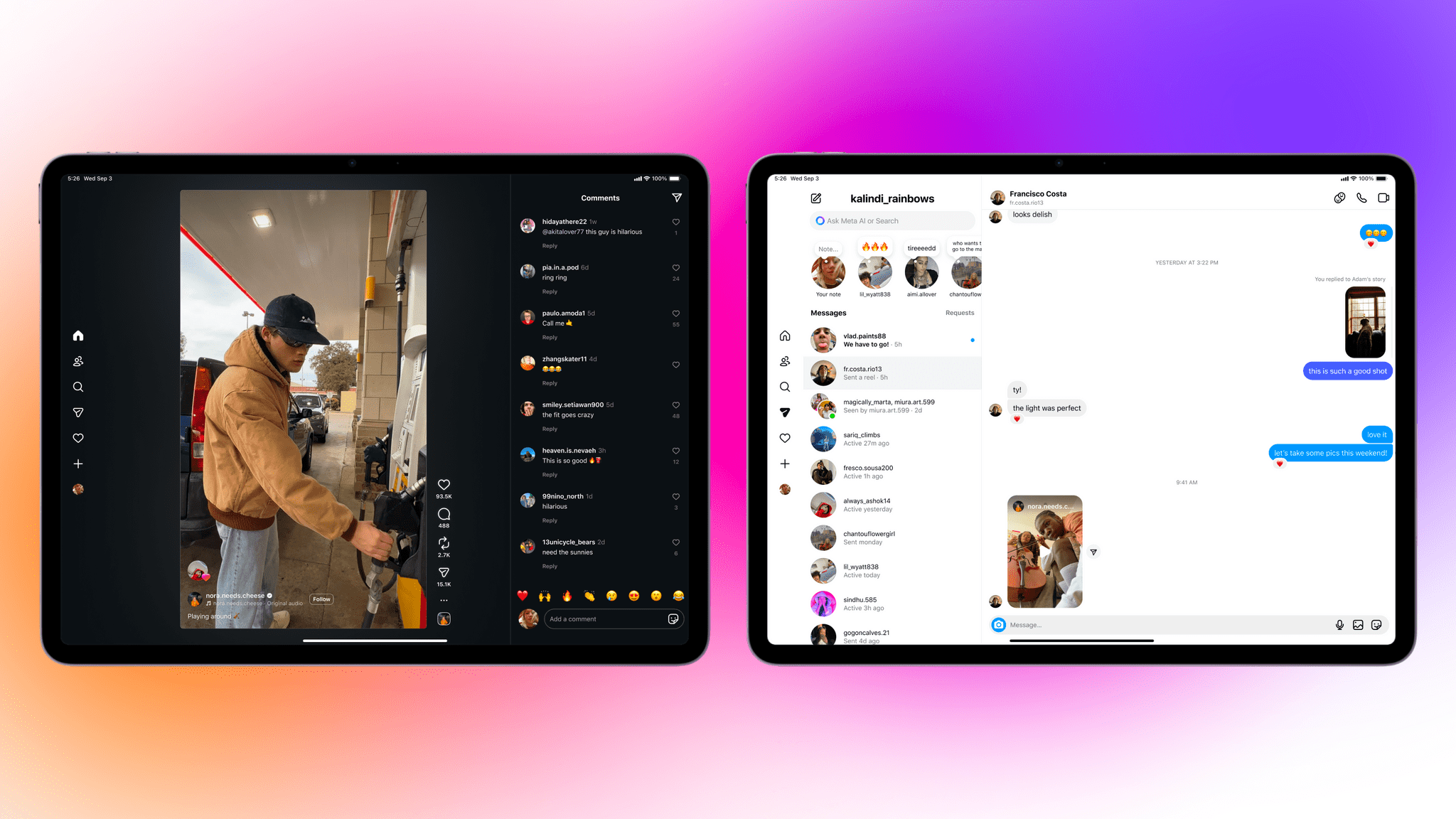
Instagram Launches an iPad App

Yes, you read that right. Instagram has finally released an iPad version, and you know what, it looks good, too.

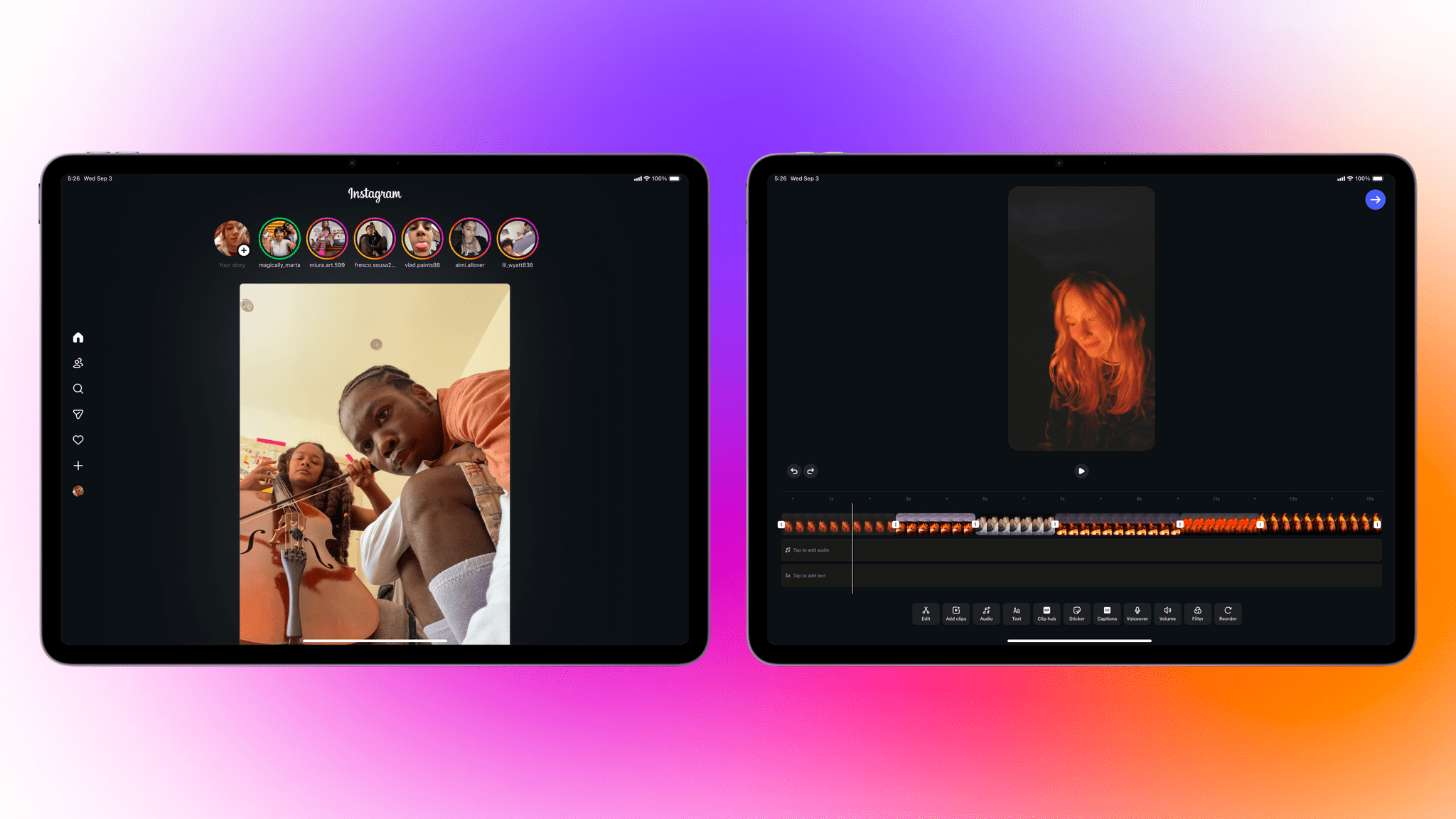
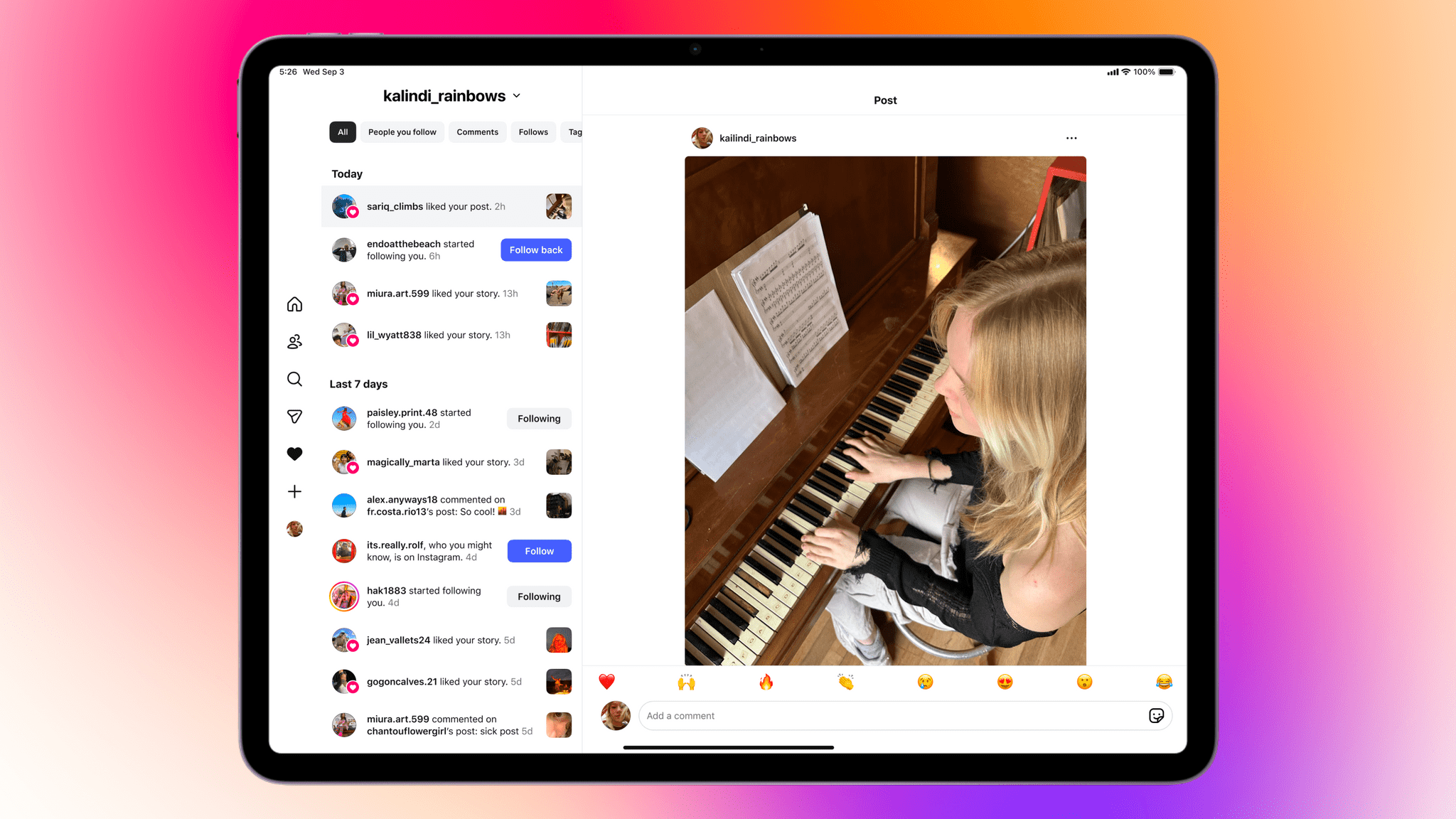
Announced on Instagram’s blog today, the new iPad app supports iPadOS 15.1 and later and includes the features you’d expect like Reels and Stories, plus a new “Following” tab that includes sections for posts and Reels from Friends who follow you back, a “Latest” section that’s sorted chronologically, and an “All” section. Instagram’s messaging is supported and the extra screen real estate allows you to view your inbox and threads simultaneously. It even supports keyboards, trackpads, and the Apple Pencil.

I gave up any expectation that Instagram would ever be released on the iPad years ago. I never really understood the notion that it wouldn’t work on a bigger screen, especially since what Instagram does has expanded a lot in recent years. I’m not a big Instagram user, but I’m glad to see it on the iPad finally. Not only does it work full screen, but with windowing coming in iPadOS 26, you’ll be able to enjoy the more iPhone-like look if you prefer too.

I’m not seeing the app on the App Store yet, but it’s rolling out now and should be available to everyone shortly as a free download here.


Cassette: A Video Time Machine

Devin Davies, the developer of Crouton whom Federico and I interviewed after he won an Apple Design Award in 2024, has released a new app called Cassette. It’s an app for browsing videos from the photo library on your iPhone or iPad that has a fun design twist.

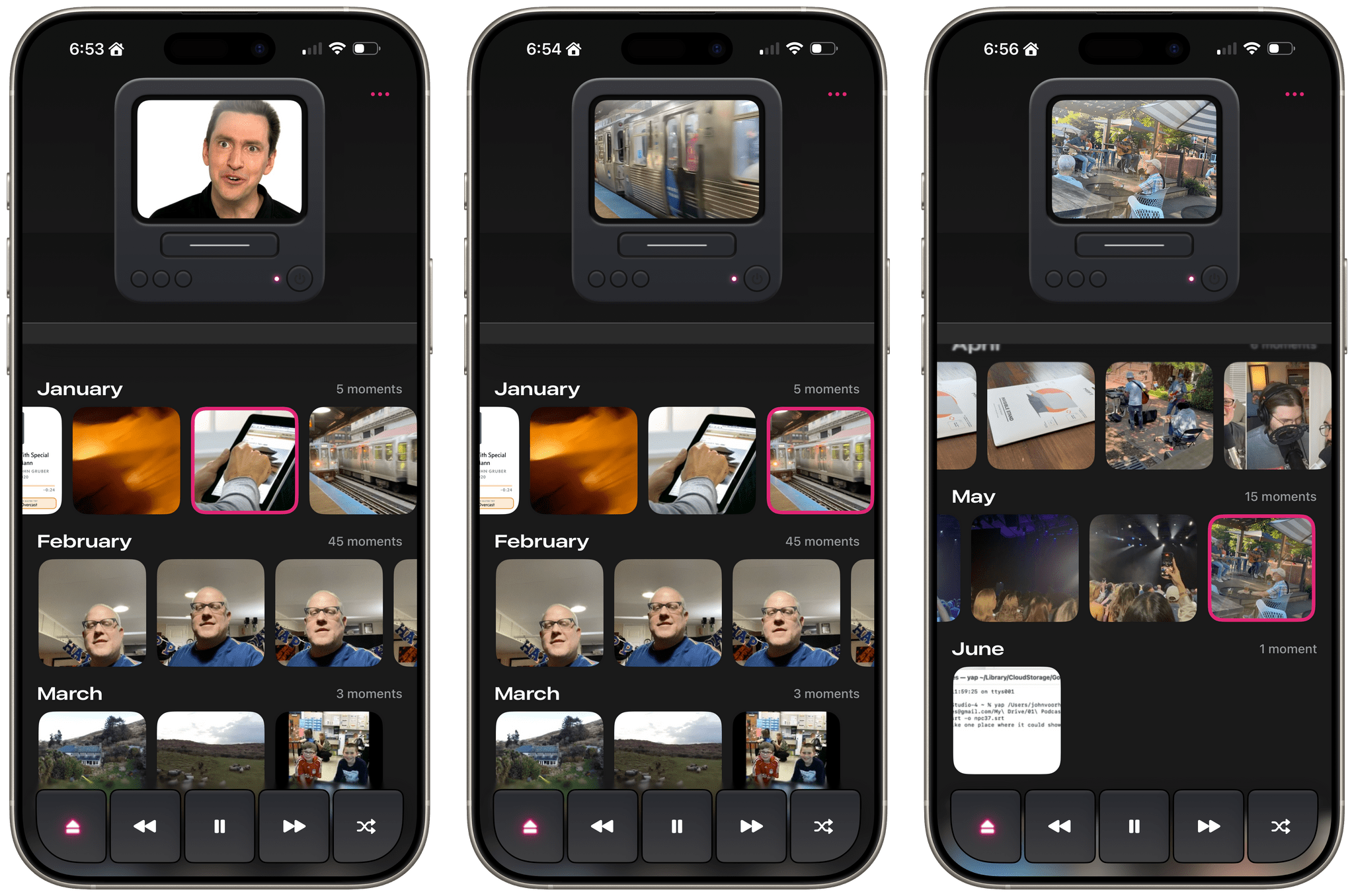
Leaning heavily into the nostalgia of watching old videos of friends and family, Cassette sorts your videos using a VCR metaphor. Videos are organized by year and by collection, with video cassette art and a label identifying each. At the top of the screen is an old CRT TV with a built-in VCR. Tap a year or collection, and it loads into the TV with satisfying haptic feedback on the iPhone.

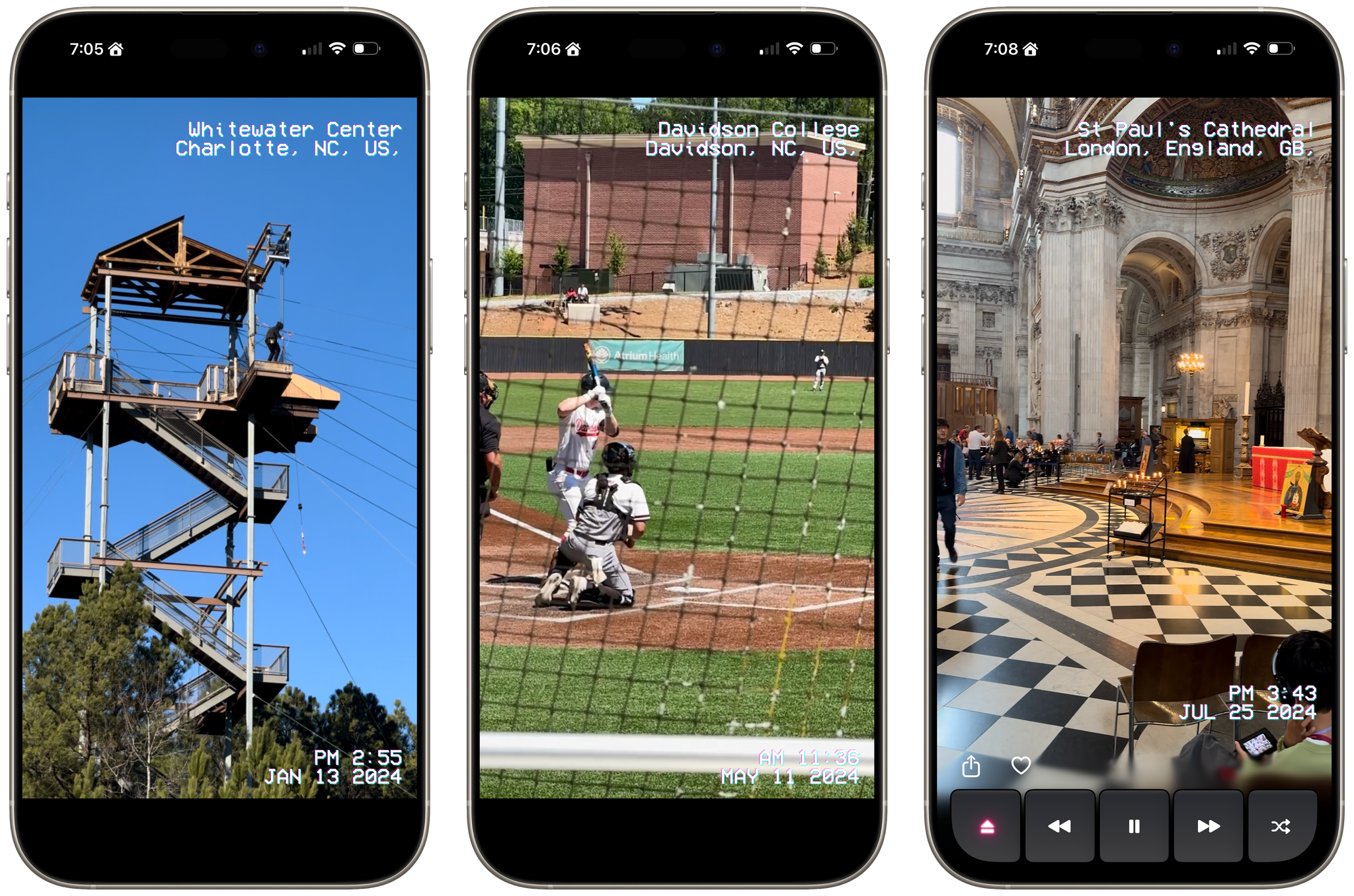
Videos running full-screen.

Videos running full-screen.

Tap the virtual TV, and the video goes full-screen with date and location data that’s reminiscent of a VCR’s UI. While watching videos, the app offers standard playback controls along with a shuffle button, buttons to share and favorite videos, and an eject button to return to your video collections.

Videos cycle from one to the next and then loop back to the beginning, where playback continues. You can also swipe through videos TikTok-style, skipping over any you don’t want to watch. Finally, there’s a ‘Take Me Somewhere’ button at the bottom that drops you at a random location in your video collection, eliminating the need to pick something yourself.

Most of the functionality found in Cassette is available in other video players, but that doesn’t make it any less fun or delightful. What sets the app apart is its focus on design and framing. From the drop, Cassette is designed to transport you to the past with its VCR-inspired UI and singular focus on videos, transforming into a sort of handheld time machine.

Cassette is available on the App Store as a free download. Certain features are only available via a $0.99/month or $5.99/year subscription or a $7.99 one-time payment.


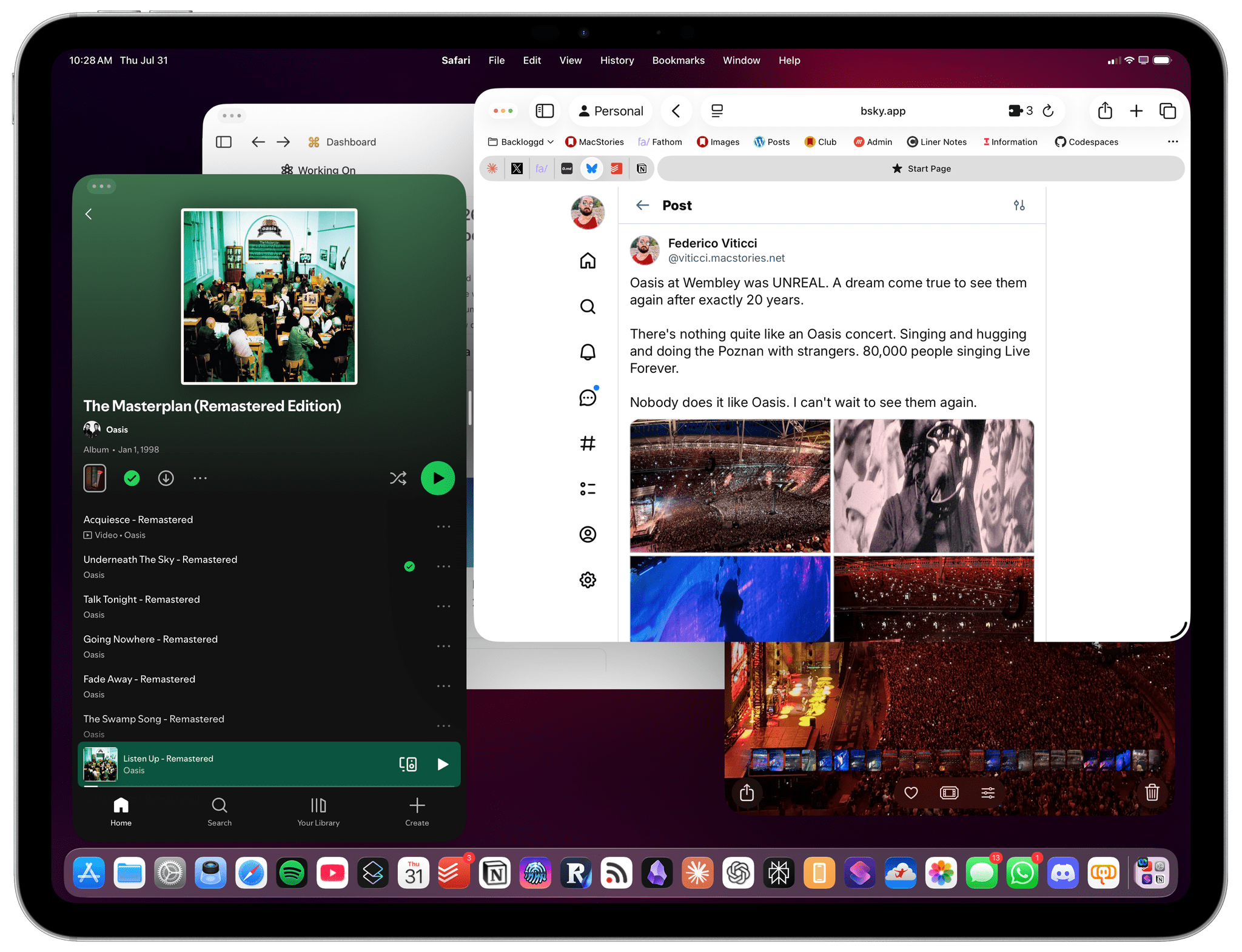
Thoughts on iPadOS 26: Hello, It’s Good to Be Back

iPadOS 26.

iPadOS 26.

Apple released the first public betas of iOS and iPadOS 26 last week, and I’m going to cut to the chase with this story: although I’m still wrapping my head around Liquid Glass and trying to understand where this new design language will land, iPadOS 26 has fundamentally revolutionized my workflow in just a little over a month. While talking to Craig Federighi at WWDC, I did get the sense that Apple was approaching the iPad platform from a different – perhaps more humble – perspective, with a newfound willingness to listen to power users and find a better balance between the simplicity of the iPad and its flexibility. Actually using iPadOS 26, however, has far exceeded my expectations – which pushed me to completely rethink my desk setup (again) and the apps I use around the iPad Pro and iPadOS 26.

Conversely, I’ve been struggling to understand iOS 26 and the role of Liquid Glass. I’ve documented my issues with Apple’s new design with a variety of examples recently, but the truth is that at this point in the beta cycle, I don’t know what to write about Liquid Glass yet. For this reason, despite my many attempts to write this story over the past few weeks, I’ve decided to take a different approach.

Today, I only feel comfortable sharing my opinion about iPadOS 26, and I’ve chosen to delay my analysis of iOS 26 until later this year. I’ve found it incredibly challenging to form an opinion on Liquid Glass and iOS 26 when everything is still so in flux and being adjusted on a beta-by-beta basis. I feel like sharing what I think about Liquid Glass right now would be a fruitless exercise, or shortsighted perhaps, one way or another. Instead, since I find iPadOS 26 to be more of a known entity at the moment, I’ve decided to focus on that and how this software update is changing the way I work. The time will come for me to write about Liquid Glass and Apple’s vision for the future of its software design. Today, though, I’m all about the iPad.

It’s been an interesting month since WWDC. This year more than ever, I have a feeling that Apple isn’t done tweaking its OSes and much will continue to change between now and September. But for now, as always, let’s dive in.

Read more


Interview: Craig Federighi Opens Up About iPadOS, Its Multitasking Journey, and the iPad’s Essence

iPadOS 26. Source: Apple.

iPadOS 26. Source: Apple.

It’s a cool, sunny morning at Apple Park as I’m walking my way along the iconic glass ring to meet with Apple’s SVP of Software Engineering, Craig Federighi, for a conversation about the iPad.

It’s the Wednesday after WWDC, and although there are still some developers and members of the press around Apple’s campus, it seems like employees have returned to their regular routines. Peek through the glass, and you’ll see engineers working at their stations, half-erased whiteboards, and an infinite supply of Studio Displays on wooden desks with rounded corners. Some guests are still taking pictures by the WWDC sign. There are fewer security dogs, but they’re obviously all good.

Despite the list of elaborate questions on my mind about iPadOS 26 and its new multitasking, the long history of iPad criticisms (including mine) over the years, and what makes an iPad different from a Mac, I can’t stop thinking about the simplest, most obvious question I could ask – one that harkens back to an old commercial about the company’s modular tablet:

In 2025, what even is an iPad according to Federighi?

Read more