Posts tagged with "mac"

Apple Takes the Wraps Off the MacBook Neo

Source: Apple.

Source: Apple.

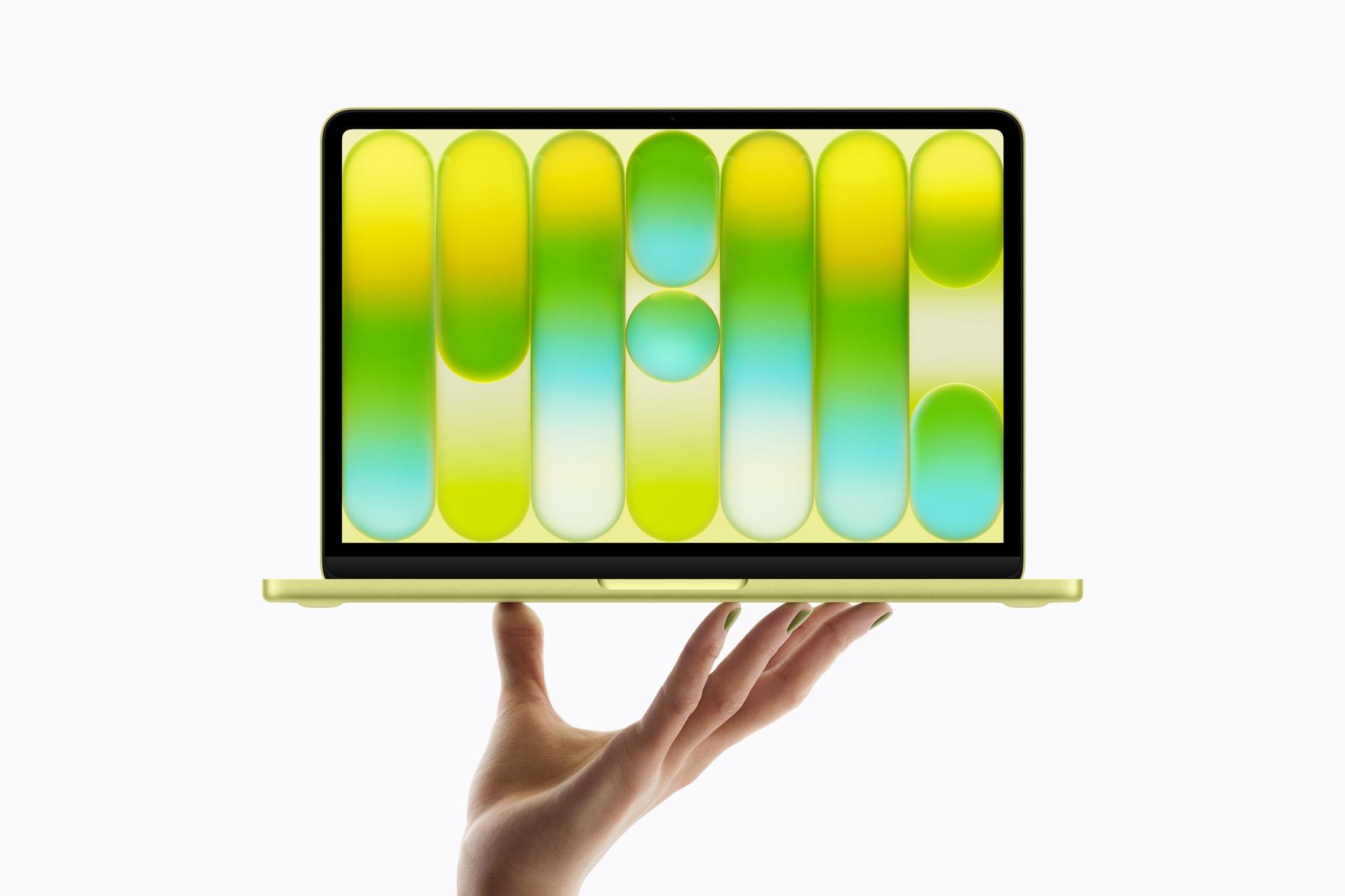
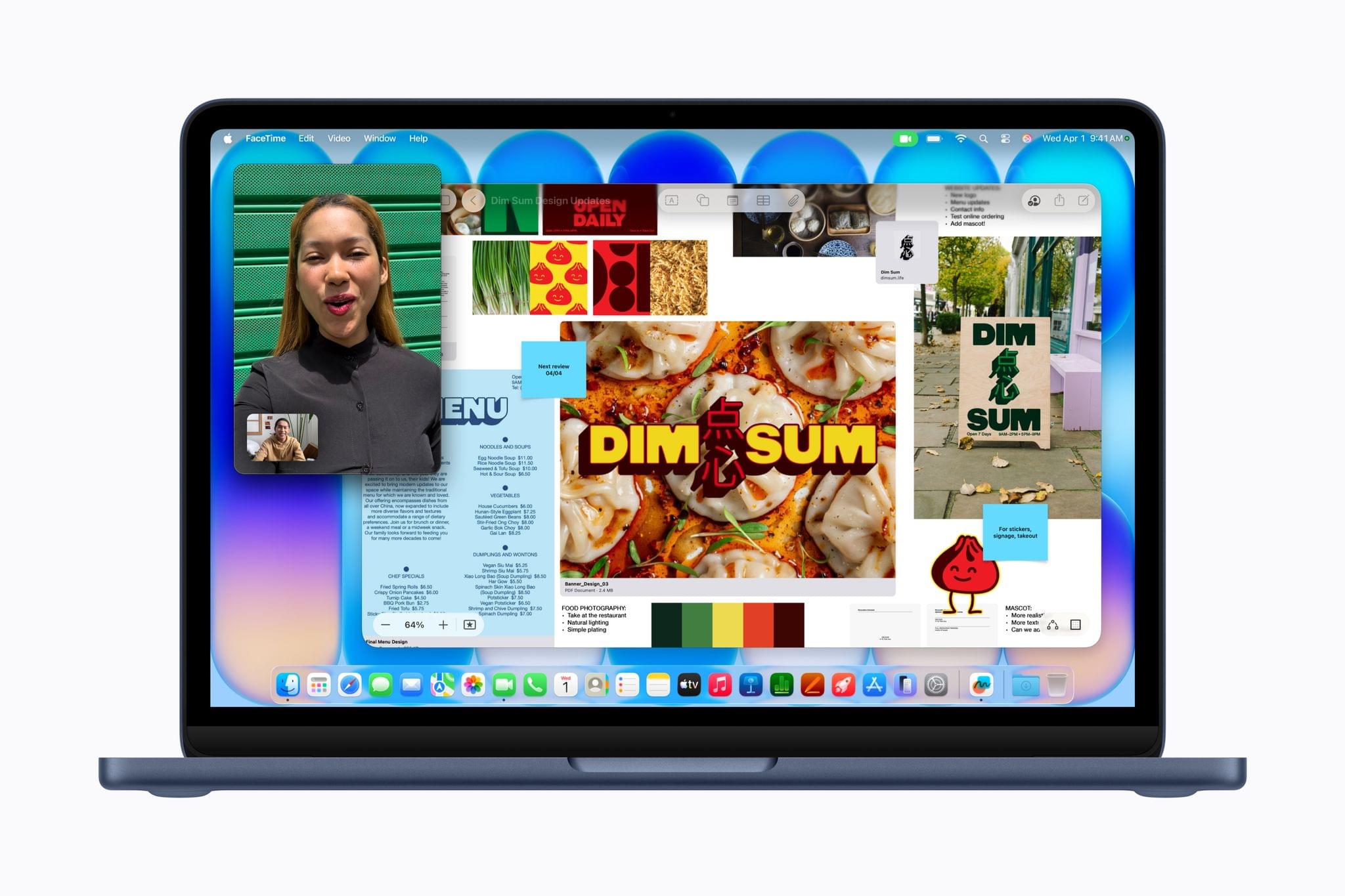
Apple today revealed a brand-new Mac called the MacBook Neo. The new computer has a 13” screen and an A18 Pro chipset, and it starts at $599. Let’s dig into the details.

The fanless Neo comes in silver, indigo, blush, and citrus colors, which extend to the keyboard in lighter shades. The screen is a 2408 × 1506 Liquid Retina display with a modest 500 nits of brightness and an anti-reflective coating. The A18 Pro chip that powers the Neo has six CPU cores, five GPU cores, and a 16-core Neural Engine. As for memory, the only option is 8GB.

Source: Apple.

Source: Apple.

Other features include:

  • a 1080p FaceTime camera
  • dual beamforming microphones
  • side-firing speakers
  • Touch ID in the 512GB model
  • two USB-C ports (one USB-C 3 10Gbps port and the other USB-C 2 (480Mbps)
  • Wi-Fi 6e
  • Bluetooth 6
  • a headphone jack

According to Apple, the Neo can deliver up to 16 hours of battery life, but it does not include MagSafe charging. Apple claims superior performance to Intel Core Ultra 5 PCs but offers no comparisons to any other device in its own product lineup, so further testing will be needed to see how the Neo stacks up to iPads and other Macs.

Source: Apple.

Source: Apple.

In terms of configurations, there are just two options. The first is a MacBook Neo with 256GB of SSD storage and no Touch ID for $599. The other configuration has 512GB of storage and Touch ID and costs $699. Education customers can purchase the Neo for $100 less. The new MacBook Neo can be preordered today. Deliveries and in-store availability begin March 11.


Apple Introduces Two New Studio Displays

Source: Apple.

Source: Apple.

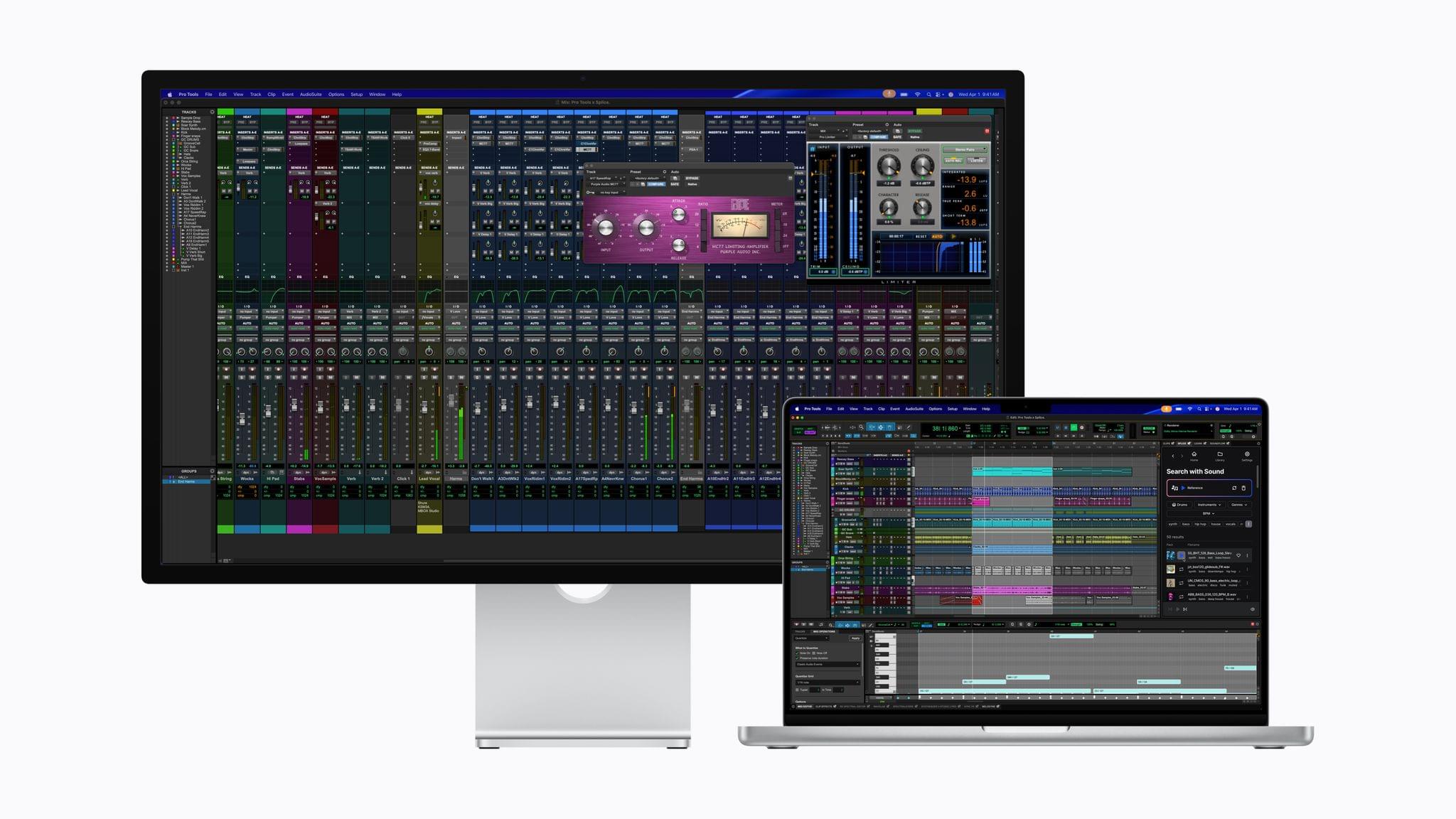
Today, Apple introduced a revision of its Studio Display and the new Studio Display XDR, which replaces the Pro Display XDR in its product lineup. Let’s take a look at the specs.

Both displays are 27 inches diagonally with 5K resolutions. The new Studio Display features P3 wide color, 600 nits of brightness, and 14 million pixels. There’s a 12MP Center Stage camera, a six-speaker surround sound system built in, and an array of three microphones. According to Apple, the speakers’ bass is 30% deeper than before.

The base model Studio Display also includes two Thunderbolt 5 ports and two additional USB-C ports for peripherals and charging at 96W when using a Thunderbolt 5 cable. And if money is no object, you can daisy chain up to four Studio Displays. As in the past, the display is available in both a glossy and a matte, nano-textured finish, and a VESA mount adapter is available.

Source: Apple.

Source: Apple.

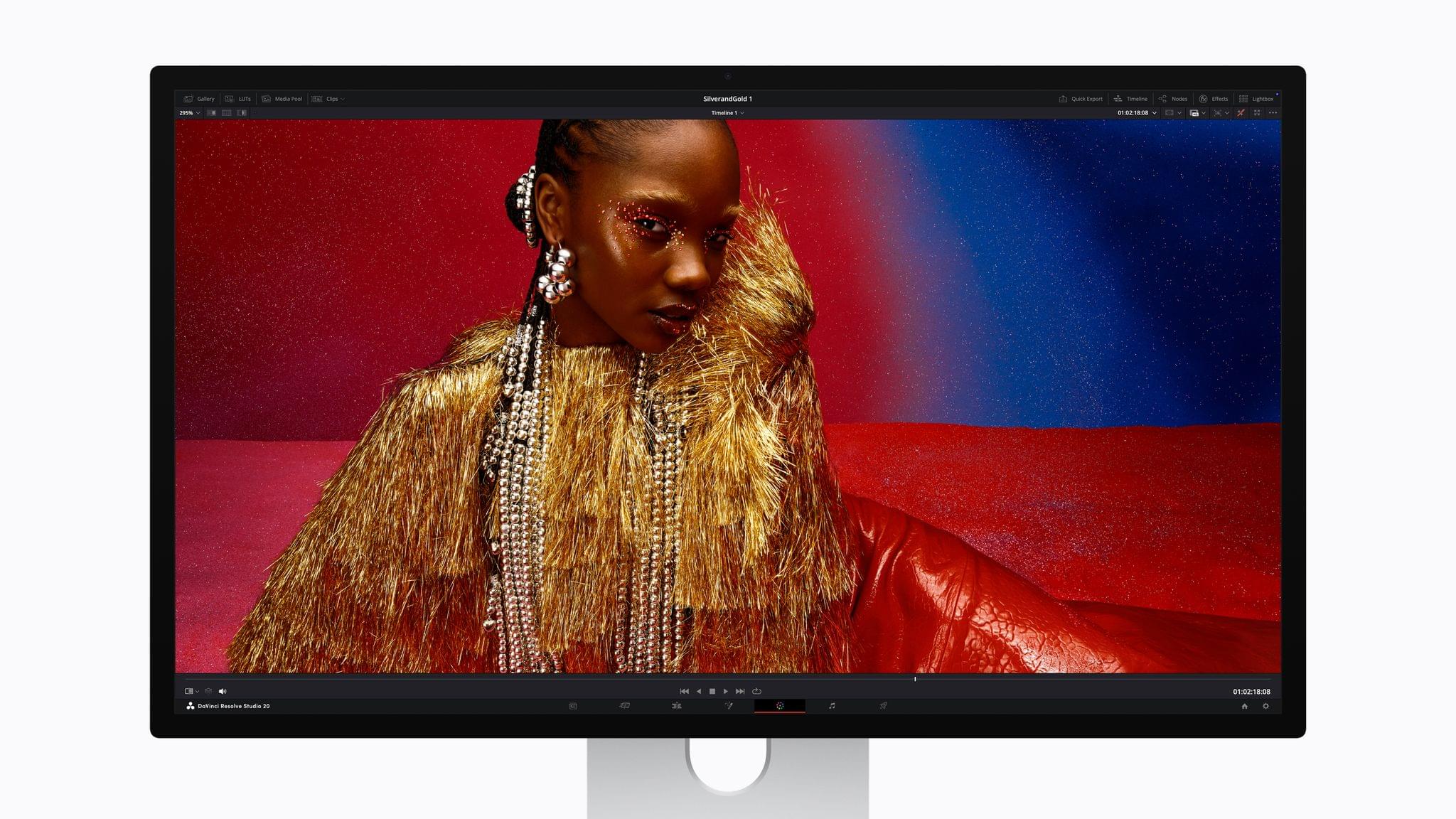
The Studio Display XDR, which replaces the Pro Display XDR, has significantly better specs. Like the Studio Display, it’s a 5K 27” display, but it uses mini-LED for backlighting with over 2,300 local dimming areas, and it can output 1000 nits in SDR and 2000 of peak HDR brightness, which is considerably more than ever before.

The XDR model refreshes adaptively from 47Hz to 120Hz and features P3 wide color, Adobe RGB, and more than 80% Rec. 2020 coverage, and it has a special DICOM medical imaging preset and Medical Imaging Calibrator that is pending FDA clearance. The display can charge a connected device via Thunderbolt 5 at 140W, too, and comes with either a tilt- and height-adjustable stand or a VESA mount. Other specs mirror the base model Studio Display.

Source: Apple.

Source: Apple.

I love the new Studio Display XDR’s specs. However, I wish it were both larger and cheaper. Still, for the price, you are getting a much brighter, more capable, and color-accurate display, so I’m not surprised. This is not a gaming monitor, but the sort of display that video and image professionals need, as is clear from its medical calibration capabilities.

The new displays are available for preorder starting March 4 with delivery and in-store availability beginning March 11. The Studio Display is $1,599, with the XDR model coming in at $3,299 and educational customers paying $100 less on both models.


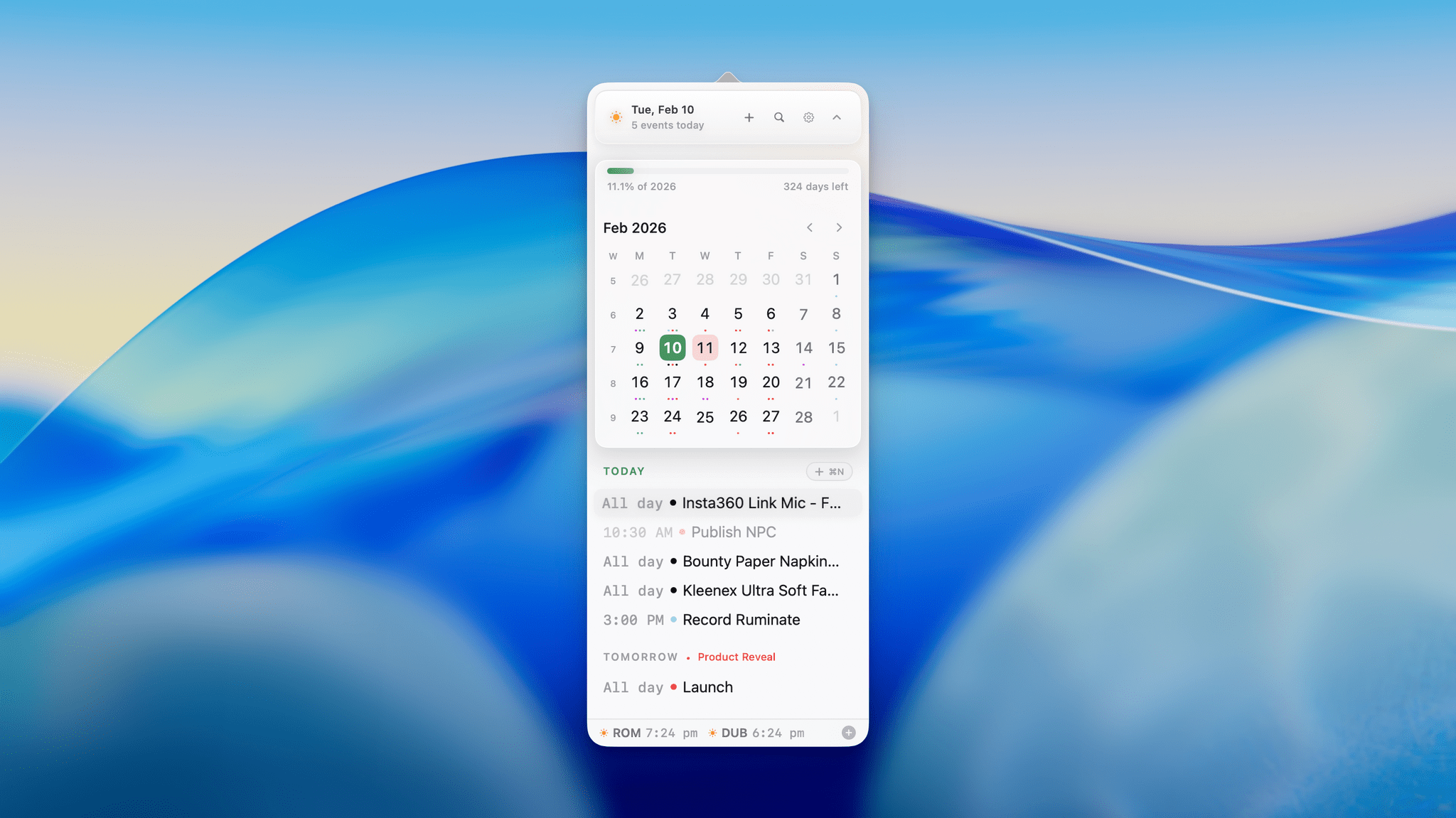
Dot: The Menu Bar Calendar That’s Become My Main Calendar

Over time, I’ve gravitated towards a two-calendar system on my Mac because I’ve never found an app where both the desktop app and the menu bar version meet all my needs. That’s probably because my calendar use is a little backwards. I don’t have a lot of meetings each week; instead, my calendar is a mix of reminders, package deliveries, and a handful of work and family events. With just two or three entries each day, I’ve found myself managing events more and more often from a simple menu bar app, reserving my full calendar app for more involved event entry and planning.

On the desktop side, I’ve used Apple Calendar the most, but I’ve also used Fantastical and BusyCal for extended periods, ultimately landing on Notion Calendar. It isn’t perfect, but its Notion integration can be handy at times. On the menu bar side of the equation, I used Dato for many years. It’s an excellent app, but even it is a little more than I need, which is why I was excited to recently discover Dot.

Read more


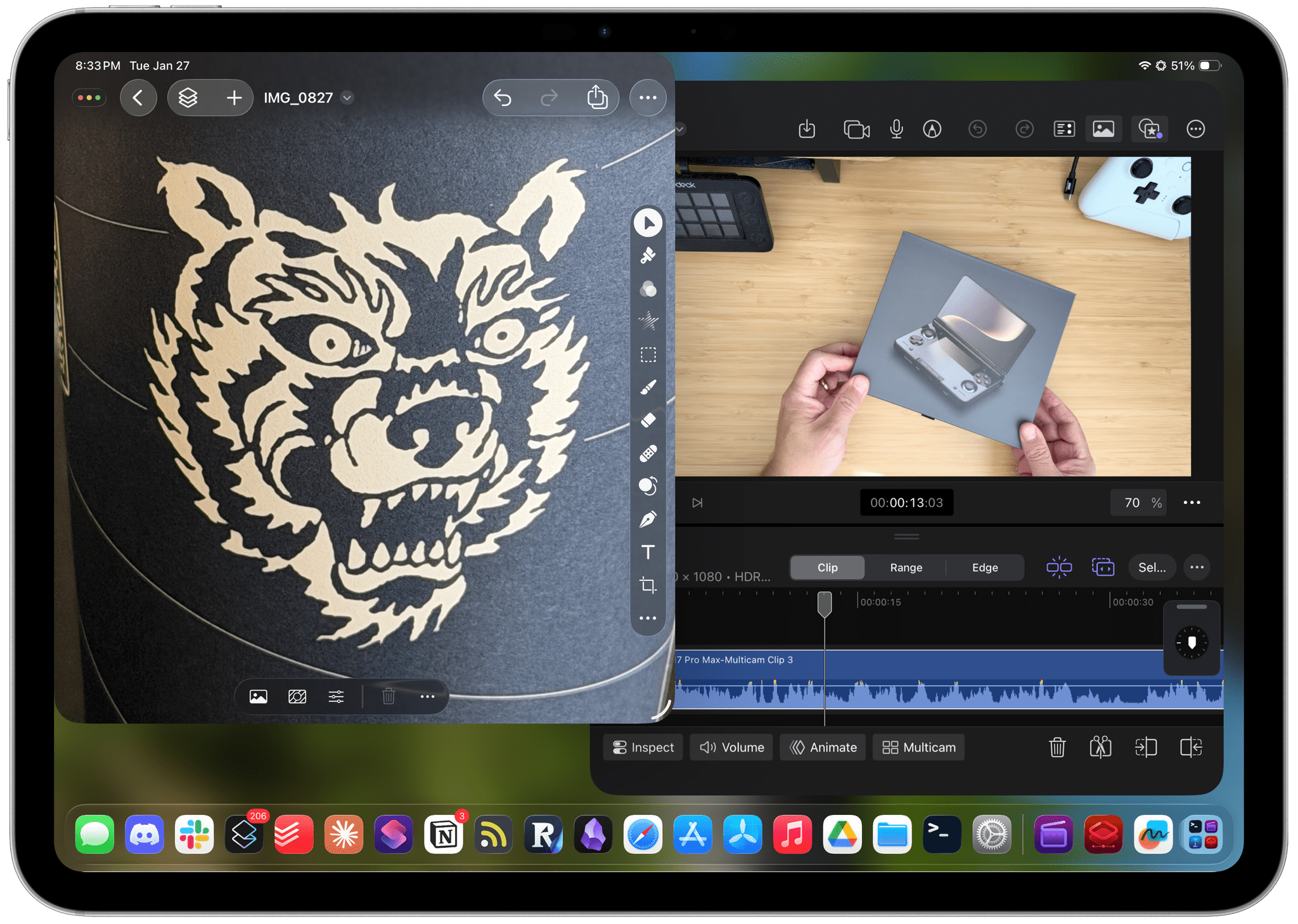
Creator Studio Review: Redefining Pro for the Modern Era

Starting today, Apple is offering a subscription bundle of its creative apps called Creator Studio. Some of what’s included is exclusive to the subscription package, while other parts of it remain available à la carte. It’s a lot to absorb, and I’ll get to all the details in due course.

However, what’s most exciting to me is the fact that Apple is clearly repositioning these apps to appeal to a broader cross-section of creatives. Apps like Final Cut Pro and Logic Pro are no longer just for Hollywood and music studios. By filling out the iPad lineup and adding Pixelmator Pro along with enhanced versions of their productivity apps, Apple has taken the first steps toward realigning its apps with what it means to be a creative professional in 2026.

This transition isn’t the sort of thing that happens overnight, which is why it’s easy to spot the gaps in Creator Studio’s offerings. I ran into a couple of bugs along the way, too. However, by and large, I think the bundle of apps hits the right notes and is heading in the right direction. Let’s take a closer look.

Read more


Why is ChatGPT for Mac So Good?

Great post by Allen Pike on the importance of a great app experience for modern LLMs, which I recently wrote about. He opens with this line, which is a new axiom I’m going to reuse extensively:

A model is only as useful as its applications.

And on ChatGPT for Mac specifically:

The app does a good job of following the platform conventions on Mac. That means buttons, text fields, and menus behave as they do in other Mac apps. While ChatGPT is imperfect on both Mac and web, both platforms have the finish you would expect from a daily-use tool.

[…]

It’s easier to get a polished app with native APIs, but at a certain scale separate apps make it hard to rapidly iterate a complex enterprise product while keeping it in sync on each platform, while also meeting your service and customer obligations. So for a consumer-facing app like ChatGPT or the no-modifier Copilot, it’s easier to go native. For companies that are, at their core, selling to enterprises, you get Electron apps.

I don’t hate Electron as much as others in our community, but I can’t deny that ChatGPT is one of the nicest AI apps for Mac I’ve used. The other is the recently updated BoltAI. And they’re both native Mac apps.

Permalink

Black Friday 2025 App Deals

There’s more than just gadgets on sale this Black Friday. There are also hundreds of excellent app deals from collections and bundles to one-off sales. We’ve gathered some of our favorites for you here, which are generally available through Monday, December 1, but check for details on the websites linked below:

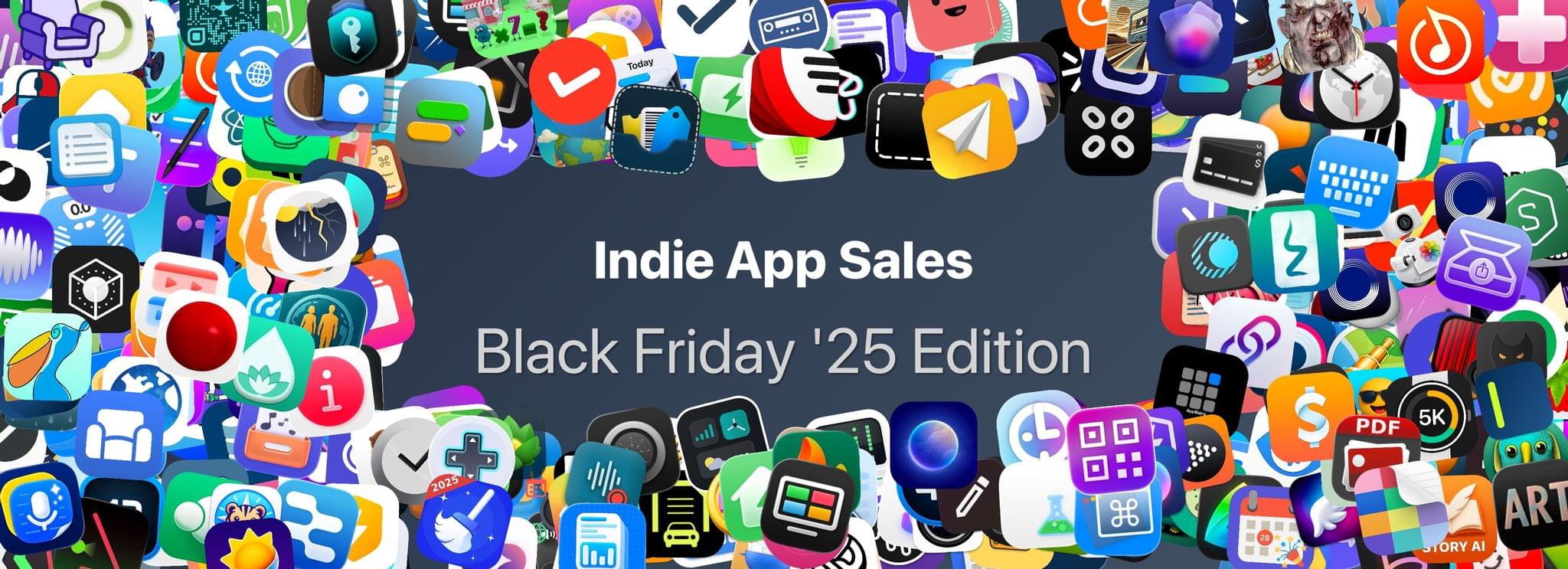
The biggest collection I’ve seen is from Indie App Sales with ouver 475 app deals. Indie App Sales has been curating a list of apps from indie developers for years now, and there are always a bunch of gems on this list. Be sure to check it out for deals on apps like:

There are hundreds more deals in the Indie App Sale, so be sure to visit the site to browse through them all.


There are other great sales happening elsewhere too, including the following:

Happy deal hunting!


Festivitas Brings Fresh Whimsy to Your Mac, iPhone, and iPad for the Holiday Season

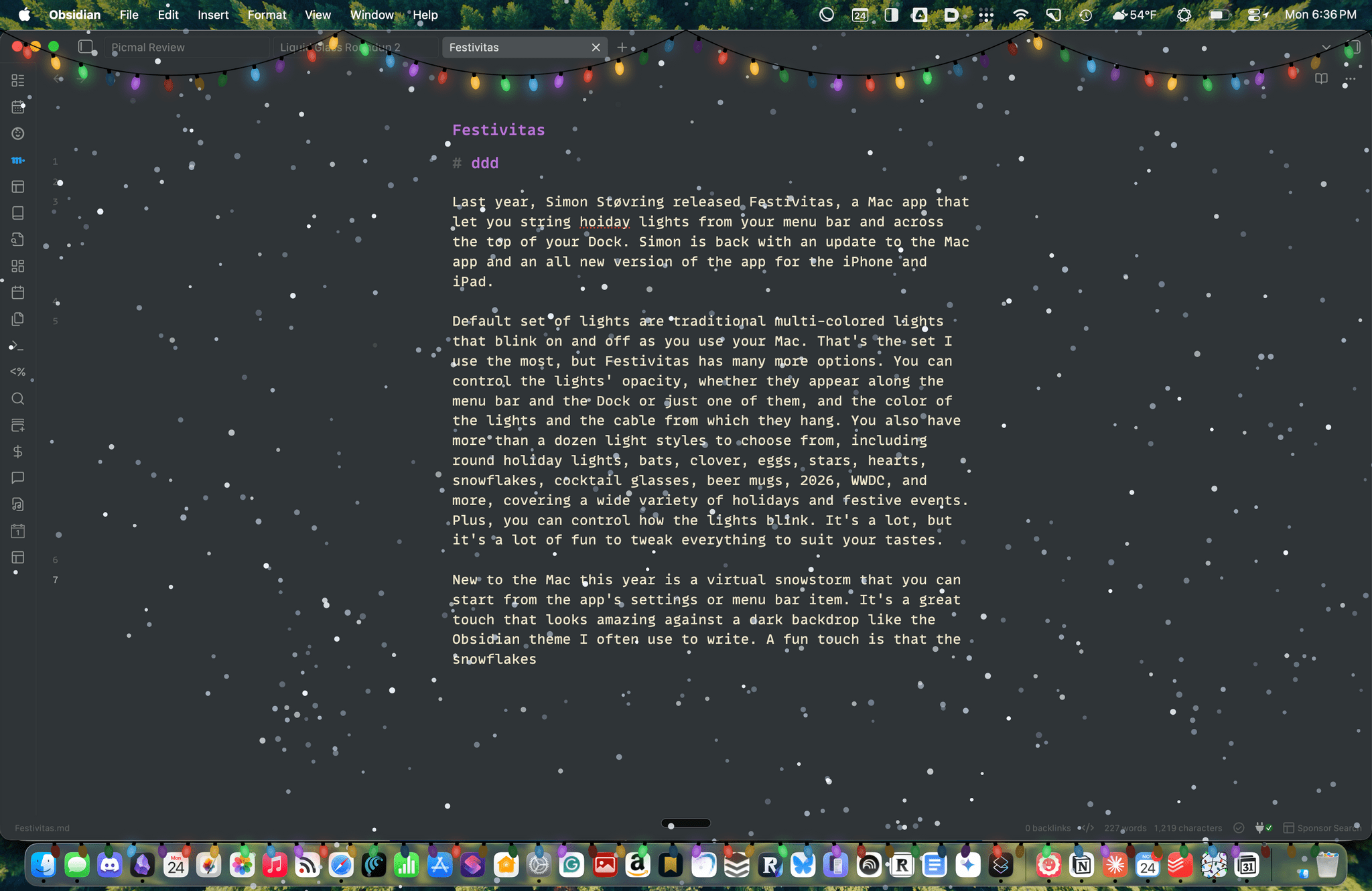
Last year, Simon Støvring released Festivitas, a Mac app that lets you string holiday lights from your menu bar and across the top of your Dock. This year, Simon is back with an update to the Mac app and a new version for the iPhone and iPad.

The default set of lights consists of traditional multi-colored bulbs that blink on and off as you use your Mac. That’s the set I use the most, but Festivitas offers many more options. You can control the lights’ opacity, whether they appear along both the menu bar and the Dock or just one of them, and the colors of the lights and the cable from which they hang. You also have more than a dozen light styles to choose from, including round holiday lights, bats, clovers, eggs, stars, hearts, snowflakes, cocktail glasses, beer mugs, “2026,” “WWDC,” and more, covering a wide variety of holidays and festive events. Plus, you can control how the lights blink. It’s a lot, but it’s also just plain fun to tweak everything to suit your tastes.

This year, the Mac app adds a virtual snowstorm that you can start from the app’s settings or menu bar item. It’s a great addition that looks amazing against a dark backdrop like the Obsidian theme I often use to write. A fun touch is that the snowflakes avoid your pointer, and you can adjust the sensitivity of this feature in settings. You can also use your pointer to push around the lights hanging from the menu bar, which is handy for those times when they obscure Safari’s menu bar or other content.

The snow is lovely. I highly recommend pairing it with the Animal Crossing Snowy Day soundtrack on Nintendo Music. It’s an incredibly peaceful and relaxing combination.

Festivitas supports Shortcuts, too. Simon has created some fun example automations that you’ll find in the app’s settings to do things like turning on the snowstorm when snow is forecast and activating your lights when you play music.

Festivitas on iPhone.

Festivitas on iPhone.

New this year is a Festivitas app for the iPhone and iPad. The app lets you build small, medium, and large widgets to place on your Home Screen. You can either frame a photo with twinkling lights or create a transparent-style widget so the lights frame an element of your Home Screen. I love that the lights framing the photos are animated, an effect I know isn’t easy to do with a widget. You can also add text and make other adjustments to each widget.


Festivitas isn’t going to help you get more done. In fact, it might even slow you down a little bit, and maybe that’s the point. Taking a moment to enjoy the app’s lights and be mesmerized by the falling snow is a good reminder to slow down a little and have some fun.

Festivitas for the Mac is available directly from the app’s website for any price you want to name between $3.99 and $9.99. The iPhone and iPad version is a free download on the App Store with a range of in-app purchases from $3.99 to $9.99 to create a similar name-your-price system.


Our Top Amazon Early Black Friday Picks

If you haven’t noticed, it’s not Friday, and Thanksgiving is still a week away. Yet here we are, talking about Black Friday deals. That’s because every year, Amazon pushes the start of its deals a little earlier.

This is far from the first article you’ll come across about Black Friday deals, and it won’t be the last. But what’s different about our approach to Black Friday is that we’re pickier than most sites.

When I sat down to consider Amazon’s Black Friday deals, I looked at a long list of factors, including:

  • whether we’ve reviewed and recommended a product on MacStories,
  • the percentage of the discount,
  • the absolute dollar amount of the discount (which we can’t list due to Amazon rules),
  • whether each deal beats past deals,
  • and a bunch of other factors.

What we’ve come up with is a list of a couple dozen excellent deals that will save you loads of money on everything from great holiday gifts to nerd staples like storage, networking gear, and upgrades to your computing setup.

Every time I write one of these roundups, I inevitably run across even more great deals after the story has been published. So in addition to this story, we’ll be posting deals on the MacStories Deals Mastodon and Bluesky accounts.

Club MacStories Plus and Premier members will be sharing their Black Friday deal finds on Discord too. If you’re not a member, you can sign up here. The Discord server is just one of the many perks of joining the Club.

Finally, please note that the Amazon links in this article are affiliate links. If you follow one of our links and buy something, we make a small commission.

Storage

Some of Amazon's best deals are on storage.

Some of Amazon’s best deals are on storage.

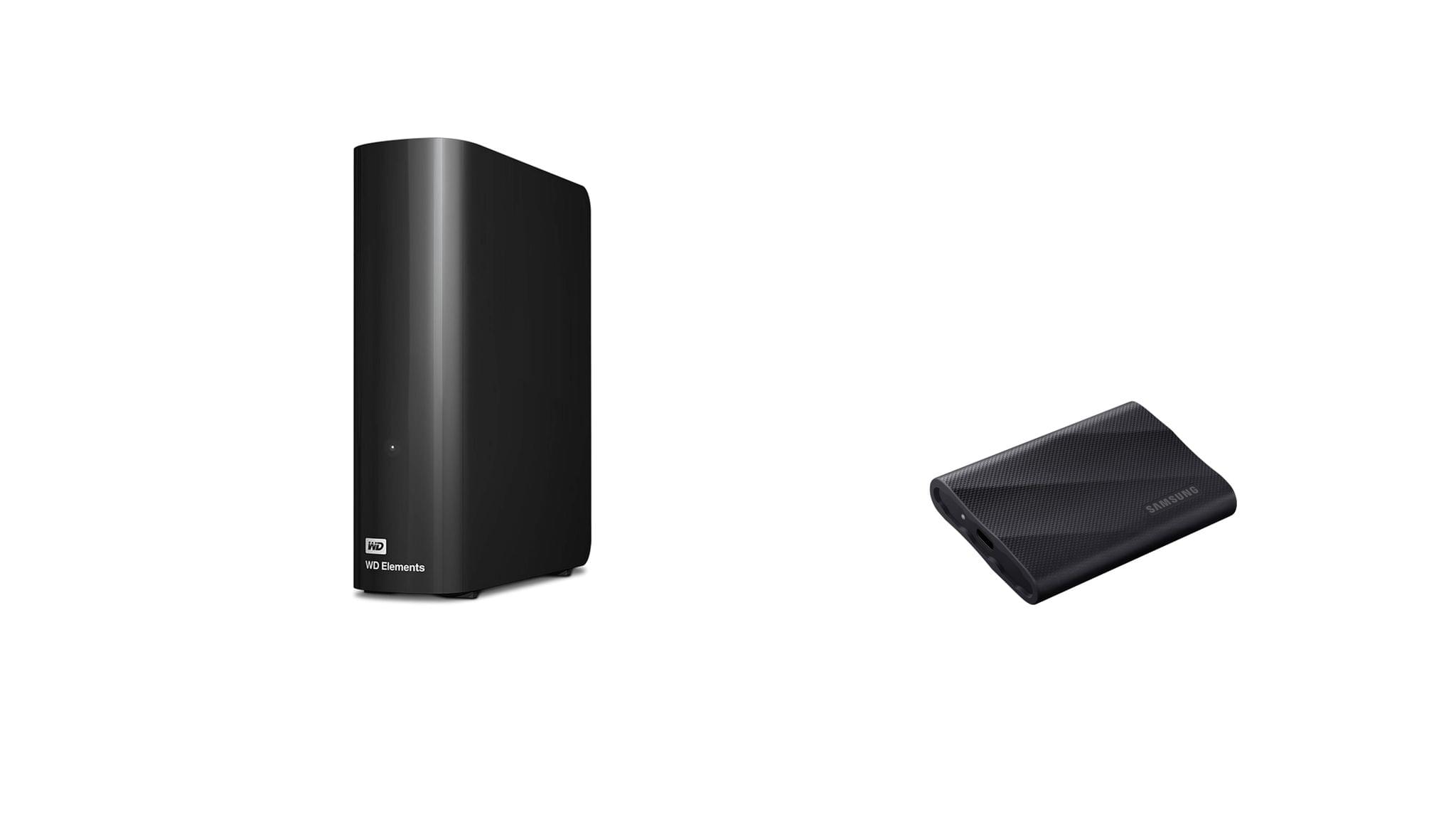
Storage is a staple of Black Friday, with excellent deals on hard drives and SSDs of all shapes and sizes. This year is no different. Whether your Mac’s drive is filling up and you need to offload some large files or you’re looking for a backup solution, now is the time to pull the trigger and get more storage.

I mention Samsung portable SSDs a lot on MacStories and the MacStories Deals accounts because I’ve used them for years and they’re reliable. Samsung’s fastest model – the T9 – is my favorite because it uses USB-C 3.2 Gen 2x2, making it equally good for quick backups and working on large files externally.

Currently, both the 4TB Samsung T9 SSD and the 2TB model are on sale on Amazon, with the biggest discount on the 4TB model. You can save a little more with SanDisk’s 2TB external drive, but it runs at half the speed of the Samsung T9, so I recommend the T9. However, if you want to go really big with an SSD, SanDisk has Samsung beat with an 8TB model that, while expensive and half the speed of a Samsung T9, will be far faster than a mechanical hard drive for backing up a Mac with lots of internal storage. Samsung sadly does not offer an 8TB T9 drive.

SSDs are great, but even on sale, they’re more expensive than mechanical hard drives. If you don’t need the fastest speeds and can tuck your hard drive away somewhere the heat and noise won’t bother you, Amazon has a great deal on a 14TB Western Digital Elements hard drive. I’ve used Elements drives a lot over the past several years for archiving big projects and Time Machine backups, and I’ve been very happy with their performance. If you need a big drive, now is the time to pick one of these up; they’ve never been cheaper.

Smart Home

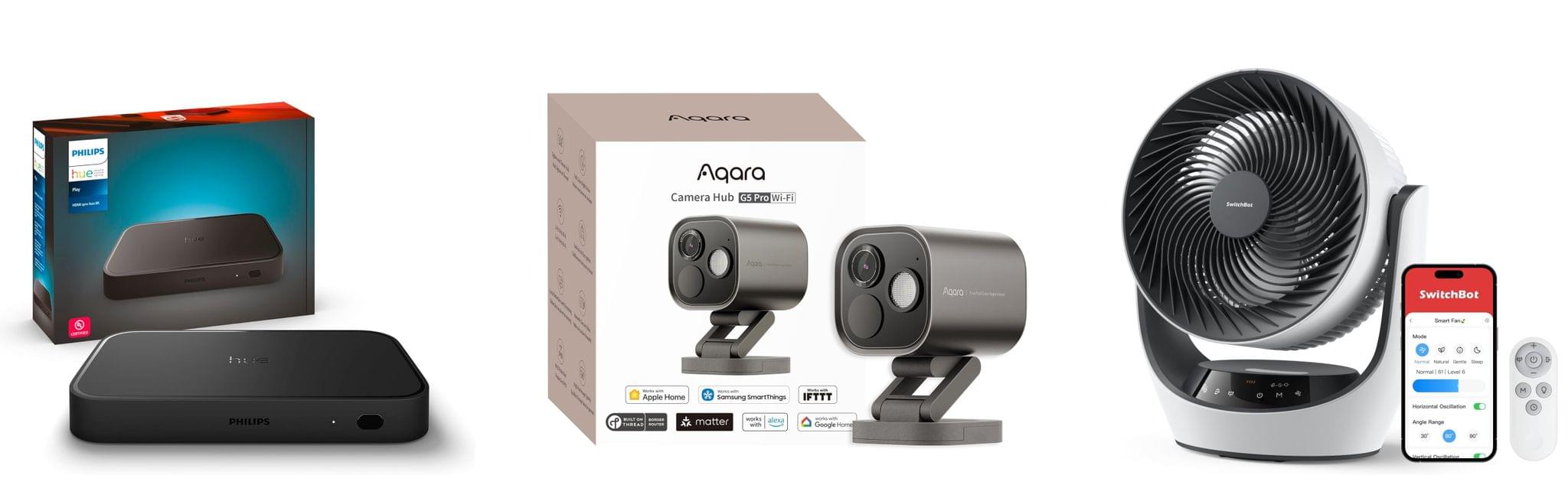
For starters, the Aqara 4MP Camera Hub G5 Pro is deeply discounted for Black Friday. I reviewed this outdoor HomeKit-compatible camera earlier this year and love it. From the feedback I’ve heard, MacStories readers seem to love the camera, too.

I also reviewed the Philips Hue Play HDMI Sync Box 8K this summer. Paired with Philips Hue lights, it’s remarkably capable, syncing the colors of your lights to whatever is on your TV. While it’s not a smart home essential, it is a lot of fun, and if you need a little push to pull the trigger on this sort of gadget, this discount is a great excuse.

On the more practical end of the spectrum, Philips Hue is also offering a great deal on its Go Smart Portable Table Lamp, which works plugged in or via its built-in battery. I’ve had my eye on this lamp for a while because it’s very portable and would add nice accent lighting when I’m working on my balcony in the evening or anywhere else with less-than-ideal lighting.

Finally, as I mentioned on the Setups video that Federico and I recently released, I love my new SwitchBot Smart Desk Fan. It oscillates left and right as well as up and down, and it has nine speed settings. Best of all, I can control it from the buttons on the front of the device, using the included remote control, or with Shortcuts because it works with HomeKit.

Read more


Picmal Streamlines Batch Conversion and Compression on the Mac

One of my favorite aspects of macOS is the endless supply of great utilities for doing anything you can imagine. If there’s something you want to do on your Mac, the chances are that there isn’t just one good utility to accomplish your task; there are several.

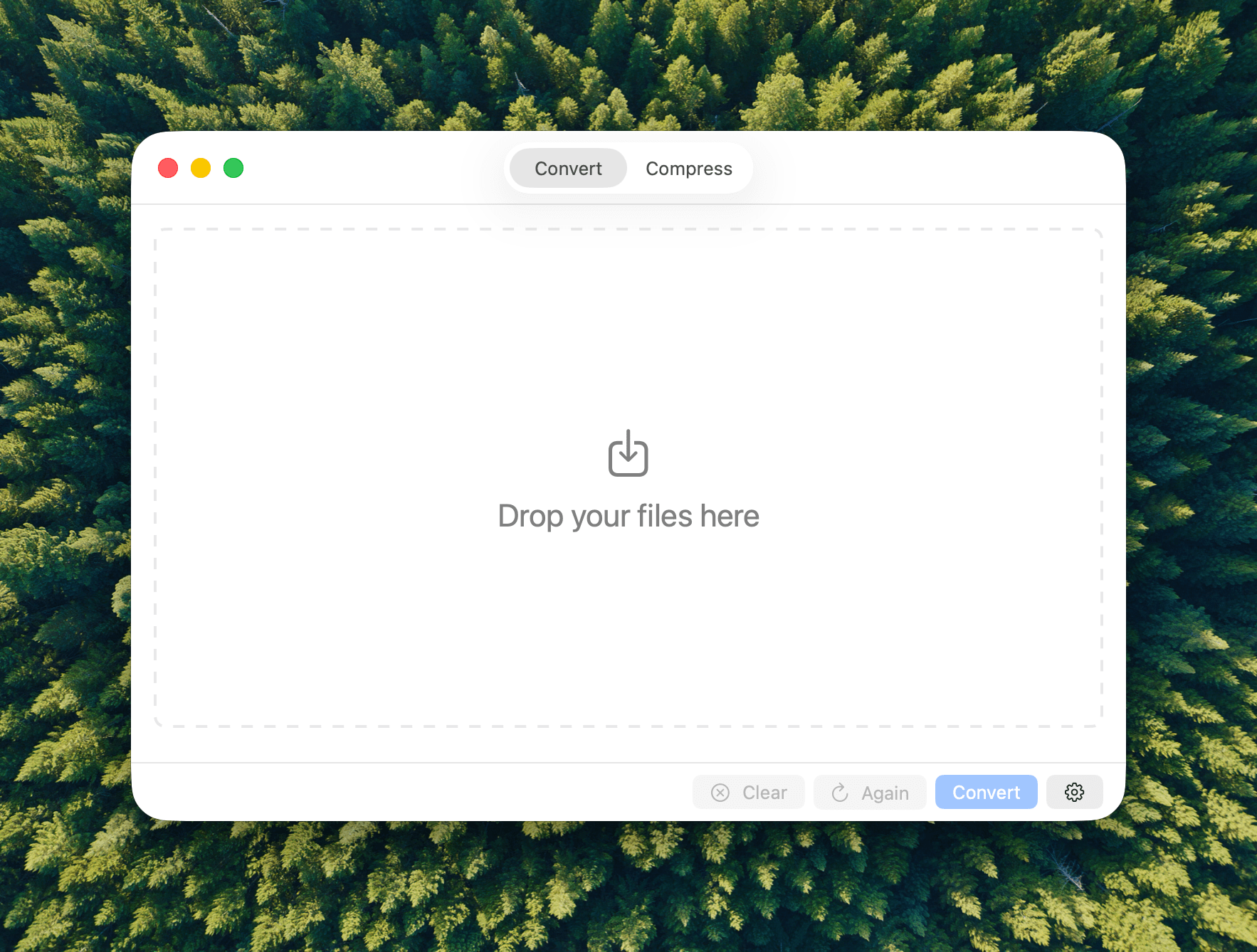
My latest discovery is a file conversion and compression app called Picmal. The app has a wonderfully simple, modern interface that sits on top of a lot of complexity, enabling batch conversion and compression with minimal effort.

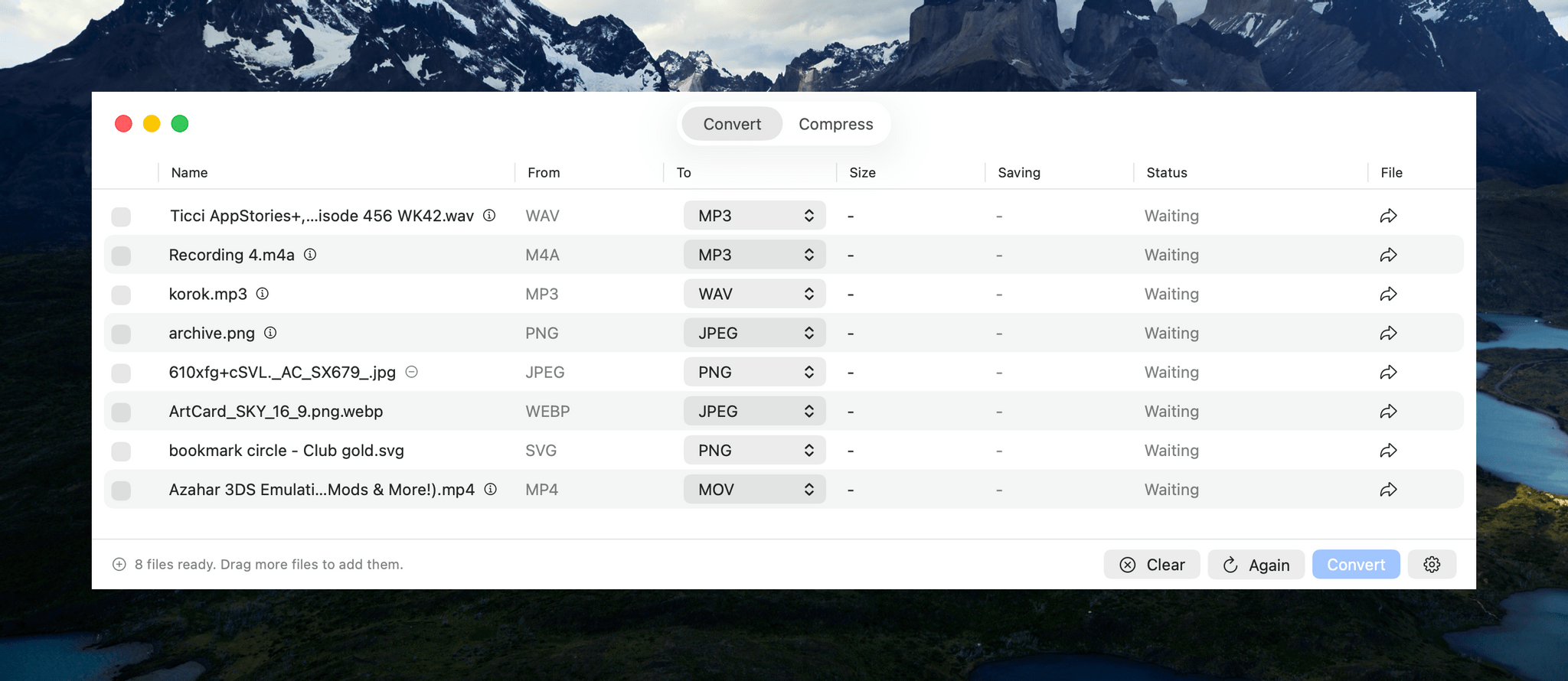
You can mix and match file types in one conversion or compression operation.

You can mix and match file types in one conversion or compression operation.

Picmal handles images, videos, and audio files in a single-window utility that features a Convert/Compress toggle at the top and a lot of empty space to start. The center of the window invites users to “Drop Your Files Here.” Once you do, the window animates into something a little closer to a Finder window with alternating white and light gray rows that make it simple to track metadata about each file.

Files can be dragged into Picmal from anywhere on your Mac, allowing for batch processing without moving your files to one location first, which I appreciate. Once converted, files are saved as new files in the folder they came from with a prefix or suffix that you can specify in the app’s Settings. You’re not limited by file type either. You can drag any combination of images, videos, and audio files into Picmal’s window, picking and choosing what to convert them into as you go.

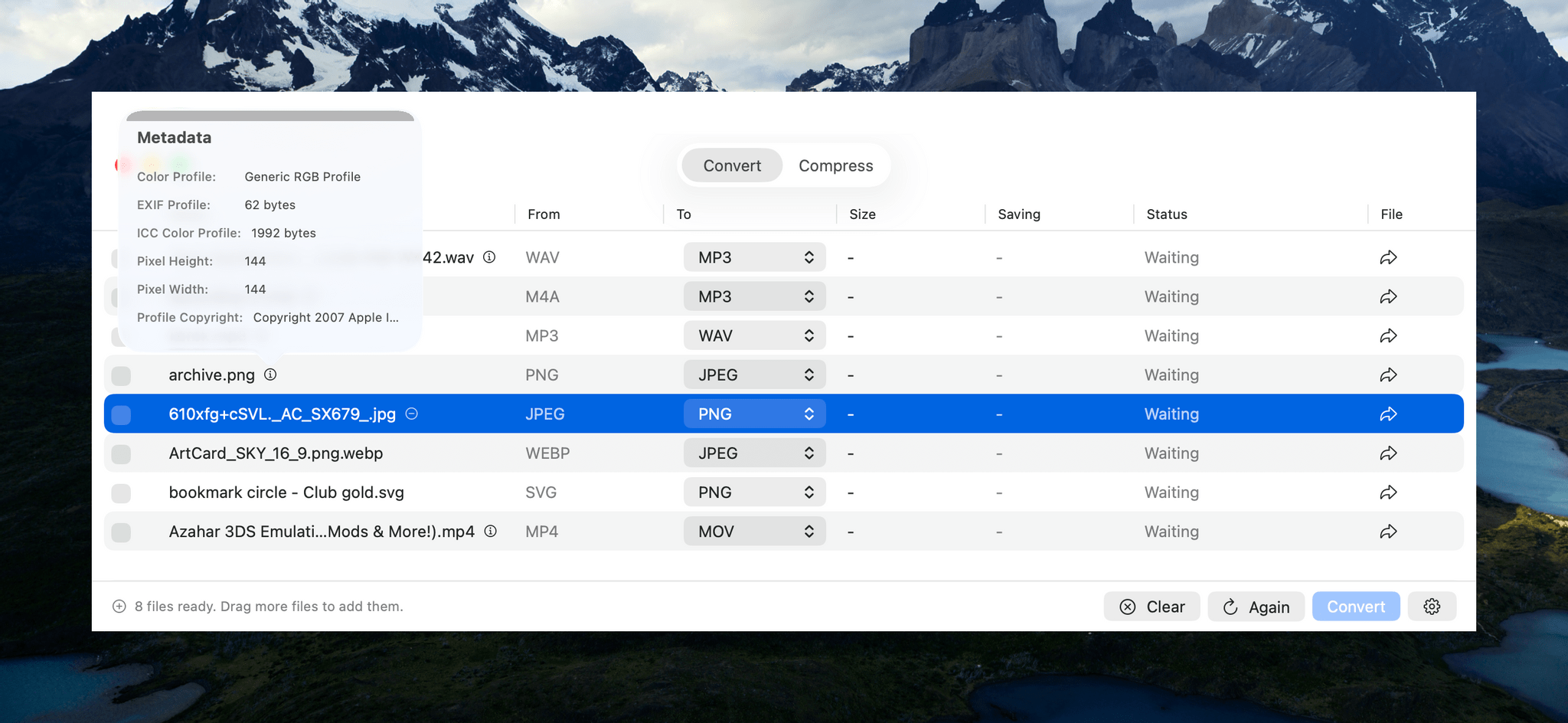
For some file types, Picmal includes metadata.

For some file types, Picmal includes metadata.

Next to some file types is a small info button that reports the sort of basic file metadata you find in the Finder’s info panel. That’s followed by a column that lists the file’s starting type, and a column with a dropdown menu for picking the destination file type. The list of supported file types is long, too, with the exact number of options dependent on the type you begin with.

If you want to check the file you’re about to convert before doing so, there’s also an arrow button on the far right of each file’s row that will take you to it in the Finder. The other columns report the output file’s size, any compression savings, and the status of each conversion. Whenever you want, you can add more files for conversion, kicking off a new batch once any ongoing conversions complete.

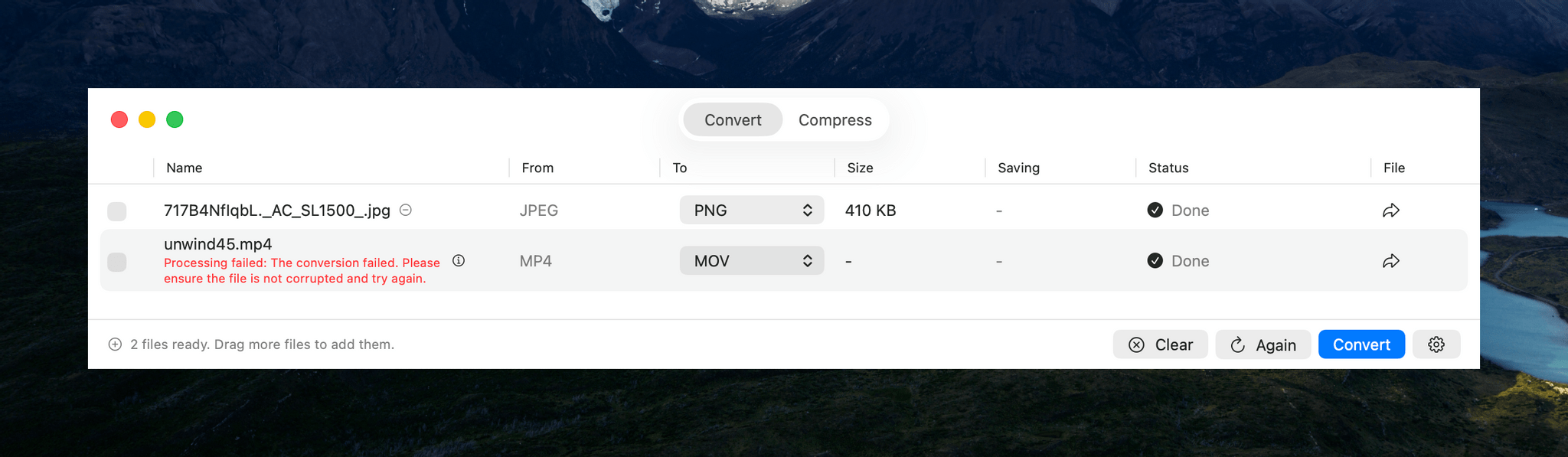
Most file conversions I tried went well, but I couldn't manage to convert large MP4s to the MOV format.

Most file conversions I tried went well, but I couldn’t manage to convert large MP4s to the MOV format.

In my testing, Picmal performed well overall. I converted images, audio, and videos to and from a variety of common formats such as PNG, JPEG, PDF, MP3, AAC, WAV, MP4, and MOV. However, I did run into trouble trying to convert a 1.55 GB MP4 of an episode of MacStories Unwind from MP4 to MOV. The conversion failed, even though much smaller files worked. Hopefully this is something that can be fixed in an upcoming update.

Another smaller issue I ran into is that there’s a checkbox next to each file in the Picmal file conversion interface that appears to be intended as a way to change the conversion file type for multiple files at once. However, the dropdown that appears when selecting multiple files of the same type didn’t give me an option to pick a new conversion type. The developer is aware of this and the large video file issue and is working to resolve both.

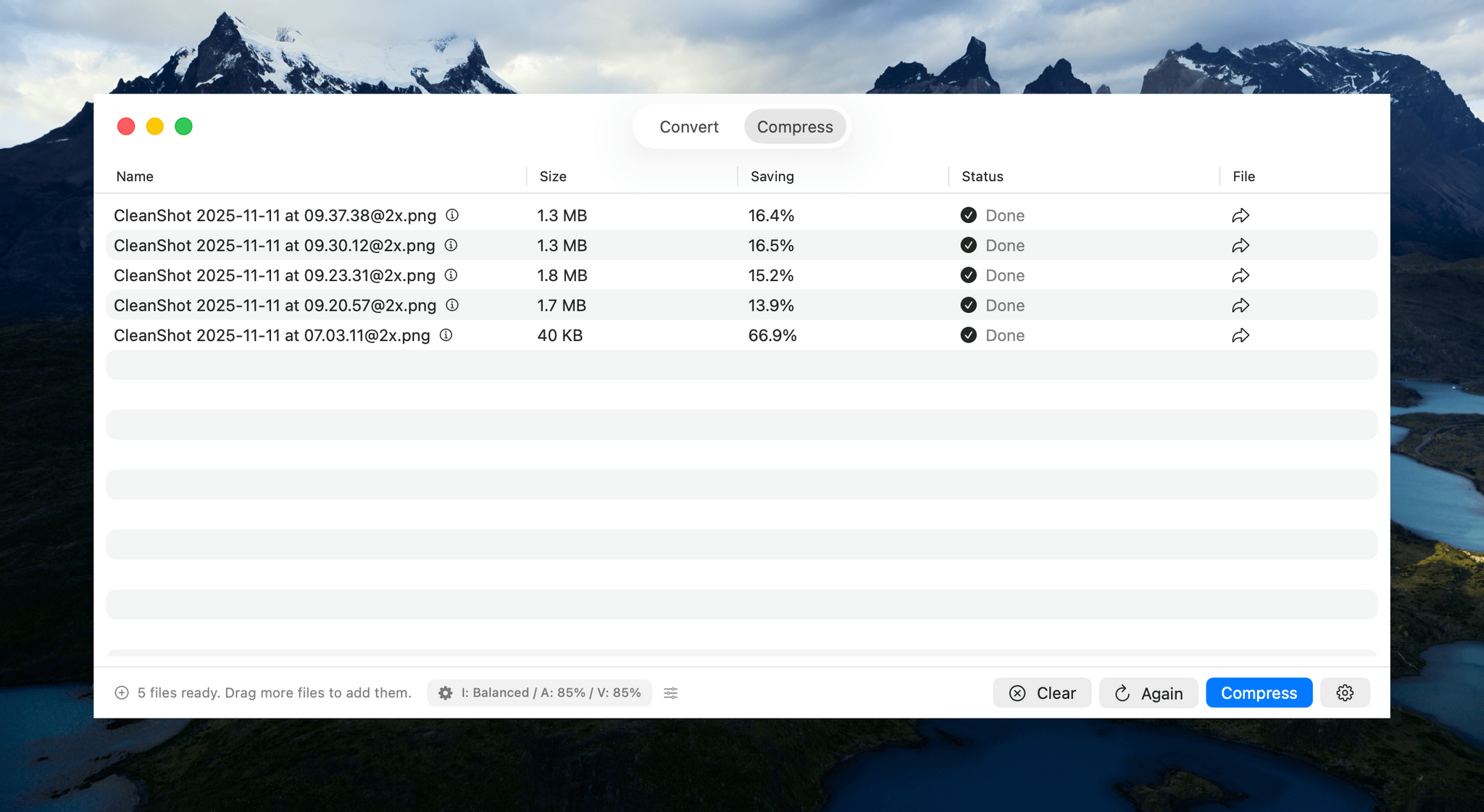
The other primary use for Picmal is file compression. The workflow is largely the same as converting files, with the size savings reported in a dedicated window column. By default, compressing files requires you to click on Picmal’s Compress button, but you can change the process so that it happens automatically instead. From Settings, you can also add compression to your file conversions, completing both steps together.

Compressing images.

Compressing images.

Audio and video compression quality are set to 85% by default, while image compression quality is set to ‘balanced.’ However, in each case, you can tweak the compression settings with more fine-grained controls. Another nice touch is that your compression selections and a link to Picmal’s Settings are both accessible from the bottom of the Picmal window, making your compression choices clear and simplifying the process of making any adjustments.


Aside from a couple of hiccups in my testing that the developer will likely have fixed soon, my experience with Picmal has been great. About the only thing I’d love to see added is support for Shortcuts. Otherwise, Picmal is an excellent way to manage file conversion and compression jobs of any size. There are other apps that accomplish something similar, but the simplicity and speed with which you can manage batch conversion and compression with Picmal sets it apart and makes it worth checking out.

Picmal is available directly from its developer for $9.99. That gets you the use of the app on one Mac at a time, which can be expanded to more Macs at an increasing per-Mac discount based on the number of licenses you purchase.