Posts tagged with "mac"

Claude Adds Screenshot and Voice Shortcuts to Its Mac App

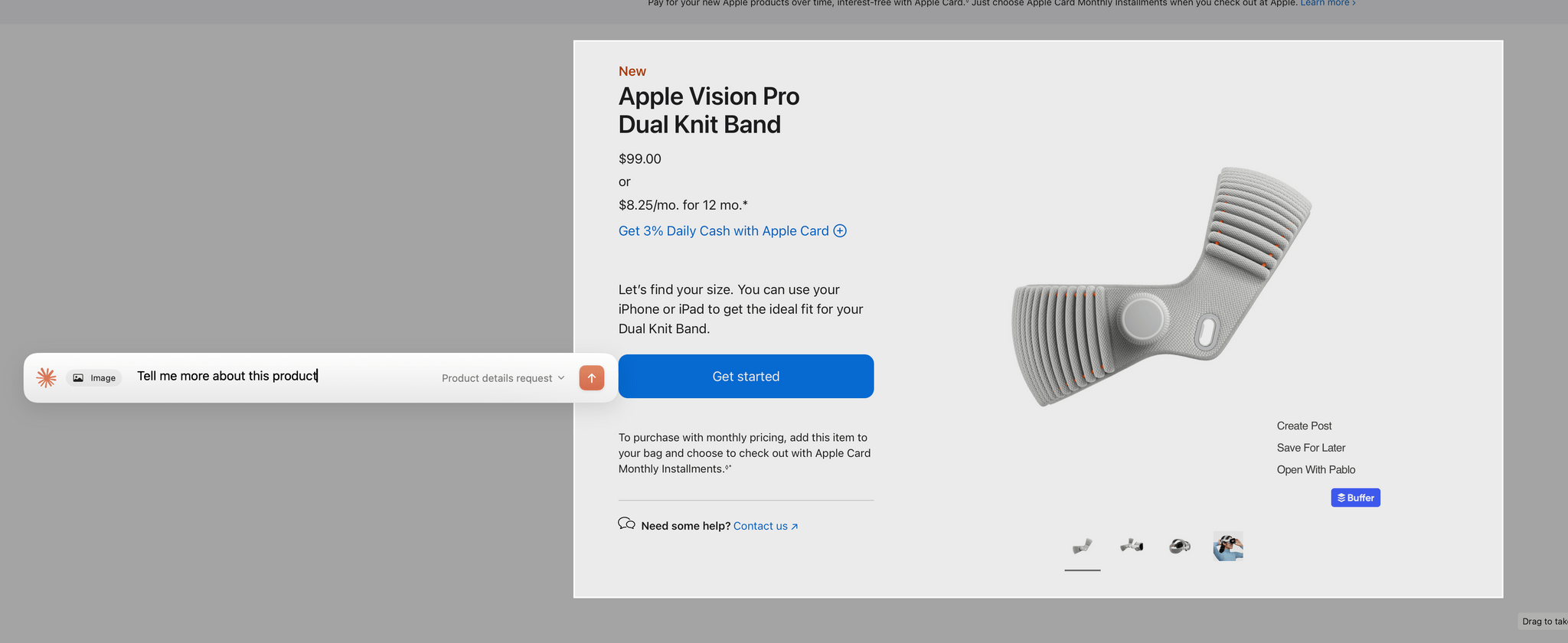
Claude's new in-context screenshot tool.

Claude’s new in-context screenshot tool.

Anthropic introduced a couple of new features in its Claude Mac app today that lower the friction of working with the chatbot.

First, after giving screenshot and accessibility permissions to Claude, you can double tap the Option button to activate the app’s chat field as an overlay at the bottom of your screen. The shortcut simultaneously triggers crosshairs for dragging out a rectangle on your Mac’s screen. Once you do, the app takes a screenshot and the chat field moves to the side of the area you selected with the screenshot attached. Type your query, and it and the screenshot are sent together to Claude, switching you to Claude and kicking off your request automatically.

Instead of double-tapping the Option key, you can also set the keyboard shortcut to Option + Space, or a custom key combination. That’s nice because not all automation systems support two modifier keys as a shortcut. For example, Logitech’s Creative Console cannot record a double tap of the Option button as a shortcut.
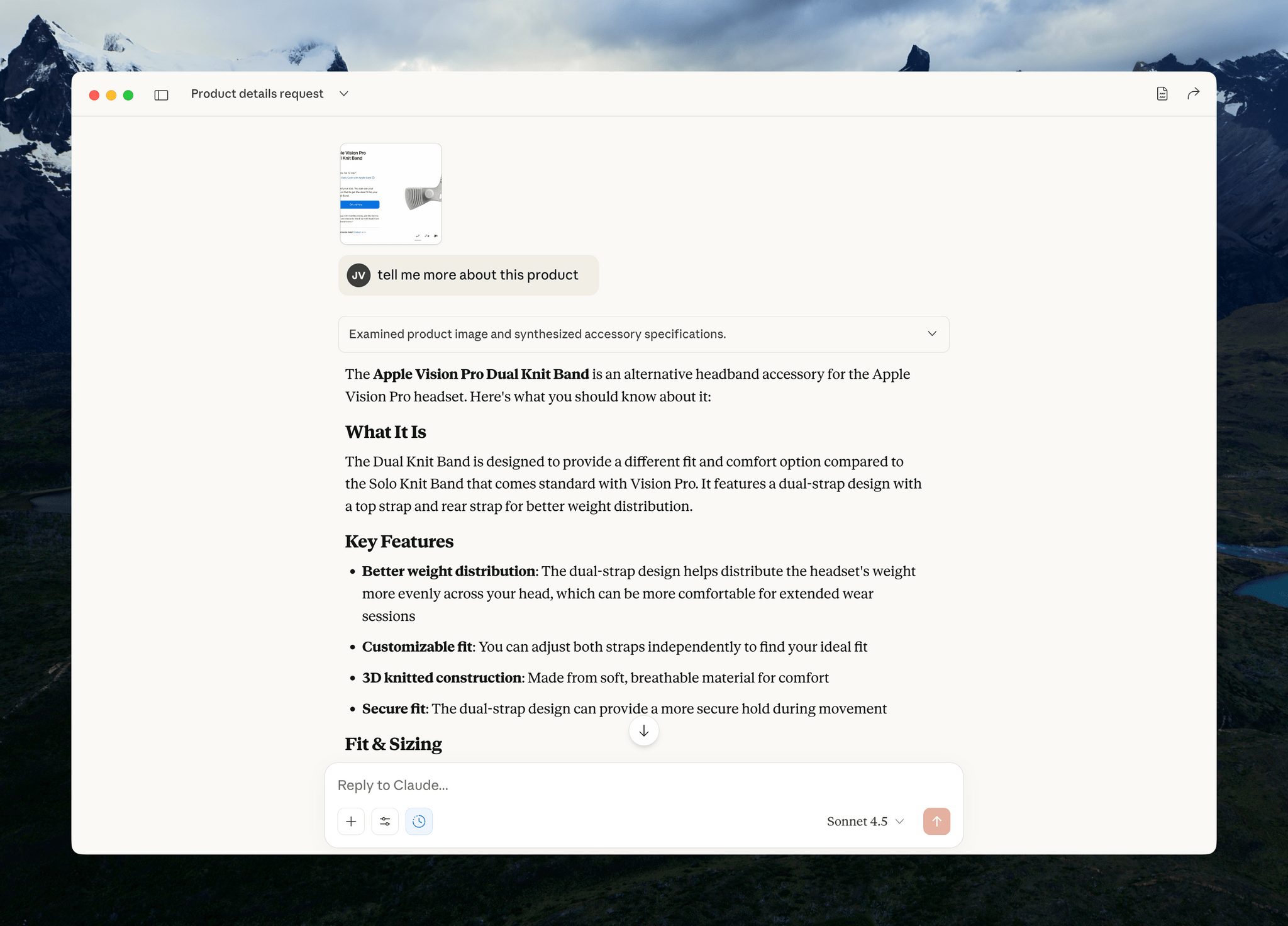
Sending your query and screenshot takes you back to the Claude app for your response.

Sending your query and screenshot takes you back to the Claude app for your response.

I send a lot of screenshots to Claude, especially when I’m debugging scripts. This new shortcut will greatly accelerate that process simply by switching me back to Claude for my answer. It’s a small thing, but I expect it will add up over time.

My only complaint is that the experience has been inconsistent across my Macs. On my M1 Max Mac Studio with 64GB of memory, it takes 3-5 seconds for Claude to attach the screenshot to its chat field whereas on the M4 Max MacBook Pro I’ve been testing, the process is almost instant. The MacBook Pro is a much faster Mac than my Mac Studio, but I was surprised at the difference since it occurs at the screenshot phase of the interaction. My guess is that another app or system process is interfering with Claude.
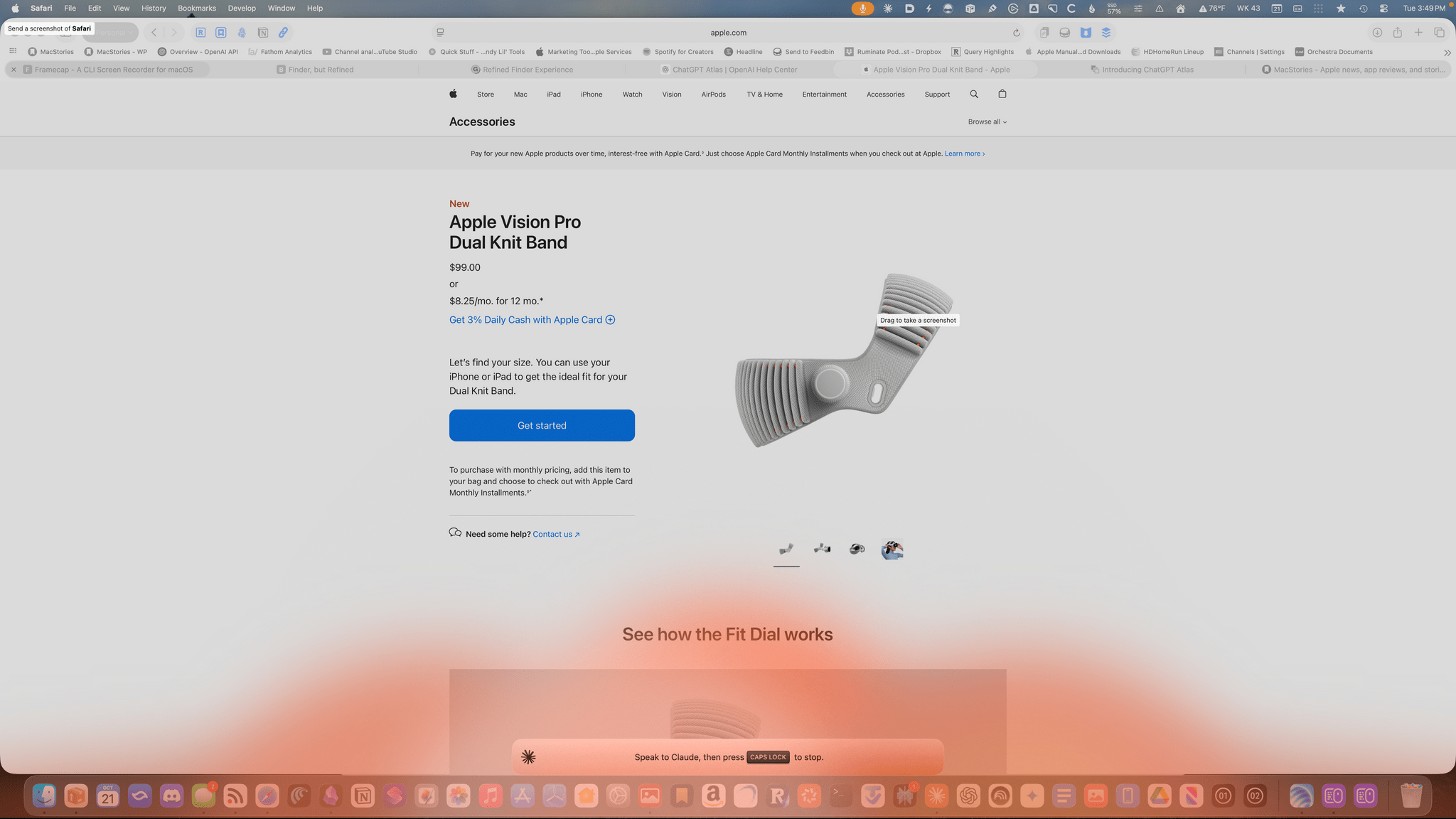
Am I talking to the Claude chatbot or lighting my Dock on fire.

Am I talking to the Claude chatbot or lighting my Dock on fire.

The other new feature of Claude is that you can set the Caps Lock button to trigger voice input. Once you trigger voice input, an orange cloud appears at the bottom of your screen indicating that your microphone is active. The visual is a little over-the-top, but the feature is handy. Tap the Caps Lock button again to finish the recording, which is then transcribed into a Claude chat field at the bottom of your screen. Just hit return to upload your query, and you’re switched back to the Claude app for a response.

One of the greatest strengths of modern AI chatbots is their multi-modality. What Anthropic has done with these new Claude features is made two of those modes – images and audio – a little bit easier, which gets you from input to a response a little faster, which I appreciate. I highly recommend giving both features a try.


Remess Visualizes Your Life in Texts

Text messages are a chronicle of our lives. But by the same token, those conversations remain locked away in Messages. The app’s search has improved with macOS Tahoe, which I appreciate, but finding past snippets of a chat log doesn’t allow you to understand the full arc of conversations across your entire family and friend group.

That’s where Remess by Fahmi Omer comes in. It’s a Mac app that accesses your Messages and Contacts databases locally to paint a picture of your life in text messages.

To run Remess, which is an open source project that you can inspect on GitHub, you need to run a Terminal command that bypasses Apple’s Gatekeeper protection and give it both full disk access and access to your contacts. The developer says the app only accesses your information locally, but there’s an element of trust there that’s worth considering before you take the plunge. That said, if you go for it like I did, Remess is a lot of fun.

Let’s take a look.

The app starts out very high level with the total number of messages sent and received:

Then, it digs into the details. This is what writing at MacStories for nearly a decade looks like:

From all-time numbers, Remess digs into what a typical day of texting looks like for you:

The app also calculates the year you sent the most messages and how many people you’ve exchanged texts. After this brief tour of your life in texts, Remess lands on a dashboard with additional data, a graph of your texting totals, a word cloud of most frequently-used words, and a ranking of your contacts and groups ranked by texting totals.

You can filter texting totals by year, too, which is an interesting way to spot patterns in your messaging habits.

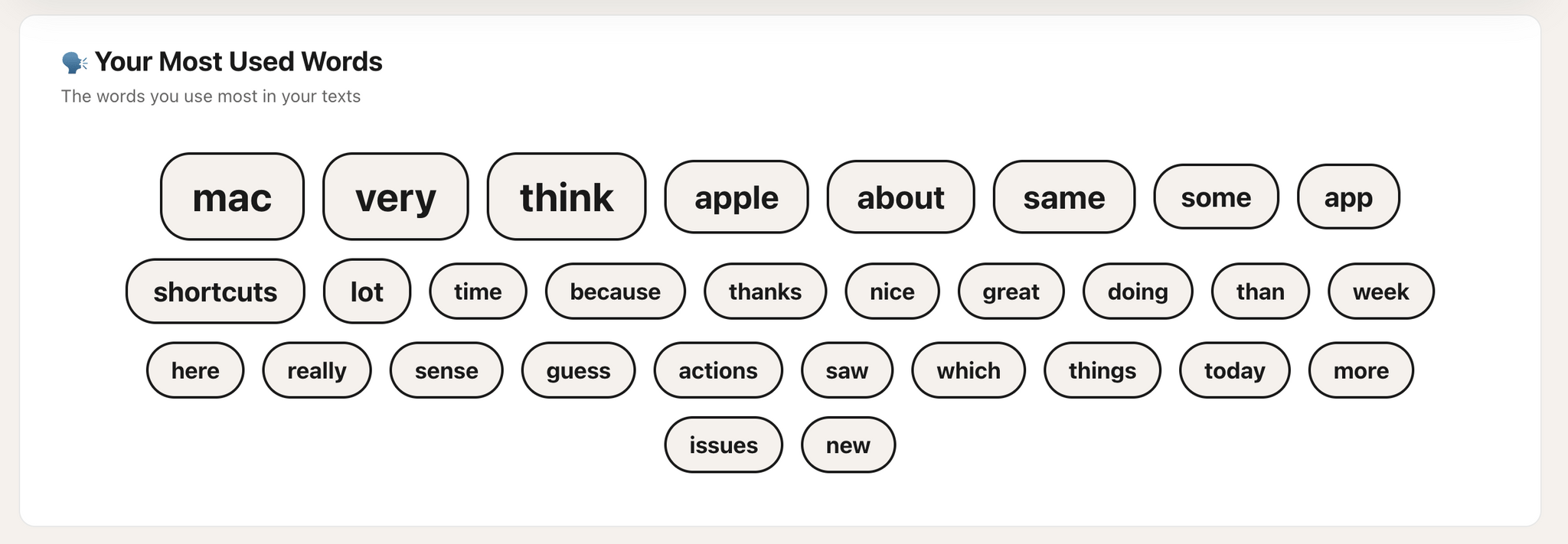
The word cloud should probably filter out common words, but the rest is about what you'd expect from me: Mac, app, shortcuts.

The word cloud should probably filter out common words, but the rest is about what you’d expect from me: Mac, app, shortcuts.

I’m not sure I learned anything about my texting habits from Remess that I didn’t already have a sense of based on my day-to-day messaging. Still, it’s interesting and fun to see the magnitude of the number of texts and the way they’ve accumulated over time.

Remess is available as a free download directly from its developer.


Apple Debuts New 14” MacBook Pro with the M5 Chip

Source: Apple.

Source: Apple.

Today, Apple debuted the new 14” MacBook Pro with its latest M5 chip, which is available for purchase now alongside the existing M4 Pro and M4 Max MacBook Pro models.

According to John Ternus, Apple’s senior vice president of Hardware Engineering:

MacBook Pro continues to be the world’s best pro laptop, and today, the 14-inch MacBook Pro gets even better with the arrival of the M5 chip. M5 marks the next big leap in AI for the Mac, and delivers a huge boost in graphics performance accelerating demanding workflows for everyone from students to creatives, developers to business professionals, and more. With its amazing performance, extraordinary battery life, and unrivaled display, M5 takes the new 14-inch MacBook Pro to another level.

Source: Apple.

Source: Apple.

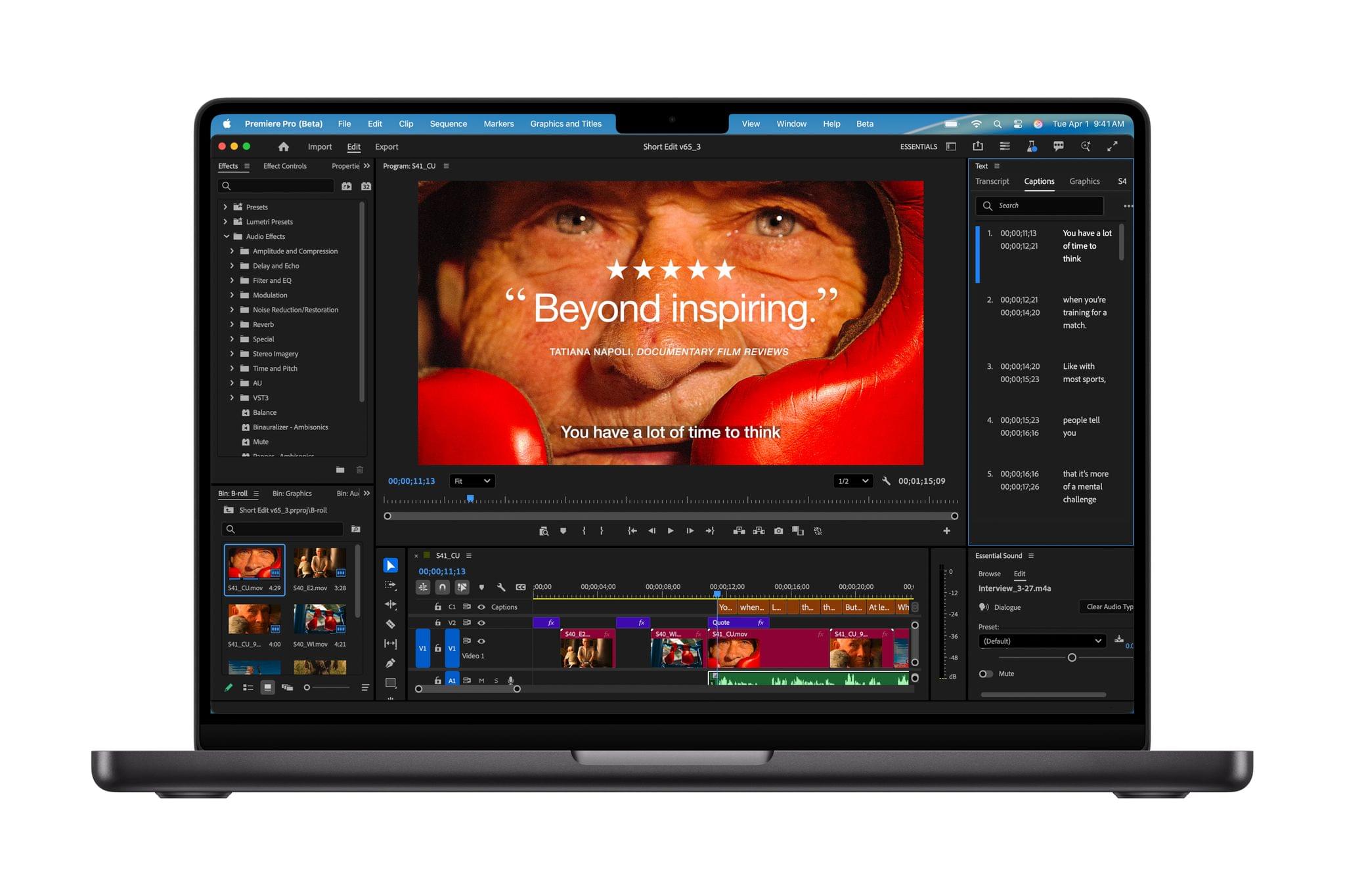
Apple’s new M5 processor is the star of today’s MacBook Pro update. Apple says that the chip, which is only available in the 14” MacBook Pro configuration, is faster at AI workflows and file transfers and can last 24 hours on a single charge. The M5 chip includes an all-new GPU with a Neural Accelerator in each GPU core, which Apple claims speeds up AI workflows up to 3.5× compared to the M4 chip and 6× compared to the M1 chip. The new MacBook Pro’s performance is also enhanced by a new 16-core Neural Engine and SSDs that are up to 2× faster and can be configured up to 4TB, which will make managing large files easier.

Although Apple makes a big deal of the 14” MacBook Pro’s AI performance, the new M5 chip will enhance all kinds of resource-heavy tasks, including these spotlighted by Apple in its press release:

  • Up to 7.7x faster AI video-enhancing performance in Topaz Video when compared to the 13‑inch MacBook Pro with M1, and up to 1.8x faster than the 14-inch MacBook Pro with M4.
  • Up to 6.8x faster 3D rendering in Blender when compared to the 13‑inch MacBook Pro with M1, and up to 1.7x faster than the 14-inch MacBook Pro with M4.
  • Up to 3.2x higher frame rates in games when compared to the 13-inch MacBook Pro with M1, and up to 1.6x faster than the 14-inch MacBook Pro with M4.
  • Up to 2.1x faster build performance when compiling code in Xcode when compared to the 13‑inch MacBook Pro with M1, and up to 1.2x faster than the 14-inch MacBook Pro with M4.

(See the press release for footnotes regarding testing details).

Source: Apple.

Source: Apple.

Although I’m impatient to see what an M5 Pro and M5 Max MacBook Pro are capable of, and I’m dying to see a Mac Studio configured with the M5 generation of chips, I’m glad Apple didn’t wait to release the M5 in the 14” MacBook Pro. If the chip is ready, why not? Pro workloads, including running AI models locally, are only becoming more demanding, so getting the M5 into more hands as early as possible makes sense. Plus, for anyone coming from an Intel-based setup or an early-generation Apple silicon Mac, this update should be significant.

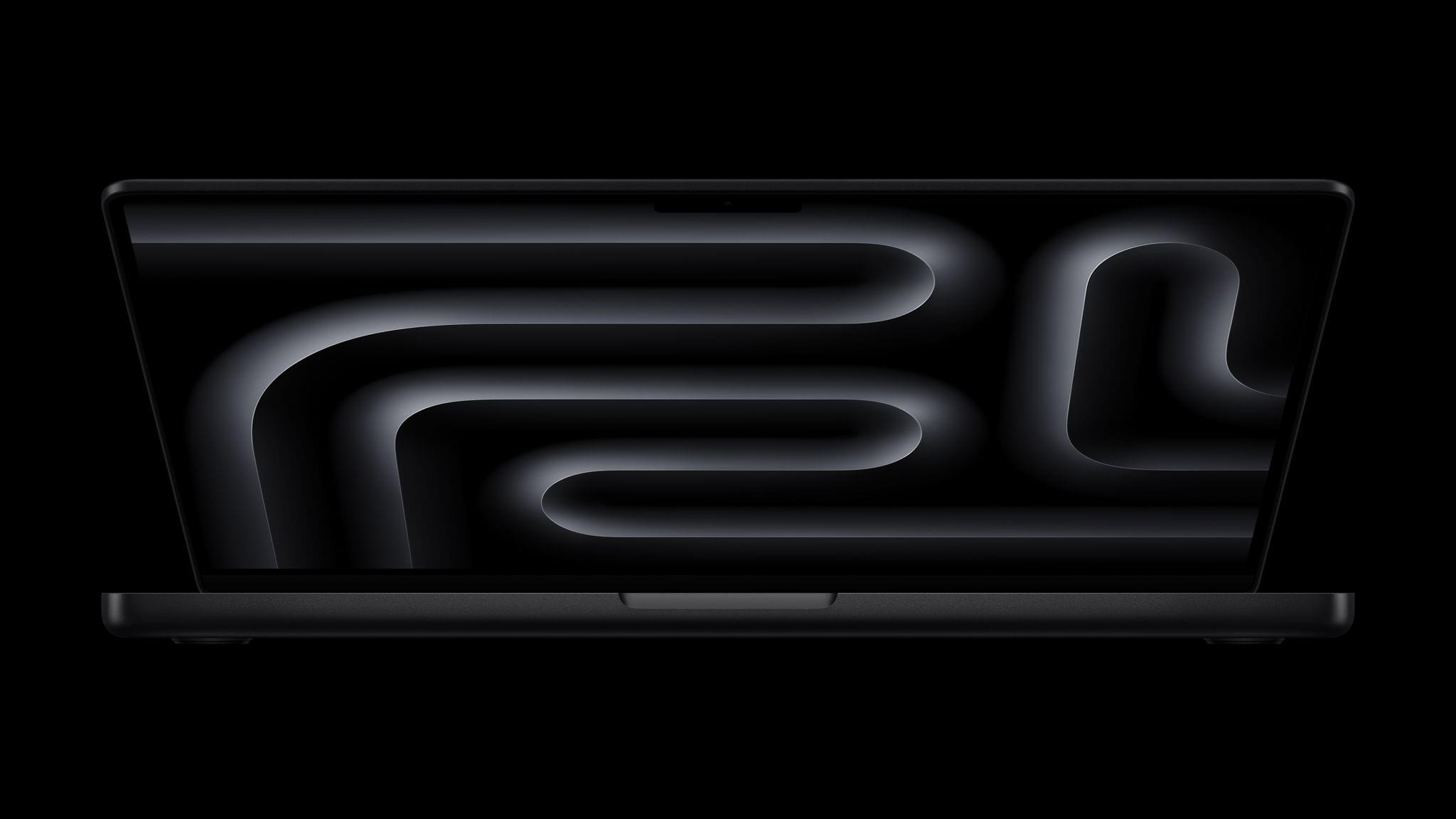
The new 14” MacBook Pro comes in Space Black and Silver and starts at $1,599 but can be configured to over $3,330. Pre-orders can be placed now, with deliveries and in-store availability beginning October 22.


A Fresh Spin on Apple Music: Exploring Daft Music’s Liquid Glass Design

Daft Music asks a question that’s been on my mind for a long while: what if Apple Music started over with a new Mac app? As a service, I love Apple Music. I’ve been a subscriber since day one. But I’m less enamored with the Music app, especially on the Mac.

Music on the Mac has a long history dating back nearly 25 years to Apple’s acquisition of SoundJam MP, which became iTunes, an app for organizing your music collection, syncing it to your iPod, and, later, buying music. Over the years, iTunes expanded to encompass TV, movies, books, apps, and even courses, which was too much for one app. So Apple began dismantling iTunes, with the final blow coming in 2019 with the release of macOS Catalina. The update retired iTunes, replacing it with Apple Music and dedicated apps for other types of media.

Music was a significant break from the design of iTunes, but as a long-time user of both iTunes and Music, what didn’t seem to change as much was the app’s underlying code. That’s consistent with reporting at the time that Music was an AppKit app built on the bones of iTunes. The choice to build Music for macOS on top of the iTunes foundation had the advantage of allowing Apple to preserve iTunes features that the Music app lacked on other platforms. However, the decision had a big downside, too. Built on what was already a nearly 20-year-old code base, Music inherited iTunes’ bugs, which have hung around unfixed for years.

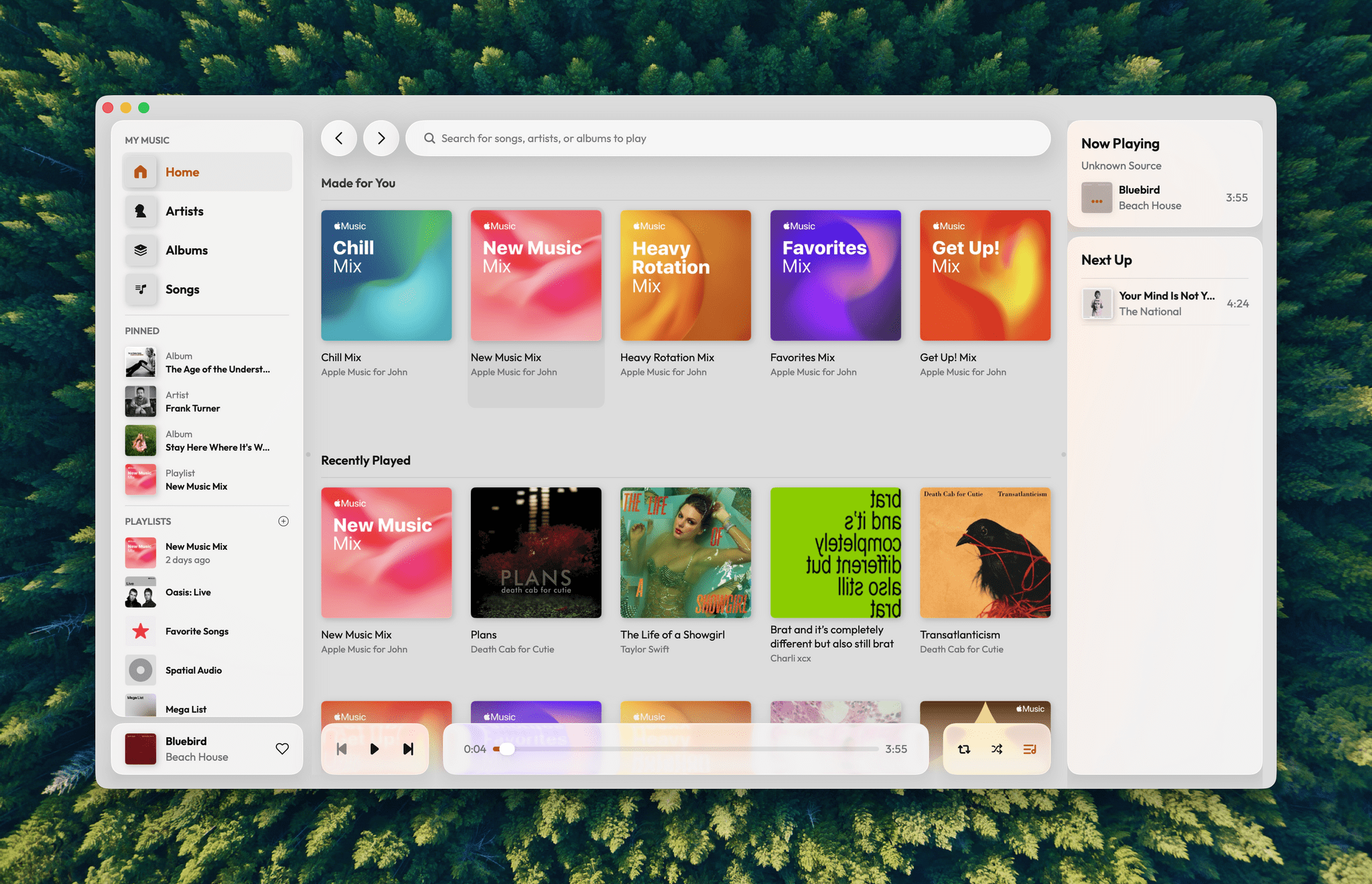
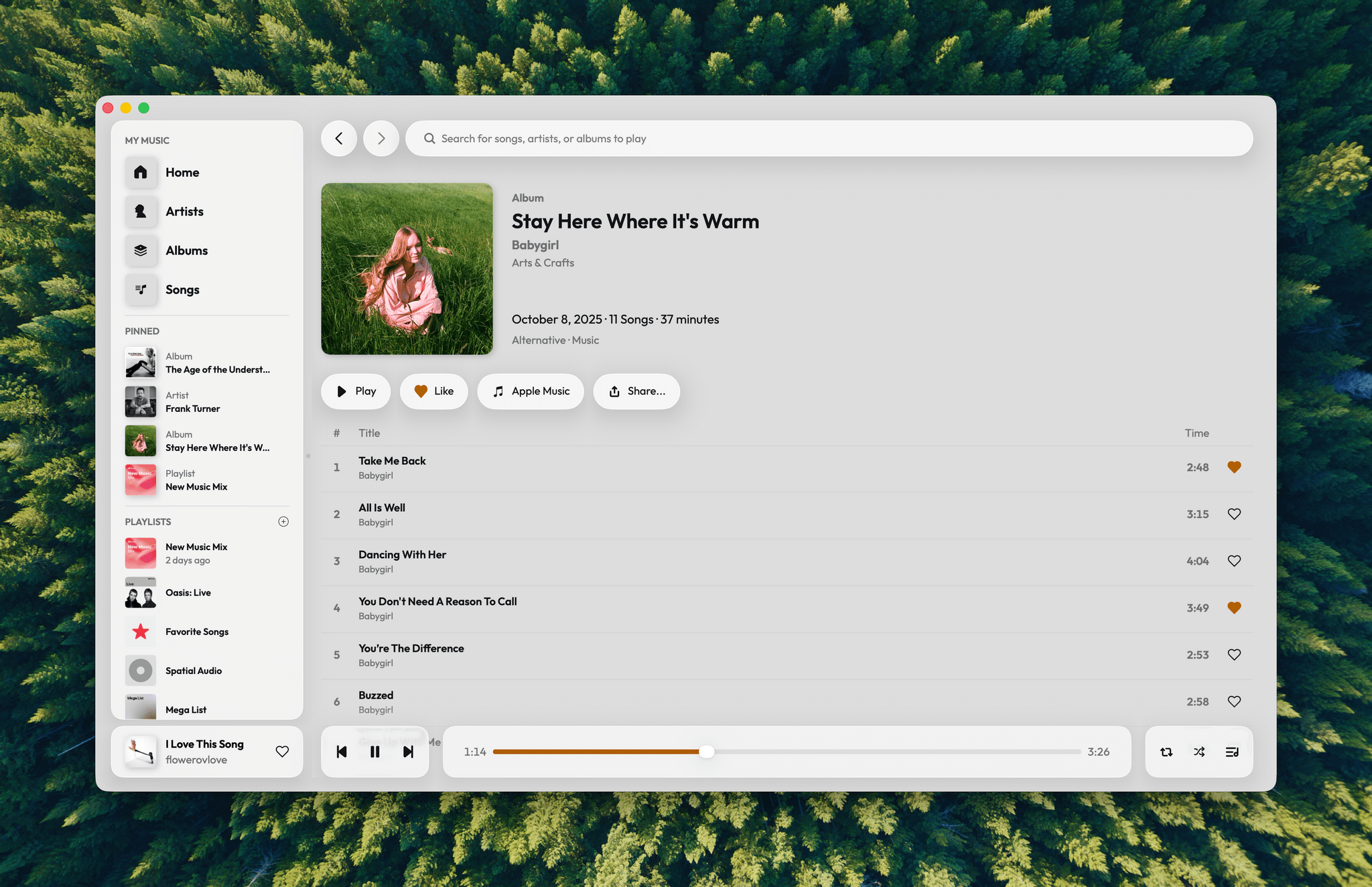
I love the simple elegance of Daft Music’s interface.

I love the simple elegance of Daft Music’s interface.

That’s where Daft Music by Dennis Oberhoff comes in. It’s a simple, elegant Apple Music “do-over” that also happens to be the first Mac app I’ve tried that was built from the ground up for Liquid Glass. There’s a lot to cover, so let’s dig in.

Read more


Synology Drops Branded Drive Requirement

Brad Linder, writing for Liliputing:

Earlier this year Synology announced that you’d need to use Synology-branded hard drives in its 2025 line of “Plus” branded network-attached storage devices if you wanted full functionality. While you could theoretically use a non-Synology drive with the Synology DiskStation DS225+, DS425+, DS925+ and other models, you’d be unable to create data storage pools, or use volume deduplication.

As Linder reports, six months later, Synology has reversed course on what was a widely unpopular decision among Mac and PC users that was viewed by many as a way to lock them into overpriced drives unnecessarily. The change of direction was revealed in a Synology press release announcing DiskStation Manager 7.3, the OS that runs the company’s Plus line of NAS hardware.

This is great news for Mac users who felt betrayed by Synology’s previous announcement. However, as Linder also points out it does not change the fact that the same “Plus” series of 2025 NAS hardware does not include hardware-accelerated transcoding of H.264 and HEVC video, which previous models supported.

Permalink

First Look: Logitech’s MX Master 4 Adds Haptics, Actions Ring, and a USB-C Bolt Receiver

Source: Logitech.

Source: Logitech.

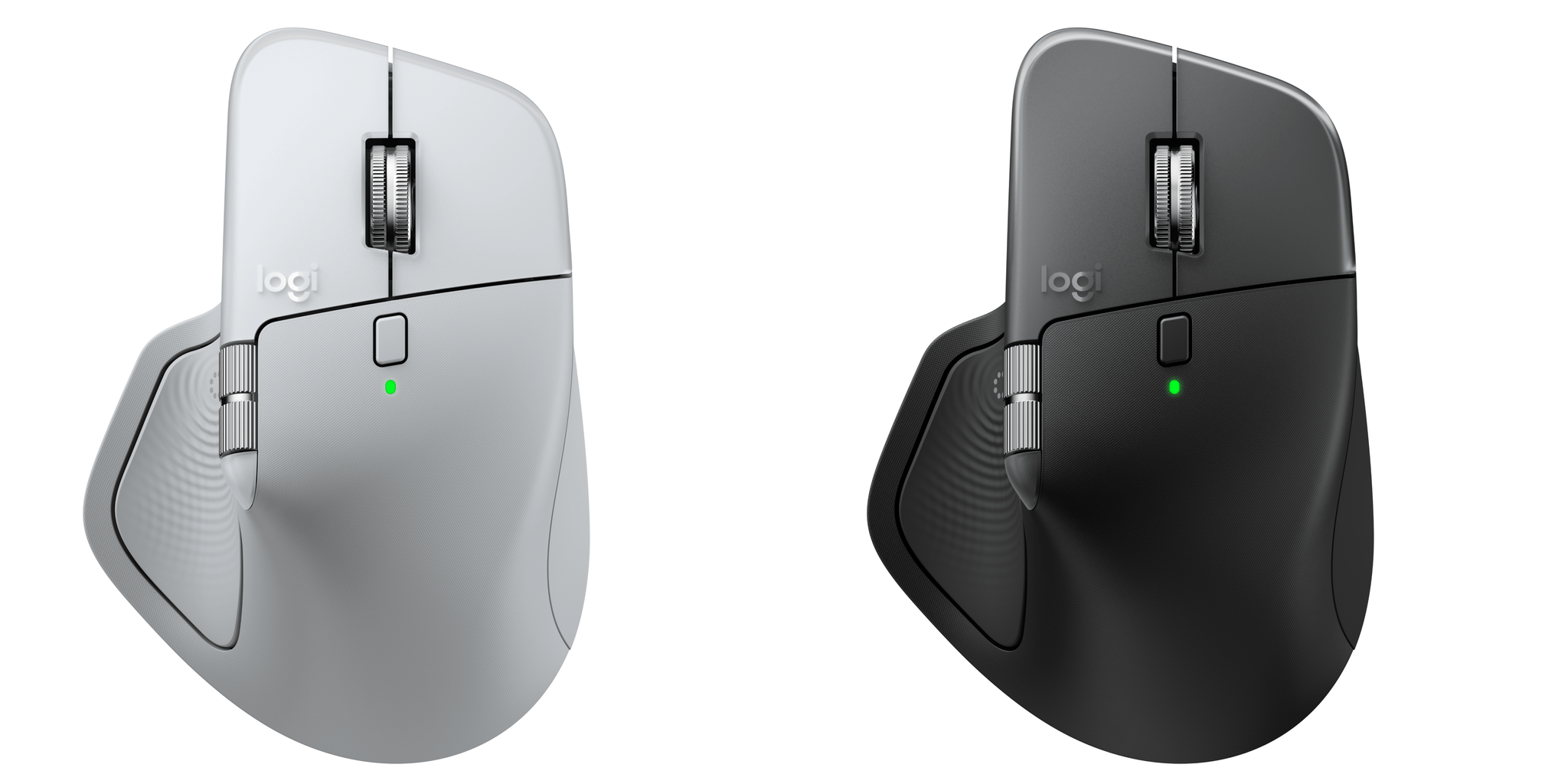
Today, Logitech introduced an updated version of its MX Master series mouse dubbed the MX Master 4. It’s a good upgrade, but the changes are largely incremental; while I like it a lot, the MX Master 4 won’t be for everyone. Logitech sent me the MX Master 4 to try, and I’ve been using it for the past couple of weeks, so I thought I would share what the experience has been like so far.

Read more


Tot 2.0: A Thoughtful Extension of an Already Elegant Note-Taking App

Late yesterday, The Iconfactory released 2.0 updates to Tot for macOS, Tot Pocket for iOS and iPadOS, and Tot Mini for watchOS. The apps, which The Iconfactory describes as tiny text companions, include a handful of big new features that span all three versions, along with other updates and fixes that are unique to each platform.

What hasn’t changed is Tot’s incredible design and reliable performance across all platforms. The app showcases some of The Iconfactory’s best app design work, which Federico described in his review of version 1.0:

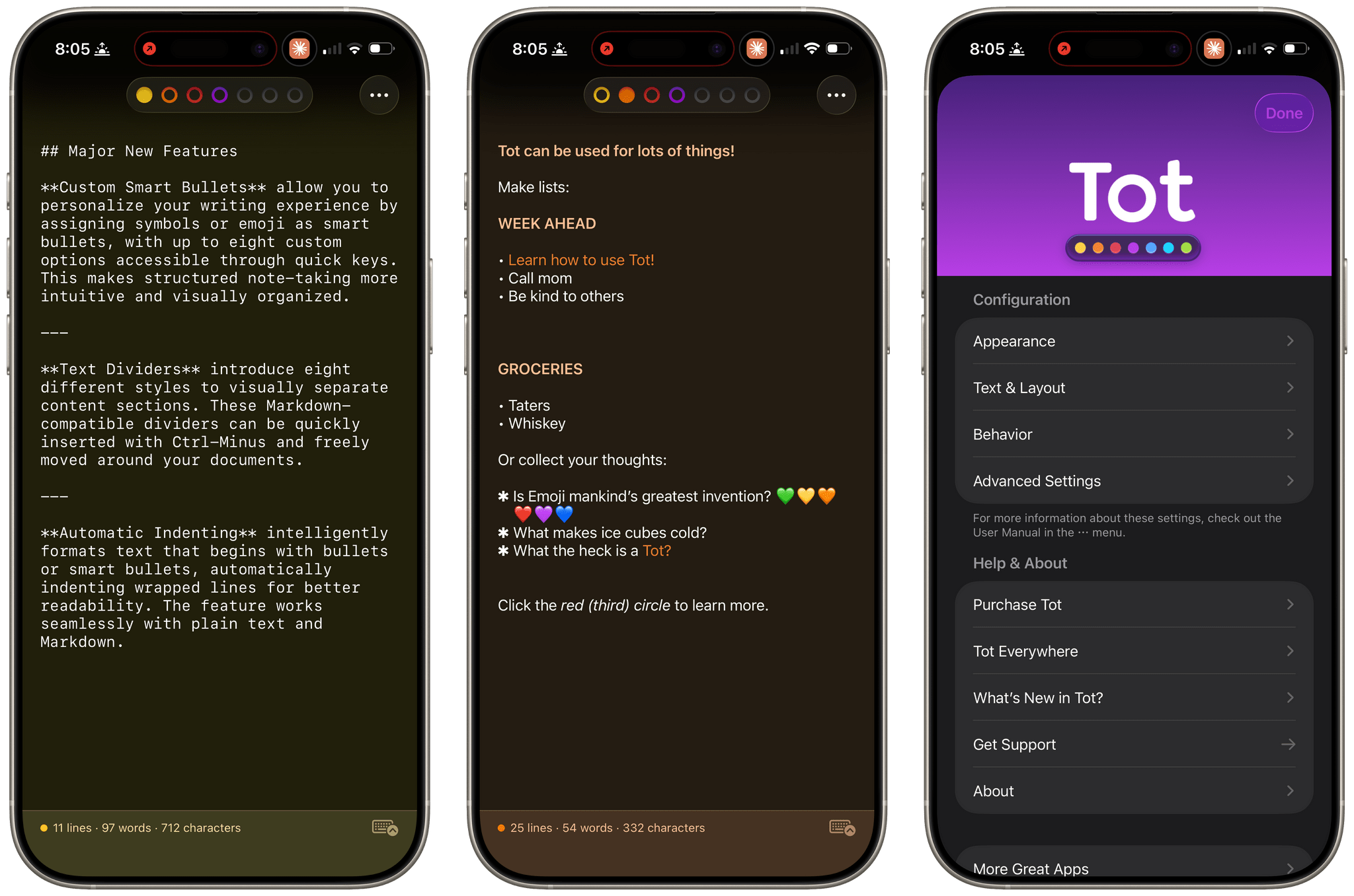
Tot’s colored dots serve the dual purpose of being spatial navigation tool and context indicators. You can navigate across documents in the app with a quick swipe, and in doing so on modern iPhones you’ll feel a delightful haptic tap; alternatively, you can tap the dots to switch documents. As I mentioned above, each dot carries a color, which becomes the background color of the selected document (vibrancy is also used to let the color shine through the software keyboard – a nice touch). The palette chosen by The Iconfactory for Tot’s seven documents is some of the finest selection of colors I’ve seen in a modern iOS app: it looks great in light mode, and it looks amazing in dark mode thanks to its combination of high contrast and translucency.

The combination of that elegant design with reliable sync across multiple OSes and thoughtful Shortcuts integration has understandably made the Tot family of apps integral to a lot of MacStories readers’ workflows. However, if you haven’t tried any of the Tot apps before, it’s worth checking out Federico’s review of version 1.0 for the fundamentals because they haven’t changed, and I’ll be focusing on what’s new.

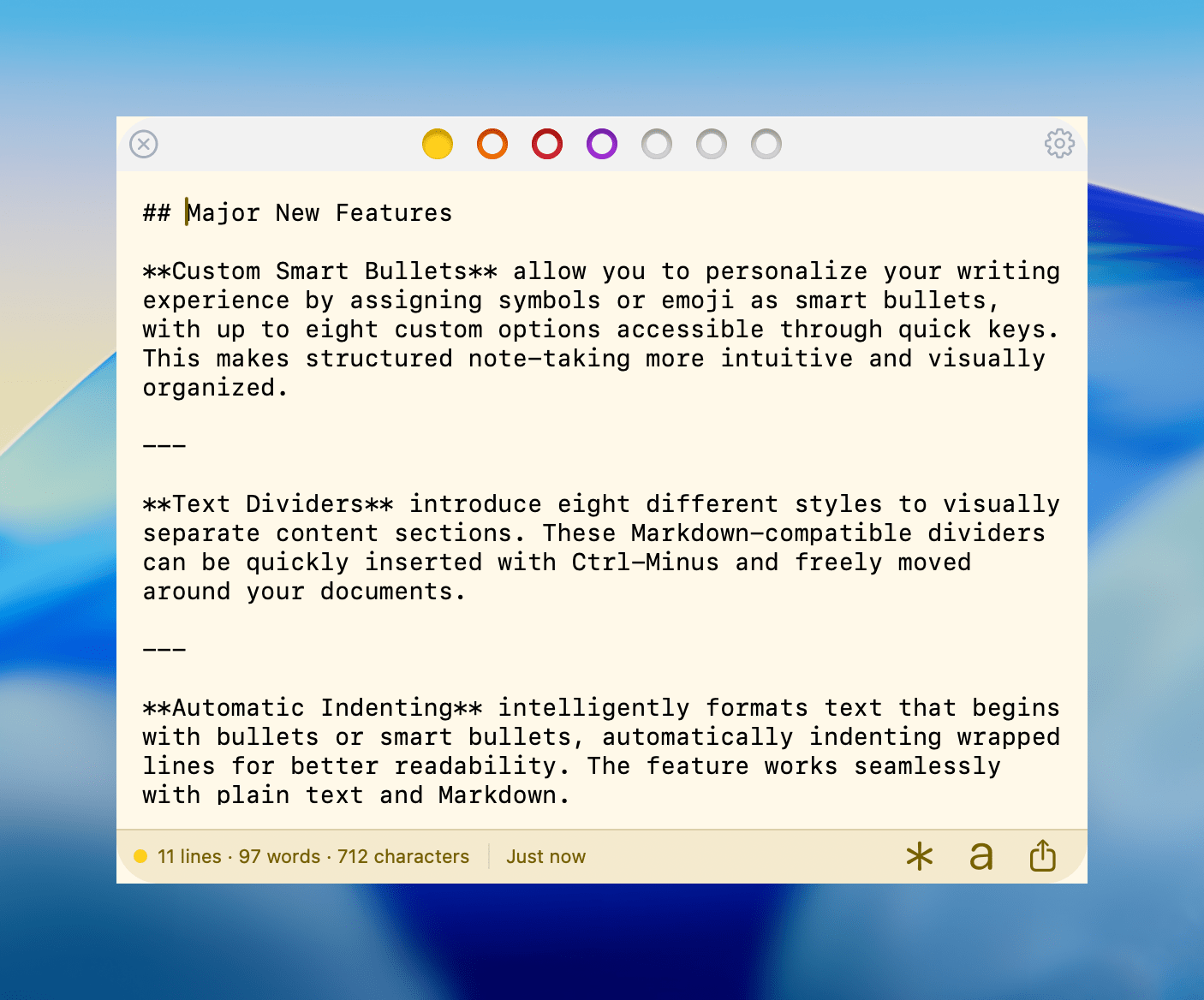
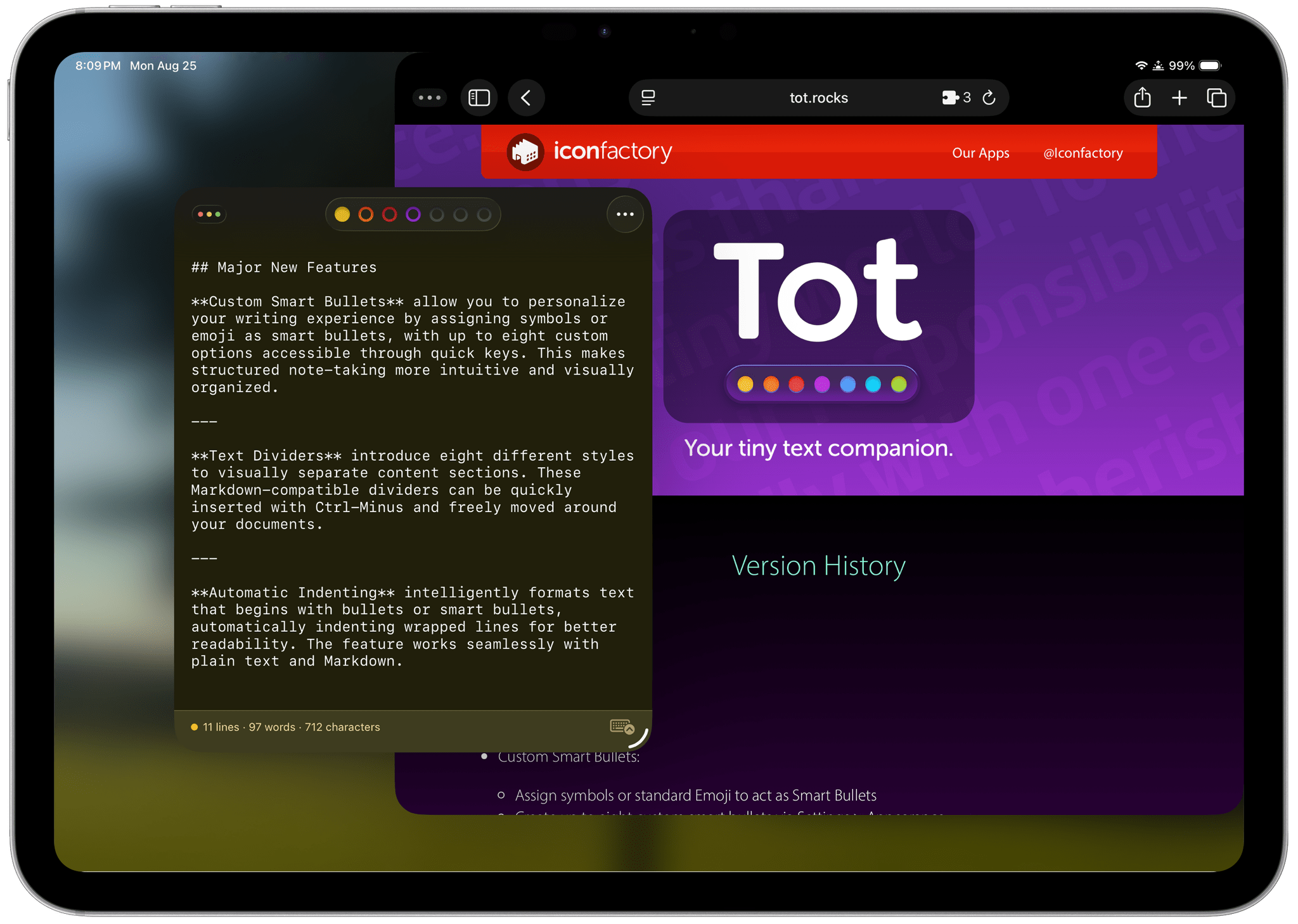
My favorite 2.0 feature is that Tot now supports automatic indenting. If you indent a line using the Tab key, the next line will begin at the same indentation level when you hit Return. That makes creating hierarchical lists a lot faster than before. My only quibble with the feature is that if you’re making a bulleted list, to indent a line, you can’t indent using just the Tab key if the cursor appears anywhere in your line of text. However, you can use ⌘ + ] and ⌘ + ] to do the same thing. Regardless of how indenting is invoked, it’s an excellent addition to Tot that I was glad to see included in the update.

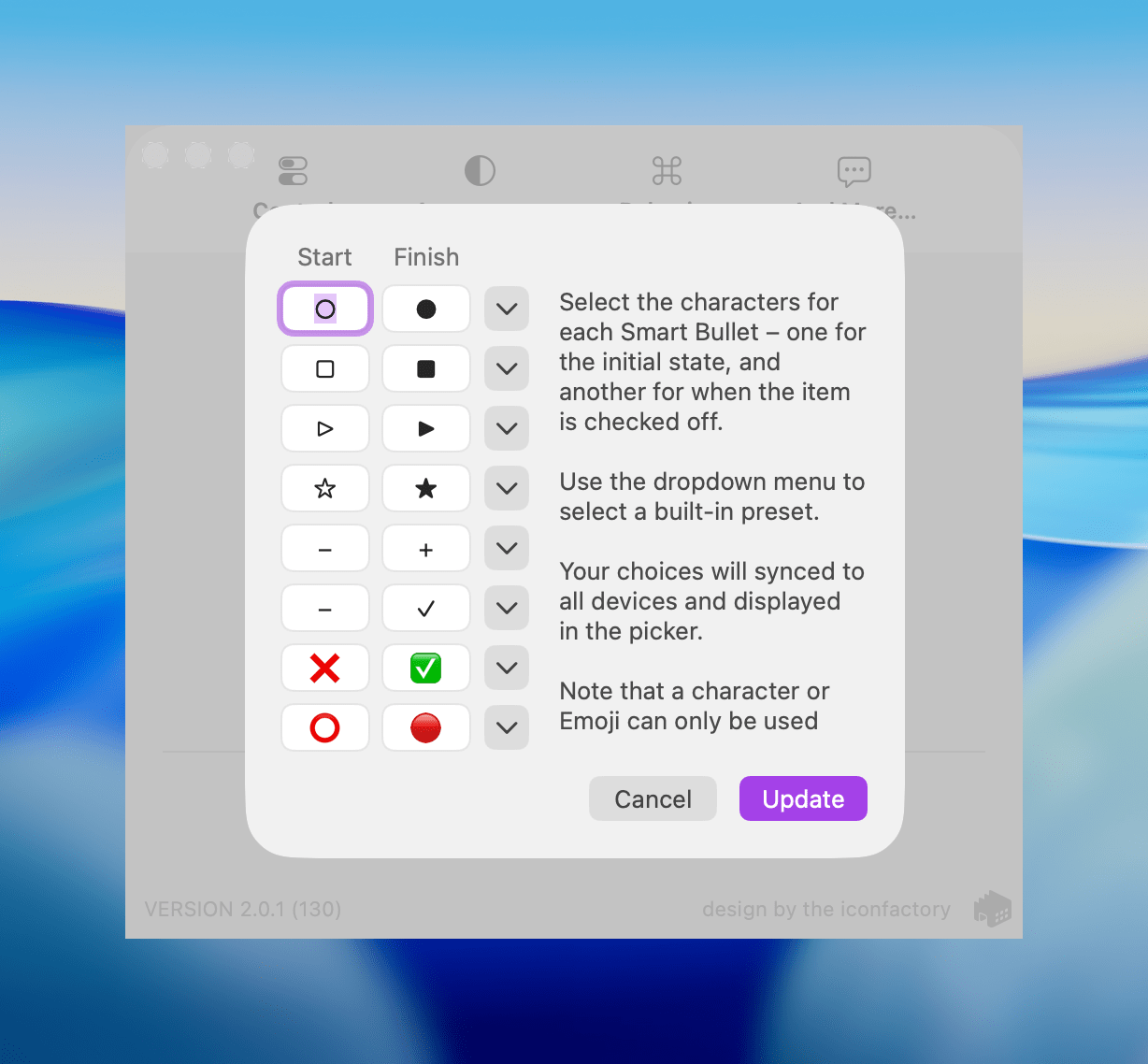
Tot allows you to define pairs of smart bullets.

Tot allows you to define pairs of smart bullets.

Speaking of bullets, Tot 2.0 also supports customizable smart bullets. From the app’s settings, you can choose from different pairs of symbols and emoji, like empty and filled circles or empty and filled stars. To toggle between the symbols in each pair, all you need to do is click or tap on them. If the eight default pairs aren’t to your taste, there are a bunch of alternatives you can use instead, such as the snowflake and flame emoji. It’s a clever twist on standard checkboxes and radio buttons that I’ve enjoyed because it adds some character and color to the app.

Tot adds eight new text dividers, too. From the classic three dashes used in Markdown to asterisks and more, there’s a nice variety of options. Plus, you can easily insert a divider with the keyboard shortcut Control + Minus.

The Iconfactory has made other platform-specific changes, too:

  • Settings have been redesigned in the Mac version and include new options, such as floating the Tot window over other windows.
  • The iOS and iPadOS versions include a menu button that offers access to the app’s settings along with a couple of bulk operations like saving, sharing, and exporting notes.
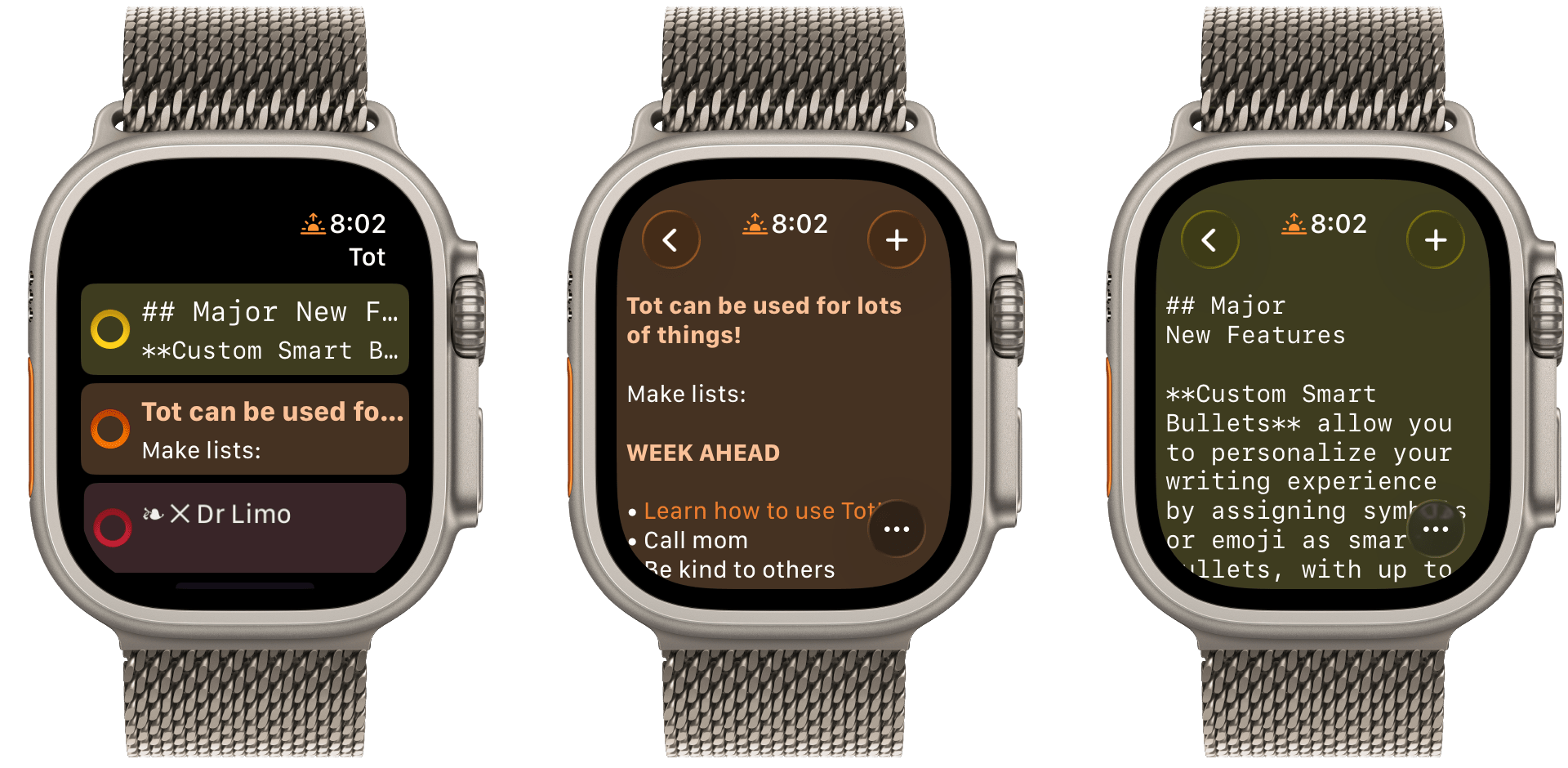
  • The watch app’s design has been refreshed with simplified controls and colorful backgrounds.

It’s great to see the Tot apps reach version 2.0. The three tentpole features – automatic indenting, custom smart bullets, and text dividers – are all meaningful improvements that don’t compromise the apps’ simplicity. Those features, along with several quality of life improvements and other bug fixes that you can read about in Tot’s version history, add up to an excellent update that should serve users well for a long time.

Tot is available on the Mac App Store, and Tot Pocket is available on the iOS and iPadOS App Store. Each costs $19.99, though existing users can update to Tot Pocket at no extra cost. Tot Mini, the Apple Watch app, is available as a separate $1.99 purchase.


CD PROJEKT RED Publishes Mac System Requirements for Cyberpunk 2077

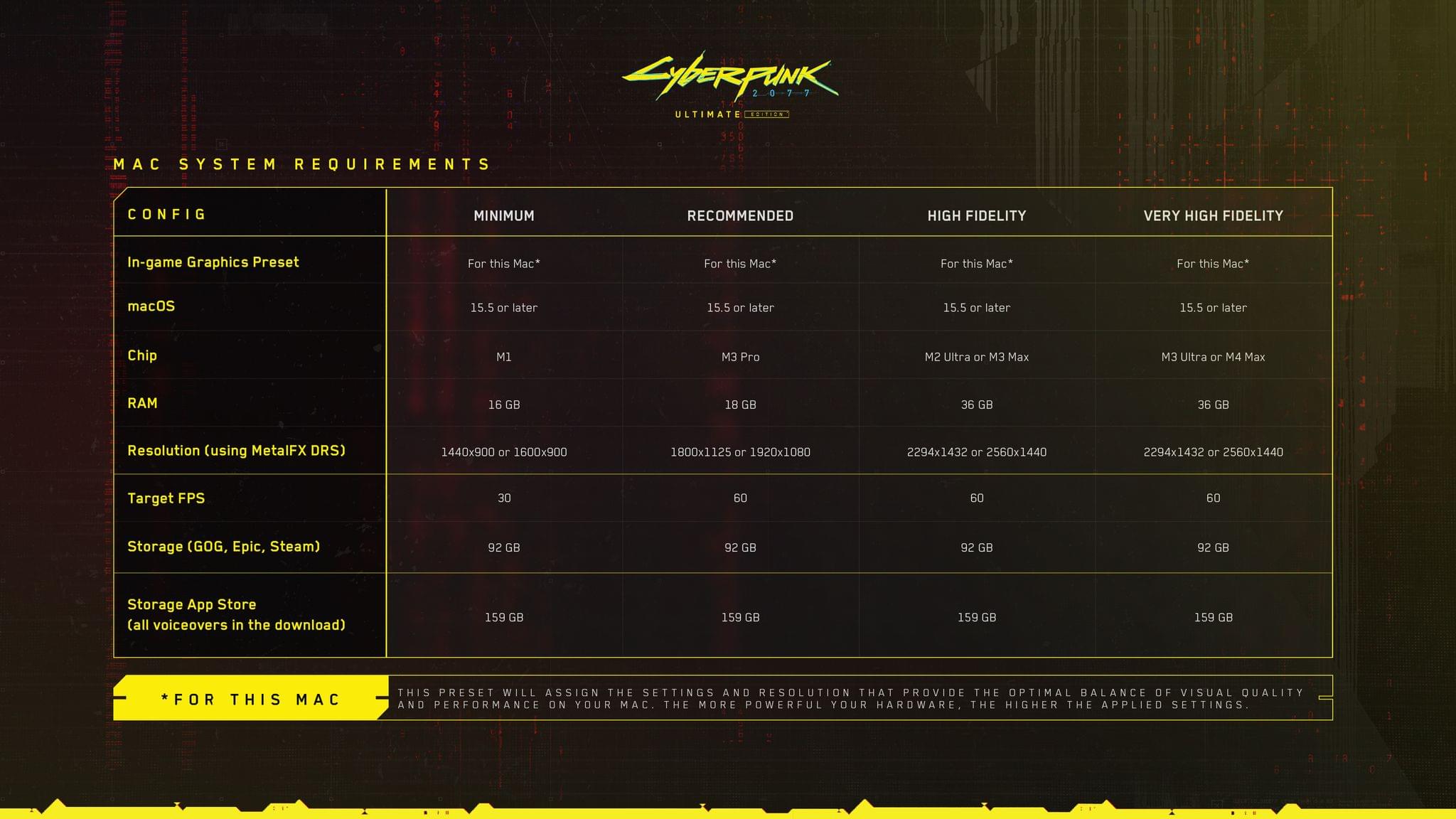
Yesterday, I wrote about the upcoming release of Cyberpunk 2077: Ultimate Edition on the Mac. Today, CD PROJEKT RED published a support document, listing the game’s Mac system requirements. As I wrote yesterday, the company says the game will work on all Apple silicon Macs; however, the beefier your CPU and memory, the better.

As reported by Tom Warren at The Verge today, the support document summarizes the game’s system requirements in four categories: Minimum, Recommended, High Fidelity, and Very High Fidelity. It’s worth checking out the support document and Warren’s coverage before buying Cyberpunk 2077, which still hasn’t shown up on the Mac App Store for pre-order, because if you want the Very High Fidelity experience, you’ll need at least an M3 Ultra or M4 Max with at least 36 GB of memory.

Permalink

Longplay for Mac Launches with Powerful AI and Shortcuts Integration

Longplay by Adrian Schönig is an excellent album-oriented music app that integrates with Apple Music. The app started on iOS and iPadOS, then later added support for visionOS. With today’s update, Longplay is available on macOS, too, where it adds unique automation features.

If you aren’t familiar with Longplay, be sure to check out my reviews of version 2.0 for iOS and iPadOS and the app’s debut on the Vision Pro. I love the app’s album art-forward design, collection and queuing systems for navigating and organizing large music libraries, and many other ways to sort, filter, and rediscover your favorite albums. Here’s how Adrian describes Longplay in a post introducing the Mac version:

It filters out the albums where you only have a handful of tracks, and focusses on those complete or nearly complete albums in your library instead. It analyses your album stats to help you rediscover forgotten favourites and explore your library in different ways. You can organise your albums into collections, including smart ones. And you can go deep with automation support.

With the introduction of Longplay for Mac, the app is now available everywhere, with feature parity across all versions. Plus, Longplay syncs across all devices, so your Collections and Smart Collections are available on every platform.

Read more