Posts tagged with "mac"

The Case for Low Power Mode on MacBooks

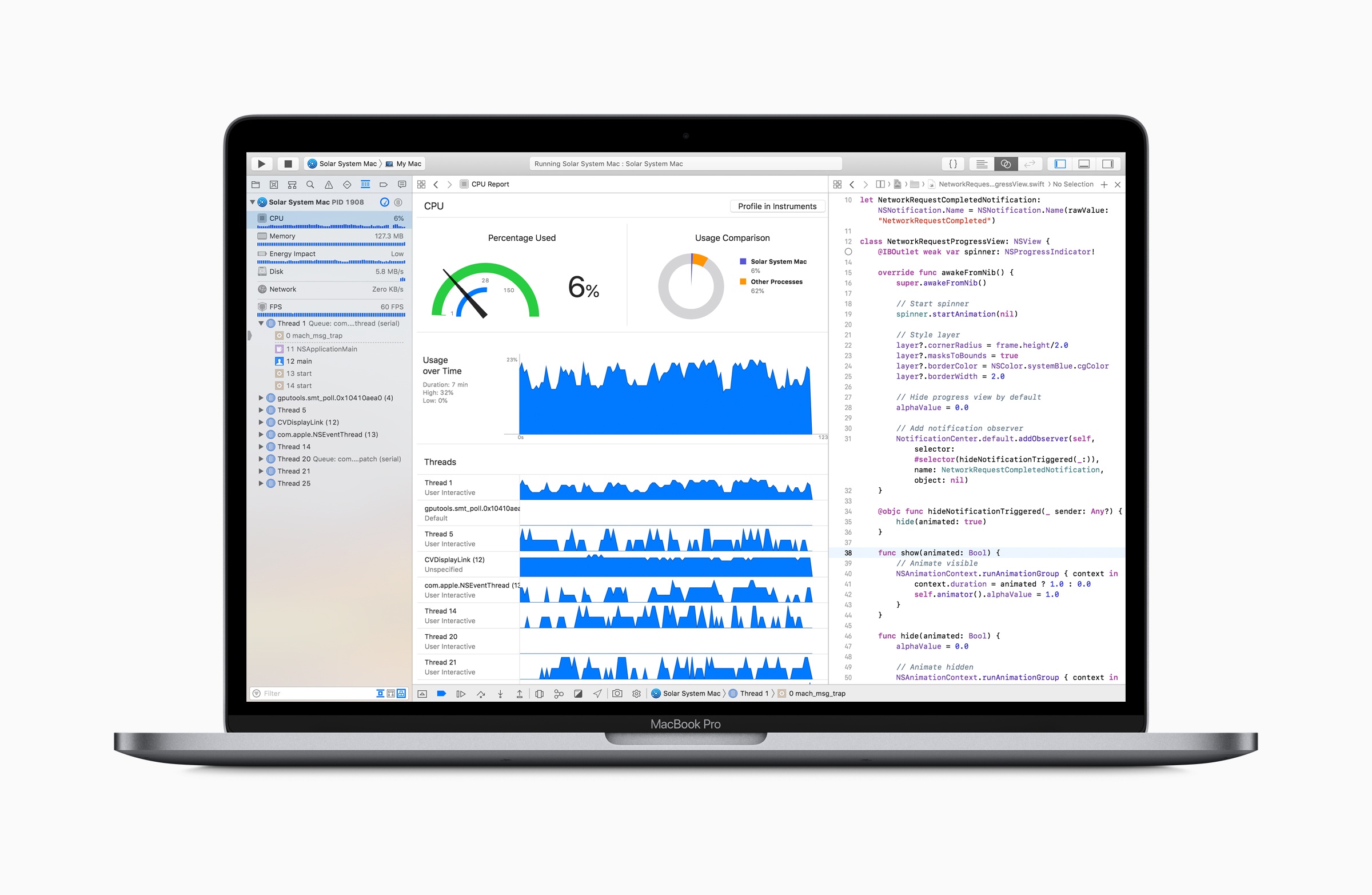
Marco Arment has revisited MacBook Pro battery life tests that he first ran in 2015 to see how his new 2018 13-inch MacBook Pro with a 2.7 GHz i7 processor and his 2015 2.2 GHz 15-inch MacBook Pro would fare under similar conditions. In 2015, Arment used an app called Turbo Boost Switcher to disable Turbo Boost on his laptop. This time around, he replicated disabling Turbo Boost on his 2015 MacBook, but on his 2018 model, he also limited the laptop’s power consumption using Volta.

Based on the results Arment concludes that:

the gain in battery life is about as large as the loss in heavy-workload performance. That’s a trade-off I’d gladly make when I need to maximize runtime.

The best bang-for-the-buck option is still to just disable Turbo Boost. Single-threaded performance hurts more than with wattage-limiting, but it’s able to maintain better multi-threaded performance and more consistent thermals, and gets a larger battery gain relative to its performance loss.

Running an app like Turbo Boost Switcher is worth considering when you have work to get done because it can mean the difference between your MacBook’s battery making it through a long flight or not. However, I’m with Arment – I’d prefer to run an iOS-like Low Power Mode for Macs that is implemented at the OS level and makes intelligent choices about what activities to stop or slow down. To get an idea of the sorts of things that might be throttled in a macOS Low Power Mode, check out the long list compiled by Arment.
Permalink

Spect: Simple Image Management on the Mac

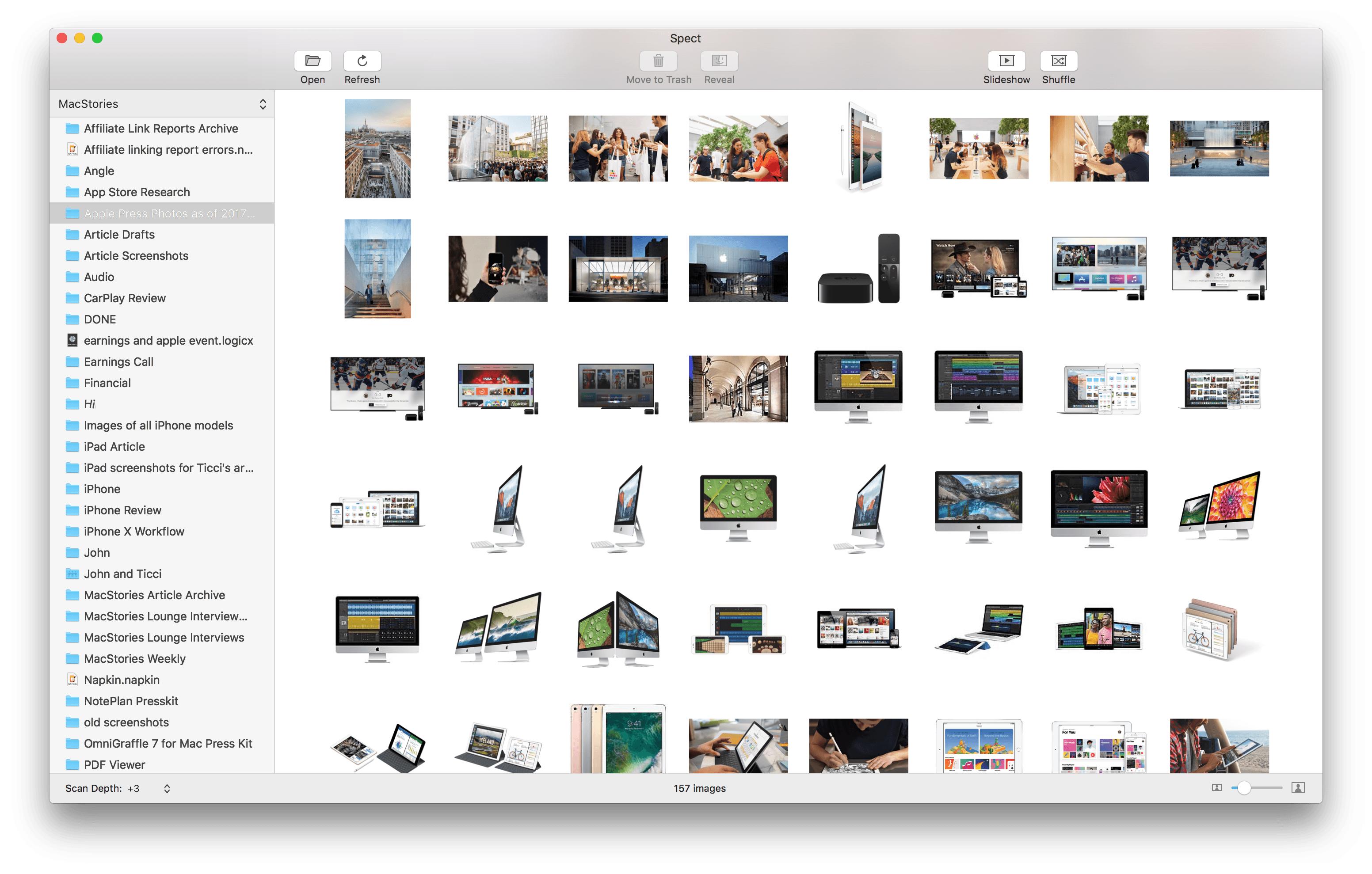
Spect from Steven Frank is based on a single, straightforward idea: separating image navigation from the Mac’s folder hierarchy. Point the app at a folder and tell it how deep to peer into subfolders and the app quickly generates thumbnails of the images to that depth of the folder structure. If you’ve ever found yourself drilling down into folders and subfolders only to have to back out and follow another path, you’ll understand the power of Spect immediately. The app saves users from a tremendous amount of clicking around.

Just like the Finder, your image thumbnails can be resized with a slider in the lower righthand corner of the window. In the bottom lefthand corner is where you specify how deep Spect should look into your folders.

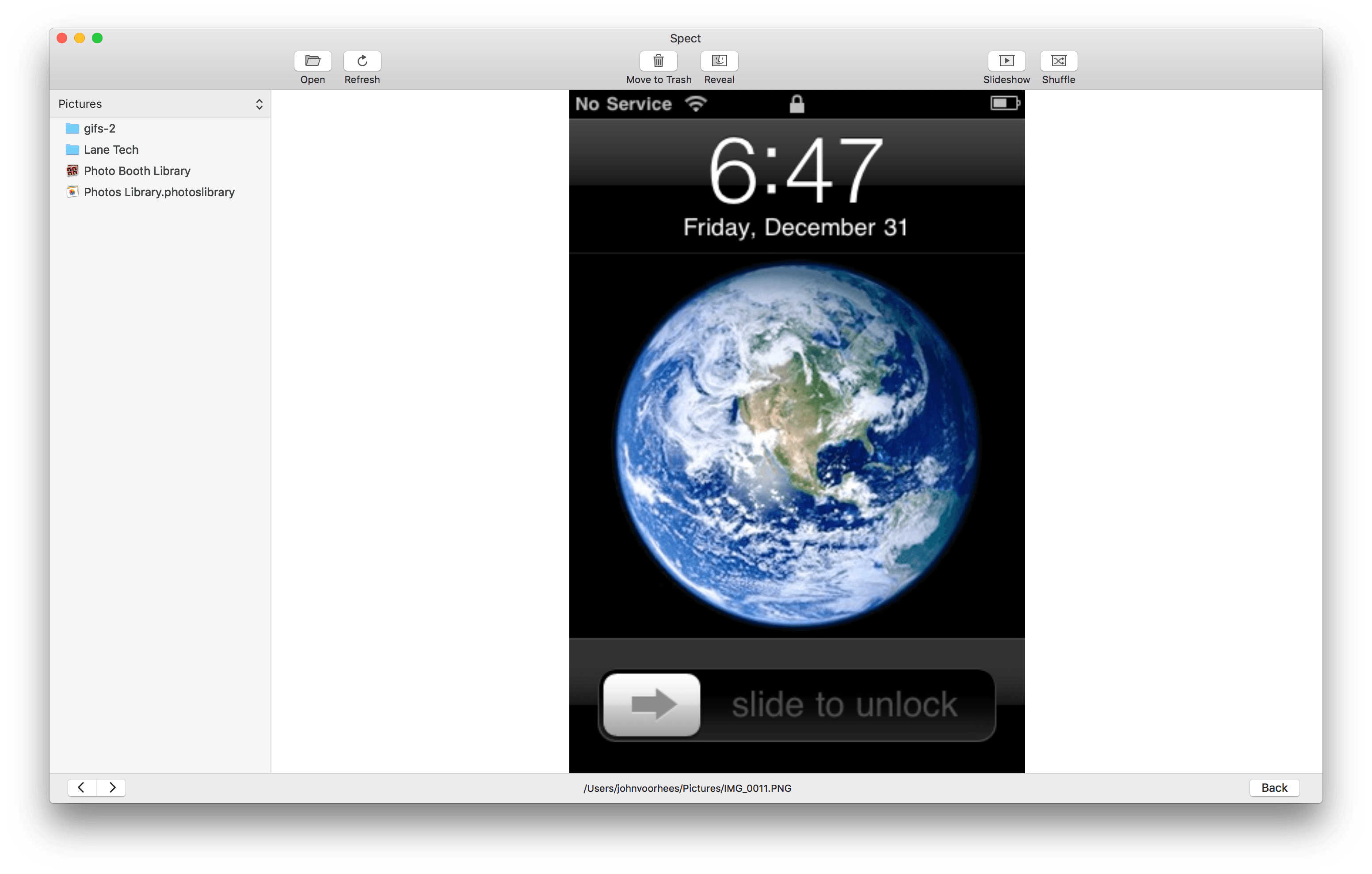
Highlight an image and hit the space bar to toggle preview mode, which fills the window with the selected image. In preview mode, there are navigation arrows in the lower lefthand corner of the window so you can advance through your images one at a time.

Previewing an image in Spect.

Previewing an image in Spect.

Spect can display a wide variety of image formats including JPG, PNG, HEIC, RAW, GIF, and PDF. It’s worth noting, however, that Spect is not a replacement for a PDF document viewer. The app is designed for images and can only display the first page of a document-based PDF.

The toolbar at the top of the window has buttons for moving images to the Trash and revealing them in the Finder that are excellent for basic organization. There are also Slideshow and Shuffle buttons in the toolbar, which are a handy way to create a quick slideshow of images from several folders at once. By default, images change every four seconds, but that can be adjusted in the app’s Preferences.

One preference I’d like to see added to Spect is a way to limit which types of image files are displayed in the app. For example, I’d like the option to exclude PDF files, which in my case, are usually documents that I don’t want to see when I’m browsing photos and screenshots. Spect includes drag and drop support for moving images from Spect to different Finder folders, but it would also be handy to be able to create new folders from inside Spect and move photos into them without switching to the Finder at all.

Spect isn’t designed to replace a photo management tool like Adobe Lightroom. Instead, its power lies in its simplicity and the speed with which you can triage a collection of images without getting lost in a complex folder structure. In the two days I’ve been using it, Spect has already helped me understand what images I have and organize them better. For example, I located Apple press photos scattered throughout multiple folders and consolidated them into one folder. I also quickly scanned and retrieved images I wanted to save from my Downloads folder and deleted the rest. If you work with images on a Mac, Spect is a utility you should definitely check out.

Spect is available on the Mac App Store for $4.99.


Kano Announces Harry Potter Magic Wand Coding Kit

With three children, I’ve looked at many products over the years that are designed to make learning to code fun and engaging for kids. Of all the things I’ve tried, one of my favorites is a build-your-own computer kit from Kano. The kit is a kid-friendly Raspberry Pi with tiny, bright orange wireless keyboard.

The Pi runs a Kano-skinned version of Linux with a bunch of activities for kids ranging from Minecraft mods to simple building block-style JavaScript programs that abstract away the language’s syntax but makes it available just under the surface as kids become more comfortable with coding. It’s an excellent kit that strikes a good balance between learning and fun.

This week, Kano announced a new Harry Potter-themed magic wand. Kids build the wand, which contains an accelerometer, gyroscope, and magnetometer, and then use an iPad, Mac, PC, or Android tablet to program magic spells straight from the Harry Potter book series using JavaScript. Kano says the wand, which can be pre-ordered for $99 and will be delivered on October 1st, comes with a book of over 70 projects and can be ordered from Kano directly, Amazon, and other retailers.

My kids are a little old for the Kano wand now, but I know that if it were available back when they were tearing through the Harry Potter series, the wand would have probably turned up at my house over the holidays.


Fantastical 2.5 for Mac Adds Time Change Proposals, Meetup.com Support, and More

Flexibits has released an update to the Mac version of its popular calendar app Fantastical. The feature that should be useful to most users immediately is the ability to send and receive new time proposals for events. Fantastical already could send meeting invitations and acceptances, but with version 2.5, recipients of an invitation can propose a new time. The feature works with iCloud, Google, Exchange and CalDAV calendaring services, which should cover most use cases.

Read more


Twitterrific Adds Multi-Account Features, Follower and Following Lists, and More

Hot on the heels of Twitter’s abandonment of its official Mac client last week, The Iconfactory announced new Twitterrific features and a price reduction.

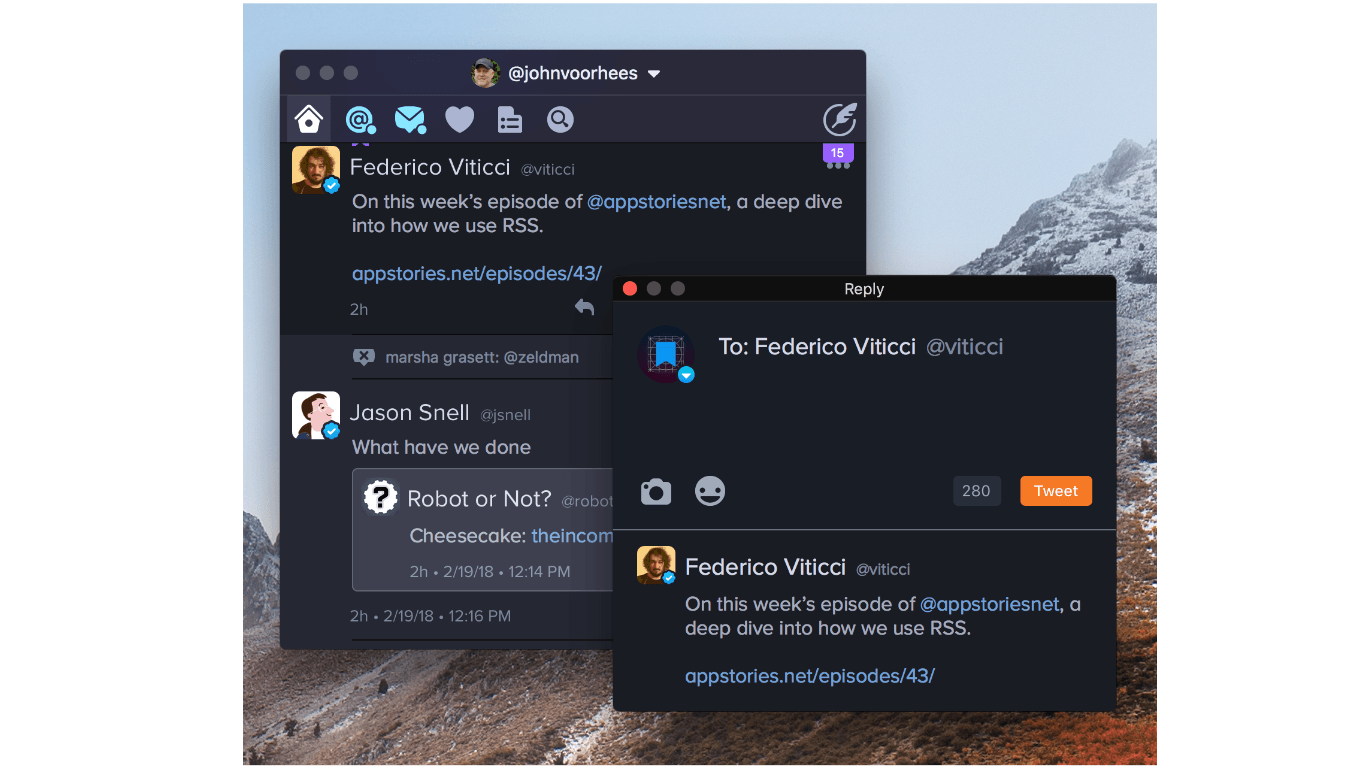
One of the highlights of the update is enhancements to multi-account support. If you have more than one Twitter account set up in Twitterrific, right clicking on the reply, quote, retweet, or like buttons displays a popup window for choosing which account you want to use for each of those functions. Alternatively, if you are in the middle of composing a reply or quote-tweet, click on your avatar in the compose window to switch the account from which it will be sent.

The Iconfactory has added several other nice refinements too:

  • Lists of a person’s followers and who they follow have been added to user profiles.
  • Avatars now include verified and protected status badges, although this can be turned off in Twitterrific’s settings.
  • There is a setting to turn off tweet streaming, so your timeline can only be refreshed manually.
  • Georgia is a new font alternative in the app’s preferences.

Twitterrific for Mac has come a long way since the commencement of its crowdfunding campaign last winter, and many of the shortcomings of version 1.0 that I highlighted in my review last October have been addressed. It’s fantastic to see Twitterrific continue to grow and evolve, especially now that Twitter has walked away from its Mac app.

To celebrate the one year anniversary of Project Phoenix, the crowdsourced Kickstarter project that relaunched Twitterrific on macOS, the price of the app has been reduced from $19.99 to just $7.99. Twitterrific is available on the Mac App Store.


Official Twitter Client for the Mac Abandoned

In the time honored tradition of releasing bad news at the close of business on a Friday, Twitter announced via its Twitter Support account that it was removing its Mac client from the the Mac App Store and discontinuing support for the app:

https://twitter.com/TwitterSupport/status/964635740444360704

Twitter gained a native Mac client when it acquired Tweetie for Mac from Loren Brichter in 2010, but the company’s support for the app over the years has been half-hearted at best. As John Gruber explained on Daring Fireball:

Twitter dumped Tweetie’s codebase years ago, of course, and their Mac app has been garbage ever since they did. It’s all fine, really, so long as they continue to allow third-party clients like Tweetbot and Twitterrific to exist. But this “Mac users should just use the website” attitude is exactly what I was talking about here as an existential threat to the future of the Mac.

Twitter’s move is not surprising given the history of the app. Most Mac users I know moved on to third-party clients years ago. However, Gruber’s broader point is an important one. There has been an increasing trend away from native Mac apps and towards web apps and cross-platform apps based on technologies like Electron. Many of these non-native solutions are resource hogs, and even the best often fail to take advantage of OS-level features, which makes them feel out of place among native apps. Perhaps the rumored Project Marzipan is designed to reinvigorate Mac development, although it’s hard to see that working if companies like Twitter simply don’t care to provide the best experience on macOS.


Agenda Review: Mac-Based Note Taking with a Calendar-Focused Twist

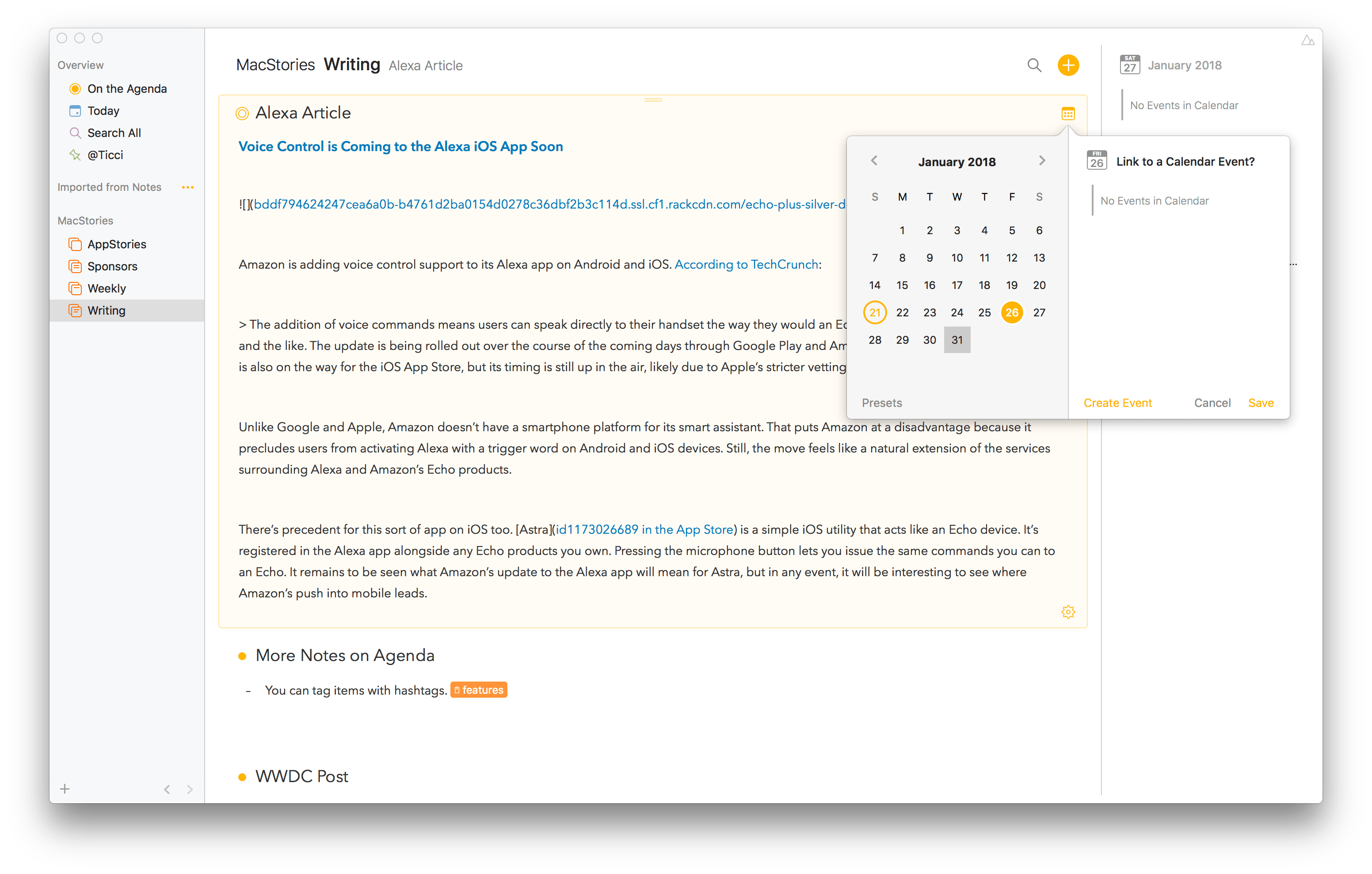
Agenda is an intriguing approach to note taking on the Mac that’s organized around dates and your calendar. The app is beautifully-designed and notably feature-rich for a 1.0 but lacks an iOS counterpart, which is still in the works, and collaboration features, which will limit its appeal to some users. There are also areas of the app that lack polish, but overall, Agenda shows a lot of promise and should be attractive to anyone who juggles multiple calendar events and deadlines.

Read more


What I Wish the iPad Would Gain from the Mac

The iPad is finally starting to grow up.

Despite the device becoming an instant sales phenomenon upon launch, iPad in its earlier years of life was never a legitimate PC replacement – nor was it meant to be. From birth the iPad existed not to cannibalize the Mac, but to supplement it. Steve Jobs called it a “third category” of device, fitting snugly in the space between a laptop and smartphone.

In recent years, however, the iPad has gone through a stark transition. If you want an iPad to supplement your iPhone and Mac, you can still get one in the $329 “just call me iPad” model introduced last spring. But the bulk of Apple’s iPad efforts of late have centered on making the device a capable replacement for the traditional computer. The iPad Pro and iOS 11 represent a new vision for the iPad. This vision puts the iPad not next to the Mac, but instead squarely in its place. It’s a vision embodied by the question, “What’s a computer?

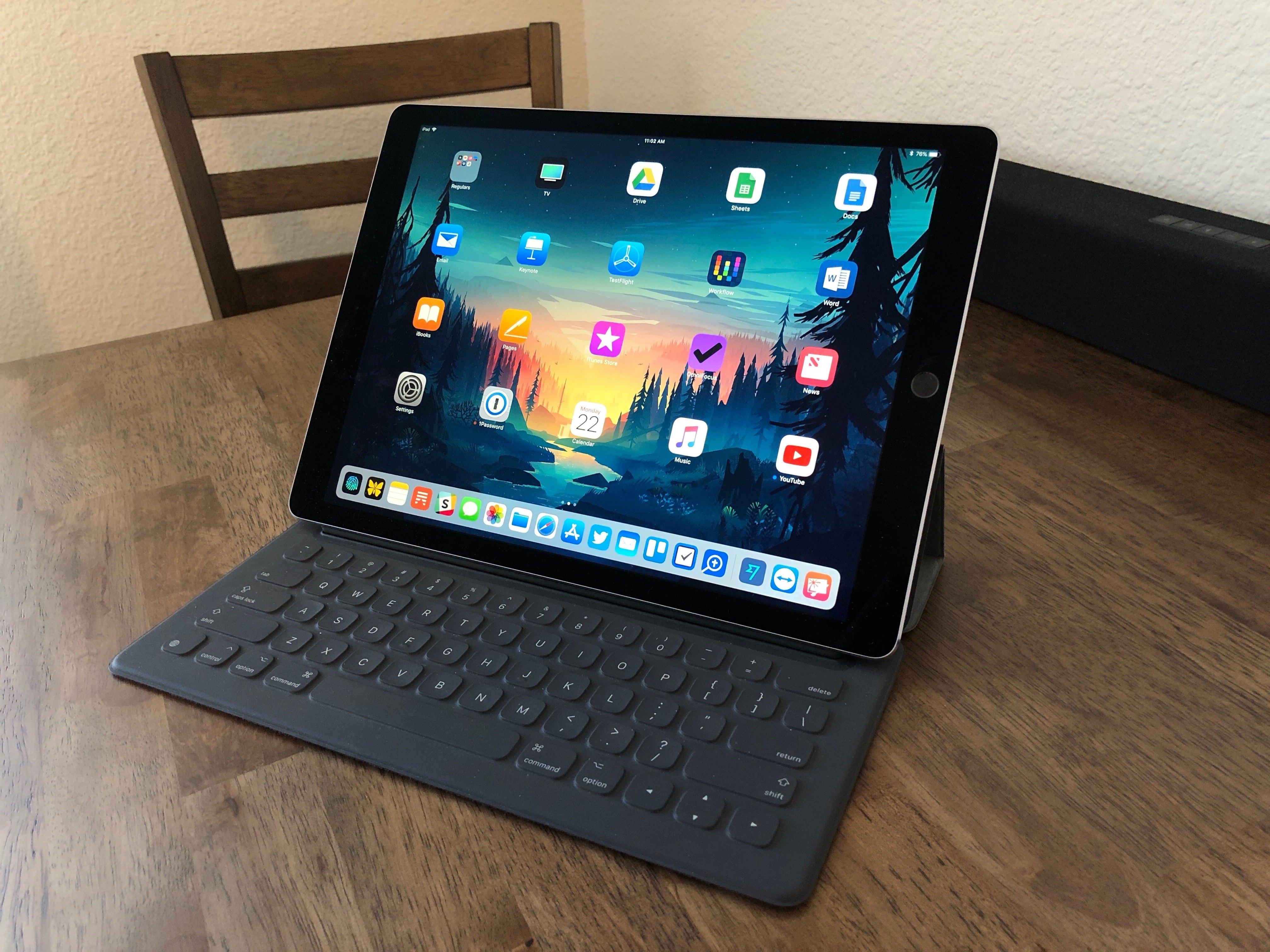
I made the iPad Pro my primary computer when it first launched in late 2015. The transition pains from Mac to iPad were minimal, and the device has grown even more capable since that time thanks to improvements in iOS. My need for a Mac is now extremely rare.

My desire for a Mac, however, still exists in a few specific use cases. There are things the Mac has to offer that I wish my iPad could replicate.

Now that the modern iPad has many basics of computing covered, here are the things I think it needs to take iPad-as-PC to the next level.

Read more