Posts tagged with "mac"

Ballmer Confirms Skype’s Commitment to Other Platforms

Ballmer Confirms Skype’s Commitment to Other Platforms

We will continue to invest in Skype on non-Microsoft client platforms,” said Ballmer during a news conference announcing the company’s plan to buy chat and Internet phone software maker Skype for $8.5 billion.

Following this morning’s big announcement of Microsoft buying online communication giant Skype for $8.5 billion, Mac and iOS users immediately questioned the acquisition as a way for Microsoft to turn Skype into an exclusive service for Windows Live-connected devices and other Microsoft products such as the Xbox. Steve Ballmer, however, was quick to reassure everyone that Skype will continue working on the Mac, iOS and all the other platforms it currently runs on (including RIM’s BlackBerry and Symbian), also citing how the company has a “track record” when it comes to these matters – Microsoft has a full version of Office 2011 available for Macs, and many apps for iPhones and iPads.

The question, however, is whether Skype will ever release a native iPad app as promised last year, and if the new owner will also bring some welcome interface changes to the Mac app. It would interesting to see Microsoft making a better UI for Skype, just as I’d be curious to see Ballmer heavily touting his recently bought software toy on iPhones and iPad. Time, as usual, will tell.

Permalink

Music Beta by Google: Mac Uploader, Flash, iOS Safari Playback

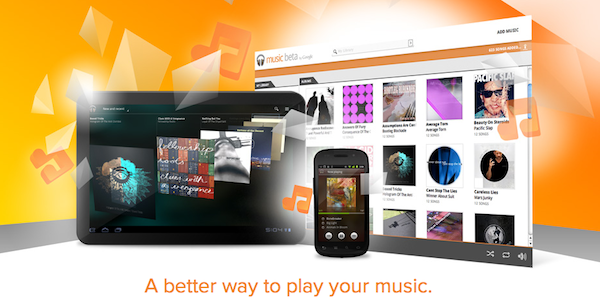
At its I/O conference earlier today, Google officially announced a new cloud service called “Music Beta” which, similarly to Amazon’s Cloud Player, allows users to upload their music collections and playlists to the company’s servers, and play them back anywhere on a web browser, tablet or smartphone. Like Amazon, Google’s service has a few limitations for now: it doesn’t come with a native iOS app as it’s only got an Android app for compatible smartphones and tablets, it requires Flash in some sections of the website and it’s restricted to US access only. Music Beta is, well, a beta product by Google, and it’s free for now – Google didn’t mention how much uploading and streaming 20,000 songs once the service hits stable status will cost you.

As detailed by MG Siegler at TechCrunch, Music Beta comes with a native Mac uploader that can look through your iTunes library and playlists or hard drive contents to find songs and albums to upload. On desktop browsers, MG Siegler says Flash is required for playback as indeed a screenshot of a technical error seems to prove, whilst Cnet claims Music Beta can stream songs on iOS devices as well, without Flash, using Mobile Safari. It was discovered a few days ago that Amazon’s Cloud Player quietly rolled out iOS Safari support, and it’s unclear at this point whether Music Beta really works on iPhones or iPads, meaning Flash is only required for some transitions and animations. As more users are invited to try the product, we’ll make sure to check Mobile Safari compatibility. Read more


Carousel Is A Beautiful Instagram Client for Mac

Back in April we covered Instadesk, the first Instagram client for Mac that, through an interface design similar to iTunes and iPhoto, allowed you to browse Instagram photos, users, likes and comments directly from your desktop. The app was one of the thousands of results coming from the launch of the Instagram API, a set of tools that enable third-party developers to plug into your Instagram feed to retrieve photos uploaded by you or relevant to you. Of all the Instagram-connected apps we’ve covered, Instadesk saw a huge success as it was the first one to land on the Mac App Store.

Carousel, however, wants to step the game up by offering a beautiful and slick way to access Instagram from your Mac with a design that’s heavily inspired by iOS, yet runs natively on OS X. I don’t know if the developers are using the Iconfactory’s Chameleon framework for this, but it certainly looks like Carousel has some similarities with Twitterrific – the Twitter client from the Iconfactory that shares it codebase across the Mac, iPhone and iPad. So what’s this all about? First off, Carousel presents a minimal, vertical-oriented interface as if you were looking at your iPhone’s screen in portrait mode while browsing Instagram. The photo stream is embedded directly into the app’s window, with beautiful Instagram photos to flick through as they load. At the bottom, three tabs allow you to switch between your feed, popular photos and your profile. Every photo can be enlarged via Quick Look, saved locally on your Mac, or commented / liked thanks to a wide selection of keyboard shortcuts to choose from.

In Carousel, you can open every user’s profile to check out their photos. You can comment and like pictures, too, with interaction happening inside an iOS-like popover that resembles Twitterrific’s implementation of conversation views and profiles. You can even view if a user’s following you, or if you’re following him. Last, the app can be themed. Carousel’s default theme is already gorgeous in my opinion, but you can switch to a classic Mac or red one from the Settings.

Carousel can be downloaded for free, or you can purchase a license at $4.99 (introductory price) from the developer’s website. More screenshots below. Read more


Reeder for Mac Beta Update: New Features, Tweetie-like UI

I had some pretty good words about the first beta of Reeder for Mac that came out last December, but since then it seemed like Silvio Rizzi – the main developer of Reeder – disappeared from our radars releasing minor updates to the iPhone and iPad versions (focused on Readability integration) and extending the expiration date of Reeder for Mac (public beta) by one month at a time. After a few updates following the feedback Rizzi got after the (insanely popular) launch of the beta, the app was left available for download with a few fixes coming out every once in a while. Six months later, it looks like we’re back to the start: a new beta of Reeder for Mac with lots of new features is available (and like the last time, I’ve been testing it for a while), but the app is still nowhere to be seen in the Mac App Store. This time, however, with Reeder for Mac Public Beta 14, we might have an almost-complete and full-featured RSS reader for our desktops that not only looks better than ever, but it’s also packed with features, new gestures, and interface schemes.

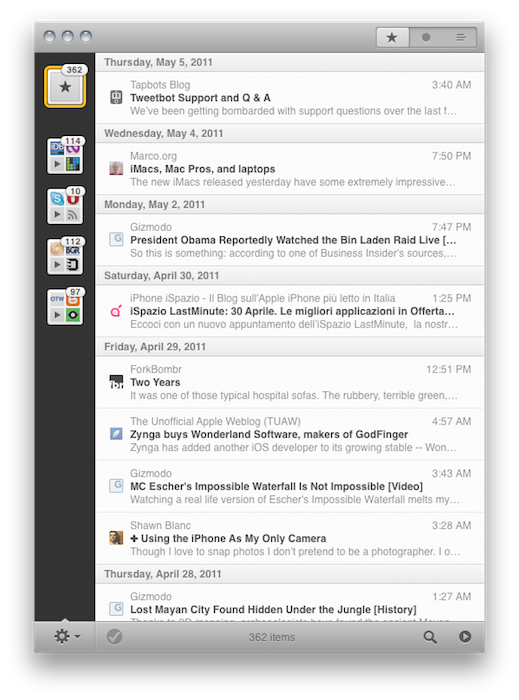
The new beta is available for download here. Without re-reviewing the app all over again (in spite of the additions it still retains 80% of the features seen in the first beta, reviewed here), I’d like to focus on the key areas that Rizzi improved, redesigned and, overall, simply evolved into something new. First off, the app comes with a new optional “minimized layout” that, following a trend started by the original Tweetie for Mac and later re-ignited by other apps like the popular Sparrow email client, places your Google Reader’s source favicons in a narrow sidebar on the left, with unread items in the main panel. The minimized layout, unlike the standard one, doesn’t come with a right panel to read articles: everything happens in a single window, much like Twitter for Mac doesn’t display additional sidebars and popovers when you’re interacting with your timeline. In the new Reeder beta, clicking on a title will open the article (with a neat animation) in the same panel; tap the close button, and the article will bounce back to reveal the main list of feeds again. In this new single-window approach, all the interactions with Google Reader or external services either happen though gestures or keyboard shortcuts – support for both of them has been improved in the new version.

Reeder for Mac retains an iOS-like feel that’s even more visible in today’s beta. The app was accused of being the first iOS app coming to the Mac without considering the nature of the desktop platform; however, as Apple is proving with the Lion developer builds and the latest updates to its flagship applications, it really looks like the future of the Mac will be heavily inspired by iOS. Back to the Mac, as Steve Jobs said, and Rizzi knows this. Reeder for Mac feels like a desktop iOS app more than ever, with support for swipes and pinches to navigate and open / close articles, monochrome icons in the top toolbar to share an article or open it in the browser, and a general feel attached to it that makes Reeder perfect for OS X Lion already, in spite of the OS not being available yet. Whilst the classic reading mode reminds us this is a desktop application meant for RSS power users with lots of features and deep Google Reader integration, the minimized mode and enhanced gesture-based navigation proves, once again, that Reeder is an app with an iOS background that’s coming to a new Mac ecosystem, the one that will start populating our MacBooks and iMacs this summer.

The app is far from finished, though. Whilst Rizzi tells me he’s still planning on making the app available through the Mac App Store, there are some aspects of the app that are not yet completed, such as full subscription management and downloads. However, this new beta confirms that the developer has been busy addressing the issues reported in the first versions: search finally works, and he even implemented a new “appearance” settings panel that will allow you to change Reeder’s color scheme from the much criticized sepia background to something more Mac-like. I love this preference panel: I’m a “standard” user as you can tell from the screenshots in this post, and I appreciate the little touches like the Preferences window fading to let you see the modifications you’re making to the app. Furthermore, the “article list row height” slider enables me to make the app even more minimal with narrower headlines. I quickly skim through hundreds of headlines in my daily news workflow, and I don’t really need to see a three-line preview before deciding to open an entire article. That’s why minimized mode works for me (by the way, you can switch between the two modes at any time by hitting a button in the bottom toolbar).

One thing I’ve always wanted from Reeder for Mac but Rizzi never implemented is the ability to click on a website’s favicon in the upper toolbar to reveal options like “unsubscribe from this source” or “refresh this source only.” Perhaps they’ll come in the final release – which should happen relatively soon at this point, considering the entire app has been rewritten since the original beta and most of the functionalities are working.

Overall, this new beta of Reeder is a terrific improvement over the past version, which was aimed at porting the Reeder experience to OS X, but perhaps lacked the right amount of features that could make it absolutely stand out. With minimized mode, more gestures and an iOS-like approach to news reading, Reeder for Mac leads the way for great things to come. Download the beta here, and check out more screenshots below. Read more



Skype Bug Leaves Mac Users Vulnerable to Exploit: Updated

Those running Skype on OS X are vulnerable to an exploit that allows attackers to gain root access on target machines. Through an instant message, attackers could deliver a malicious payload that would give them remote access via a shell. The severity of the issue has already been addressed by the Skype team, and should be fixed in a future update. In the meantime, a proof of concept reveals the need for caution with recent OS X security warnings and concerns.

Read more


Do You Miss the Mac vs PC Campaign? Watch All 66 Ads Online

As we all know, Apple has a history of great advertising. One of the most popular campaigns of all time are the Mac vc PC ads with John Hodgman as PC and Justin Long as Mac. They had 66 TV commercials before the series was ended last year. Adweek has compiled all 66 of them into one post for your nostalgic viewing pleasure, in chronological order too.

The very first commercial after the break.

Read more


Preview: Fantastical, Upcoming Calendar App for Mac

How do you improve the default OS X calendar application? How do you set out to create an alternative that can be appealing to power users, and accessible for calendar novices at the same time? While beta testing Fantastical, an upcoming Mac app by Flexibits, I thought these were the questions the developers tried to answer with their latest creation. Like in Twitter clients, developing a third-party calendar isn’t an easy task: you have to make sure it will work with all those calendar protocols out there, but most of all you have to know you’ve got something on your hands that will stand out from the crowd – especially when Apple itself ships a full-featured iCal.app with OS X that does its job just fine for most users, and doesn’t require an additional purchase. As usual, though, I believe there’s plenty of room for alternatives if you’re willing to take a risk and believe in your product. And it shows when testing Fantastical: Flexibits believes in its new app so much they wrote “your Mac’s calendar will never be the same again” on the teaser website.

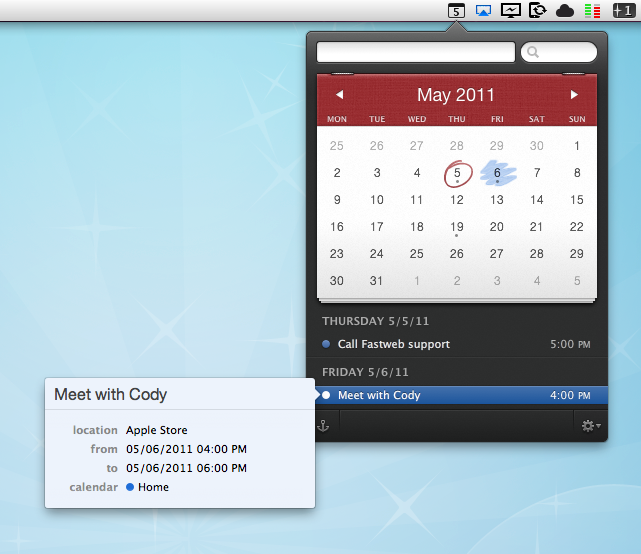
Indeed, Fantastical does some things the default Mac calendar client can’t even imagine. First off, it’s elegant, minimal and unobtrusive, yet beautiful to look at. I know the very own purpose of a calendar app isn’t that of letting you stare at it, but when compared to this or this you’ll notice the difference. User interface, however, is functional to Fantastical: it’s minimal because Fantastical wants to be simple to use, and it’s gorgeous for as much as it’s powerful inside. Fantastical uses a natural language parser that will let you write down events in plain English, and have the app correctly recognize the input in various fields. Example: Meet with Cody tomorrow at Apple Store, Viterbo 5 PM to 6 PM. Adding this sentence to a new iCal event does nothing. But writing it in Fantastical? It creates a new calendar event with “Meet with Cody” as the title, “tomorrow” as the relative date, “Apple Store, Viterbo” as the desired location, and 5 PM to 6 PM as the timeframe. It’s almost unbelievable how well this thing works and how deeply it improves the way I can add events using nothing but English. I don’t have to navigate with my keyboard and mouse, I just write and hit Enter to process the event and add it to my default calendar. Sure, I could still do things manually and adjust dates or location with the cursor, but since installing the first beta of Fantastical I haven’t found a reason why I should.

The language parser is the big feature of Fantastical, but there’s lots more. Without revealing too much right now (let’s save it for a final review, shall we?), I can say Fantastical’s huge advantage over several third-party calendar apps for OS X is that it works perfectly in conjunction with Apple’s iCal, which is responsible for keeping all your calendar configurations. You can start using Fantastical seconds after launch without doing anything, as the app fetches the accounts you’ve already set up in iCal. This means Google Calendar, MobileMe, CalDAV, Exchange, Yahoo Calendar – they all work out of the box. And if you want, you can make a calendar the default one so that adding new events will be as fast as hitting a shortcut, and write.

I wasn’t sure I was going to use Fantastical much initially, mainly because I didn’t think a replacement for the standard calendar interface was needed on a Mac. But after trying it, I have to say Fantastical is the calendar app to look forward to. You can sign up for updates here, and stay tuned for a complete review on MacStories soon. Read more