This Week's Sponsor:

Turbulence Forecast

Know before you go. Get detailed turbulence forecasts for your exact route, now available 5 days in advance.


Posts tagged with "macOS Tahoe"

Edge Light Brightens Your Video Calls in the macOS Tahoe 26.2 Beta

Edge Light doesn't show up in screenshots.

Edge Light doesn’t show up in screenshots.

The latest macOS Tahoe beta 26.2 includes a new video-calling feature called Edge Light, coming to Apple silicon Macs later this year. It’s a video effect that you can access from the menu bar, just like Backgrounds, Center Stage, and Portrait mode, that creates a virtual ring light on your Mac’s screen, helping to light your face on FaceTime, Zoom, and other video calls as the days grow shorter.

The idea is simple, and the implementation is clever. When you enable Edge Light, the outer edge of your Desktop is replaced with a bright, adjustable border. The brightness of Edge Light is adjustable, as is its color temperature, allowing for a range from warmer to cooler colors, just like many physical LED lights designed specifically for video production. The virtual ring light sits on top of your Desktop and windows, but it fades away as your pointer approaches, allowing you to see everything on your screen.

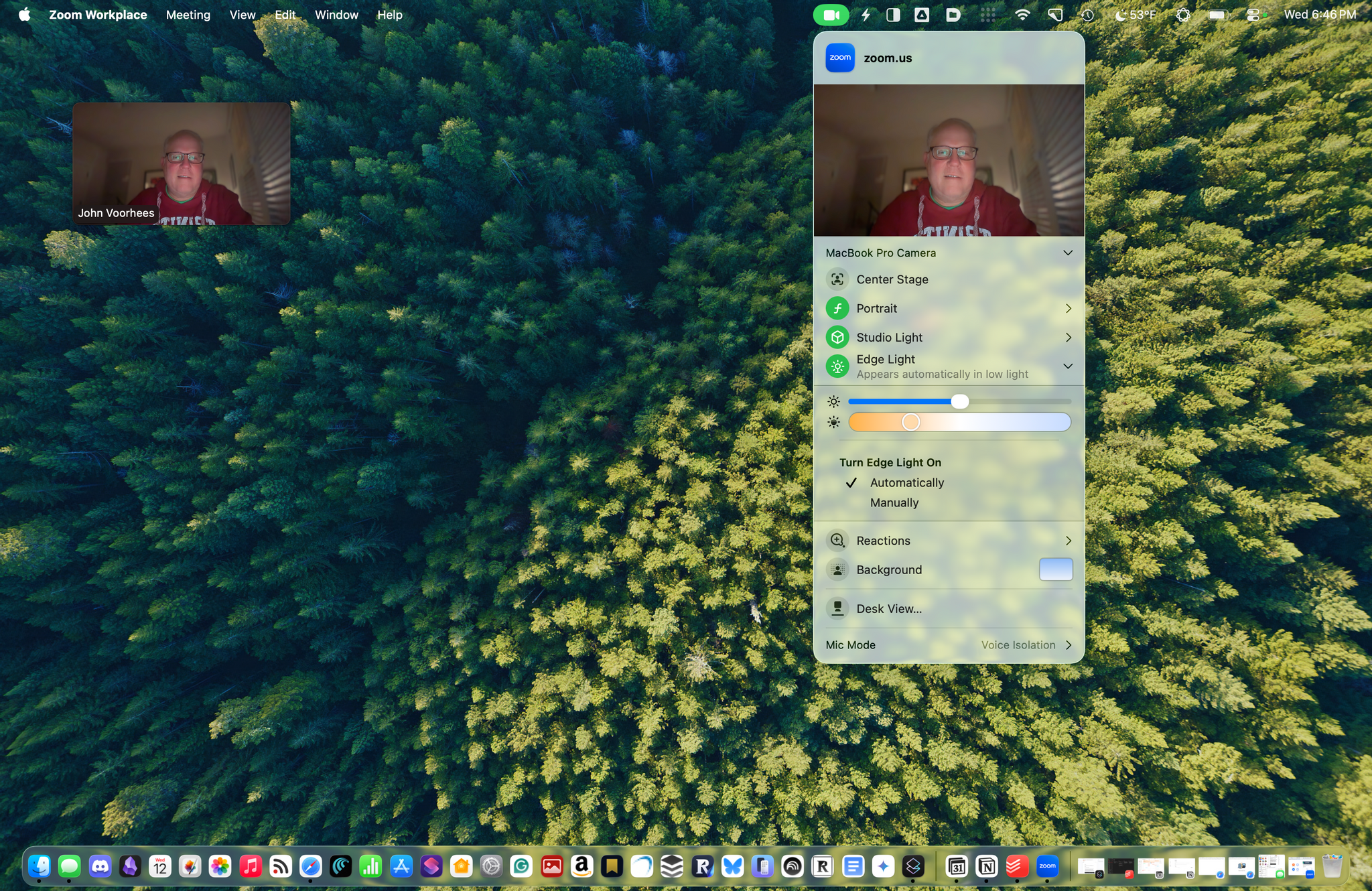
Edge Light's brightness, temperature, and other controls, including the Automatic option available on Macs released in 2024 and after.

Edge Light’s brightness, temperature, and other controls, including the Automatic option available on Macs released in 2024 and after.

Edge Light is made possible by Apple silicon, using a combination of the Mac’s Neural Engine, which detects your face, and the Image Signal Processor, which measures and adjusts Edge Light’s brightness based on surrounding lighting. Edge Light will work on all Apple silicon Macs when Tahoe 26.2 is released, but Mac models released in 2024 or later will also have the option to turn the feature on automatically when low light is detected.

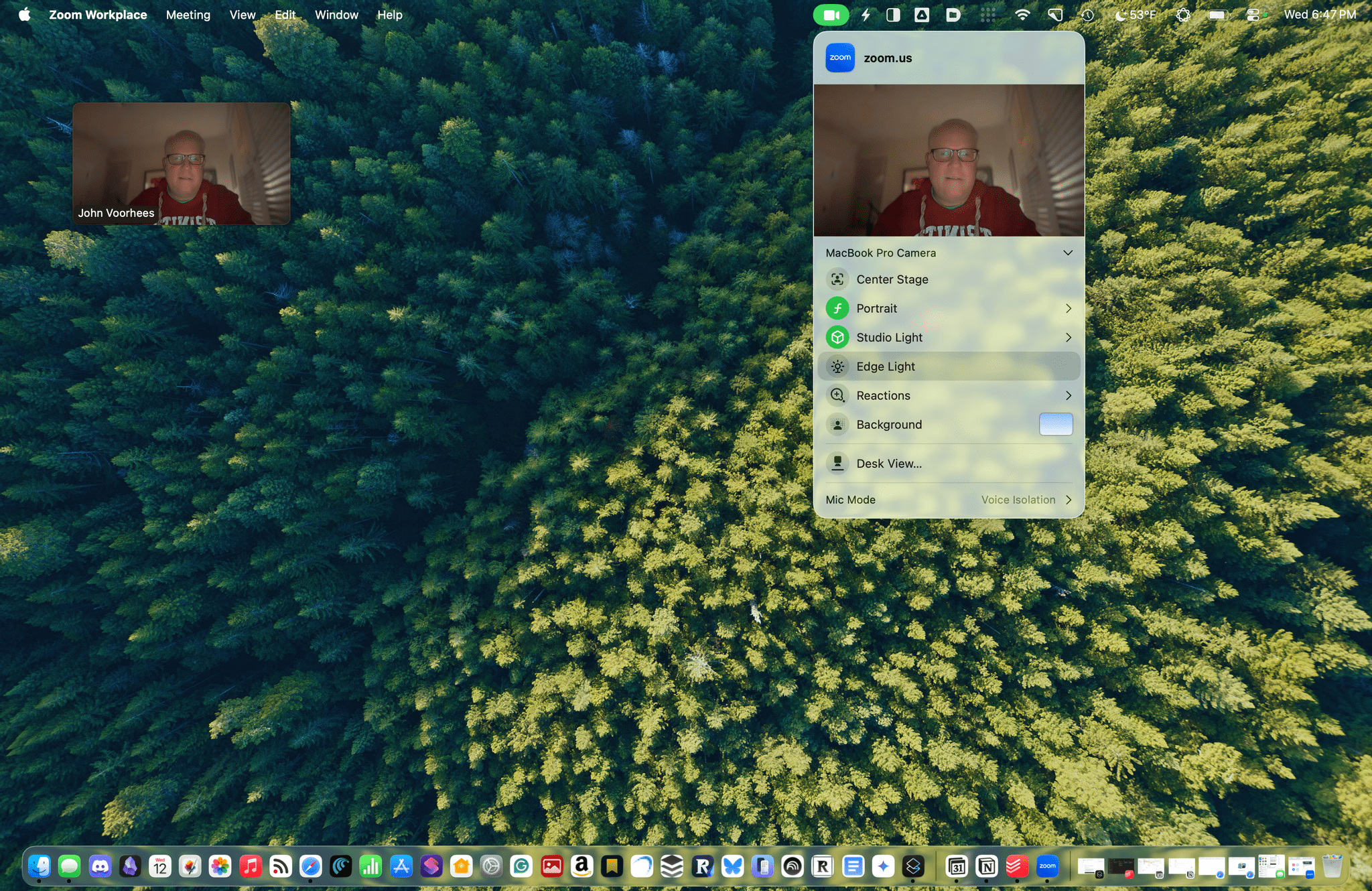
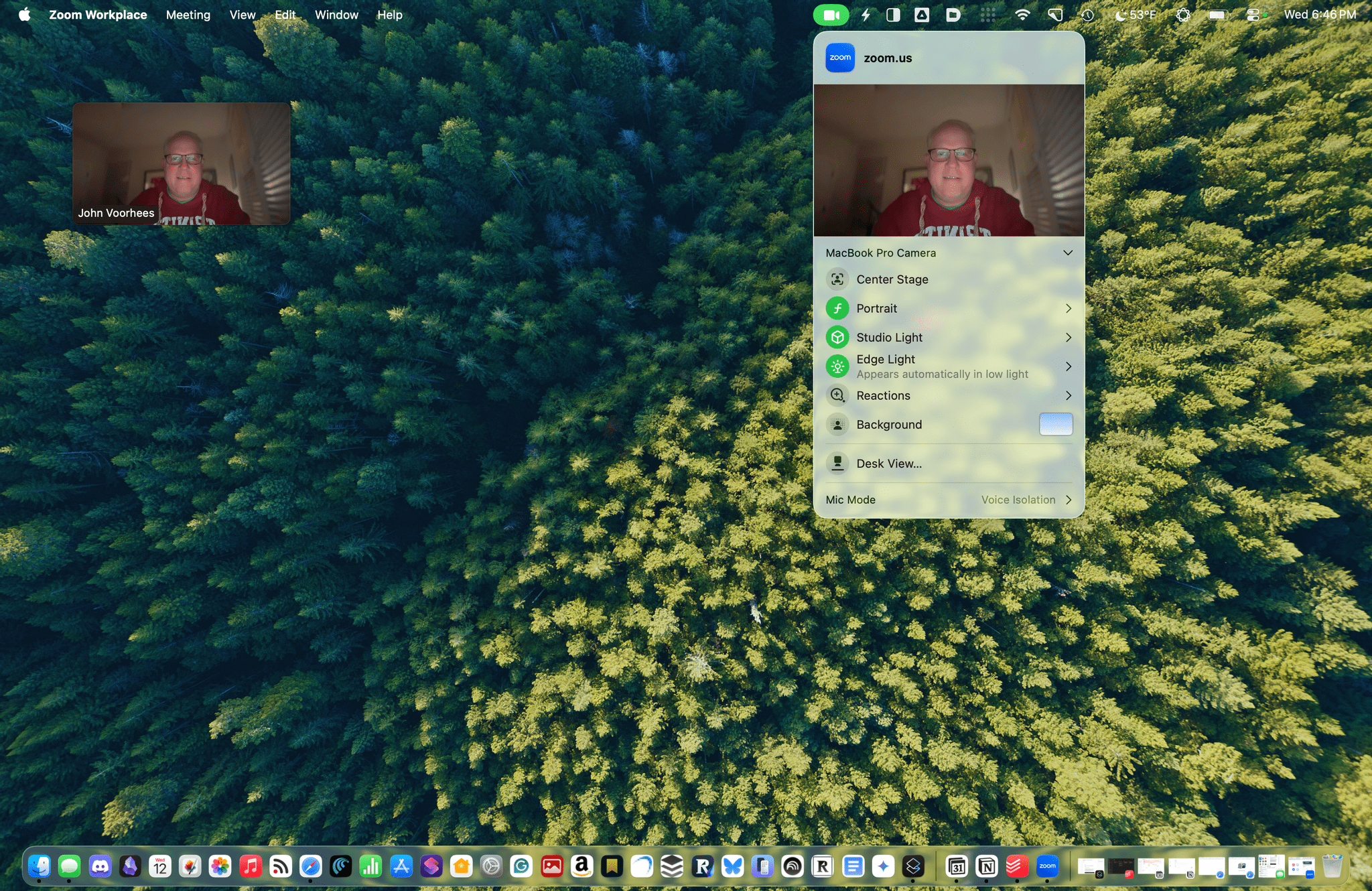
Edge Light off. Note, Edge Light isn't captured in screenshots.

Edge Light off. Note, Edge Light isn’t captured in screenshots.

Edge Light on. Note, Edge Light isn't captured in screenshots.

Edge Light on. Note, Edge Light isn’t captured in screenshots.

In my brief testing of Edge Light, I noticed that the effect is noticeable in a very dim room, but as you’d expect, less so as the room brightens. I also noticed that Edge Light was brighter when set to turn on automatically rather than manually, even though switching between the two didn’t move the brightness slider. I’m not sure what’s going on there, but it’s a beta, so that may change. I also enjoyed how the virtual ring light widened as I increased the brightness.

I have a couple of lights set up along the back edge of my desk because we record video for our podcasts, but most people don’t have that setup. For them, Edge Light will be a nice addition, reducing those early-morning and late-afternoon shadows. And despite the lights I have installed, sometimes it’s just easier to turn on something like Edge Light, so I expect to get use out of it too, whether I’m away from my desk on a laptop or sitting at my desk.

We’ll have more macOS Tahoe 26.2 coverage when it and Apple’s other 26.2 releases exit beta.


Apple Releases 26.1 Updates to Its Operating Systems

Today, Apple released version 26.1 of its full family of OSes. Every platform received attention, including the proverbial “bug fixes and feature enhancements,” but it was iOS 26.1 and iPadOS 26.1 that received the most changes that are likely to be noticed by users.

Liquid Glass: Tinted

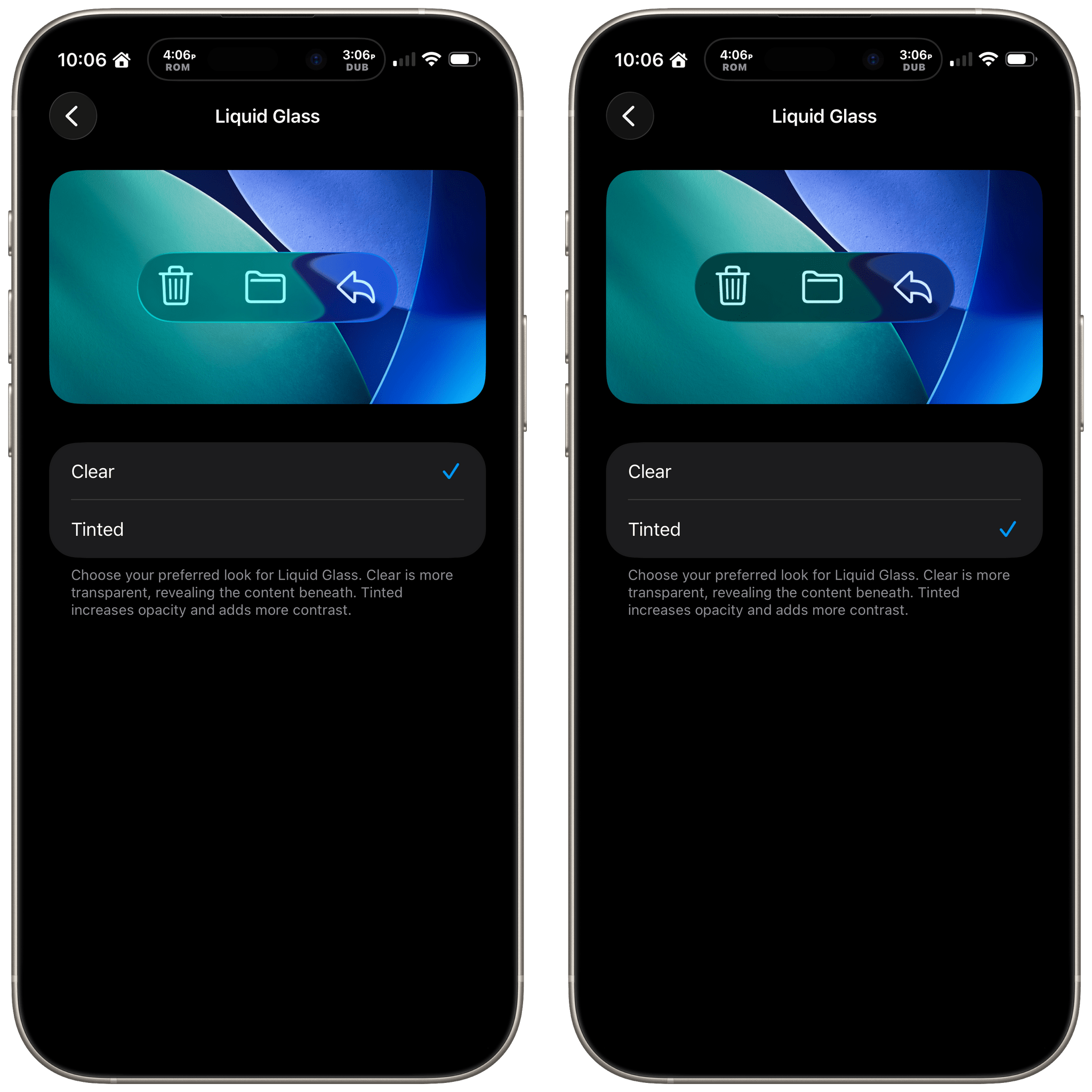
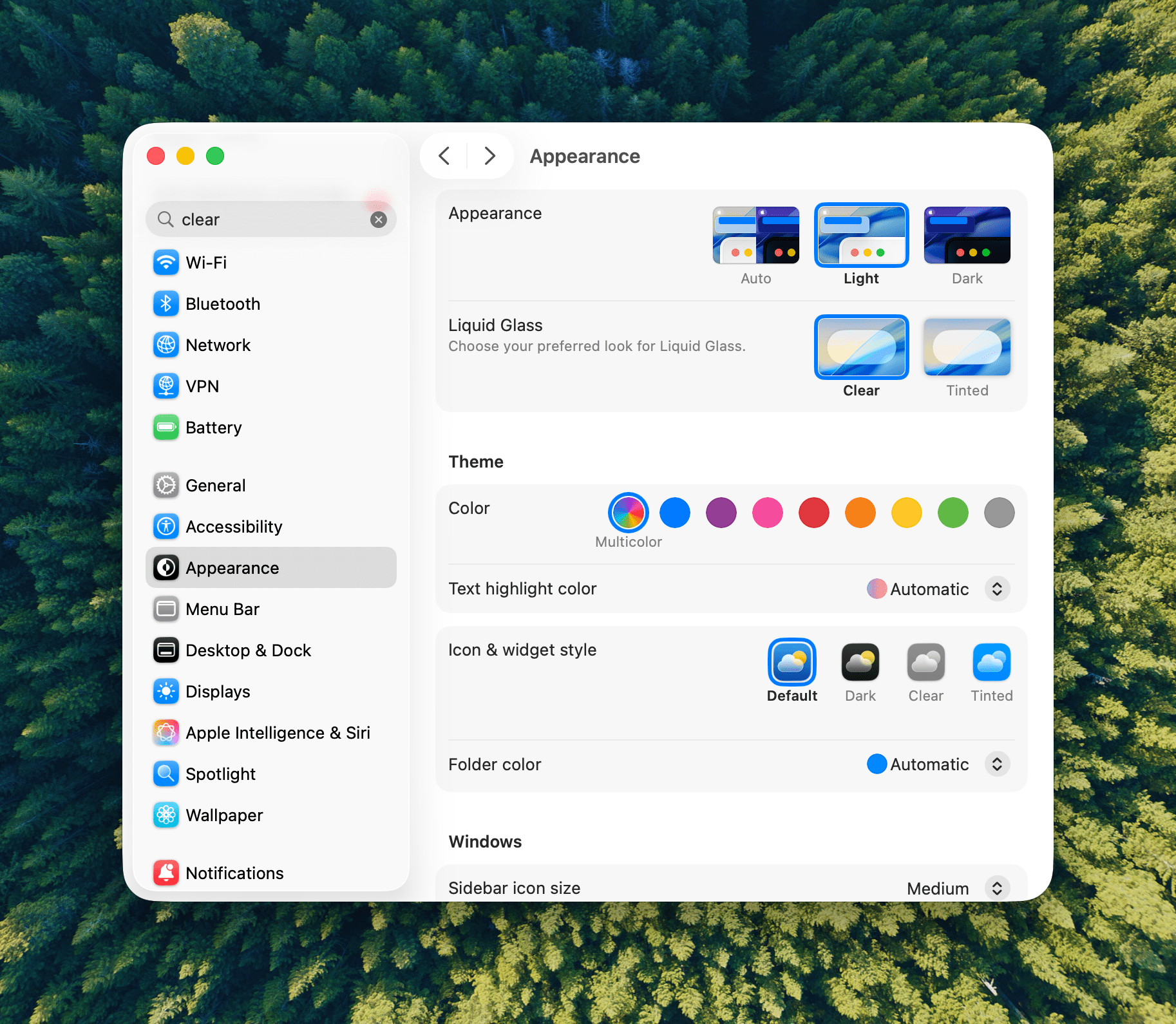
Liquid Glass: Clear or Tinted.

Liquid Glass: Clear or Tinted.

Let’s start with iOS 26.1 because most of the changes to it are reflected in iPadOS, too. Probably the biggest news is a new setting that allows users to choose between Clear and Tinted versions of Apple’s signature Liquid Glass design. Many readers we’ve heard from like Liquid Glass or didn’t notice a substantial difference when they updated to iOS and iPadOS 26, but for some, the design change was a regression in readability. With iOS, iPadOS, and macOS 26.1, users can opt for a Tinted version of Liquid Glass that reduces transparency, increasing the design’s opacity and enhancing contrast.

Liquid Glass is an opinionated design, so I’m a little surprised at this change. I like Liquid Glass in more places than I don’t, but given the readability issues some people experienced, this change is a good one. If you like Liquid Glass or barely noticed it to begin with, you’re fine. However, if it rubbed you the wrong way, check out the Liquid Glass setting in the Display & Brightness section of Settings, which has a helpful before-and-after preview of what the change looks like.

Slide to Stop

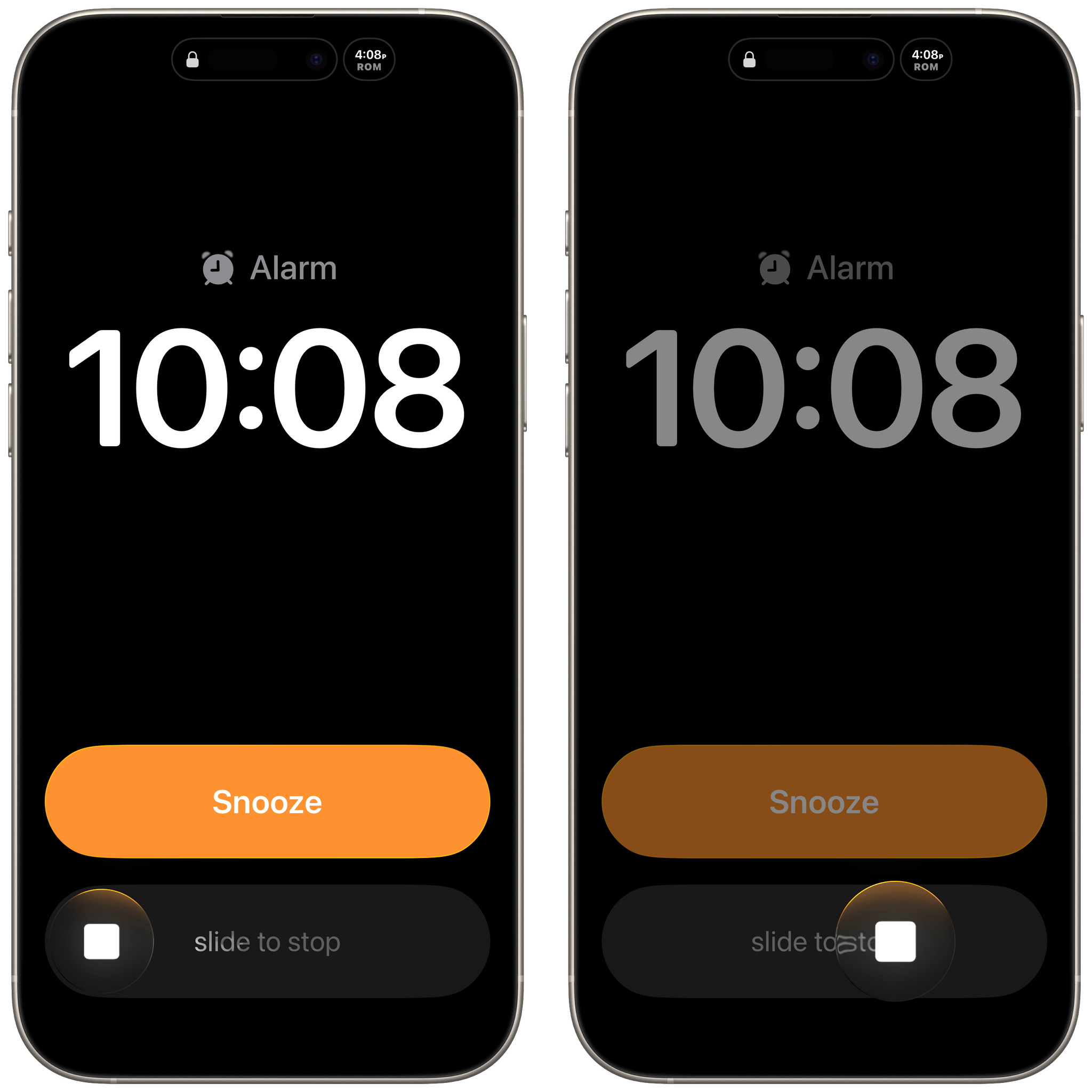
Slide to stop alarms.

Slide to stop alarms.

With iOS 26, Apple placed two big buttons onscreen when an alarm went off. One was for stop and the other snooze. That wasn’t a big deal for many of the alarms you set throughout the day, but when you’re waking up in the morning blurry-eyed, two big buttons stacked on top of each other weren’t ideal. For a lot of users, it was a toss-up whether stabbing at their iPhone through a morning haze would stop their alarm or snooze it.

With iOS and iPadOS 26.1, the ‘Stop’ button for an alarm set in the system Clock app now requires a slide to stop gesture, which echoes the Slide to Unlock gesture of the original iPhone. The more deliberate gesture is a good move on Apple’s part. I can’t imagine someone tapping and sliding their finger to stop an alarm by accident.

Local Capture Refined

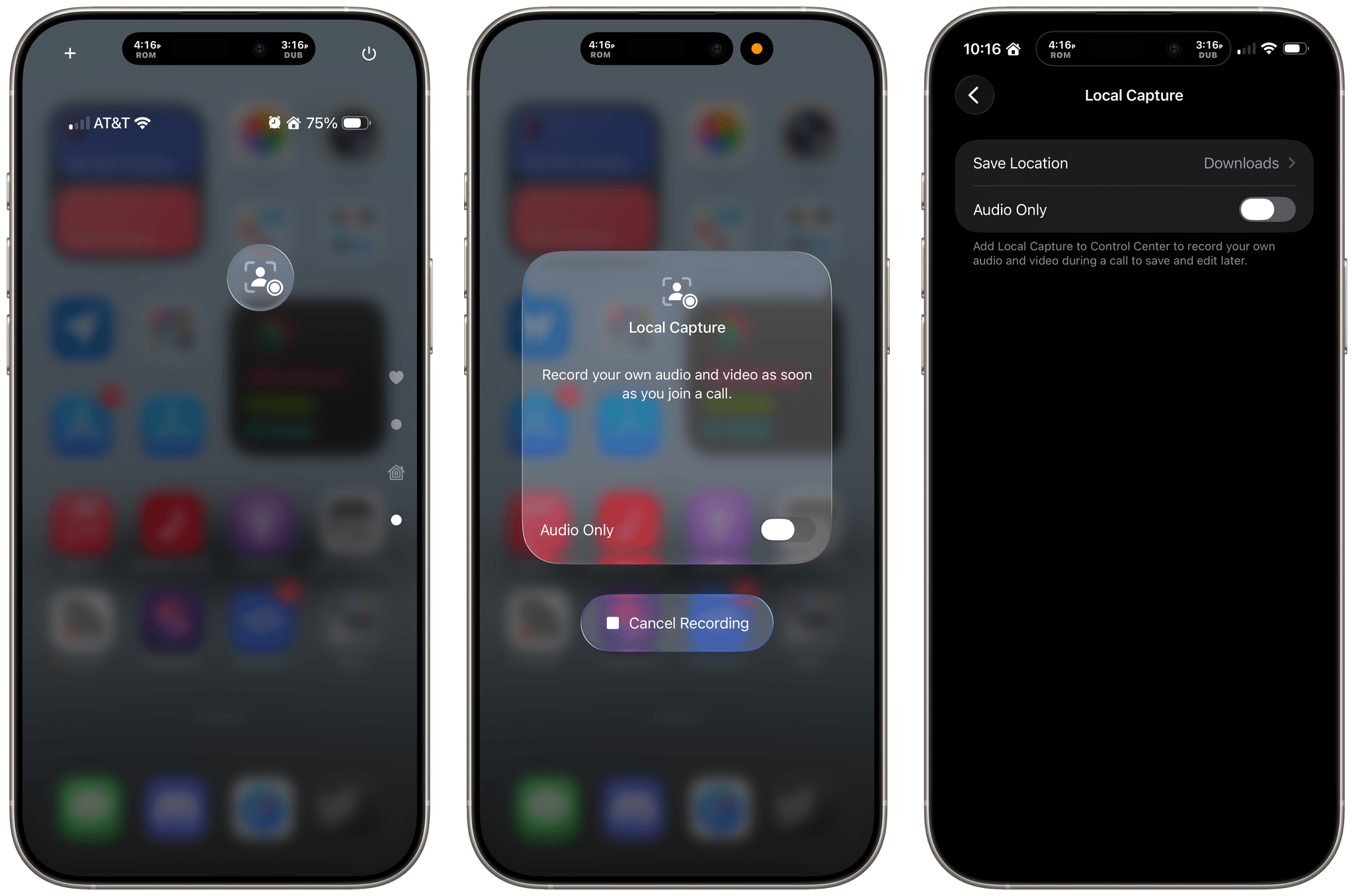
Apple has also refined Local Capture for the iPhone and iPad, which is great. Local capture allows you to record high-quality audio and video from an iPhone or iPad, while simultaneously on a video call using a service like Zoom. It’s a feature that podcasters wanted for many years, and although I was excited to find that Apple had listened to our annual requests with iOS and iPadOS 26, the implementation fell a little short because it didn’t allow for gain control, making it difficult to get a properly balanced recording with some microphones. Likewise, there was no option in the first iteration of the feature to pick where your recording was saved.

With iOS and iPadOS 26.1, both issues have been addressed sooner than many of us expected, which is fantastic. Now, you can adjust gain and pick a save location for the files you record from Settings. It’s great to see Apple react so quickly to the feedback it received on this feature. The feature fell just short enough in its original implementation that I had decided not to rely on it unless I had no choice. However, although it’s not how I’m going to record most of the time, local recording now has sufficient settings that I will feel a lot more comfortable relying on it in the future.

Camera and Photos

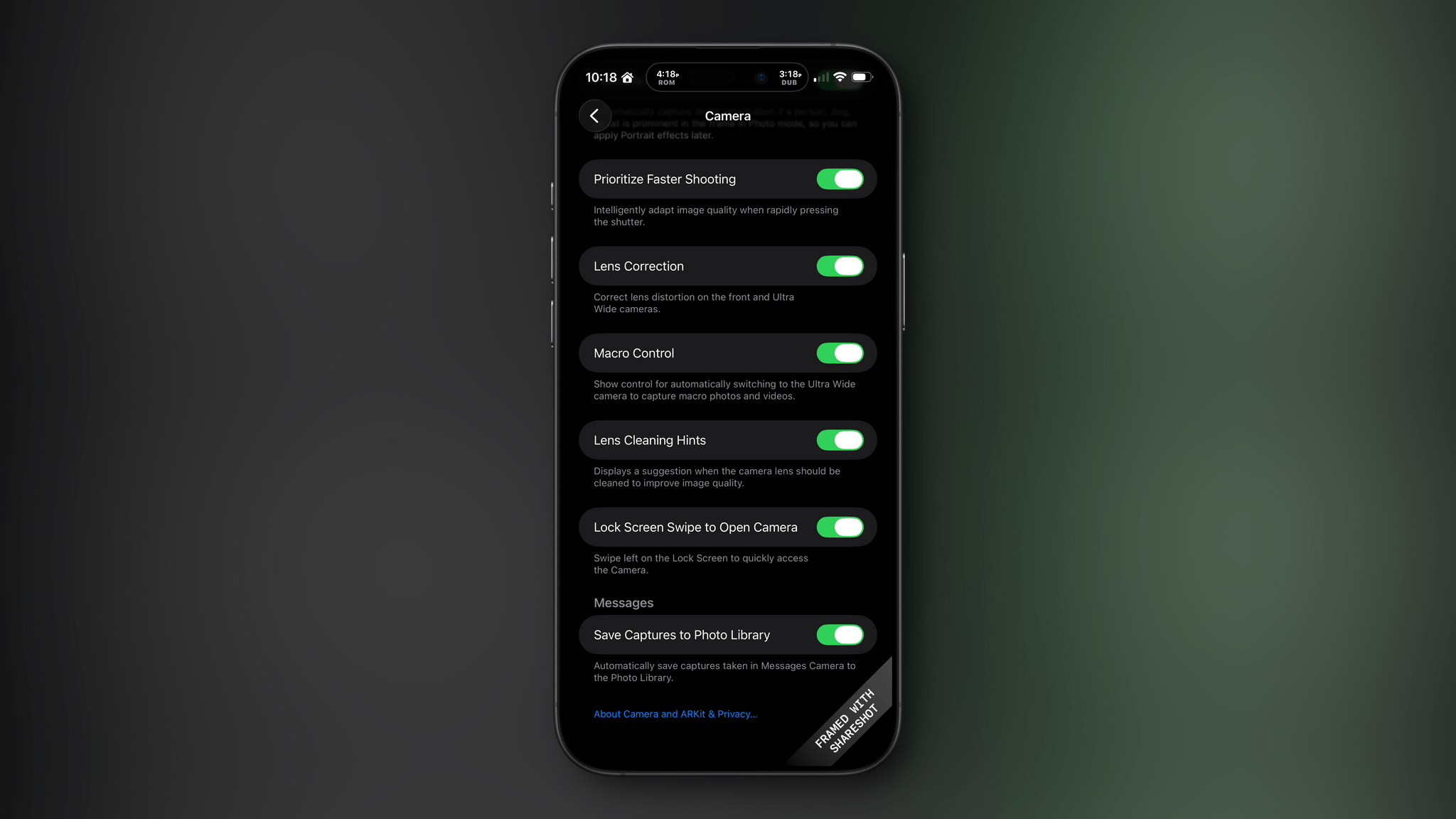
I don’t know about you, but it’s not uncommon for me to accidentally activate my iPhone’s camera by inadvertently swiping left on my Lock Screen. For me, it’s a once-in-a-while thing, but if it happens to you a lot, you can now deactivate the gesture in Settings under the Camera section.

There are relatively minor changes to Photos, too. The interface elements for playing multiple selected images as a slideshow, marking them as favorites, or hiding them are now at the top of the Photo app’s three-dot “More” menu.

Everything Else in iOS

The iOS update includes a bunch of other small changes:

  • A new accessibility setting to “Display Borders” around buttons, which replaces the old “Button Shapes” setting;
  • The Lock Screen wallpaper picker includes new prompts to help users through the setup process;
  • Rapid Security Responses has been replaced by a toggle in Settings that allows users to choose whether automatic security updates are applied to their iPhone or iPad;
  • The Fitness app has gained new custom workout options for workout type, estimated Active Calories, effort, duration, and start time;
  • Many interface elements in Settings are now left-aligned;
  • The color backgrounds of events in Calendar have been reverted to their pre-iOS and iPadOS 26 look;
  • Swiping on the mini-player in Music now skips forward and back among tracks in your queue;
  • Apple Intelligence is now available in Danish, Dutch, Norwegian, Portuguese (Portugal), Swedish, Turkish, Chinese (Traditional), and Vietnamese. Also, AirPods Live Translation now has support for Japanese, Korean, Italian, and both Mandarin Traditional and Simplified Chinese; and
  • The Vision Pro app includes a 3D model of your Vision Pro.

iPadOS 26.1: Slide Over and New Window Management Options

The lion’s share of changes to iOS are carried over to iPadOS 26.1, but there are a couple of revisions to the iPad’s OS that are unique to it.

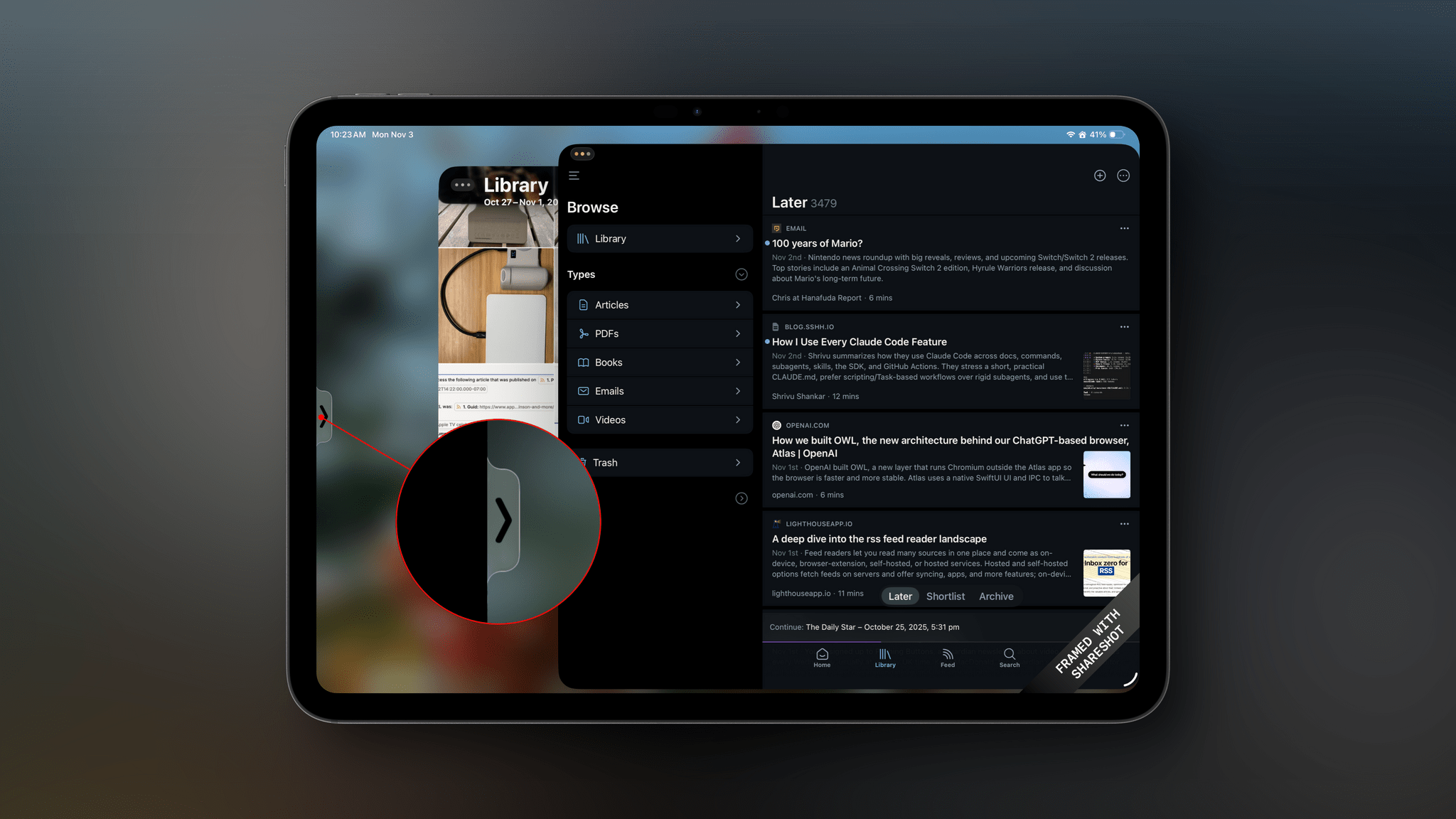
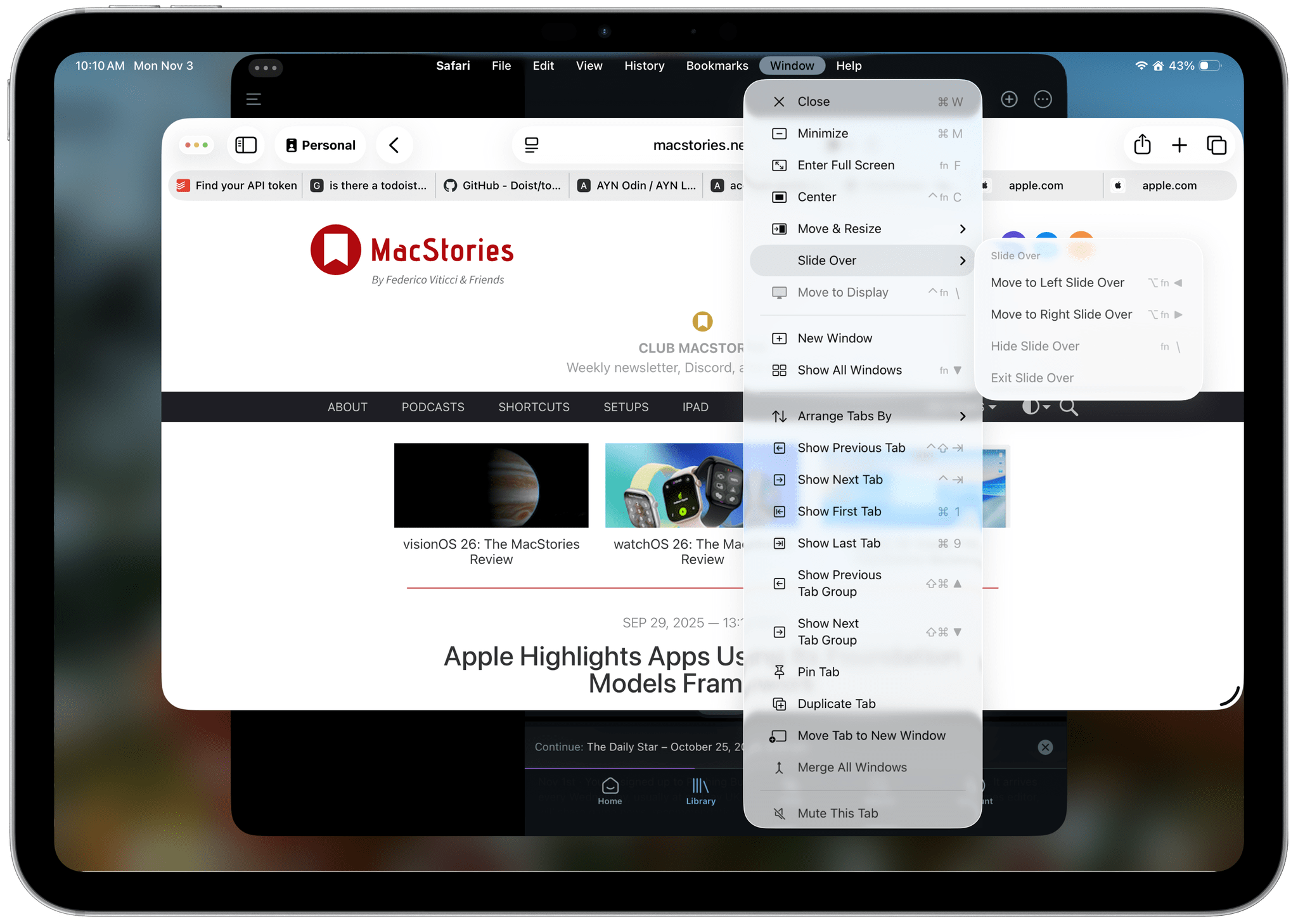
First, Slide Over is back. Apple heard from a vocal group of iPad users who relied on Slide Over to get their work done and has added the feature back to the OS with a twist. The new Slide Over supports a single app tucked just offscreen with a little Picture-In-Picture style indicator along the edge of your iPad’s screen. Previously, you could switch between multiple apps using a dedicated Slide Over switcher interface. However, now, your Slide Over window can be resized to any size, which wasn’t possible before. Also, the single Slide Over app is a per-display restriction, meaning that if you use an external display with your iPad, you get a second Slide Over app.

Second, Apple has added some new menu items for managing window. There are now options to hide your current window, hide your other windows, and close all of your windows, all of which close gaps between how windows work on the iPad and Mac.

macOS 26.1 Tahoe

Like iOS and iPadOS 26.1, macOS Tahoe has gained a tinted version of Liquid Glass. If Apple is intent on preserving maximum transparency in Music and Photos, I may give the “tinted” version a try. I generally like Liquid Glass on the Mac, but it’s not perfect, and “tinted” mode may help.

Finally, AutoMix, the feature that uses Apple Intelligence to transition tracks of a playlist by matching their beats, now works with AirPlay. When I first tested this feature over the summer, I assumed AutoMix would work automatically with my Bluetooth speakers that I use at my desk, but that wasn’t the case. Now, however, whether you use AirPlay speakers or wired speakers, AutoMix will work.

Sadly, there’s not much to report about visionOS, watchOS, or tvOS. Each undoubtedly received under-the-hood improvements, but you’ll have to wait for substantive new features from them.


If there’s a theme surrounding the 26.1 updates to Apple’s OSes, it’s that the company is listening to its users. Tinted Liquid Glass, the return of Slide Over, and the updates to the very niche Local Capture feature are all great examples of Apple’s engineering teams turning around meaningful updates to its OSes based on feedback from users. That’s great to see, and a trend that I hope continues long into the future.


Mystery Solved: Why Third-Party Apps Vanished From the Mac’s Control Center

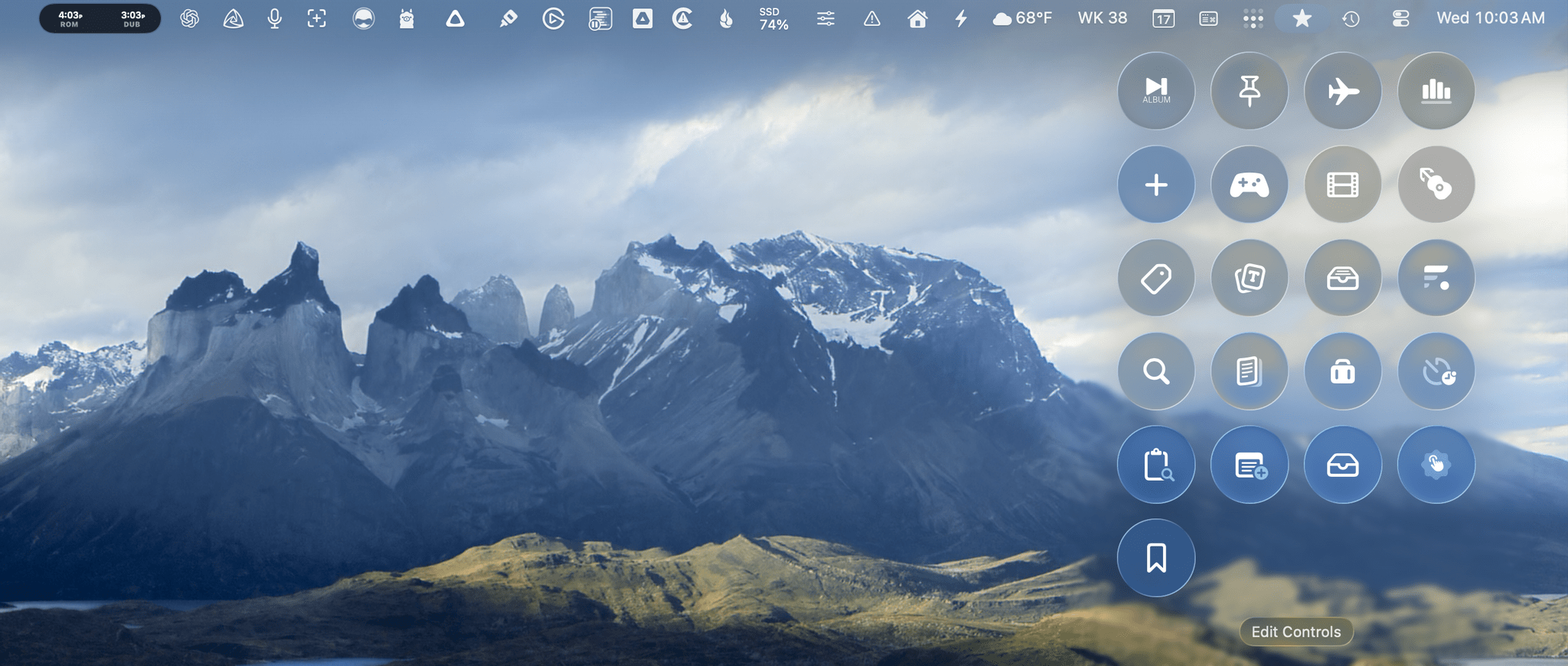
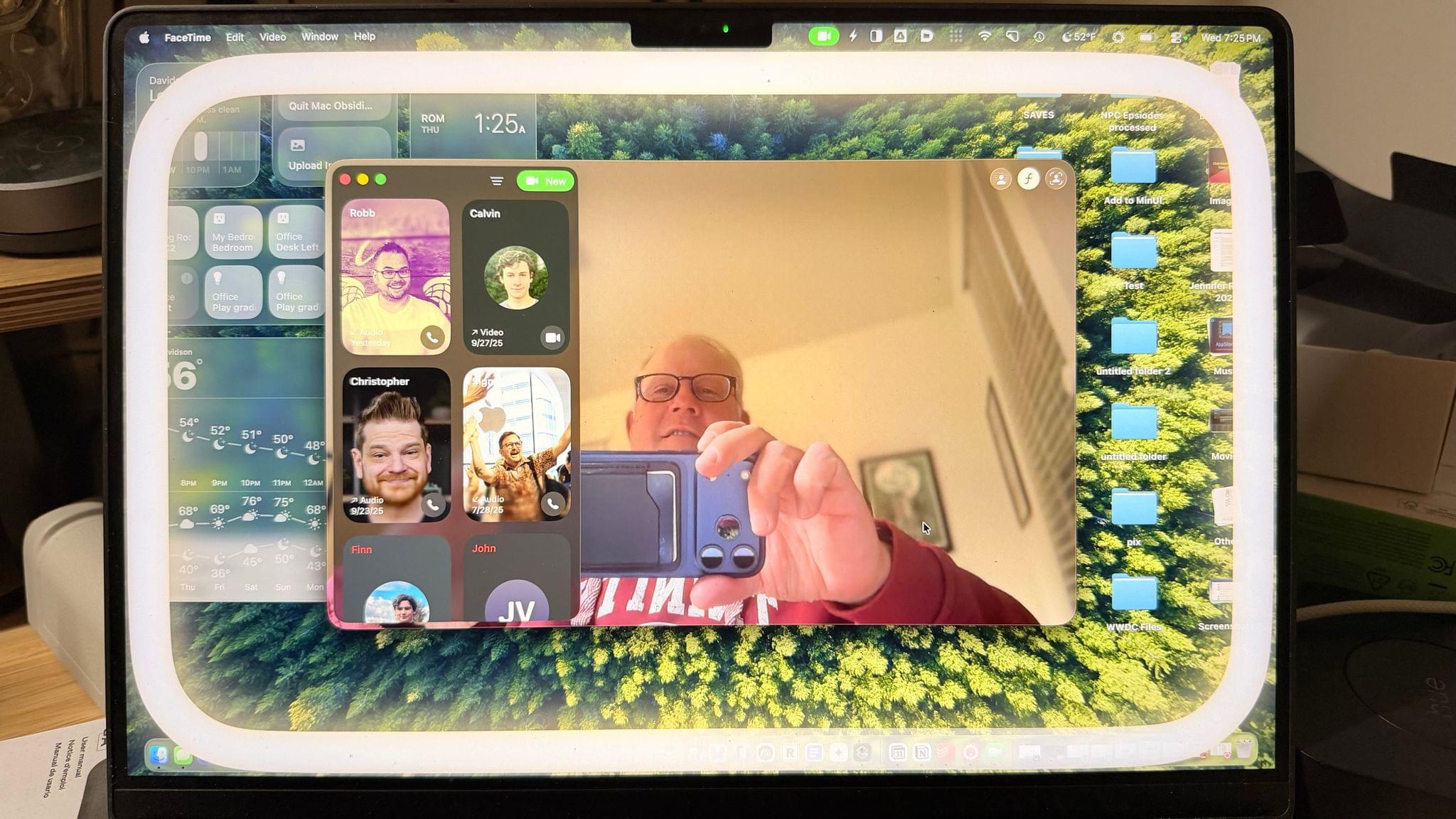
Just look at all those great third-party controls.

Just look at all those great third-party controls.

As I explained in my macOS Tahoe review, one of the biggest disappointments was how few third-party Control Center controls I had access to at launch. That was surprising to me given how many developers support Control Center on the iPhone and iPad.

So, I spent a lot of time investigating the issue without reaching a satisfactory answer until yesterday. The short story is it’s a bug, and there’s a workaround until it can be fixed by Apple, but here’s the rest of the back-story that didn’t make it into my macOS Tahoe review and how to sidestep it.

Read more


macOS 26 Tahoe: The MacStories Review

I’m going to cut to the chase – I like macOS 26 Tahoe a lot. No, it’s not perfect, and yes, I wish Apple had done even more, but that’s the case every year.

What I love about Tahoe is its balance. It’s not the sort of thing you can draw up a set of specs or a table of pros and cons for. It just feels right.

The heart of why Tahoe works is that it meets users where they are better than the typical annual release. If you’ve been using macOS for years and prefer to follow a beaten path through its features, you can. You may stumble across a new feature now and then, and you’ll notice visual differences thanks to Liquid Glass, but I’ve been moving between macOS Sequoia and Tahoe all summer long, and when I’m not seeking out what’s new, everything simply feels familiar and comfortable. That’s a good thing for an OS that’s relied upon by millions of people to get their work done.

But you’re probably wondering how I can say that given the Liquid Glass design and online drama surrounding it over the summer. The thing is, whether you’re a Liquid Glass fan or foe, it’s just not as big of a deal on the Mac as it is elsewhere. I’ll explain what I like about Liquid Glass and what I don’t, but it hasn’t moved the needle at all when it comes to my daily work.

What has moved the needle are the new features available in Tahoe. They won’t get in the way of your existing workflows, but if you’re interested iprn exploring new and better ways of getting things done, there’s a lot to like about this update. That’s why I’m such a big fan of macOS 26: it’s a release that walks a careful line between the familiar and the new. There’s no adjustment period, but there are plenty of new features to explore that I think will make a big difference in the way MacStories readers use their Macs.

So join me for a tour off the beaten path to explore what you can expect to discover in macOS 26 Tahoe.

Read more


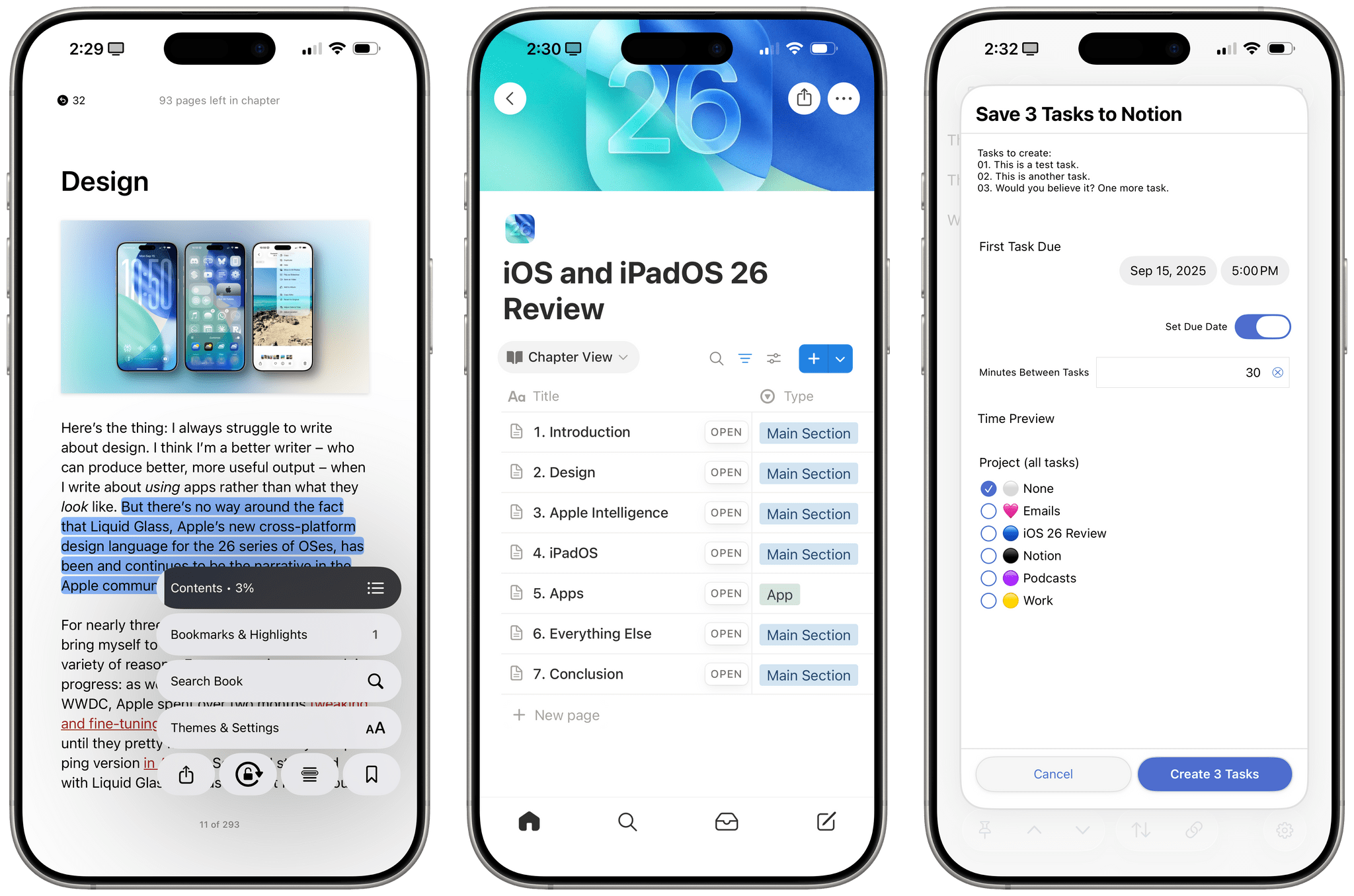
iOS and iPadOS 26 Review Extras: eBooks, Drafts Actions, Apple Intelligence Shortcuts, and a Special Edition of MacStories Weekly

Today’s the day! This morning, Federico published his comprehensive review of iOS and iPadOS 26, covering the systems’ design, new app features, and more – including, of course, big changes to iPadOS. His review kicks off a really fun week here at MacStories, and we’re making it extra special with exclusive perks for Club MacStories members. Here’s what’s in store.

For Club MacStories members, we’ve got some exciting perks to help you dive deeper into Federico’s review:

  • An eBook edition of iOS and iPadOS 26: The MacStories Review that you can download and read on your favorite device or app
  • A behind-the-scenes making-of story in the next MacStories Weekly with details on how Federico researched, wrote, and compiled the review

If you’re not already a member, you can join Club MacStories for $5/month or $50/year using the buttons below:

Read more


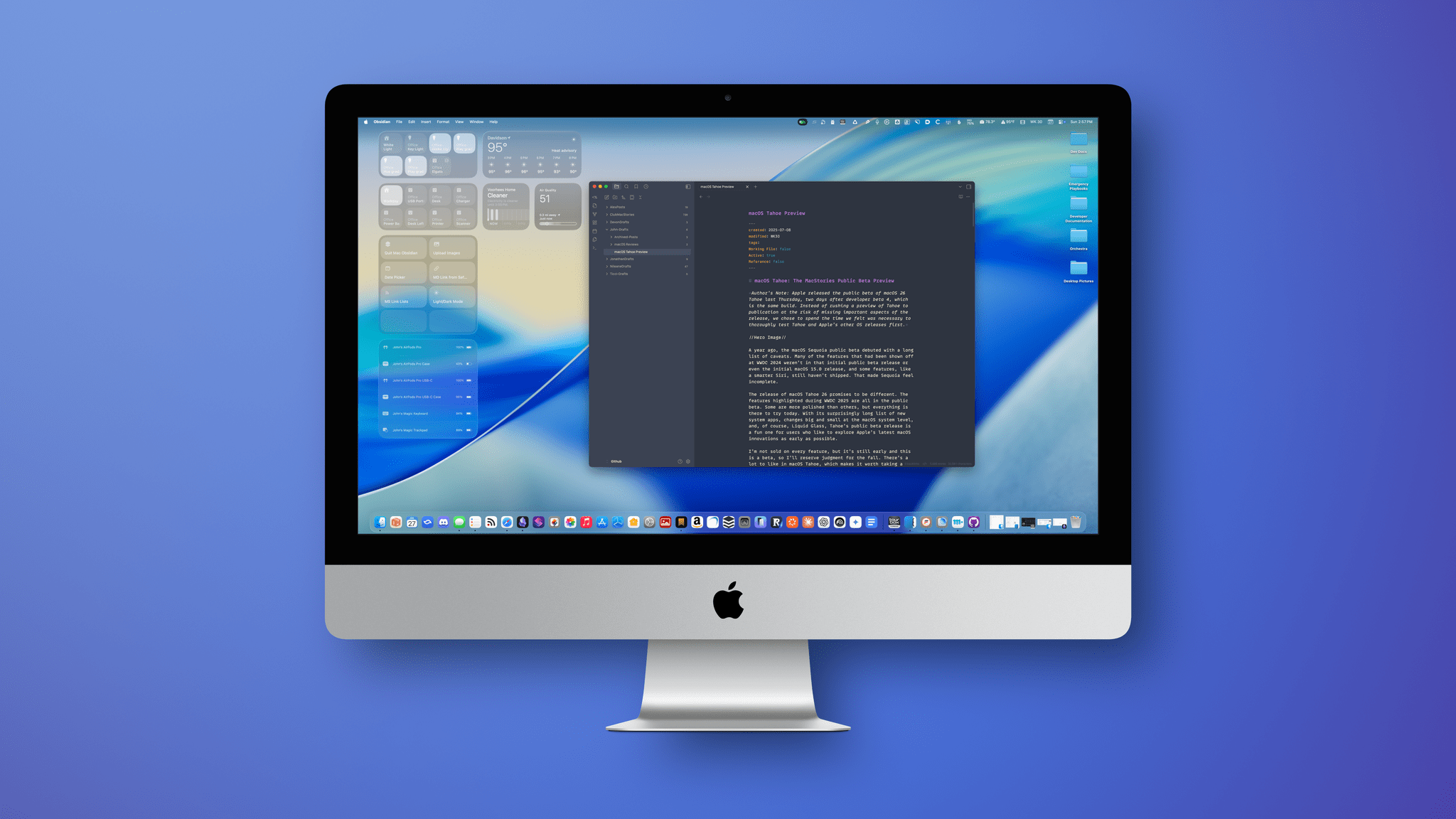
macOS Tahoe: The MacStories Public Beta Preview

Author’s Note: Apple released the public beta of macOS 26 Tahoe last Thursday, two days after developer beta 4. Instead of rushing a preview of Tahoe to publication at the risk of missing important aspects of the release, I chose to spend the time necessary to thoroughly test Tahoe first.


A year ago, the macOS Sequoia public beta debuted with a long list of caveats. Many of the features that had been shown off at WWDC 2024 weren’t in that initial public beta release or even the initial macOS 15.0 release, and some features, like a smarter Siri, still haven’t shipped. That made Sequoia feel incomplete.

The release of macOS Tahoe 26 promises to be different. The features highlighted during WWDC 2025 are all in the public beta. Some are more polished than others, but everything is there to try today. With its surprisingly long list of new system apps, changes big and small at the macOS system level, and, of course, Liquid Glass, Tahoe’s public beta release is a fun one for users who like to explore Apple’s latest macOS innovations as early as possible.

I’m not sold on every feature, but it’s still early, and this is a beta, so I’ll reserve my final judgment for the fall. However, there’s a lot coming in macOS Tahoe, which makes it worth taking a closer look at today, so let’s dig in.

Read more