Posts tagged with "safari"

ActiveTab Safari Extension Launched on iPad

Last week, I wrote about ActiveTab, a Safari extension that draws a colorful line beneath the active tab in Safari for Mac, which makes it far easier to identify the tab you’re viewing. However, the Mac isn’t the only platform where Safari’s tabs are problematic. As Federico explained in his iOS and iPadOS 15 review, it’s every bit as difficult to decypher which tab is active on the iPad.

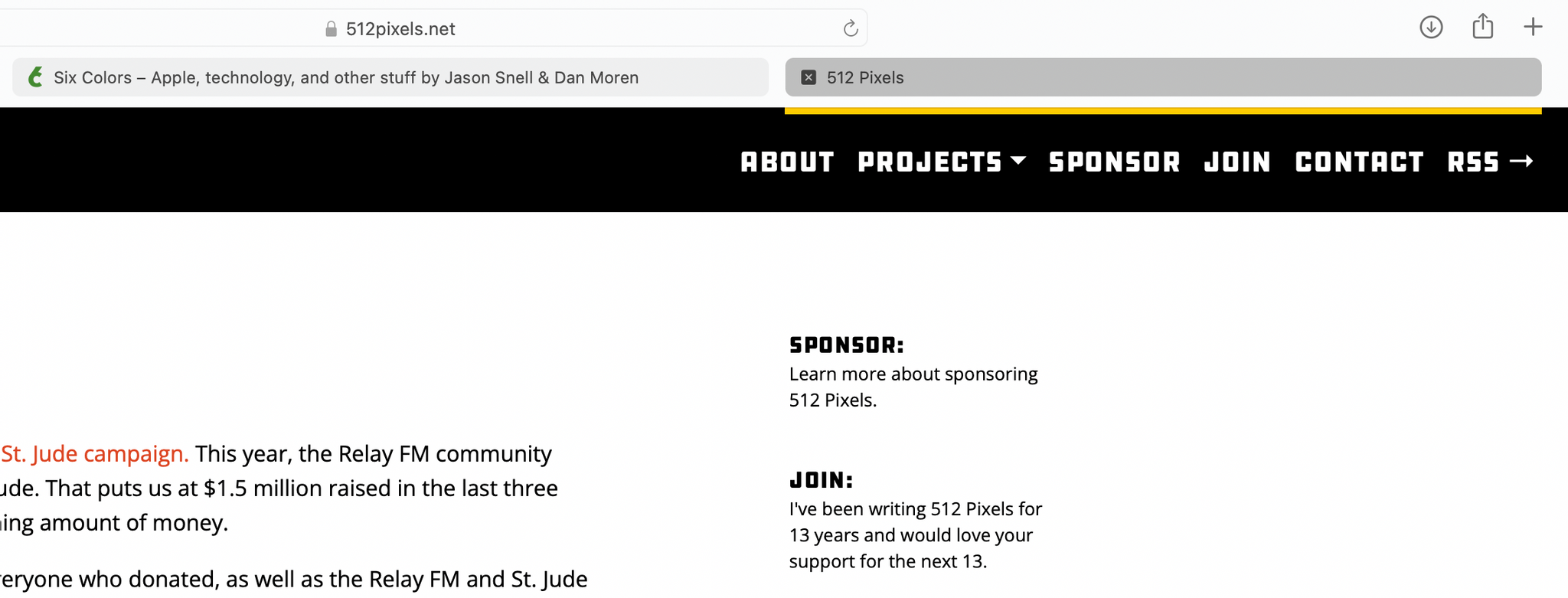
Fortunately, ActiveTab is now available on the iPad too. The extension has the exact same features as the Mac version, making the active tab stand out by drawing a line across the top of the content view underneath the tab. If you haven’t installed a Safari extension on the iPhone or iPad yet, be sure to check out my story on iOS and iPadOS 15 Safari extensions for details on how to set them up.

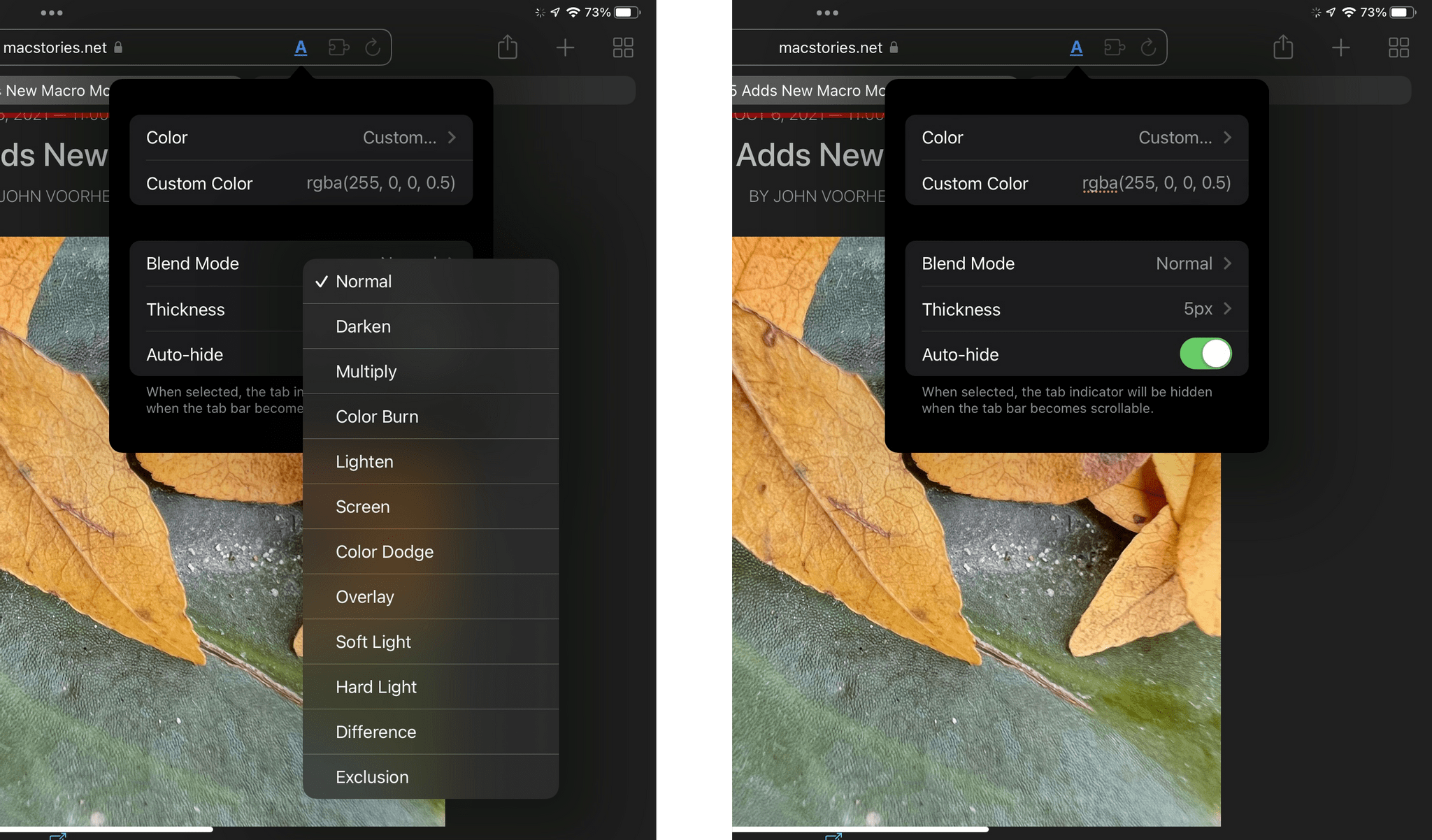
ActiveTab has added new Blend Modes and custom colors to the app too.

ActiveTab has added new Blend Modes and custom colors to the app too.

Since I first wrote about ActiveTab, the app has been updated to allow you to add a custom color using RGBA values, in addition to the set of pre-defined options. The extension has added a Blend Mode option on both platforms too, which can help set the extension’s colored bar apart from its background in some circumstances.

If you haven’t checked out ActiveTab yet, it’s available on the App Store for $1.99.


Google Appears to Have Stopped Serving AMP Search Results to Safari Users on iOS and iPadOS 15

Update: Although Google has not commented on the lack of AMP links in its search results, Danny Sullivan has tweeted that their disappearance from iOS and iPadOS 15 is a bug that Google is working to fix.


Earlier today, developer Jeff Johnson published a story, noting that AMP links have seemingly vanished from Safari on iOS and iPadOS 15. AMP is Google’s cached URL system that’s designed to speed up the mobile web but often ruins website functionality and junks up URLs. I’ve never been a fan of AMP and neither has Federico.

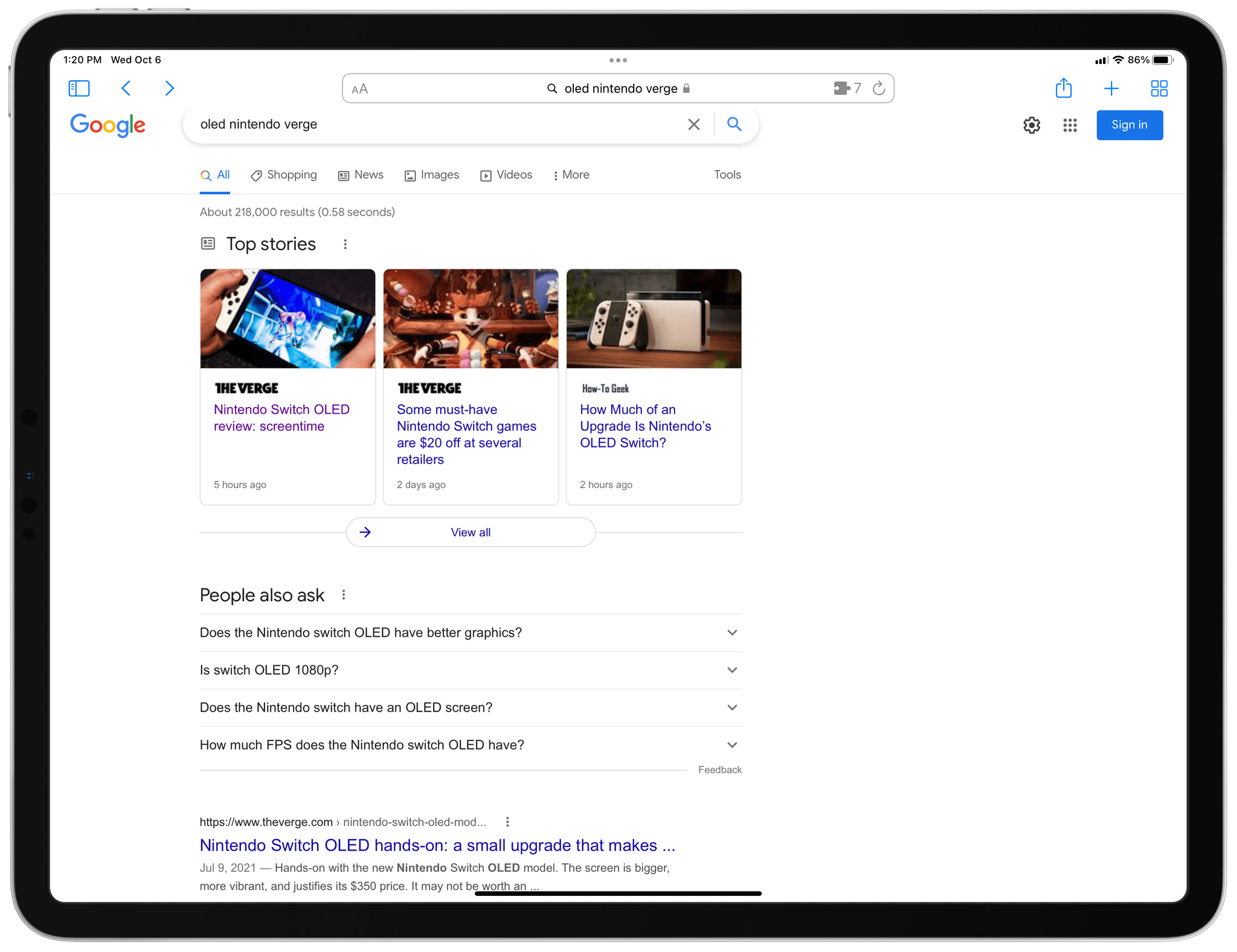
Google search results for an article that returns AMP results on iOS 14 but not iOS 15.

Google search results for an article that returns AMP results on iOS 14 but not iOS 15.

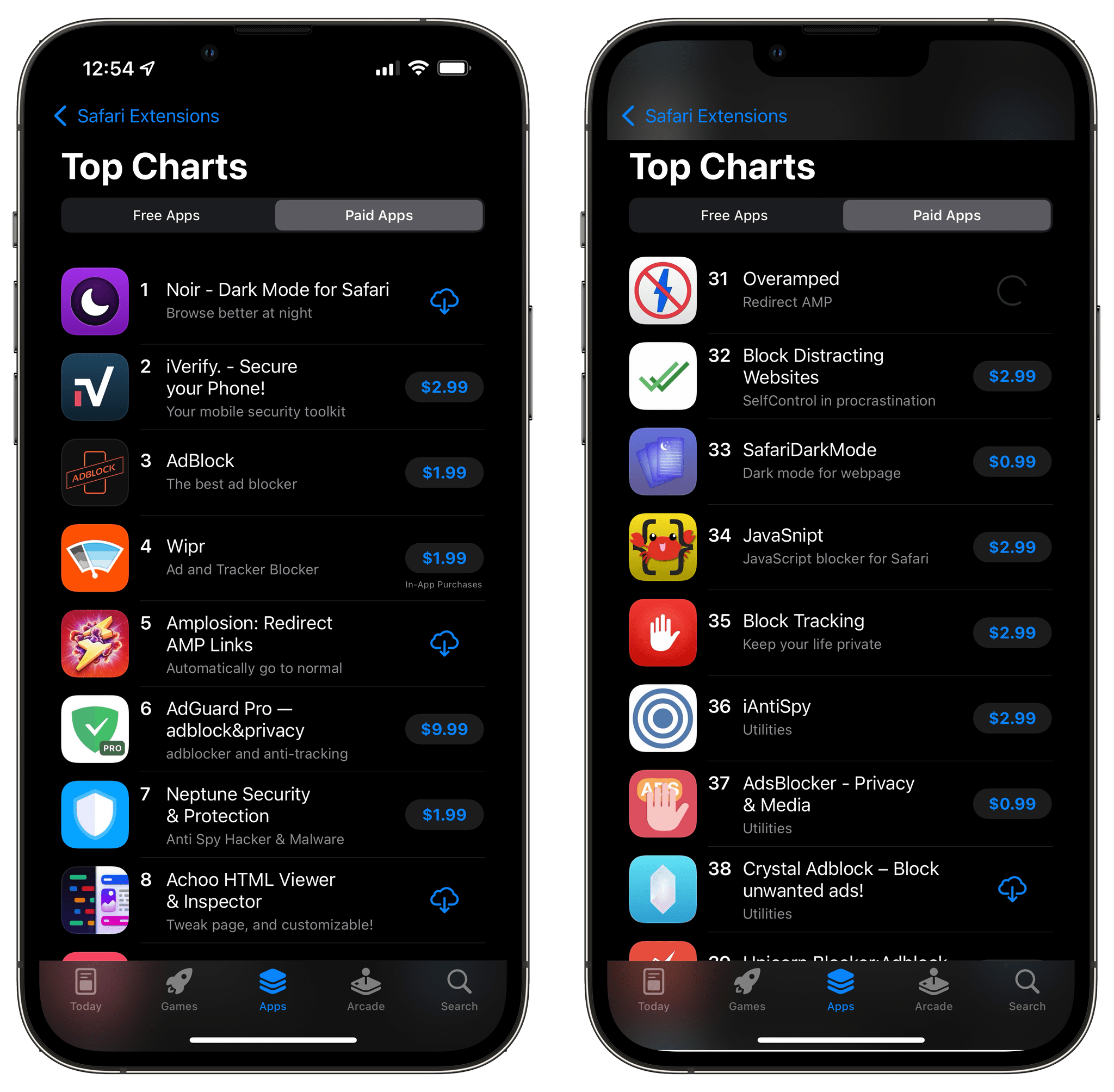
iOS and iPadOS 15 introduced extensions to Safari, and one of the most popular categories has been extensions that redirect AMP links to the canonical version of the URL. I covered two of our favorites, Amplosion by Christian Selig and Overamped, both of which continue to be among the top paid Safari extensions on the App Store.

Safari extensions that redirect AMP URLs have proven popular on the App Store.

Safari extensions that redirect AMP URLs have proven popular on the App Store.

Jeff Johnson, the maker of Stop the Madness, another Safari extension that redirects AMP links, noticed, while updating his extension, that AMP links had disappeared from Google search results.

Johnson ran some tests:

With this User-Agent [iOS 15’s], there are no AMP links in Google search results, but if I simply change Version/15.0 to Version/14.0 and keep the rest the same, Google search results suddenly have AMP links again! This is reproducible on my iPhone, in the Xcode iPhone simulator, and also in desktop Safari Mac with its User-Agent spoofed as iPhone.

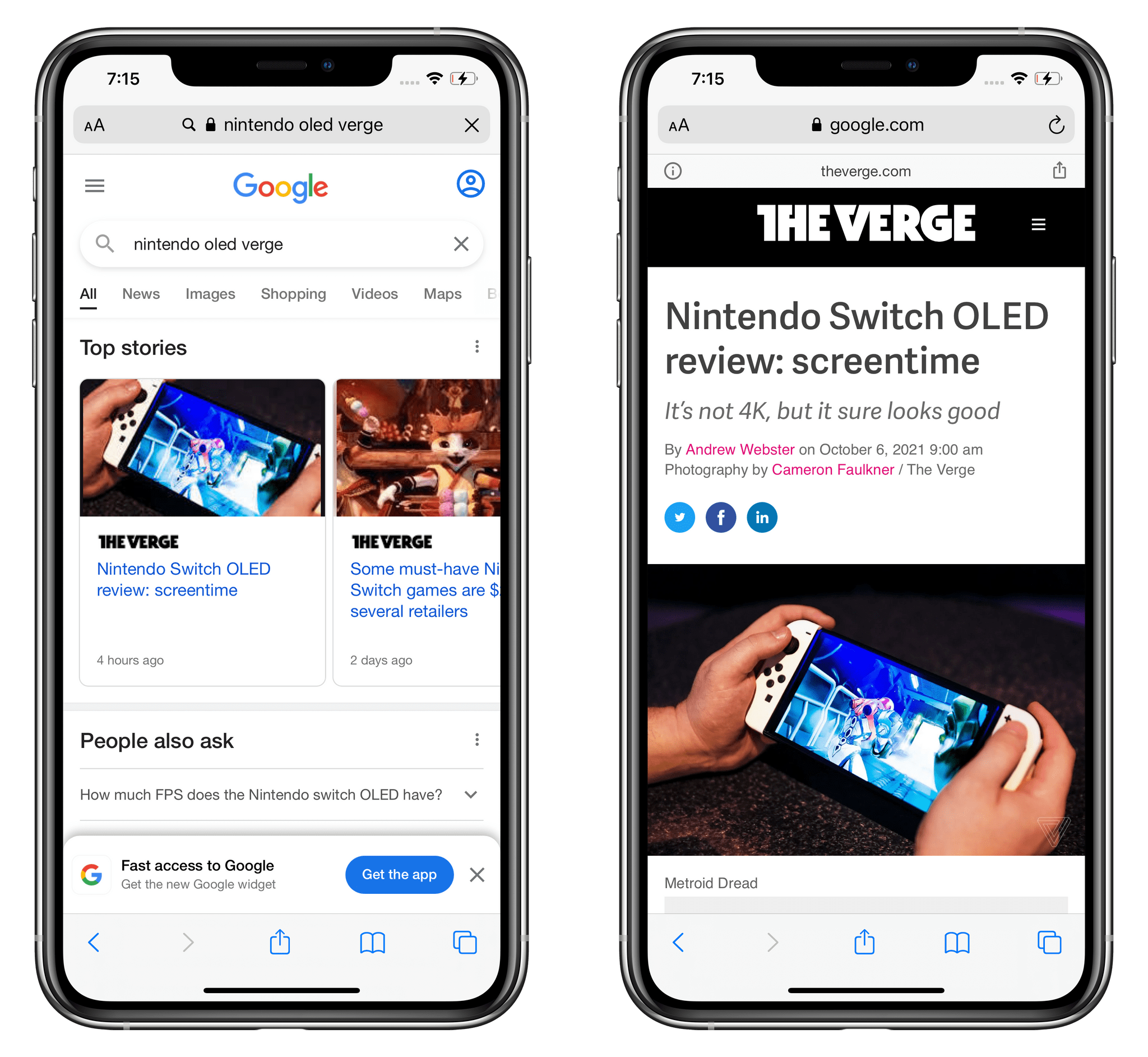
Google search results still return AMP URLs on iOS 14.

Google search results still return AMP URLs on iOS 14.

I’ve done some digging myself, as has Federico, and we have been able to reproduce the same results. I searched Google for an article published today on The Verge. Sure enough, on iOS 14, I get AMP results, but not on iOS 15, where the links point to theverge.com. I ran the same test using Google Chrome, Firefox, and Microsoft’s Edge browser on iOS 15, and all returned Google search results with AMP links. Safari for iOS and iPadOS 15 stands alone among these four browsers and is the only one that doesn’t return AMP links in Google search results.

I wondered what might be going on, so I contacted Google PR to see if they could explain it. I haven’t heard back yet but will update this story if I do.

Meanwhile, Johnson has a theory that seems plausible to me:

So, is it possible that Google has given up on AMP in Safari on iOS 15 because of the popularity of AMP blocking extensions? Who can say, but it’s certainly an interesting coincidence. I can say that it’s a very recent change. I know from my own testing that Google search results still included AMP links for the first week after iOS 15 was released on September 20.

The timing certainly lines up. I know there were AMP links to redirect when I was testing Amplosion and Overamped on the iOS 15 betas and shortly after its launch, but sometime in the past two weeks or so, they have completely vanished from Google search results in Safari for iOS and iPadOS 15. I hope the change sticks.


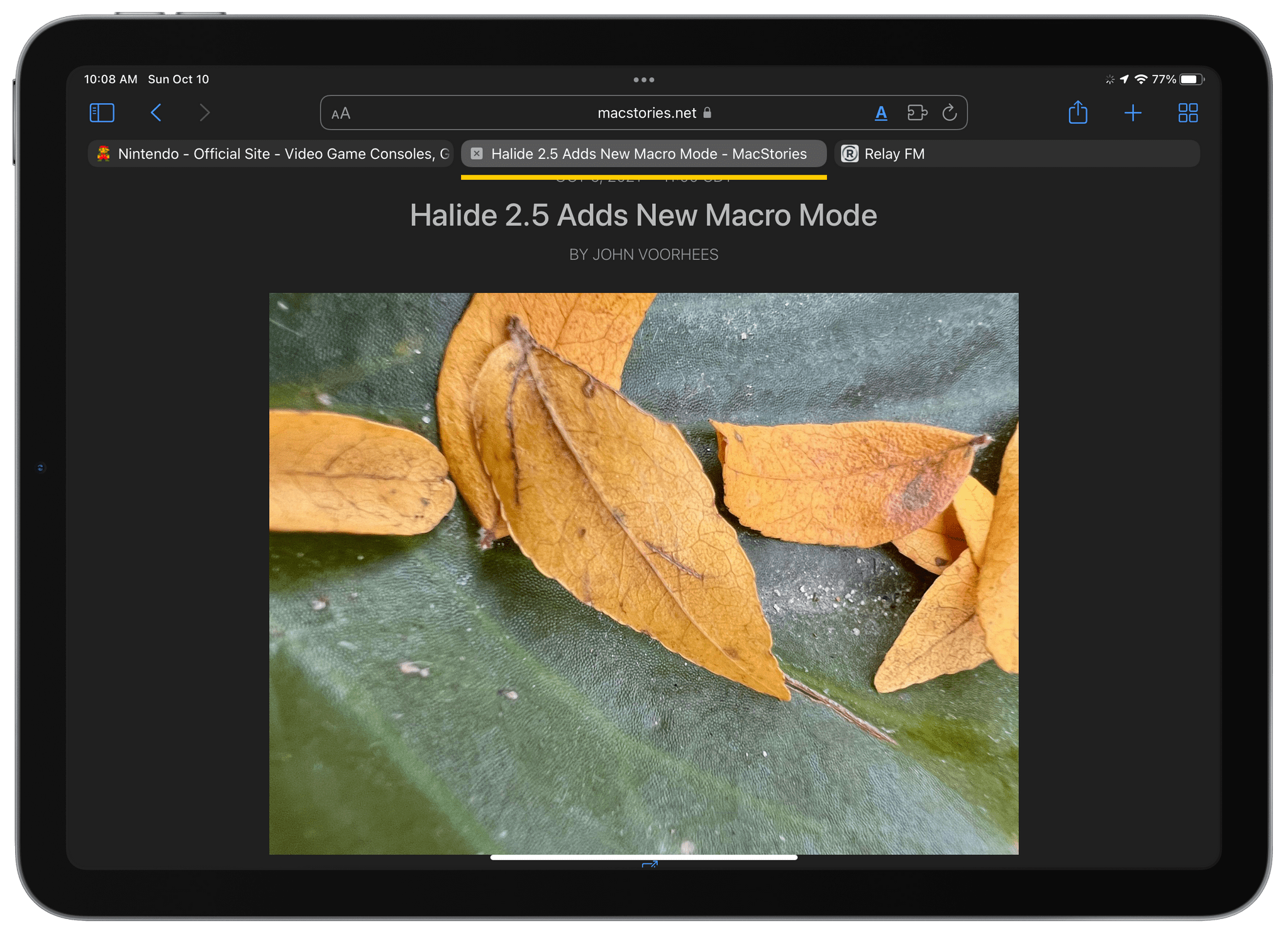
ActiveTab: A Simple Extension to Tell Which Safari 15 Tab is Active

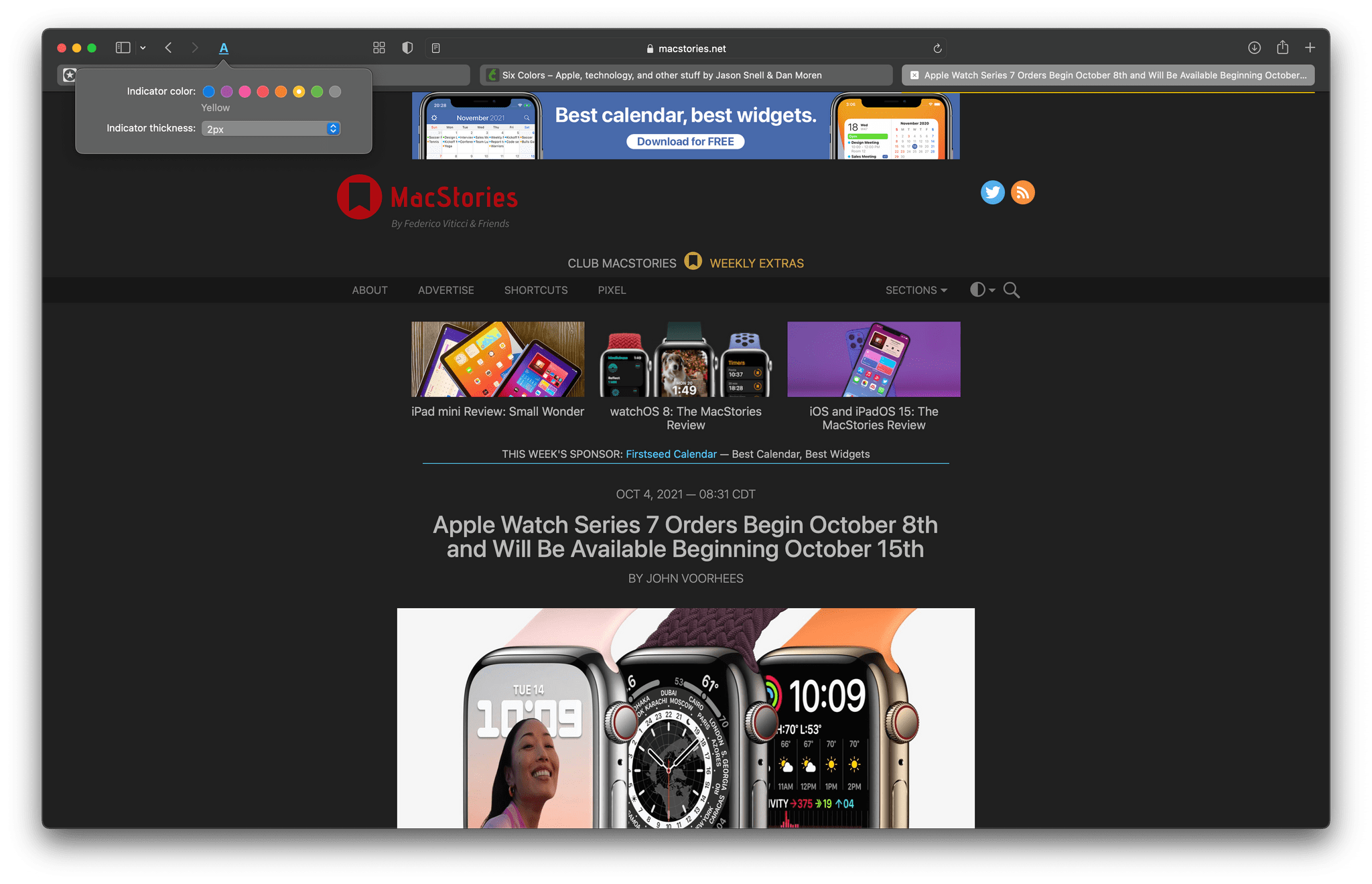
Safari 15, which is already available for macOS Catalina and Big Sur, will be part of macOS Monterey too. One of the design changes to the updated browser is the separation of tab indicators from its web content. Apple has inexplicably interposed the Favorites bar in between the two, and even if you hide the bar, figuring out which tab is the active one can be difficult.

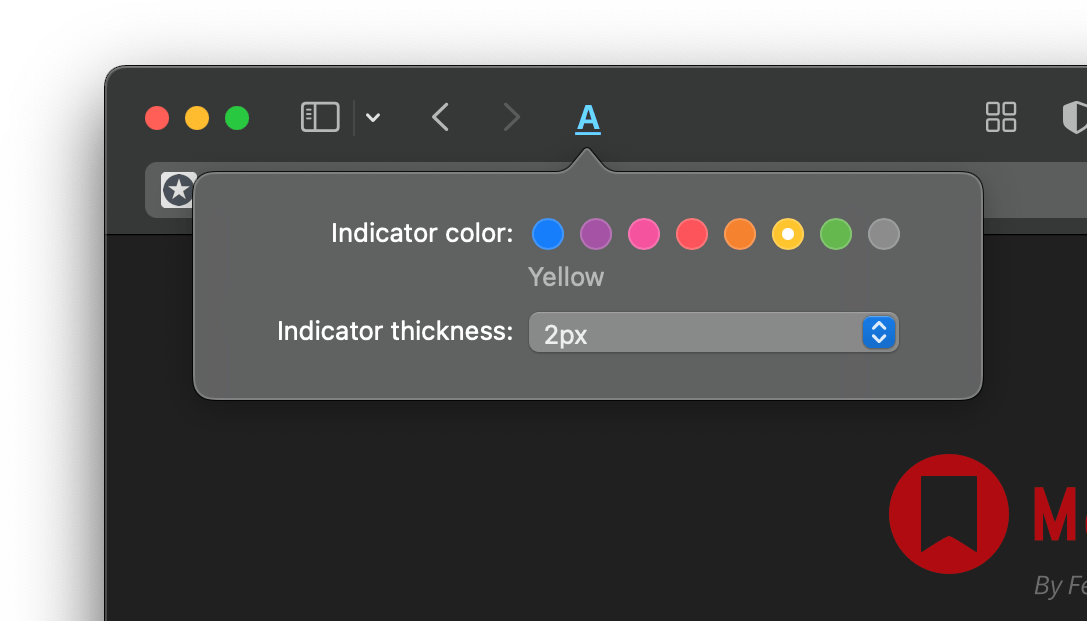
ActiveTab is a new Safari extension inspired by The Tragedy of Safari 15 for Mac’s ‘Tabs’ a story John Gruber wrote on Daring Fireball recently that you should read if you haven’t already. To make it easier to distinguish the active tab, ActiveTab draws a line underneath it along the top of the tab’s web content. There are eight colors to choose from, and the line can be anywhere from 1 to 7 pixels wide. Note that a page needs to be open for the line to appear because it’s being drawn on top of the content. As a result, you won’t see the line if a tab is empty.

I wish ActiveTab offered different colors for light and dark mode browsing.

I wish ActiveTab offered different colors for light and dark mode browsing.

The extension, which Stephen Hackett shared with me earlier today, undeniably makes it easier to spot the active tab in Safari. However, I found myself wishing almost immediately for light and dark mode versions of the color options that could switch between light and dark mode in sync with my system settings because the colors don’t all work equally well in both modes. The colors of the site you visit can affect the visibility of ActiveTab’s indicator too.

Of course, I’d prefer if Apple fixed the design of its tabs, but if you find yourself being tripped up by the new design, ActiveTab is worth considering.

ActiveTab is available on the Mac App Store for $1.99.


Safari Extensions for iOS and iPadOS 15: A Roundup of Our Favorites

With the introduction of iOS and iPadOS 15, Apple has created an entirely new class of utility app on the App Store: Safari web extensions. Mac users have enjoyed extensions for years. However, for iPhone and iPad users, they’re brand new and promise to make Safari more useful than ever by opening up new power-user functionality that extends Safari in ways that Apple hasn’t. Judging from the initial crop of extensions available, I think Safari users are going to be very happy.

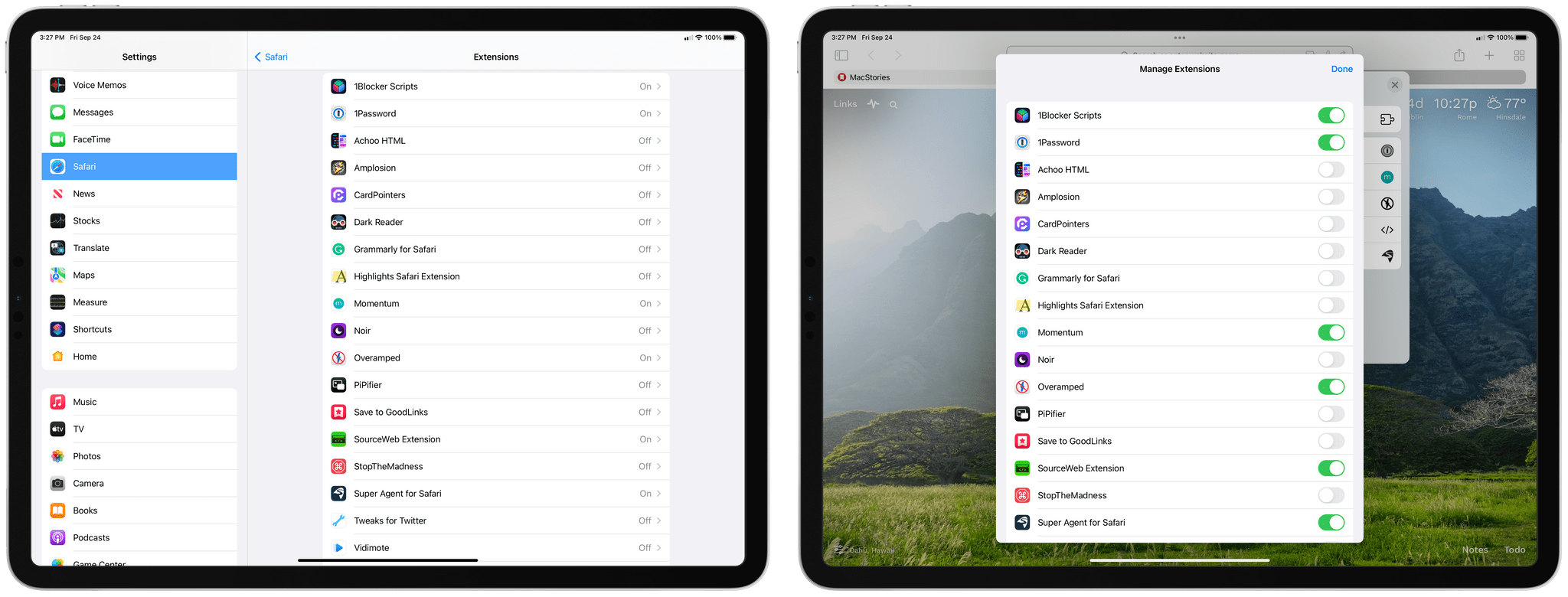
Managing extensions from Settings (left) and Safari (right).

Managing extensions from Settings (left) and Safari (right).

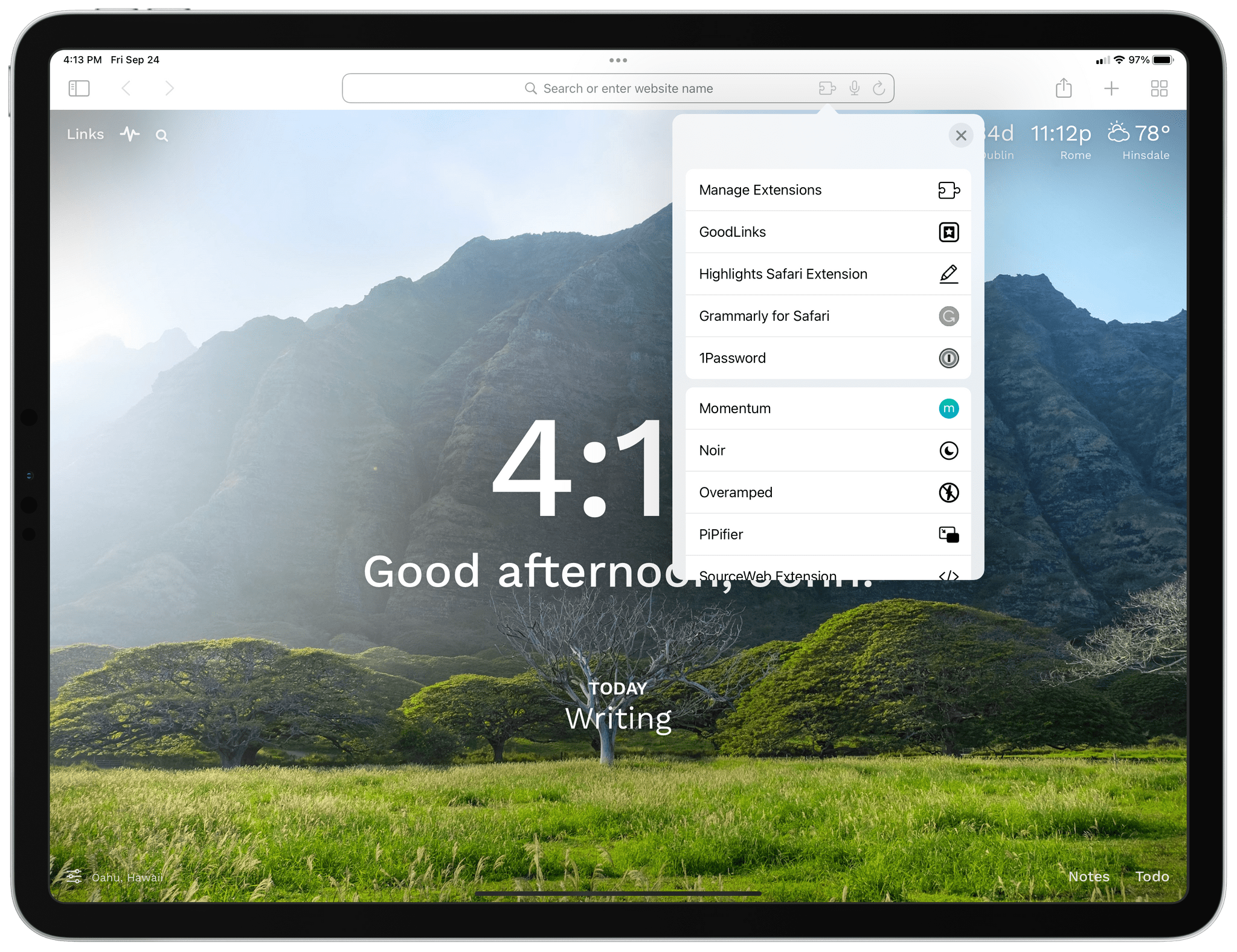
There are a couple of ways to install Safari extensions for iOS and iPadOS 15. First, you can go to the Settings app, select Safari, and inside the Extensions section, turn on any extensions you’ve installed and give them permission to interact with webpages. Second, you can enable or disable extensions by tapping on the puzzle piece icon in the address bar and then choosing ‘Manage Extensions.’ The same popover that appears when you tap the puzzle piece icon also lets you ‘Edit Actions,’ picking favorite extensions that will appear at the top of your extensions list in whatever order you drag them into, similar to the way picking favorite share and action extensions and rearranging them works.

Okay, let’s dig into some of the best extensions already available.

Read more


Craig Federighi Provides Deeper Insight Into iCloud Private Relay

Fast Company’s Michael Grothaus interviewed Craig Federighi this week regarding the suite of new privacy features which Apple unveiled at WWDC. The article includes some notable technical details on how iCloud Private Relay works under the hood. One of the most interesting — and somewhat unfortunate — revelations is that iCloud Private Relay will only work from Safari. Users of other browsers are out of luck here.

The reason for this restriction has to do with Apple’s commitment to unassailable privacy, which happens by ensuring that no party can ever access both your IP address and your destination URL. From what I can gauge, this is actually a three-step process which looks something like this:

  • From Safari, you navigate to a particular URL. Safari encrypts this destination URL locally and then forwards your request to Apple’s iCloud Private Relay servers.
  • Apple’s servers anonymize your IP address so that it can’t be traced back to you, then forward the request to a trusted third-party’s servers.
  • The third-party decrypts the destination URL, then forwards the final request (decrypted URL plus anonymized IP address) to the destination.

Read more


Apple Releases macOS 11.3 Beta with New Safari Features, Reminders Sorting, Music Updates, and Improvements to iOS and iPadOS Apps Running on M1 Macs

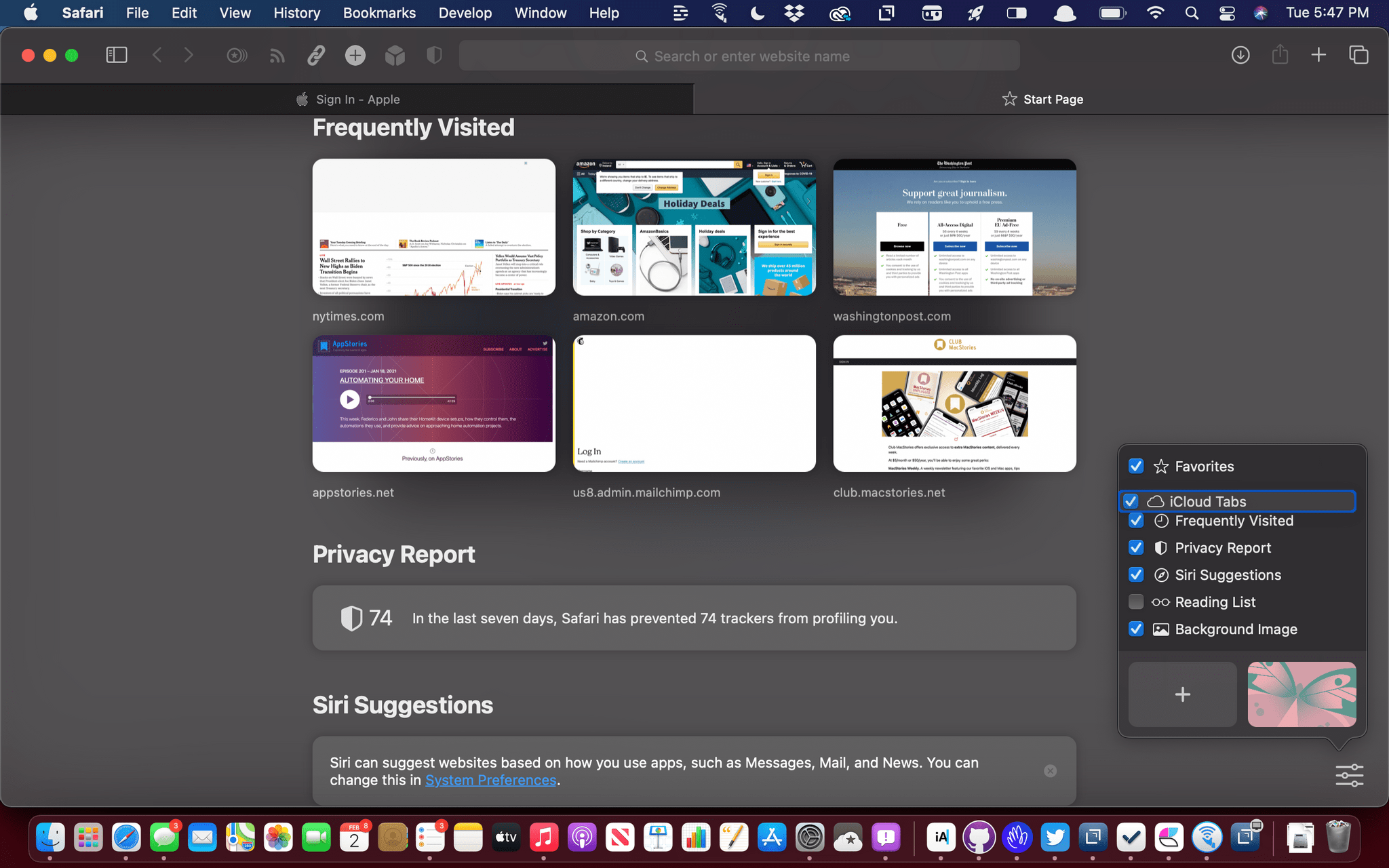
Start page items can be reordered.

Start page items can be reordered.

Apple has released the first beta for macOS 11.3 Big Sur, which includes new Safari features, changes that parallel yesterday’s updates to iOS and iPadOS, and more.

Some of the most interesting features of the latest Big Sur beta are in Safari. As I wrote in my Big Sur review, I like most of the changes made to Safari’s start page but wished I could reorder the default sections. That’s now possible, which is terrific, but there’s also a new third-party extension point for developers to build start page integrations, which is very interesting. We’ll have to see what developers do with the new feature, but I expect it will allow RSS clients to list recent articles on the start page that could be opened directly in Safari, for example. There’s a new Web Speech API that allows speech recognition functionality to be built into a webpage too.

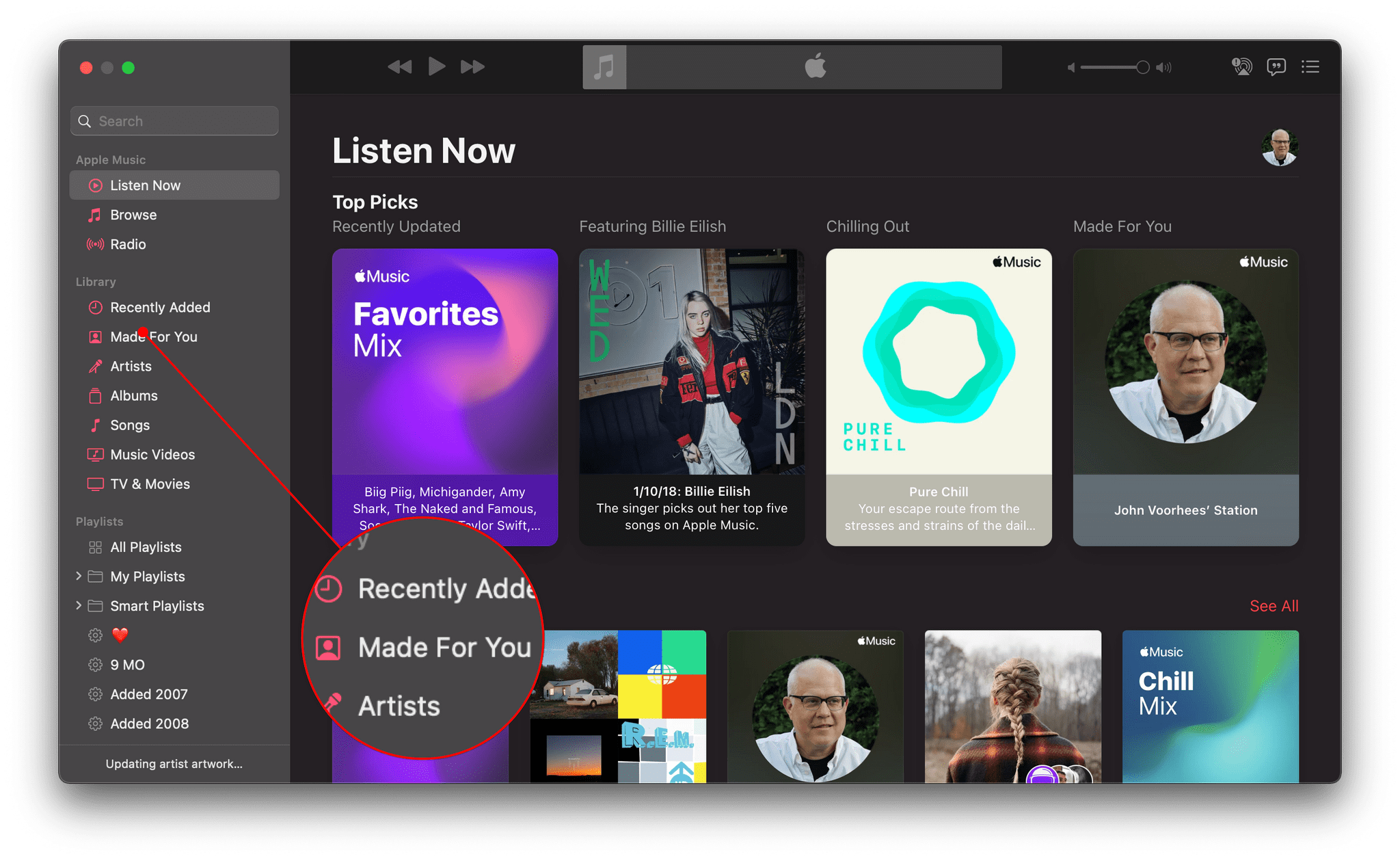
Music's new Made for You tab

Music’s new Made for You tab

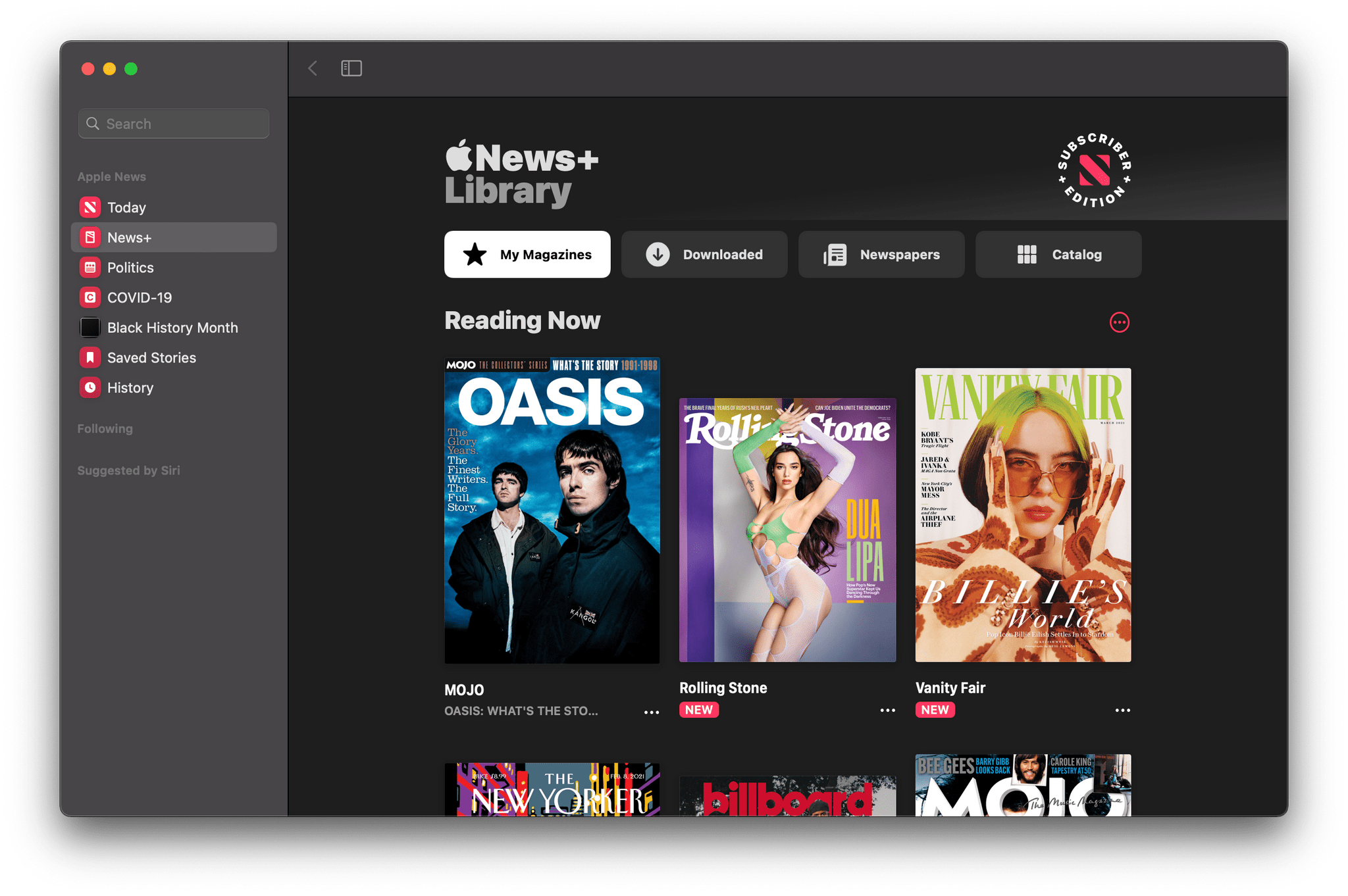
Similar to iOS and iPadOS, Reminders is gaining the option to print lists. Music adds a dedicated ‘Made For You’ section in the sidebar that includes your annual Replay playlists and Apple’s personalized algorithmic playlists. The Listen Now tab will also suggest upcoming live events tuned to your music tastes. There’s an enhanced News+ tab in Apple News designed to make it easier to access magazines and newspapers and manage downloaded issues. Sony PS5 DualSense and Xbox Series X/S controllers are supported too.

The News+ tab has been redesigned.

The News+ tab has been redesigned.

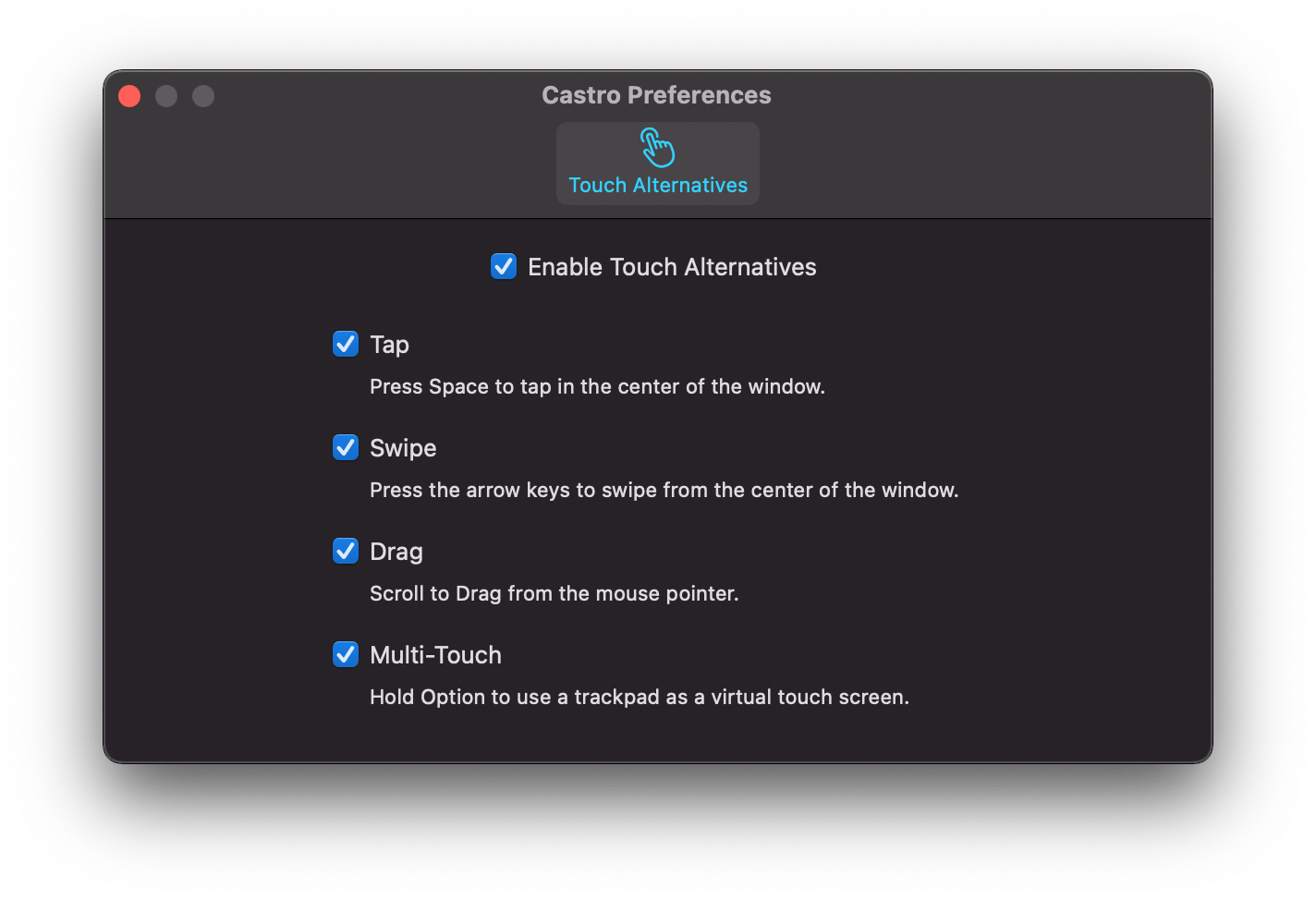
Finally, the experience of using iOS and iPadOS apps on the Mac got a boost too. There’s a brand new Preference pane in iPhone and iPads running on an M1 Mac that provides more keyboard control over touch commands. Apps can also be opened in larger windows.

The new iOS and iPadOS app Preferences window.

The new iOS and iPadOS app Preferences window.


One Week After Launch, Users Already Have Several Options for Alternative Browsers and Email Clients on iOS and iPadOS 14

iOS and iPadOS’s 14’s customization options don’t end at widgets. The OS updates also let users change their default email and browser apps for the first time. The feature is a little buggy in iOS and iPadOS 14.0, but I wanted to share how to set it up and explain what your current options are for anyone looking to switch away from the default Safari and Mail apps from Apple.

Switching is simple. The first step is to download a browser or email client that has been approved to serve as an alternative to Apple’s defaults. Developers must request permission to offer their apps as an alternative browser or email app, meeting certain requirements for each type of app. It’s an extra step in the app submission process, so not all browsers and email apps can be swapped in for Safari and Mail from the get-go. Still, less than a week after the public release of iOS and iPadOS 14, users have several options.

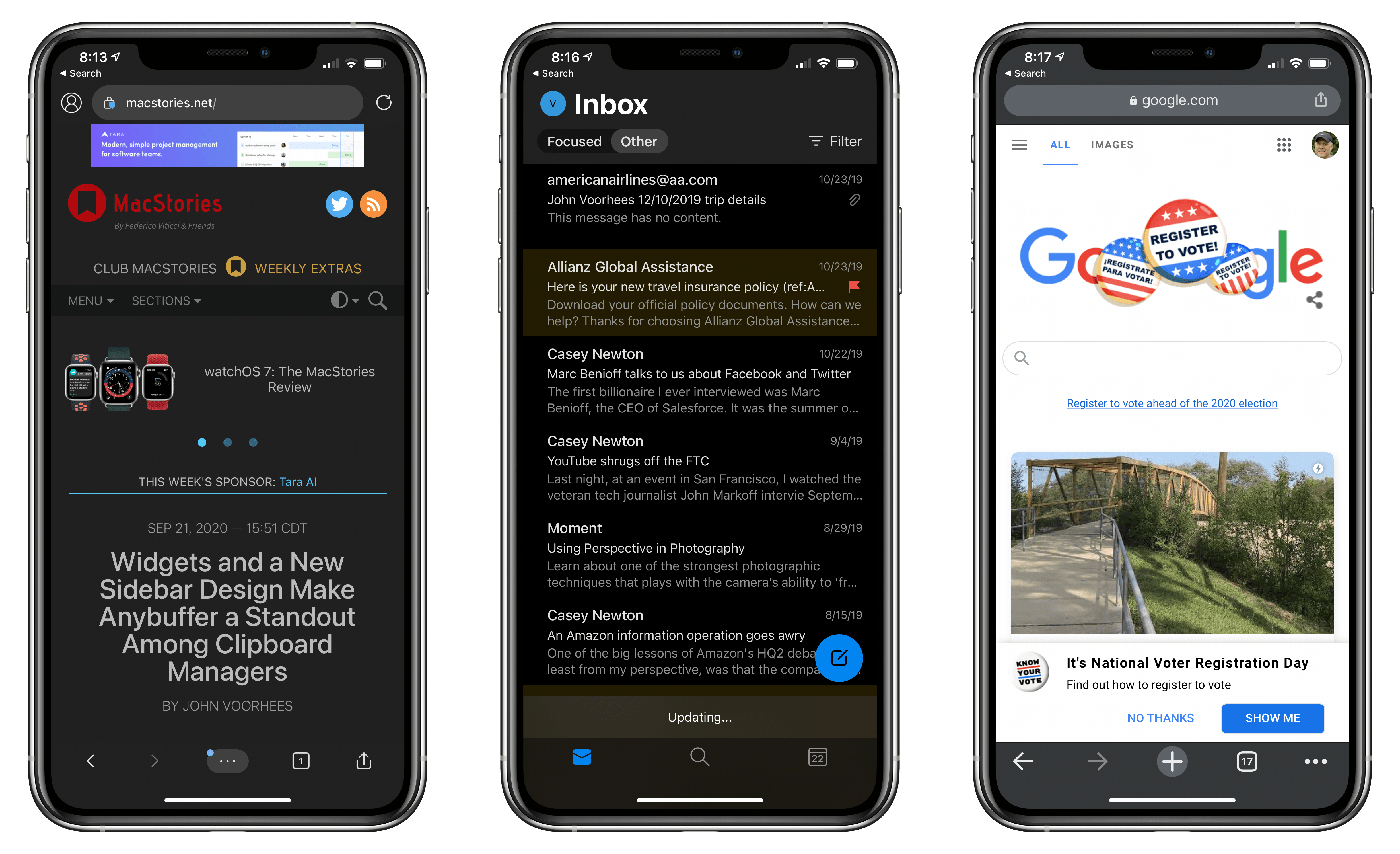
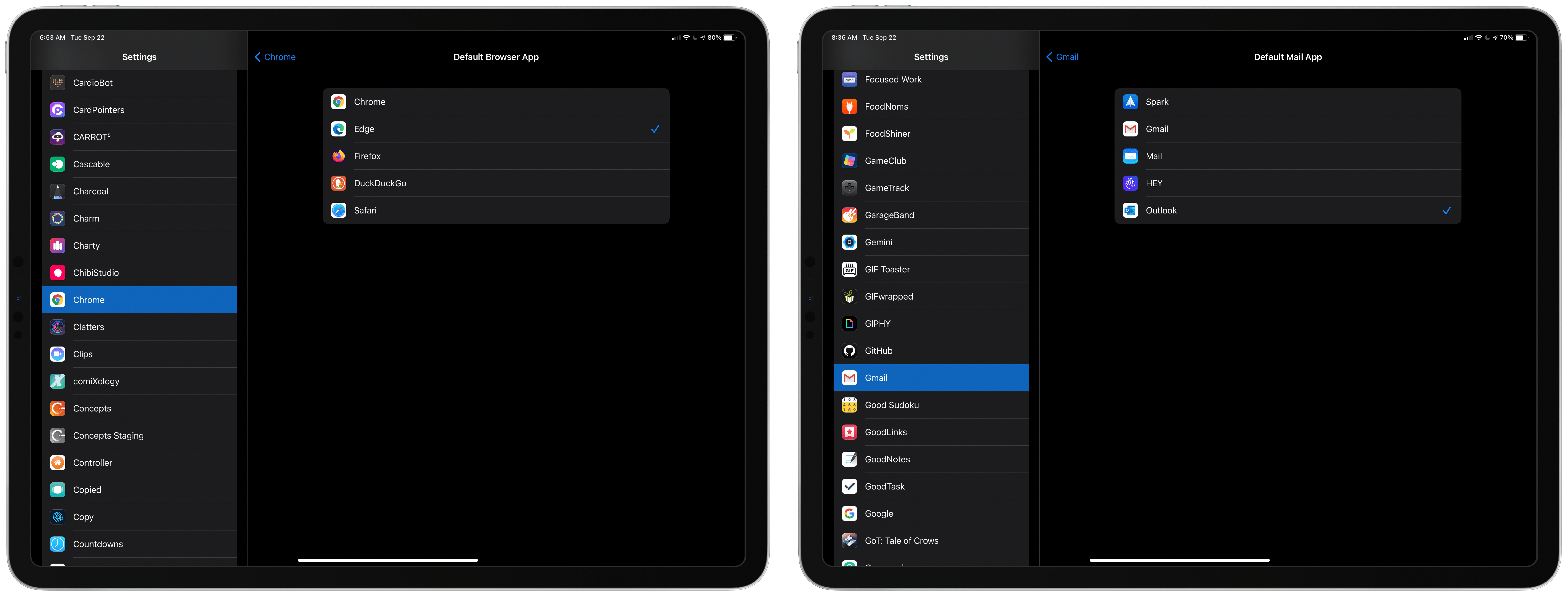
Microsoft Edge, Outlook, and Google Chrome are all default browser and email client options now.

Microsoft Edge, Outlook, and Google Chrome are all default browser and email client options now.

New alternatives are being released all the time, but so far, it’s possible to swap out Safari for:

Probably the most popular browser that hasn’t been approved as a Safari alternative yet is Brave, the privacy-focused browser, although The Verge reports that the feature is coming.

Email apps available include:

Between the two quartets of alternatives, a significant portion of the browser and email markets have been covered already.

Picking a new default browser or email client from the Settings app.

Picking a new default browser or email client from the Settings app.

Getting back to the process of switching apps, once you’ve installed one of the approved alternatives, go to the Settings app on your iPhone or iPad. Scroll down to the entry for the app you’ve just downloaded, and tap it. There you’ll find a new entry for ‘Default Mail App’ or ‘Default Browser App,’ depending on which you’re changing. Tap it and pick the alternative you want to use, and that’s it.

As easy as the process of switching is, though, the feature is not bug-free. I have been unable to get iOS or iPadOS to recognize my new default email client after I switch it. I’ve tried several apps and email links in multiple apps and on the web, but every time I tap one, the system Apple Mail-based compose sheet opens. Federico has had the same issue. I read somewhere that switching email apps only works if you change your browser first, but that didn’t work for me either. Perhaps MacStories readers will have better luck than I’ve had, but at the moment, I cannot change email clients.

9to5Mac also reported last week that if you restart your iPhone or iPad, any default browser or email changes you’ve made are lost. It’s not hard to reset your defaults, but it’s an annoying bug that I expect will be fixed in a later update to iOS and iPadOS 14.

Personally, I use both Safari and Mail and am happy with them, though I wish Mail would adopt some of the modern features of apps like Spark. Still, I’m glad users have been given greater choice when it comes to the default app experience.


Apple and Privacy in 2020: Wide-Reaching Updates with Minimal User Intrusion

Privacy has increasingly become a competitive advantage for Apple. The bulk of the company’s revenue comes from hardware sales, in stark contrast to competitors like Google who depend heavily on ad revenue and thus benefit tremendously from collecting user data. Apple calls privacy one of its core values, and the structure of its business makes it easier to hold true to that value. But that doesn’t mean its privacy work is easy or without cost – behind the huge number of privacy enhancements this year was surely significant effort and resources that could have been diverted elsewhere. The company’s privacy discourse isn’t empty marketing speak; it’s product-shaping. Not only that, but thanks to Apple’s enormous influence in tech, it can be industry-shaping too, forcing companies that otherwise may not prioritize user privacy to do business differently.

This year in its WWDC keynote, Apple dedicated an entire section of the presentation to privacy, detailing its latest efforts within the framework of what it calls its four privacy pillars:

  • On-device processing
  • Data minimization
  • Security protections
  • Transparency and control

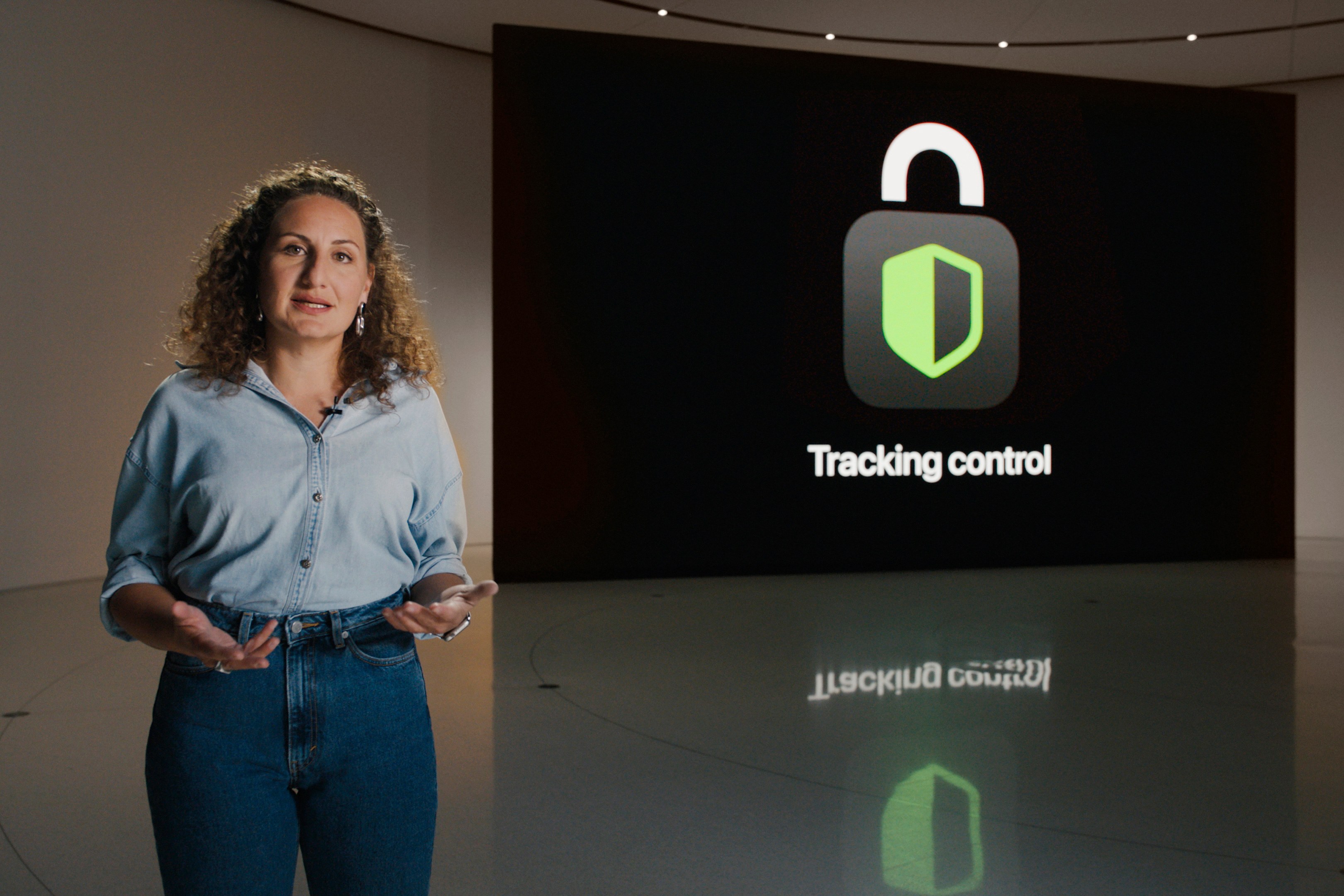
Evidence of each of these pillars can be seen throughout much of what Apple announced during the rest of the keynote. On-device processing, for example, powers the new Translate app in iOS 14, HomeKit Secure Video’s face recognition feature, and more. New security protections have been implemented to warn you if a Keychain password’s been compromised, and to enable Sign In with Apple for existing in-app accounts, both of which make your accounts more secure. But the majority of this year’s most prominent privacy updates fell under the remaining two core pillars: data minimization and transparency and control.

Here are the privacy-focused changes you’ll see this fall across iOS and iPadOS 14 and macOS Big Sur.

Read more


Desktop-Class Safari for iPad: A Hands-On Look at the Difference the iPadOS Update Makes to Apple’s Browser

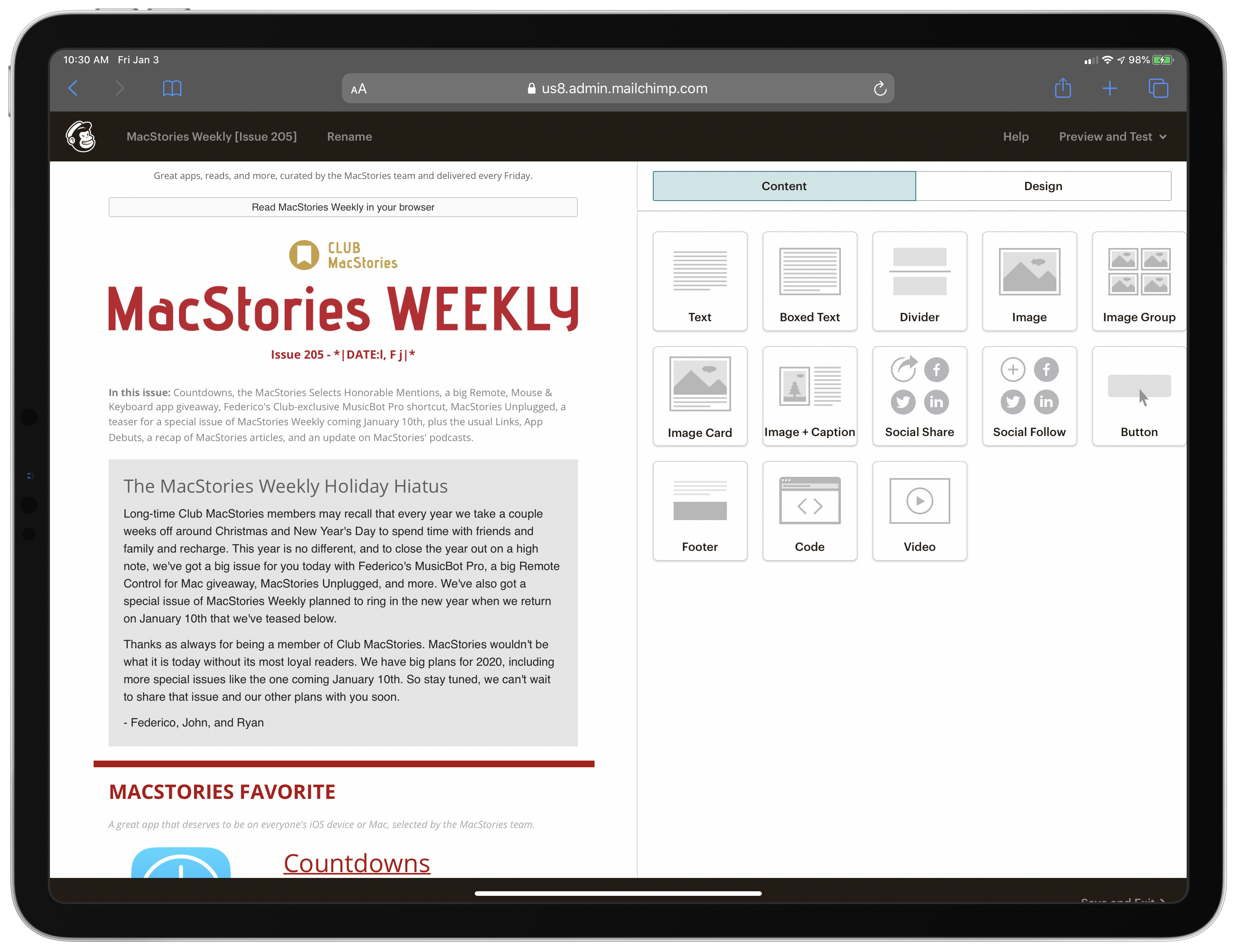
For about four years, I’ve sat down at my Mac to produce Club MacStories’ two newsletters using Mailchimp. There’s a lot I like about Mailchimp, but that has never included the company’s web app. Mailchimp relies heavily on dragging and dropping content blocks in a browser window to build an email newsletter, which abstracts away the raw HTML and CSS nicely, but didn’t work well or reliably on iOS.

That finally changed with iPadOS 13, which brought one of the most extensive updates to Safari ever. The result has been that roughly half of the issues of the Club’s newsletters have been produced on my iPad Pro since October. Before iPadOS, that simply wasn’t possible. Whenever I tried to assemble a newsletter on my iPad, I ran into a show-stopping roadblock at some point.

If you’re wondering why this matters, the answer is flexibility and choice. Whether I’m traveling to another city for several days or just sitting in a local coffee shop for a few hours, I know I can rely on a stable mobile data connection on my iPad. I don’t have to worry about whether WiFi will be available for my Mac or fiddle with tethering. I just open my iPad and start working. As a result, I prefer my iPad to my MacBook Pro when I’m away from my desktop Mac.

I also enjoy the freedom of picking the platform I use for a task. Some days that’s my Mac, but just as often it’s my iPad. Sometimes that’s driven by the platform I’m working on at the time, and other days it’s nothing more than the device I feel like using that day. Until iPadOS 13, though, if that day was a Friday and I had a newsletter to produce, nothing else mattered. I had to have a Mac, and if I was traveling for more than a couple of days, that often meant I brought both devices along.

This isn’t a tutorial on how to use Mailchimp on an iPad. Few people need that, and if you’ve built a newsletter in Mailchimp on a Mac, you already know how to do it on the iPad. That’s the whole point. Safari in iPadOS has become a desktop-class browser. There remain differences between it and its desktop sibling, but the gap has been dramatically narrowed and the differences that remain purposefully leverage the distinctions between the Mac and iPad. The result has transformed frustrating experiences with web apps that simply didn’t work before on the iPad into a productive environment for accomplishing tasks that once required a Mac.

I don’t know that I’ve ever used a web app that I prefer to something native to the Mac or iOS, but the reality of contemporary computing is that many people rely on a collection of web apps in their work and personal lives. The changes to Safari in iPadOS are an acknowledgement of that reality. The experience isn’t perfect, but the latest iteration of Safari is a major step forward that eliminates hurdles that make the difference between getting work done and not.

If you’ve run into roadblocks with web apps in the past, it’s worth revisiting them in the wake of iPadOS 13. For me, the updates to Safari in iPadOS have been a tipping point in the way I work that has opened up new options I didn’t have before. I suspect the same is true for others who are looking for the same sort of workflow flexibility, which is why I want to share my experience and thoughts on producing the Club MacStories newsletters using Mailchimp on my iPad Pro.

Read more