John Voorhees

5429 posts on MacStories since November 2015

John is MacStories' Managing Editor, has been writing about Apple and apps since joining the team in 2015, and today, runs the site alongside Federico. John also co-hosts four MacStories podcasts: AppStories, which covers the world of apps, MacStories Unwind, which explores the fun differences between American and Italian culture and recommends media to listeners, Ruminate, a show about the weird web and unusual snacks, and NPC: Next Portable Console, a show about the games we take with us.

Catalina Developer Beta Changes How Mac Laptops Charge to Extend Their Batteries’ Lifespans

The developer beta release of macOS 10.15.5 has a new feature in the Energy Saver section of System Preferences called Battery Health Management that changes the battery charging behavior of Mac laptops with Thunderbolt 3 ports. According to a story by Jason Snell at Six Colors, Apple says:

…the feature is meant to reduce the rate of chemical aging of the MacBook’s battery, thereby extending its long-term lifespan—but without compromising on day-to-day battery life.

The feature works by analyzing the temperature of the battery over time, as well as the charging pattern the laptop has experienced—in other words, does the laptop frequently get drained most of the way and then recharged fully, or is it mostly kept full and plugged in?

Battery Health Management can be turned off by unchecking a box in System Preferences.

As Snell points out, Apple’s approach here is in contrast to what it did with the iPhone’s battery in 2017, which embroiled the company in controversy and ultimately, led it to issue a public apology. It’s good to see Apple take the initiative to explain how the new power management feature works and give users a way to turn it off when it makes sense, though I expect to leave it turned on most of the time myself.

Permalink

TV Forecast Review: An Elegant Way to Track Your Favorite Shows

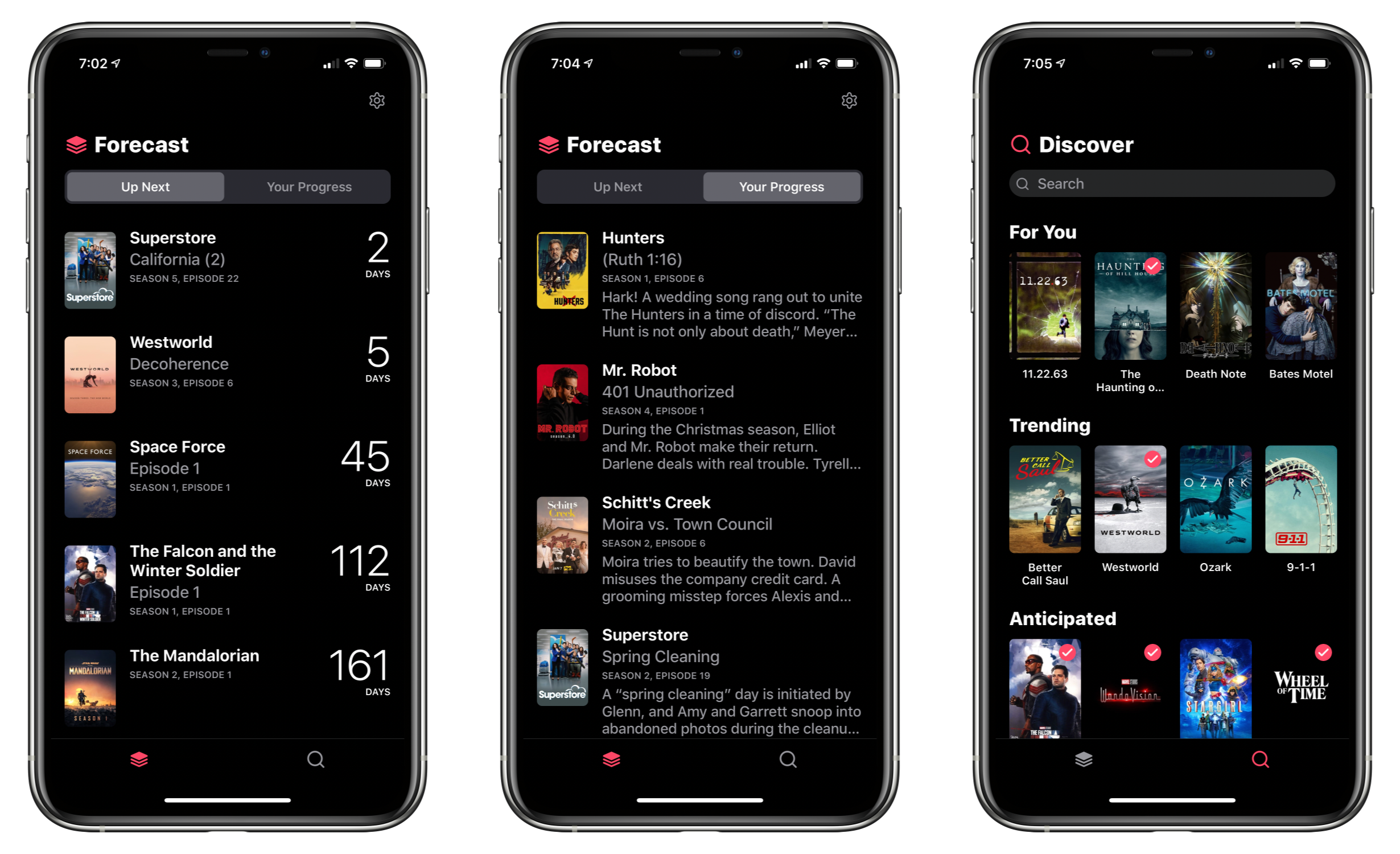
I’ve tried a lot of TV tracking apps and none ever stuck for long, until I tried TV Forecast. Some of the apps I’ve used had busy UIs, were hard to navigate, or just weren’t organized in a way that fits with how I watch TV. In contrast, I’ve been using TV Forecast for the last 11 months and absolutely love it. TV Forecast elegantly combines a simple, modern design aesthetic with smooth, fluid UI that carefully balances the shows you already watch with effortless browsing of new shows.

Read more


Service Station Review: A Handy Utility to Customize Your Finder’s Contextual Menu

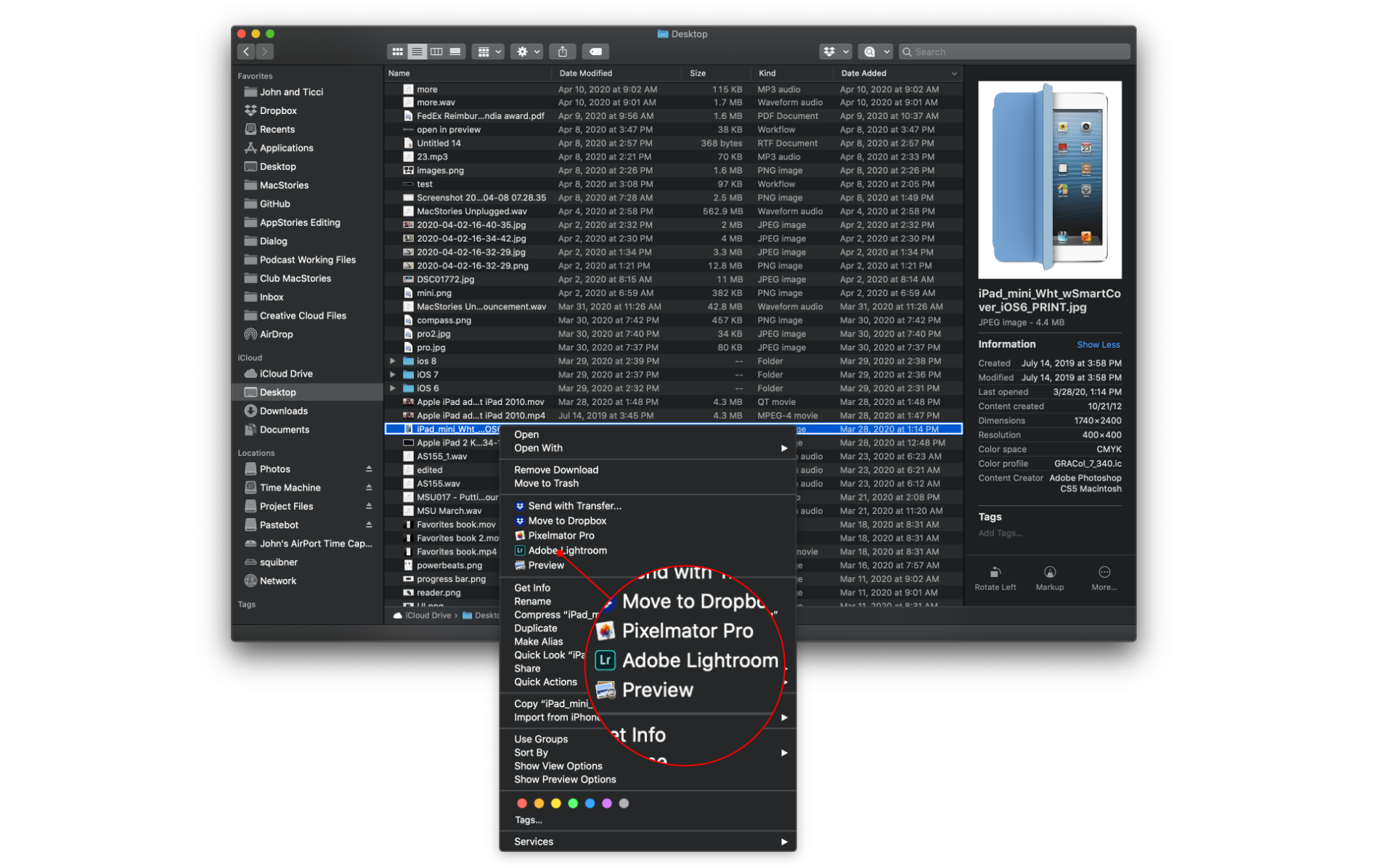
I wouldn’t be surprised if you’ve never heard of Finder Sync Extensions. I haven’t run across many apps other than Dropbox and HoudahSpot that support the feature. Finder extensions allow third-party developers to customize the Finder on the Mac with buttons in the Finder’s toolbar or changes to the contextual menu that’s displayed when you right-click on a file.

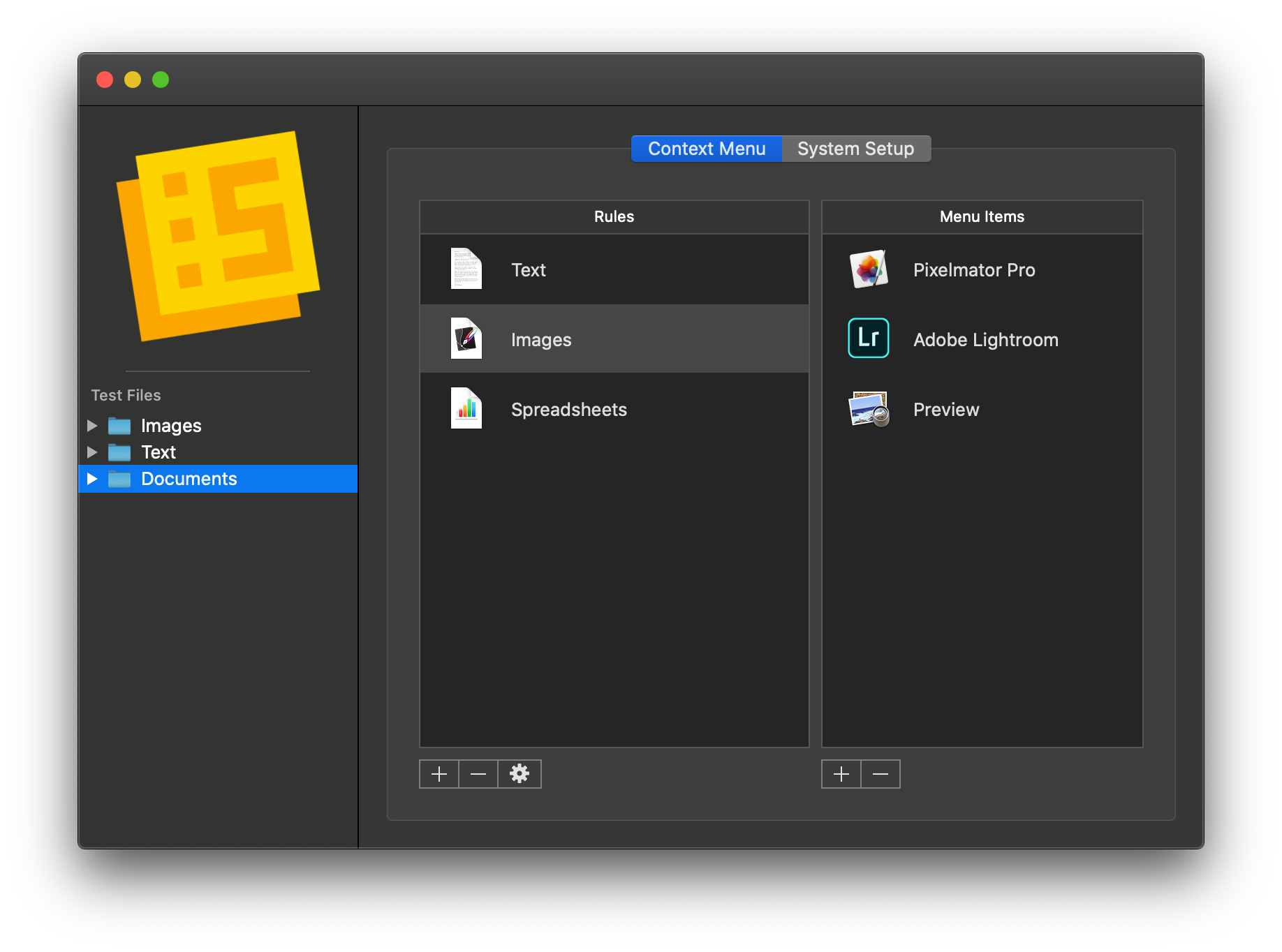
Service Station adds apps and scripts to the top level of your Mac's contextual menu based on rules you define.

Service Station adds apps and scripts to the top level of your Mac’s contextual menu based on rules you define.

Service Station is a new Mac utility that takes advantage of Finder extensions by letting users create rules to control when and which apps are displayed in the right-click contextual menu. The app can also be used to kick off AppleScript and shell scripts and Automator workflows. These are all tasks that macOS already supports in one way or another, but Service Station surfaces them as top-level contextual menu options and can be customized to suit your individual needs, which makes this a very handy tool.

Read more


Apple Creates Tool for Spotting Trends in Mobility Data for Feedback on COVID-19 Policies

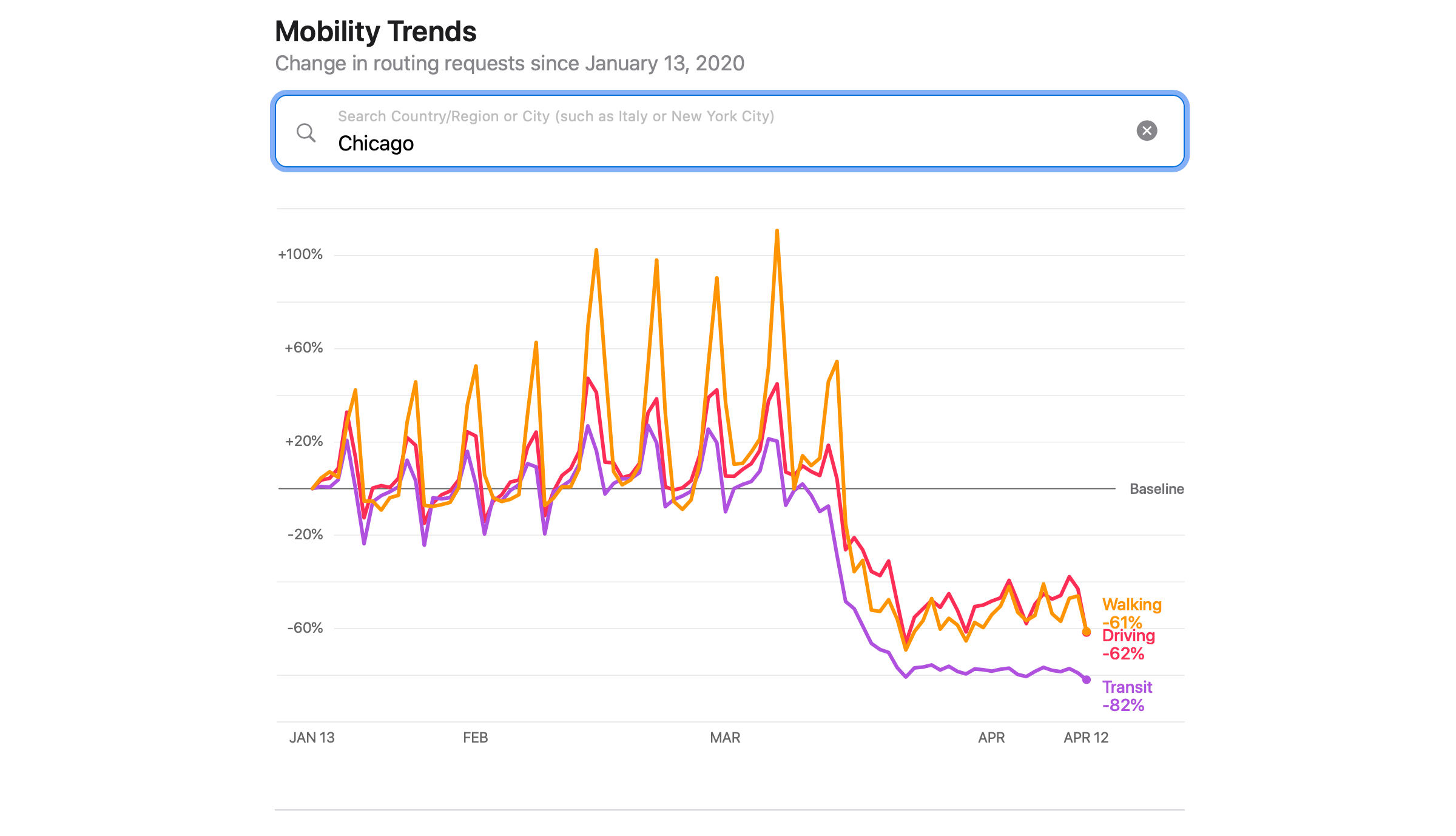
Apple has shared a new web-based tool that provides insights from Apple Maps on mobility trends. According to Apple’s press release:

This mobility data may provide helpful insights to local governments and health authorities and may also be used as a foundation for new public policies by showing the change in volume of people driving, walking or taking public transit in their communities.

The tool can be found at apple.com/covid19/mobility, where you can view driving, walking, and transit trends for 63 countries as well as major cities around the world. Apple’s press release also explains how the data is collected and addresses privacy:

Maps does not associate mobility data with a user’s Apple ID, and Apple does not keep a history of where a user has been. Using aggregated data collected from Apple Maps, the new website indicates mobility trends for major cities and 63 countries or regions. The information is generated by counting the number of requests made to Apple Maps for directions. The data sets are then compared to reflect a change in volume of people driving, walking or taking public transit around the world. Data availability in a particular city, country, or region is subject to a number of factors, including minimum thresholds for direction requests made per day.

Having tried the tool, it’s fascinating to see the differences between the effect of mobility restrictions around the world. I’m glad to see Apple sharing this information on an aggregate, privacy-conscious way that hopefully can help governments and health organizations around the world assess the effectiveness of measures put in place to slow the spread of COVID-19.


HomePass 1.7 Brings Refreshed UI, Customizable Data Fields, and Improved Shortcuts Support

My HomeKit setup started out simple enough with a few Hue bulbs, but over time, it has grown to include security cameras, door sensors, electrical outlets, and more. As the number of accessories connected to my network grew, so did the hassle of managing them.

The initial setup of a device is rarely the problem. Instead, the trouble starts when you need to set up an accessory again later. In that case, you may have discarded or lost the documentation containing the HomeKit accessory code, or it may be in a hard to reach location. That’s where HomePass by Aaron Pearce comes in handy. It stores and manages your HomeKit accessory codes and other relevant information in one place.

Digital spring cleaning is something that’s been on my mind as I’ve been stuck at home and had some extra free time. We discussed the topic on AppStories this week in the context of apps, but HomePass provides the opportunity to extend digital spring cleaning to your HomeKit devices too.

We’ve covered HomePass before, so I won’t go into all the details of its core functionality. Instead, I’ll focus on what’s new and the features that make HomePass one of my favorite HomeKit utilities.

As with prior versions, HomePass remains incredibly easy to use because it pulls information about your HomeKit accessories from the Home app’s database. Add to that the fact that accessory codes can be added by scanning the stickers that you find on most devices or entering them manually, and you’re starting with a lot of information with virtually no effort.

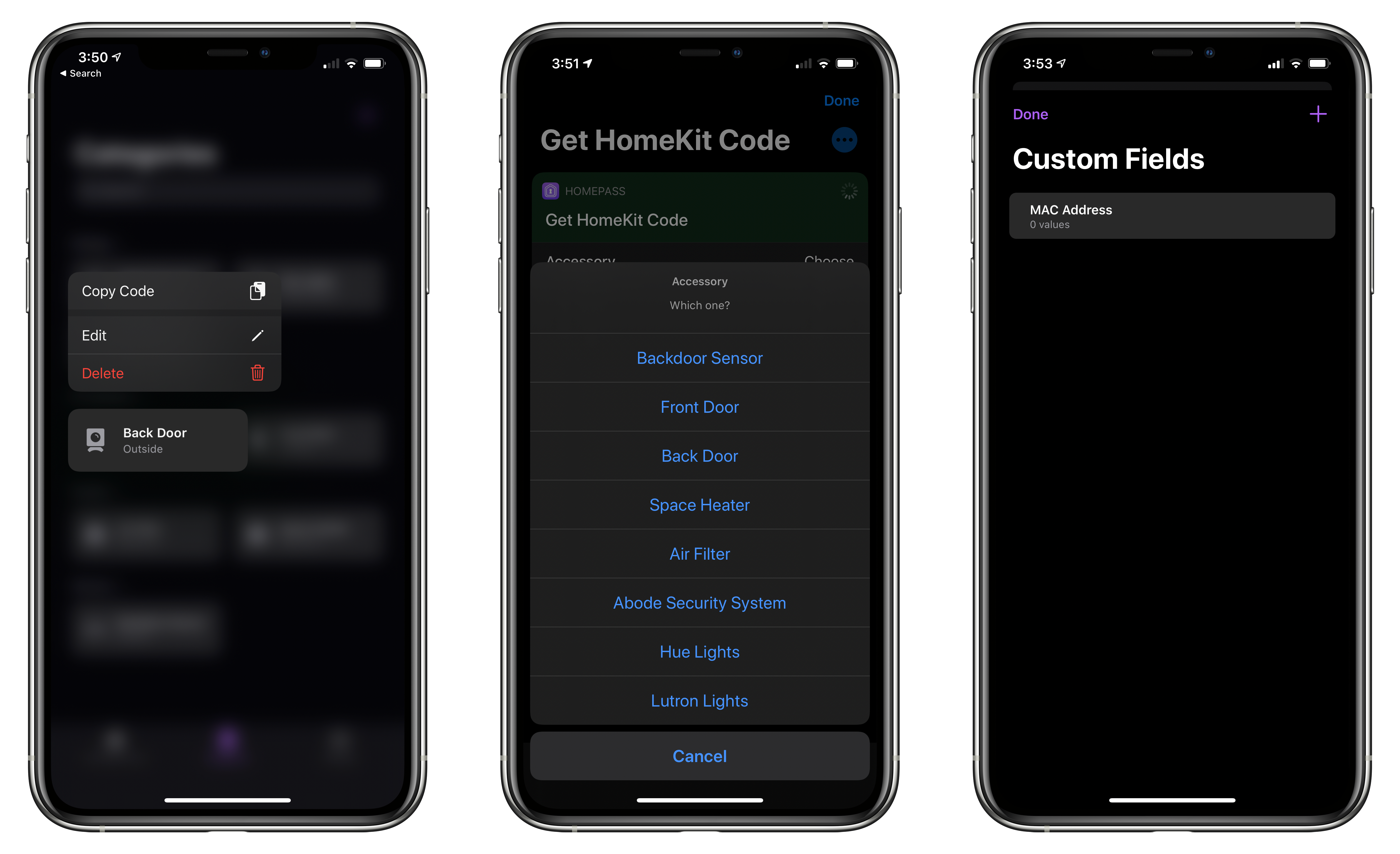
With the latest update, HomePass has added greater flexibility and a more compact UI that works better with larger collections of HomeKit devices. For instance, sometimes you want to add more information about an accessory than is available in the Home app. With version 1.7 of HomePass, you can now add custom fields to a device’s entry to collect additional details. I’ve been satisfied with the existing fields that are auto-filled from the Home app, plus HomePass’s notes section, but it’s also something I’m glad will be available if the need arises for me in the future.

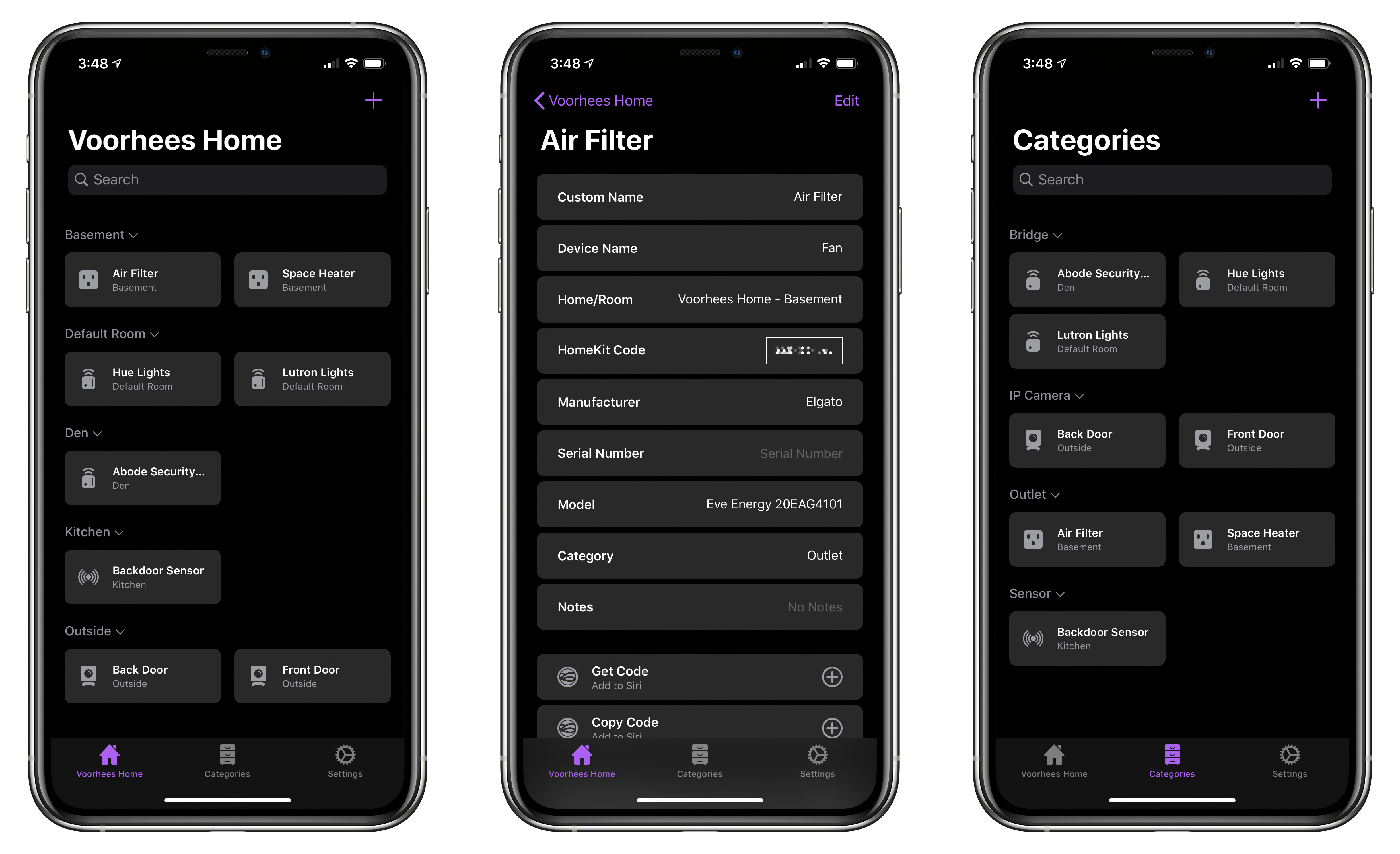
On the iPhone, devices stored in HomePass are now organized in a two-column grid of rounded rectangles a little like the tiles found in the Home app. Like Home+ 4 by Matthias Hochgatterer, HomePass does something Home can’t, though, which is collapse rooms by tapping on their names to hide away devices you don’t want to see. Combined with the new layout on the iPhone, which is similar to the existing layout on the iPad, it’s easier to manage a large collection of devices from a single screen.

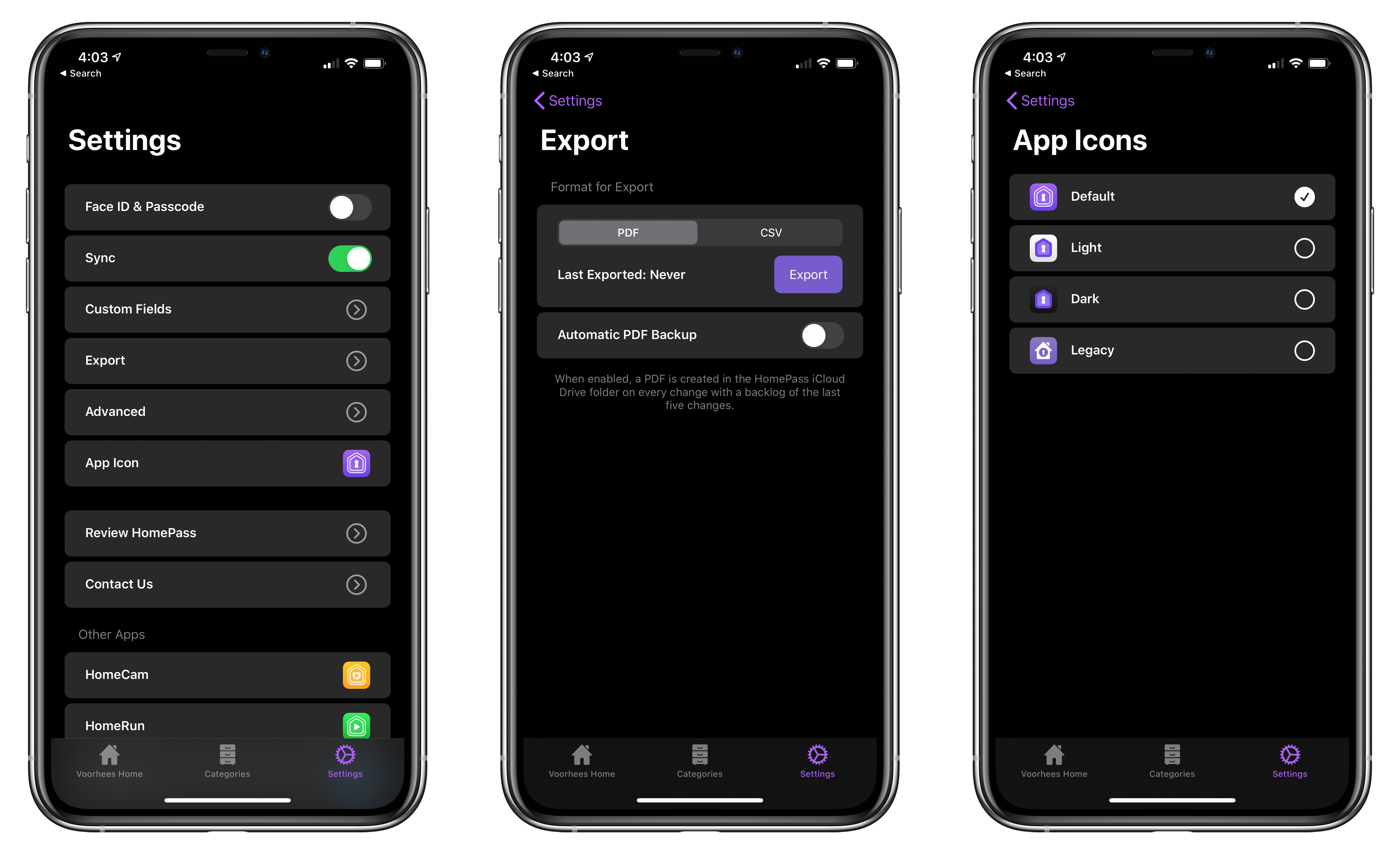
From HomePass's Settings tab you can manage custom fields, export your data, and pick from four different icons.

From HomePass’s Settings tab you can manage custom fields, export your data, and pick from four different icons.

HomePass is organized into tabs now too. The first tab organizes devices by your home’s rooms. The second tab organizes the same accessories by category like ‘Bridge,’ ‘Camera,’ ‘Outlet,’ and ‘Sensor.’ Like rooms, devices are laid out in a grid, and sections can be collapsed. Categories is an excellent alternative way to break down your HomeKit devices functionally.

Device tiles support context menus now too. Long-pressing on a tile offers options to edit or delete the device or copy its code. It’s a terrific way to quickly grab a code when that’s all you need.

Tapping on an item opens up a view with the details about each device. Long-pressing on the HomeKit accessory code allows you to copy it. Also, at the bottom are buttons to set up ‘Get Code’ and ‘Copy Code’ actions using Add to Siri. Once set up, the actions can be triggered using Siri voice commands or included in custom shortcuts you build.

HomePass now supports context menus, better Shortcuts support, and custom device fields.

HomePass now supports context menus, better Shortcuts support, and custom device fields.

In addition to device-specific actions, the app comes with the following built-in Shortcuts actions that have been improved by the addition of parameters:

  • ‘Copy HomeKit Code,’ which presents a list of your devices by default, and copies the code for the one you pick to the clipboard. The action can also be used to grab the code of a specified device and pass it to the next action.
  • ‘Get HomeKit Code’ also retrieves a device’s code, but passes it to the next action without copying it.
  • ‘Get Accessory,’ which the app’s description seems to suggest retrieves all of the information about a device, though it only returns the name of a specified accessory when I’ve used it.
  • ‘Get All Accessories,’ which retrieves a list of all your HomeKit devices.

The app includes an x-callback-url scheme that developers can use to automatically add devices to HomePass from their apps too.

The app’s final tab is Settings, where you can manage the new custom fields, pick from among four Home screen icons, and export your device data as a PDF or CSV file for safekeeping.

I don’t use HomePass often, but it’s one of those utilities I’m glad is on my iPhone because it eliminates frustration when I need it. Too often in the past, I’ve had to dismantle gear to find a HomeKit code. Now that I’m in the habit of adding codes to HomePass when I get a new device, troubleshooting issues with my setup is far easier. Moreover, with a larger collection of devices than I had when I started using HomePass, version 1.7 has substantially improved their management.

HomePass is available on the App Store for $2.99.


Digital Spring Cleaning

AppStories+ Deeper into the world of apps

AppStories Episode 158 - Digital Spring Cleaning

0:00
34:36

AppStories+ Deeper into the world of apps

This week, Federico and John discuss their approaches to digital spring cleaning.

Read more