John Voorhees

5429 posts on MacStories since November 2015

John is MacStories' Managing Editor, has been writing about Apple and apps since joining the team in 2015, and today, runs the site alongside Federico. John also co-hosts four MacStories podcasts: AppStories, which covers the world of apps, MacStories Unwind, which explores the fun differences between American and Italian culture and recommends media to listeners, Ruminate, a show about the weird web and unusual snacks, and NPC: Next Portable Console, a show about the games we take with us.

Shortcuts Rewind: Dates, Calendars, and Beyond

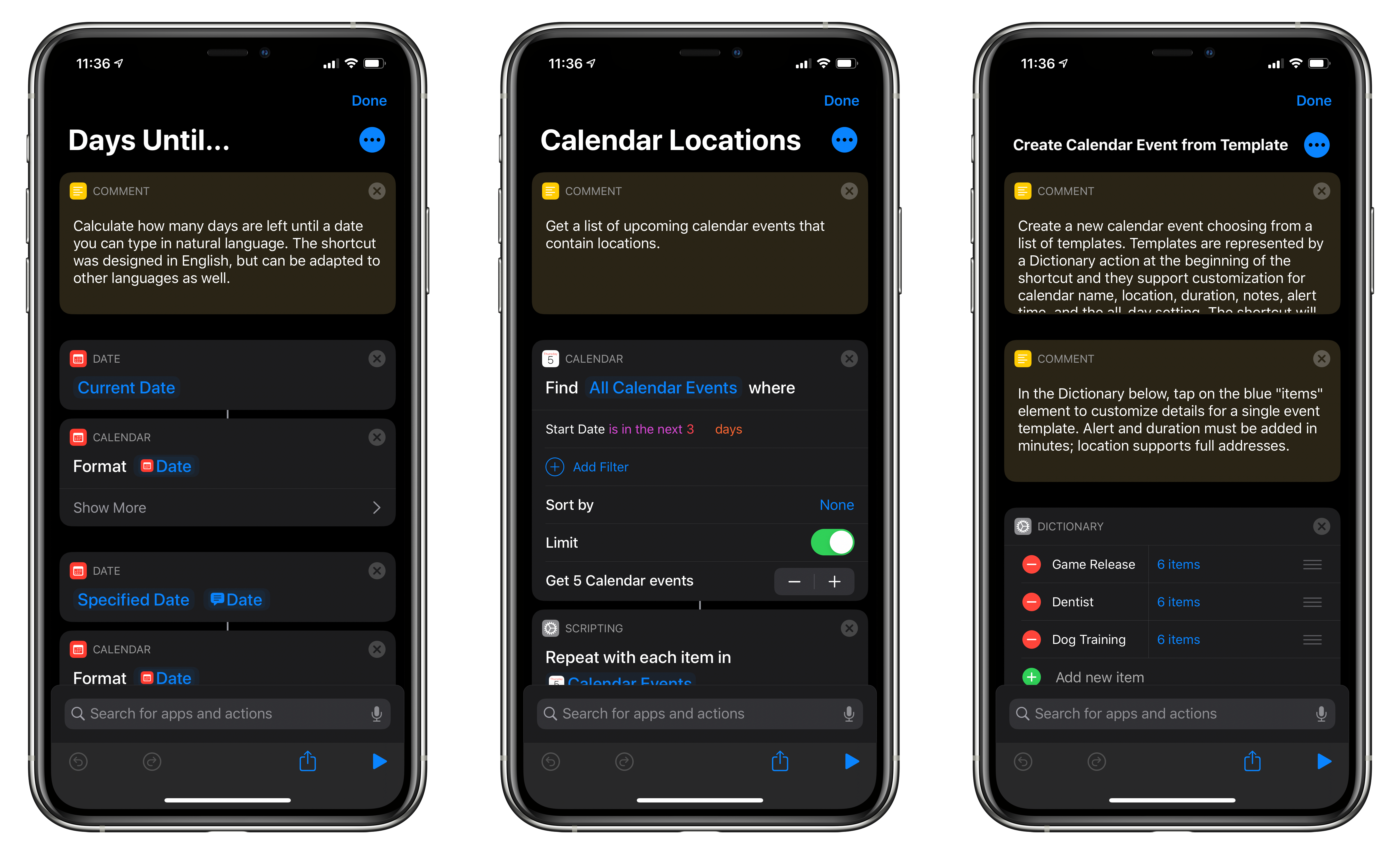
For this installment of Shortcuts Rewind, I’m going to focus on date and calendar actions. I’ll also touch on some of the Shortcuts actions that Apple Maps offers and explain dictionaries.

I wanted to cover date and calendar actions early in the Shortcuts Rewind series because they’re the sort of actions that come in handy over and over in a wide variety of shortcuts. Plus, date-based shortcuts are useful to lots of people. After all, everyone deals with schedules and meetings to some degree.

With Shortcuts, dates become modifiable building blocks that go hand-in-hand with events that the app allows you to decouple from your calendar app and recombine in new ways. It’s a powerful pairing that, along with an understanding of dictionaries, can be extended to other contexts over and over.

You can download each of the three shortcuts I cover at the end of each section of this story or by visiting the MacStories Shortcuts Archive, where you’ll find these and over 200 other shortcuts. Once you download one of the shortcuts, opening it on an iPad side-by-side with this walkthrough is a terrific way to learn how each works. Another technique that is effective is to rebuild each shortcut from scratch yourself, as you follow along below.


Read more


AppStories, Episode 152 – App Subscriptions Revisited

This week on AppStories, we revisit the topic of app subscriptions and what we learned in the nearly three years since we covered subscriptions in episode 5.

Sponsored by:

  • Direct Mail – Create and send great-looking email newsletters with Direct Mail, an easy-to-use email marketing app designed exclusively for the Mac.
  • Indeed – Post your job today and get a free sponsored job upgrade.

https://staging.macstories.net/podcasts/appstories/episodes/152/embed/

Permalink

Apple Announces Winners of Its ‘Shot on iPhone’ Night Mode Challenge

Photograper: Konstantin Chalabov (Moscow, Russia), iPhone 11 Pro

Photograper: Konstantin Chalabov (Moscow, Russia), iPhone 11 Pro

Apple has announced the six winners of its Shot on iPhone challenge. The contest, which was announced at the beginning of the year, asked photographers to submit their best Night mode shots taken with the iPhone 11 Pro and iPhone 11 Pro Max.

The winning photos, which were taken by photographers from China, India, Russia, and Spain, were judged by a panel of professional photographers and Apple executives and employees. The photos are currently being featured on apple.com, Apple’s Instagram account, and will appear on billboards worldwide in the future.

The images chosen by Apple’s panel of judges are fantastic. It’s remarkable what can be accomplished with Night mode, especially when you look back at what nighttime photography was like on the iPhone just a few years ago.

Don’t miss all six winning Night mode shots in Apple’s press release.

Permalink

App Subscriptions Revisited

AppStories+ Deeper into the world of apps

AppStories Episode 152 - App Subscriptions Revisited

0:00
49:37

AppStories+ Deeper into the world of apps

This week, Federico and John revisit the topic of app subscriptions and what they’ve learned in the nearly three years since they covered subscriptions in episode 5.

Read more


abode iota Review: A Flexible HomeKit Security Solution

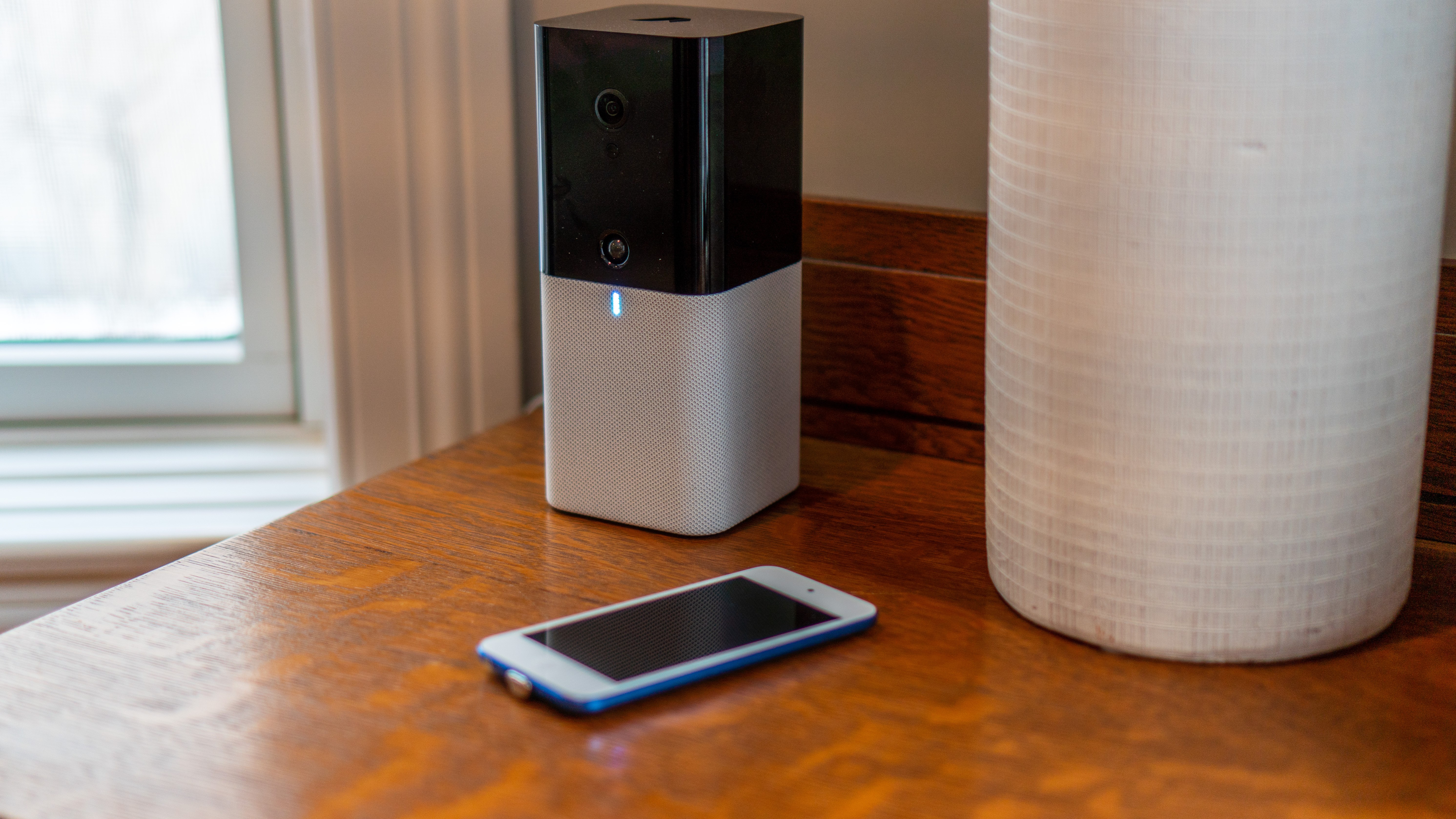
For years, I had a traditional security system in my home that cost hundreds of dollars each year for the monitoring service that went with it. I ditched that system about two years ago in hopes of finding a cheaper, smarter solution, but I’ve had mixed success.

The products I’ve tried in the past have been plagued by unreliable hardware and limited functionality. That’s why I was interested in trying abode’s HomeKit-compatible iota Security Kit when they offered to send me a test unit. After several weeks with the kit, which is available in the US and Canada, I’ve been impressed with both the reliability and flexibility of the hardware.

The iOS app doesn’t match the quality of abode’s hardware, but the issues with the app are mitigated by a solid web app and HomeKit compatibility that provide alternative ways to control the system. I’d certainly prefer a better iOS app. Still, even as is, the combination of abode’s hardware and the services offer a flexibility that other systems I’ve tried just can’t match.

Read more


Eero WiFi Routers Add HomeKit Support

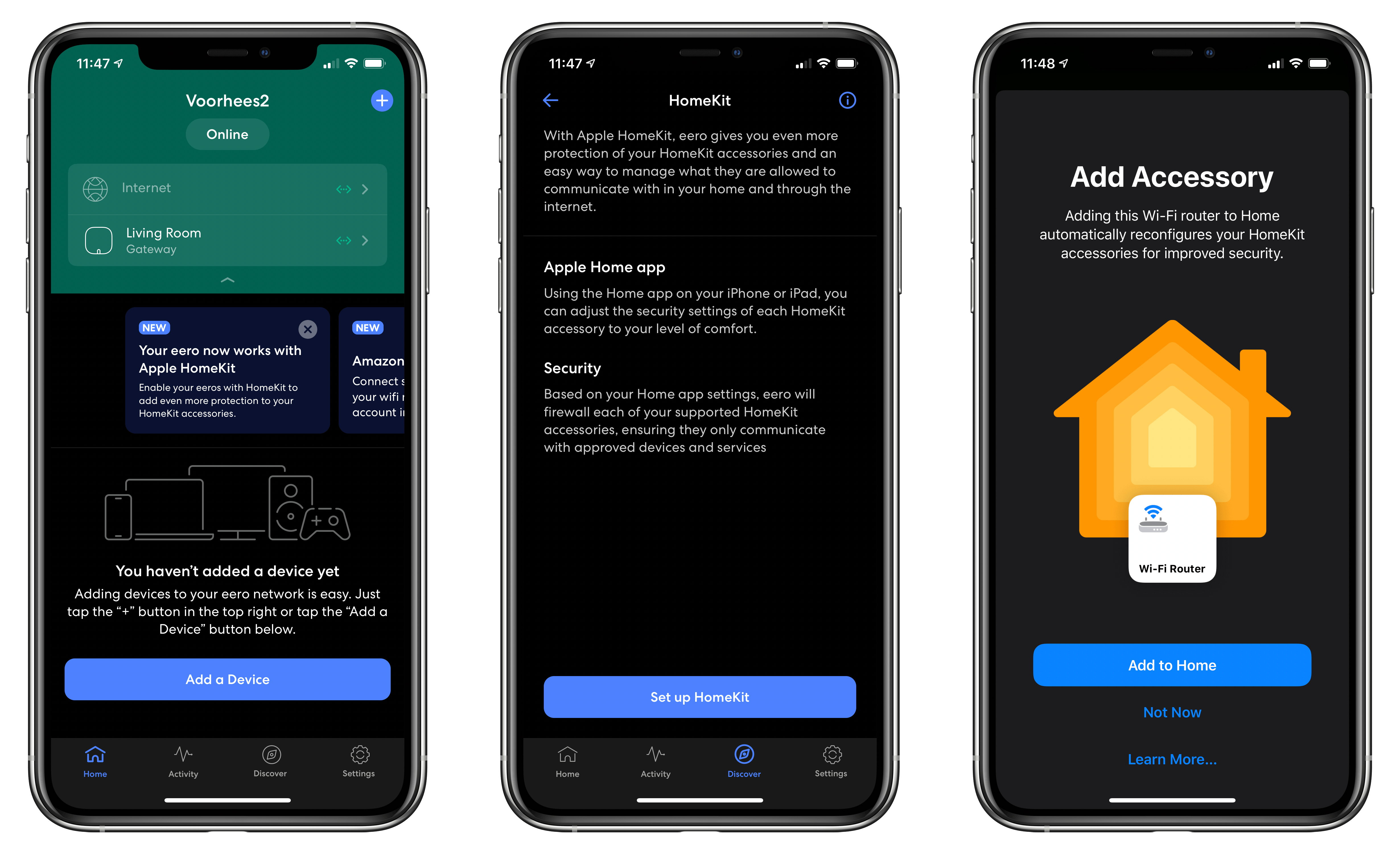
Amazon’s Eero routers are the first out of the gate with HomeKit support, which promises to provide greater security to your Internet-connected HomeKit devices.

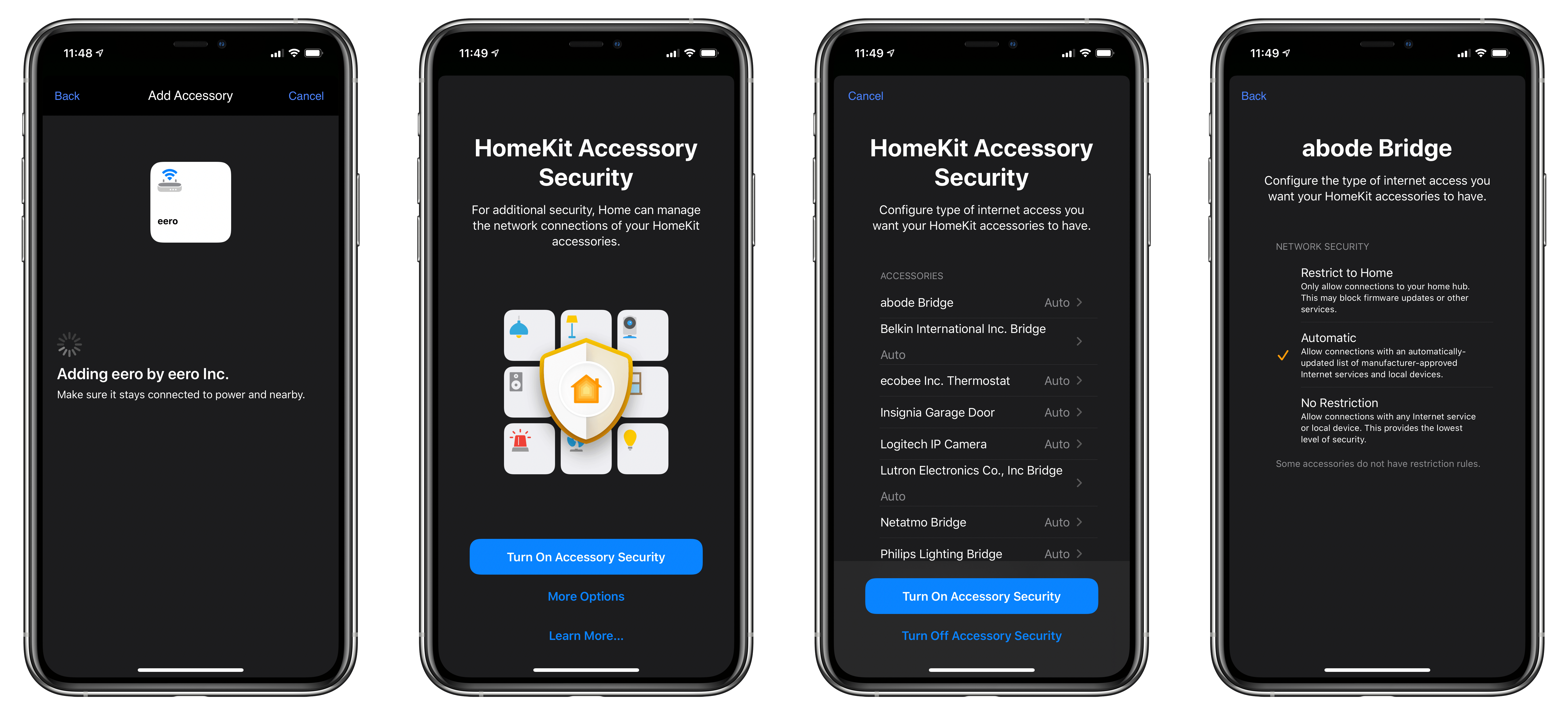
The update, which appeared today via an update to Eero’s iOS app, walks users through the setup process of adding their Eero gateway to the Home app. Along the way, the Eero app explains that enabling HomeKit support allows Eero to firewall off each HomeKit device, so they only communicate with approved devices and services.

Setting up security for HomeKit devices.

Setting up security for HomeKit devices.

Users can set the level of security for each of their HomeKit devices from inside the Eero app’s setup process by choosing ‘More Options’ from HomeKit Accessory Security screen. Alternatively, security settings can be modified from Apple’s Home app. The three security levels available include:

  • Restrict to Home, which only allows connections to your home hub, which the setting warns may block firmware updates or other services.
  • Automatic, which allows connections to manufacturer-approved services and devices
  • No Restriction, which allows connections to any service or device
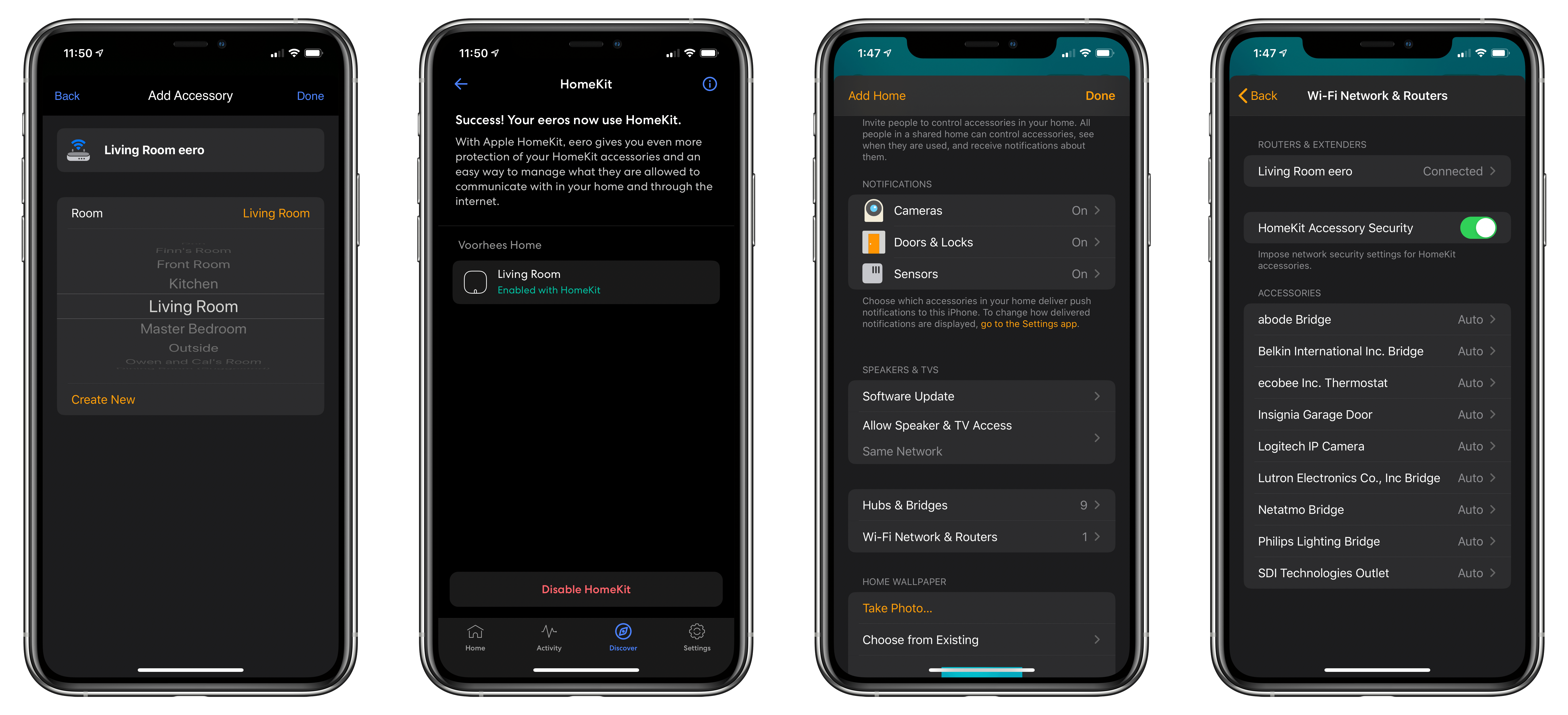
Adding your Eero router to an existing HomeKit room and viewing its settings in the Home app.

Adding your Eero router to an existing HomeKit room and viewing its settings in the Home app.

I don’t currently use an Eero router as my main WiFi router, but I have a spare one, so I gave the setup process a try. The instructions for setting up HomeKit support were clear and easy to follow as you’d expect given Eero’s reputation for simplifying home networking. I wasn’t able to find the Eero router in the Home app initially, but as a reader pointed out, it’s near the bottom of the Home app’s settings that appear when you tap the house icon from the Home tab. I hope more router makers add this to their products soon. The promise of being able to limit access to more sensitive HomeKit devices like cameras and alarm systems is certainly an enticing one.

Eero’s updated app is available on the App Store as a free download.


AppStories, Episode 151 – Apple’s Blending of Apps and Services

This week on AppStories, we explore how Apple is increasingly blending services with its apps, where the mix has worked, where it hasn’t, and where we expect the trend will lead next.

Sponsored by:

  • Linode – Cloud Hosting & Linux Servers. Get a $20 credit.
  • MyNetDiary – Lose weight and get healthy for life with MyNetDiary.
  • Sanebox – Clean up your inbox in minutes. Sign up for a two-week free trial and a $25 credit.

https://staging.macstories.net/podcasts/appstories/episodes/151/embed/

Permalink