John Voorhees

5429 posts on MacStories since November 2015

John is MacStories' Managing Editor, has been writing about Apple and apps since joining the team in 2015, and today, runs the site alongside Federico. John also co-hosts four MacStories podcasts: AppStories, which covers the world of apps, MacStories Unwind, which explores the fun differences between American and Italian culture and recommends media to listeners, Ruminate, a show about the weird web and unusual snacks, and NPC: Next Portable Console, a show about the games we take with us.

Adobe Unveils Photoshop Updates for the iPad and Mac on Its 30th Anniversary

Source: Adobe.

Source: Adobe.

Not many apps can say they’ve been around for 30 years, but that’s how long it’s been since Photoshop 1.0 launched. To coincide with the milestone, Adobe has released updates to Photoshop for the iPad and the Mac. We haven’t tried either update yet, but from the press demo I received, the updates to both versions of Photoshop appear substantial and promise to improve the experience of using the app significantly.
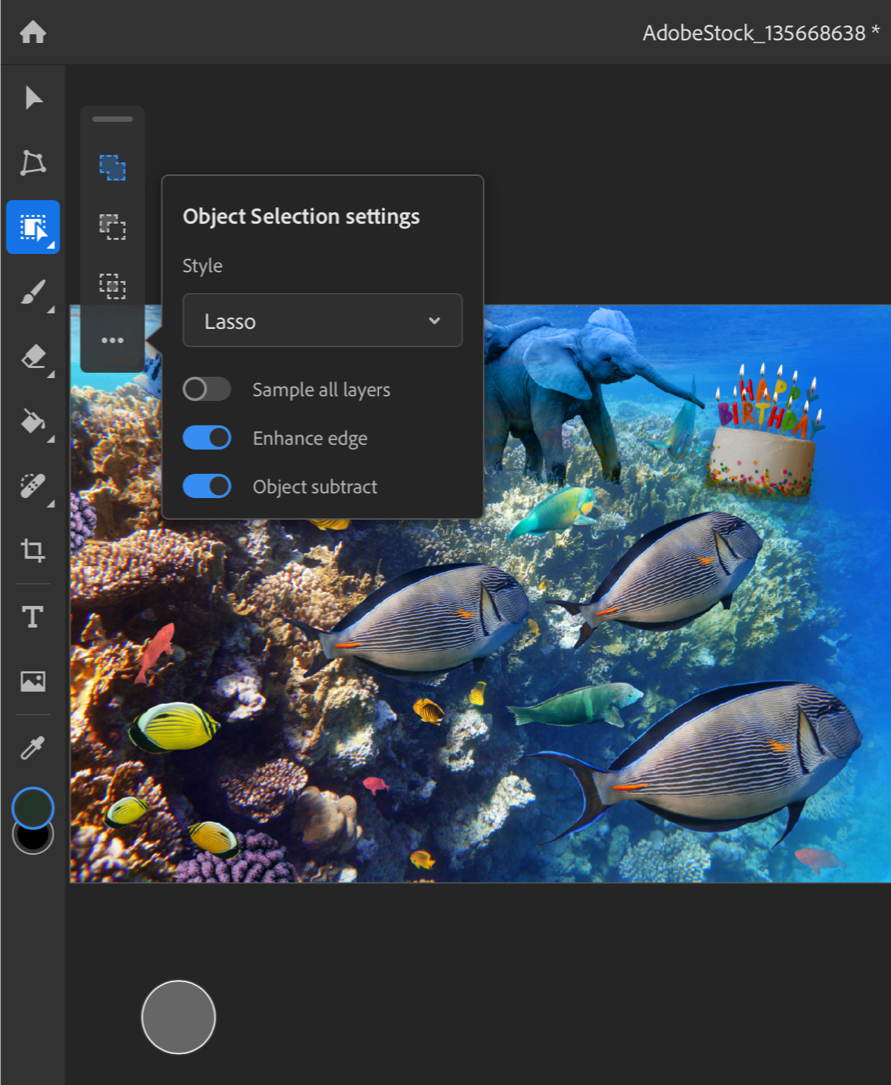
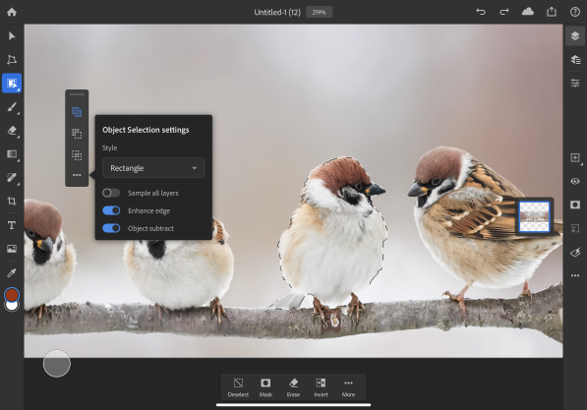
The Object Selection tool. Source: Adobe.

The Object Selection tool. Source: Adobe.

On the iPad, Photoshop already has a Subject Selection tool that lets users quickly select the primary subject of an image, but now, it also has a new Object Selection tool that works a little differently. Object Selection works best when there are multiple subjects in an image, and you want to select just one. After tapping the Object Selection tool, you trace an outline around the object you want to select. Then, Photoshop uses some software magic to figure out what you want and snaps the selection to the object. Finally, you can clean up the selection, adding and subtracting parts using Photoshop’s Touch Shortcut UI. It’s fantastic to see this tool, which just came to the Mac a few months ago at Adobe MAX, already part of the iPad app.

Photoshop for iPad's new type settings. Source: Adobe.

Photoshop for iPad’s new type settings. Source: Adobe.

The other headlining feature on the iPad is better typography settings. There are now type layer, character, and options properties that include tracking, leading, scaling, and other adjustments that can be made to text. It’s not quite the complete set of tools available on the desktop, but it appears to be a substantial improvement over the previous version of the iPad app.

The Mac version of Photoshop has also been updated too. Lens Blur has been moved from the CPU to the GPU for better performance. The app can also read the depth map from images taken with an iPhone and other smartphones, which can be edited in Photoshop to get the exact focal point and look that you want.

The old version of Lens Blur (left) and the new version (right). Source: Adobe.

The old version of Lens Blur (left) and the new version (right). Source: Adobe.

The Content-Aware Fill workspace has been improved too. Now, you can make multiple selections and apply multiple fills in the workspace, whereas before users had to leave the workspace and reenter it between selections.

Photoshop for iPad was released in early November 2019 with the promise of frequent updates to fill the gaps between it and its desktop sibling. So far, Adobe has lived up to that commitment with substantial updates last December and today. Another indication that Adobe is serious about mobile is evident from the Photoshop webpage, which prominently features the app.

Still, there is still plenty of work to be done before Photoshop for iPad rivals the desktop Photoshop experience. In addition to features that haven’t migrated from the desktop to the iPad yet, I’d like to see Adobe implement iPadOS system features like drag and drop, so I can drag images from Lightroom or other photo editors into Photoshop, context menus, which seem like a natural fit for an app with so many settings, options, and actions, and multiwindowing. My hope is that new functionality like keyboard event detection and whatever Apple has in store for iPadOS 14 will make it easier for Adobe to refine Photoshop further and continue to implement the most powerful desktop features on the iPad too.

Photoshop for iPad is a free update that is available on the App Store and requires a subscription. The Mac version of Photoshop is available directly from Adobe.
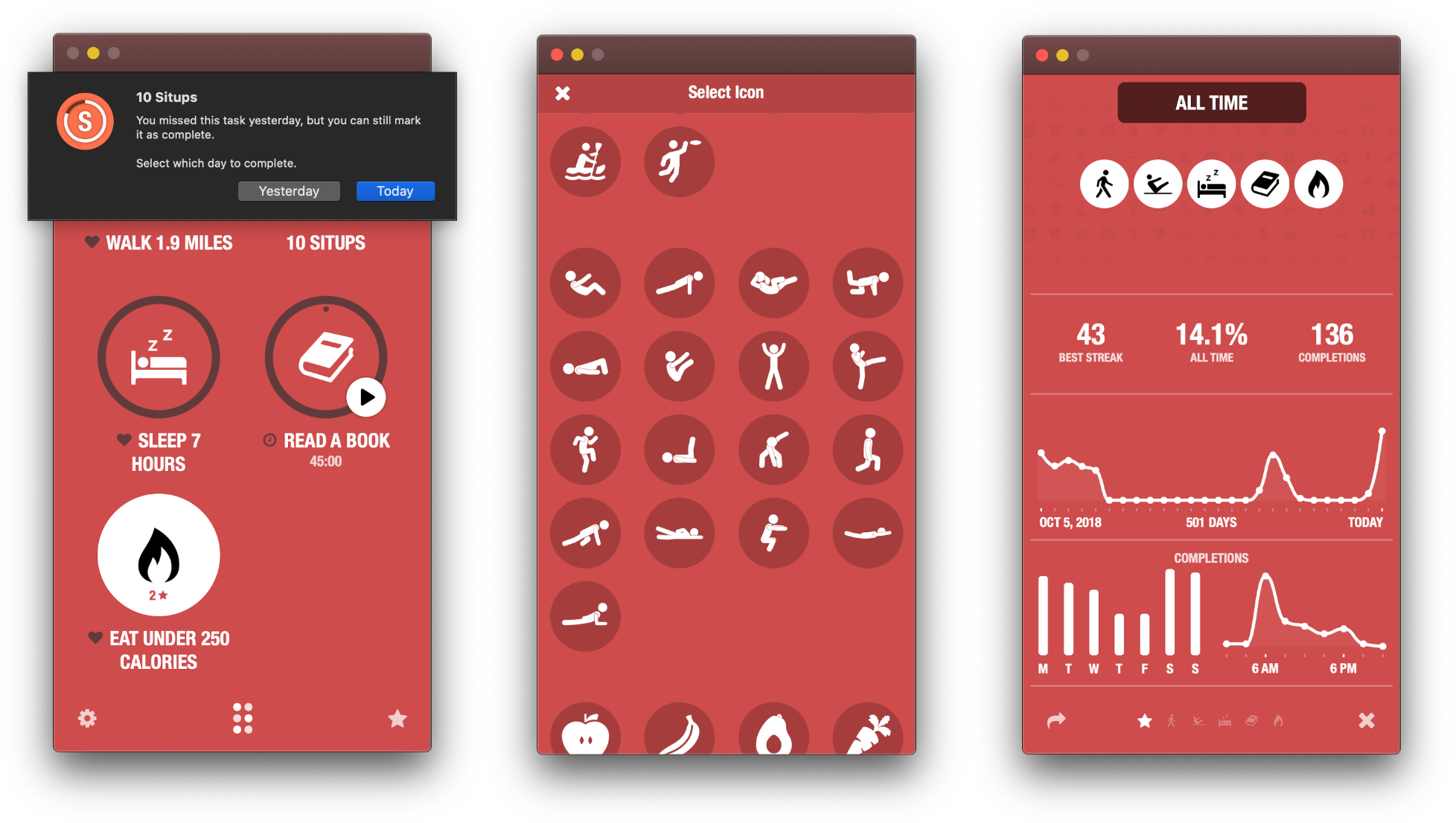
Developer Crunchy Bagel Releases a Mac Catalyst Version of Streaks

I’ve used Streaks on and off since its introduction. The app is a fantastic way to track and establish new habits. When it was launched, Streaks was iPhone-only. Since then, however, the app has added iPad support, an Apple Watch companion, Health app and Shortcuts integrations, new customizations, and other features, all while maintaining its distinctive, brightly-colored UI and fantastic iconography.

Today’s update adds Mac support to the mix via a brand new Catalyst app. There are a few differences between the Mac app and its iOS and iPadOS counterparts, but if you already use Streaks on an existing platform, the nearly-identical Mac version will feel familiar immediately.

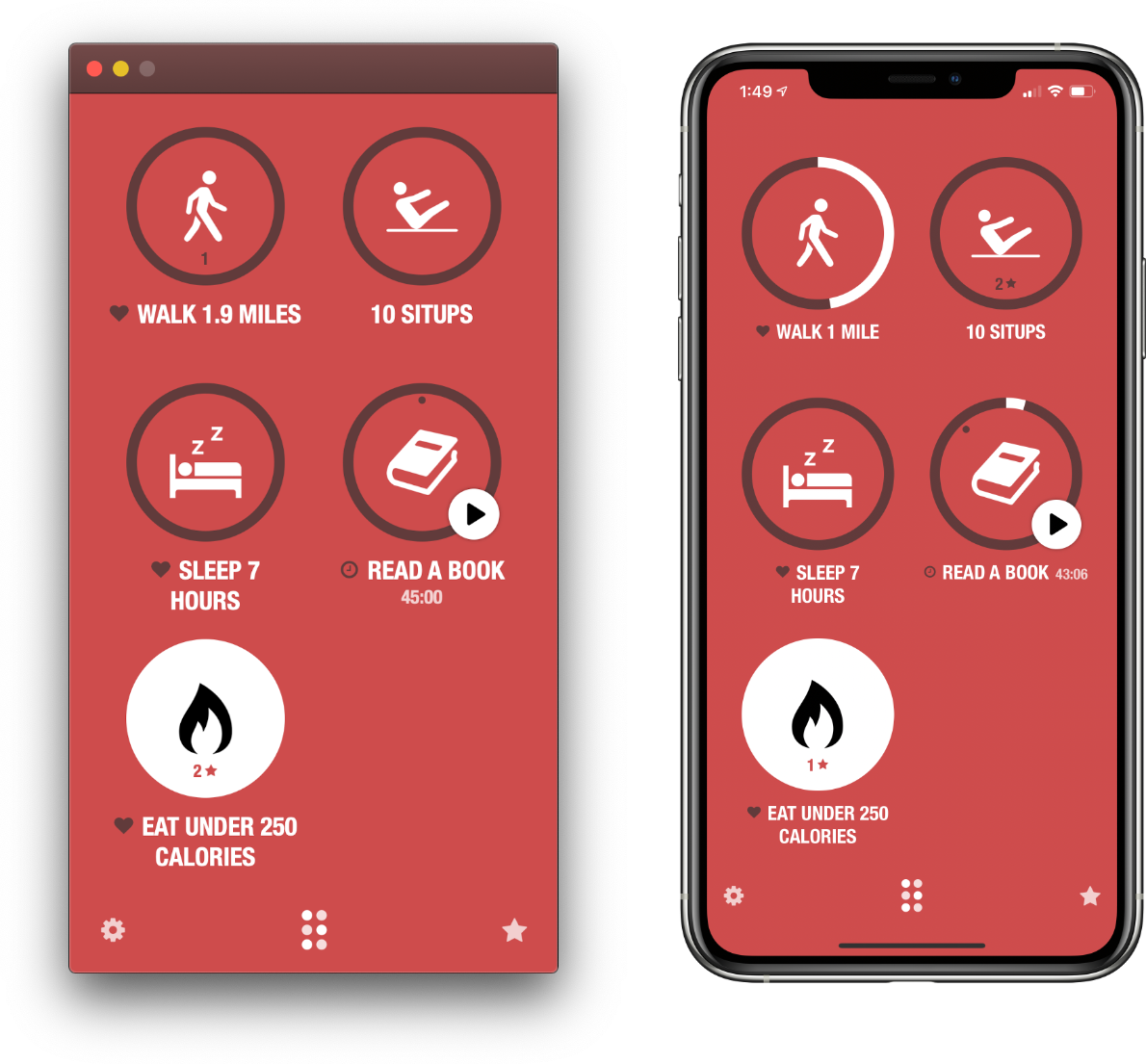
iPhone screenshot scaled down for easier comparison with the Mac app.

iPhone screenshot scaled down for easier comparison with the Mac app.

By the same token, newcomers who discover Streaks on the Mac may have a hard time adapting to the app’s approach. Modal views that slide into place from the bottom of the screen like an iOS app, ‘Done’ buttons and custom controls to close views, and fixed window dimensions aren’t design elements typically found on the Mac.

Coming from using the iOS app, though, the only place I found things hard to get used to was the ‘long click’ that replaces a long press on iOS and iPadOS for completing a task or entering editing mode, for example. On balance, though, I think Streaks’ long history and large audience on iOS largely negate the downsides of its atypical interactions.

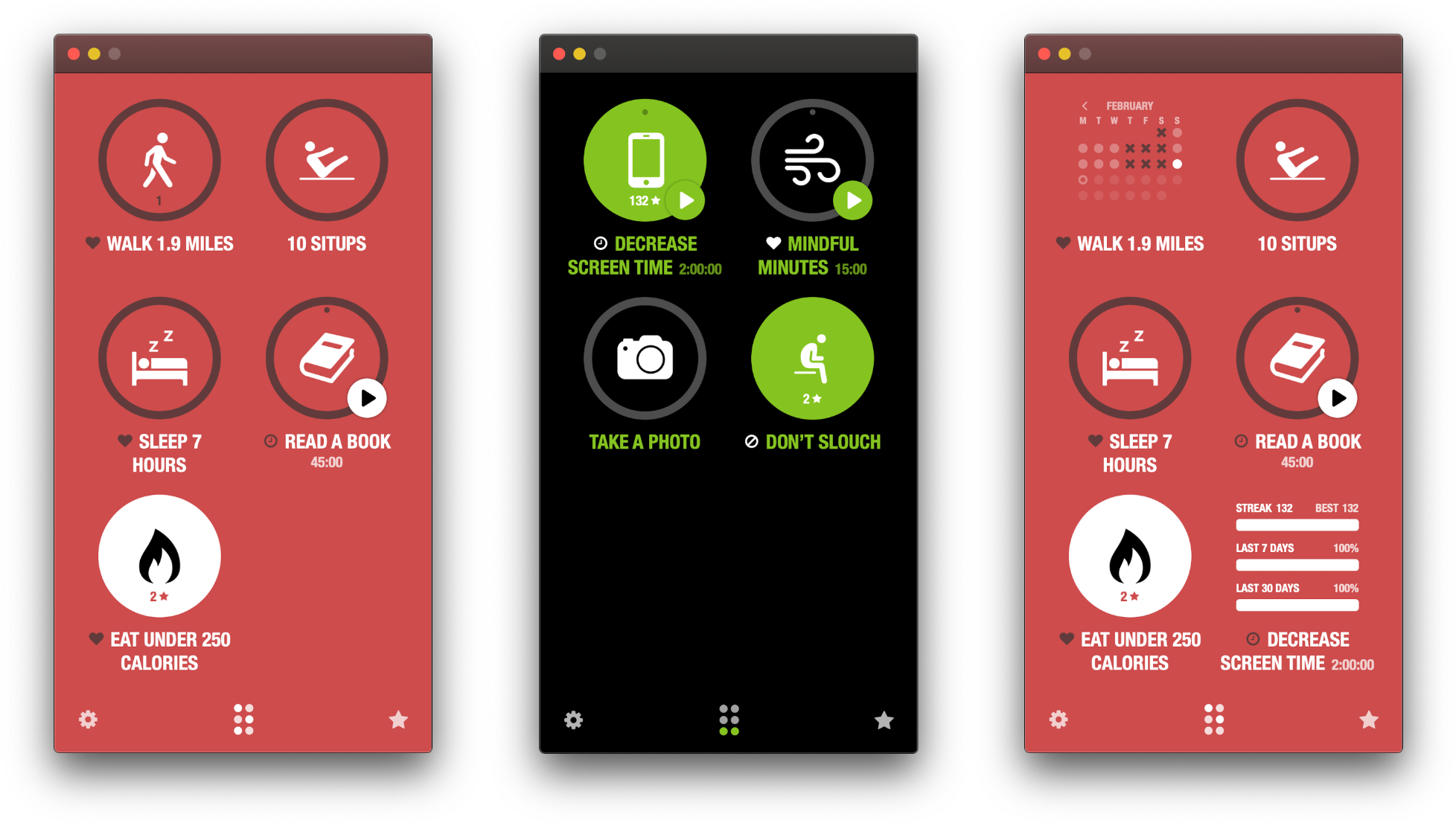
All the core features of Streaks on iOS and iPadOS are available on the Mac too.

All the core features of Streaks on iOS and iPadOS are available on the Mac too.

By and large, the functionality of the Mac version of Streaks is the same as the iOS and iPadOS versions. However, as you would expect, platform-specific settings that don’t make sense on a Mac, like Face ID and management of the Apple Watch app, are missing.

iCloud sync works well overall, too, syncing habit data, but not settings, running timers, and themes, which is also the case on the iPhone and iPad. However, I’ve noticed in my testing that the Mac version of Streaks is occasionally slow to update with changes from iOS. Even so, the two versions didn’t stay out of sync long since the apps coordinate their data every time the Catalyst app is reopened.

Streaks is a fantastic addition to the Mac by virtue of its nature as an activity tracker. It’s an app that fills a gap. If I don’t have my iPhone nearby, there’s a very good chance I’m working on my Mac or iPad. The inclusion of a Mac version of Streaks, like the iPad support that came before it, reduces the friction of tracking a new habit I’m trying to form, giving me even fewer excuses not to keep on top of my goals. As a result, even though I don’t expect to use the Mac app as often as Streaks on my iPhone, I’m glad I have that option now.

For more on Streaks, check out my reviews of the original app, as well as versions 3 and 4. Streaks for the Mac is available on the Mac App Store for $4.99.


Apple Warns that It Expects to Miss Quarterly Revenue Guidance Due to COVID-19 Outbreak in China

Apple has announced that it does not expect to meet its revenue projections for the March quarter as a result of the COVID-19 virus outbreak in China, which the company says has resulted in a slower return to normal conditions than expected at the time of its Q1 2020 earnings call held on January 28th. Apple cited two factors that will reduce revenue for the current quarter:

The first is that worldwide iPhone supply will be temporarily constrained. While our iPhone manufacturing partner sites are located outside the Hubei province — and while all of these facilities have reopened — they are ramping up more slowly than we had anticipated. The health and well-being of every person who helps make these products possible is our paramount priority, and we are working in close consultation with our suppliers and public health experts as this ramp continues. These iPhone supply shortages will temporarily affect revenues worldwide.

The second is that demand for our products within China has been affected. All of our stores in China and many of our partner stores have been closed. Additionally, stores that are open have been operating at reduced hours and with very low customer traffic. We are gradually reopening our retail stores and will continue to do so as steadily and safely as we can. Our corporate offices and contact centers in China are open, and our online stores have remained open throughout.

Although Apple has not provided revised March quarter revenue guidance, the company said that customer demand for its products and services outside of China has been strong and in line with its expectations.

Apple also announced in its press release that it is more than doubling its donation to support China’s public health effort.

Permalink


Shortcuts Rewind: Linking Tricks Using Markdown and Rich Text

Editor’s Note

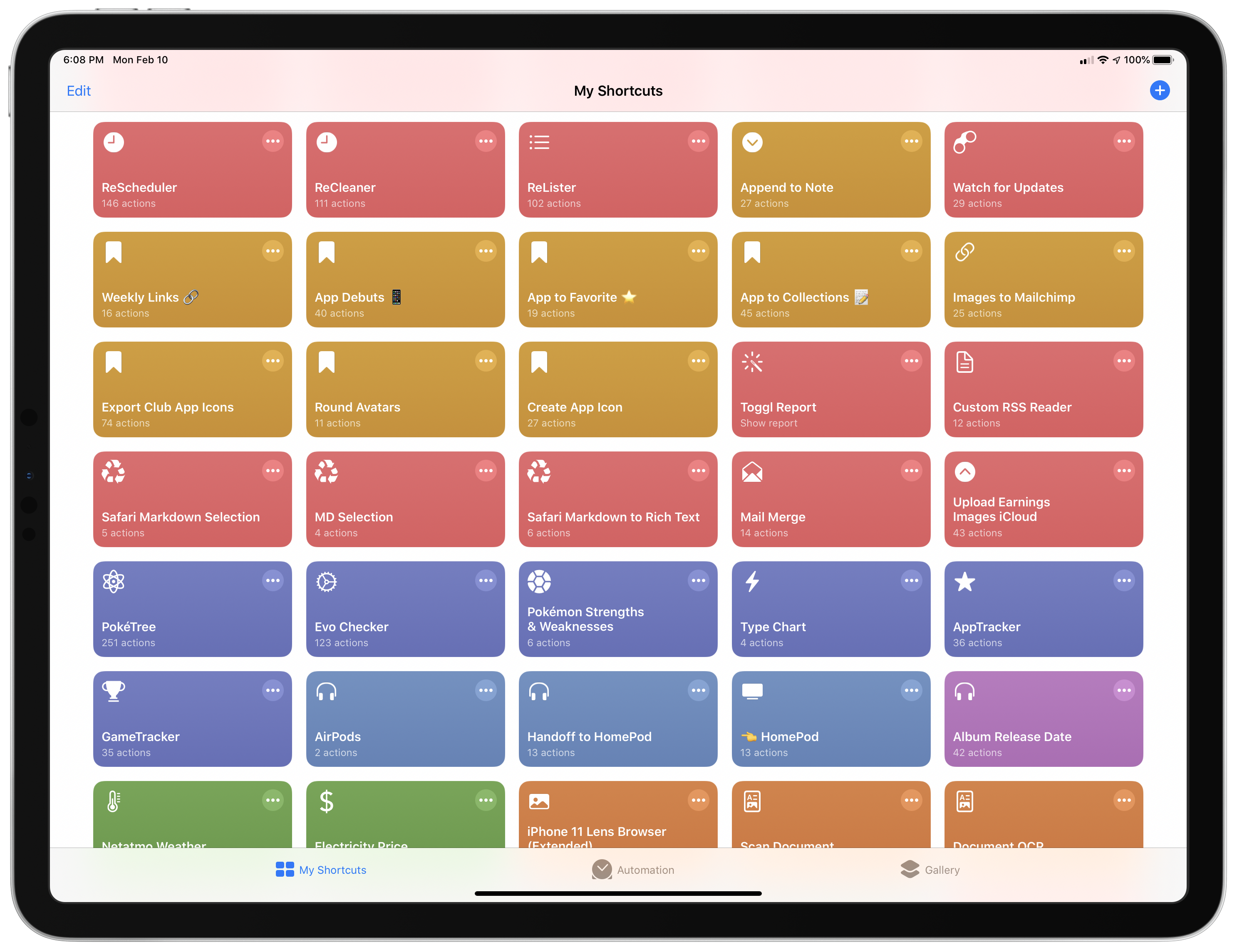
Over the past several years, Federico has built hundreds of shortcuts that are sprinkled throughout the stories he’s written. Last spring we debuted the MacStories Shortcuts Archive, a one-stop destination that collects all of those shortcuts organized by topic, so readers can find them easily.

There’s no better way to learn how to build your own shortcuts than by downloading someone else’s, which is what makes the Archive such a valuable resource to readers and one of MacStories’ most popular features. Still, it can be hard to pick up best practices and patterns or other tips and tricks from experimentation and tinkering.

That’s why today we are introducing a new series on MacStories called Shortcuts Rewind to add context to the shortcuts in the Archive. Periodically throughout the year, we will pick a few shortcuts from the Archive that we think would benefit from a further explanation, whether that’s to help new Shortcuts users learn the basics, to illustrate a particular technique that can be used across multiple shortcuts, or to automate a task that you might not have thought was possible.

Tying Shortcuts Rewind together is a new graphical approach to explaining shortcuts. As you’ll see, we’ve created a system that dispenses with distracting UI elements and breaks shortcuts into logical sets of actions. The approach allows us to simultaneously provide step-by-step instructions alongside commentary that we hope will help readers achieve a deeper understanding of Shortcuts and assist them in building their own automations.

Let’s get started.


For this first installment of Rewind, I wanted to start with a trio of relatively simple shortcuts that illustrate the power of Shortcuts’ ability to streamline the transformation of one type of content into another. All three shortcuts can be found in the Text section of the Shortcuts Archive, but there are also links to them below. The foundation of this process is the Content Graph, a core part of Shortcuts dating back to its origins as Workflow. The idea is a simple but powerful one that eliminates complexity for the user, handling much of the data compatibility and conversion chores behind the scenes with little or no effort on the part of the user.

At the heart of the three shortcuts discussed below are transformations between plain text, rich text, and URLs. Thanks to the Content Graph, Shortcuts has the flexibility to create powerful text and link handling functionality.

Read more


Jason Snell on Editing Podcasts with Ferrite on an iPad with the Apple Pencil

Jason Snell has edited a lot of podcasts. In fact, The Incomparable, the flagship show of his media and pop culture podcast network of the same name, just reached episode 500.

Since last summer, Snell has been using Ferrite by Wooji Juice to edit nearly every episode of The Incomparable on his iPad with the Apple Pencil. I’ve heard him describe his iPad and Apple Pencil workflow on podcasts before, but there’s nothing like seeing it in action, which you can now do on the Six Colors YouTube channel.

What struck me most about Snell’s video is how natural direct manipulation of multiple audio tracks looks. I’ve always done all of my podcast editing on a Mac with Logic Pro X, but after watching Snell edit an episode with multiple guests, I look forward to trying this myself.

Permalink

Apple Introduces Mac Catalyst Version of Swift Playgrounds

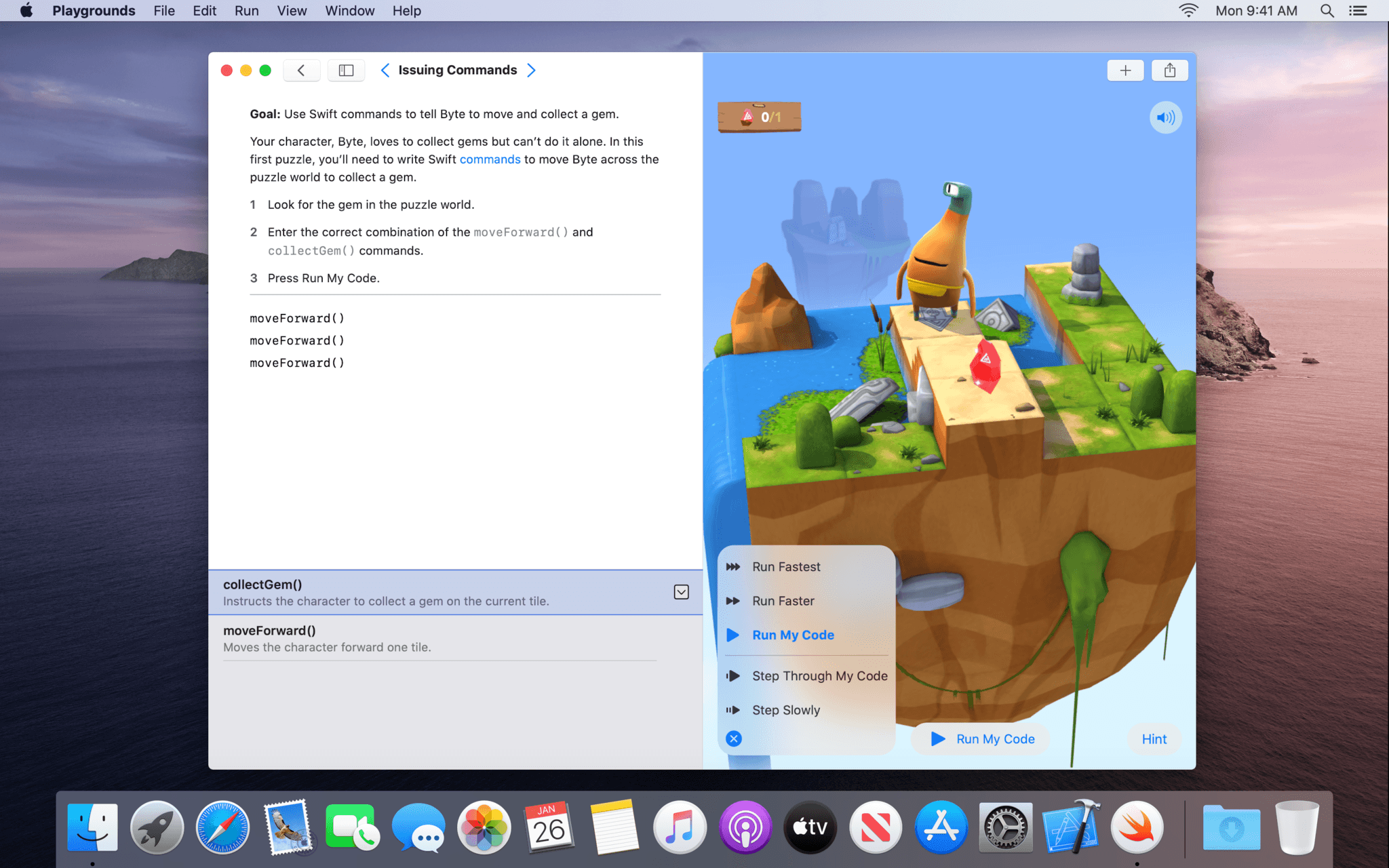
Swift Playgrounds has been around for quite a while on the iPad, but now, it’s on the Mac too as a Mac Catalyst app.

Swift Playgrounds teaches coding concepts and the Swift programming language. Until today, the app, which includes lessons designed to teach Swift alongside a coding environment, was an iPad exclusive. Now, however, anyone interested in learning Swift can move from the iPad to the Mac and back again.

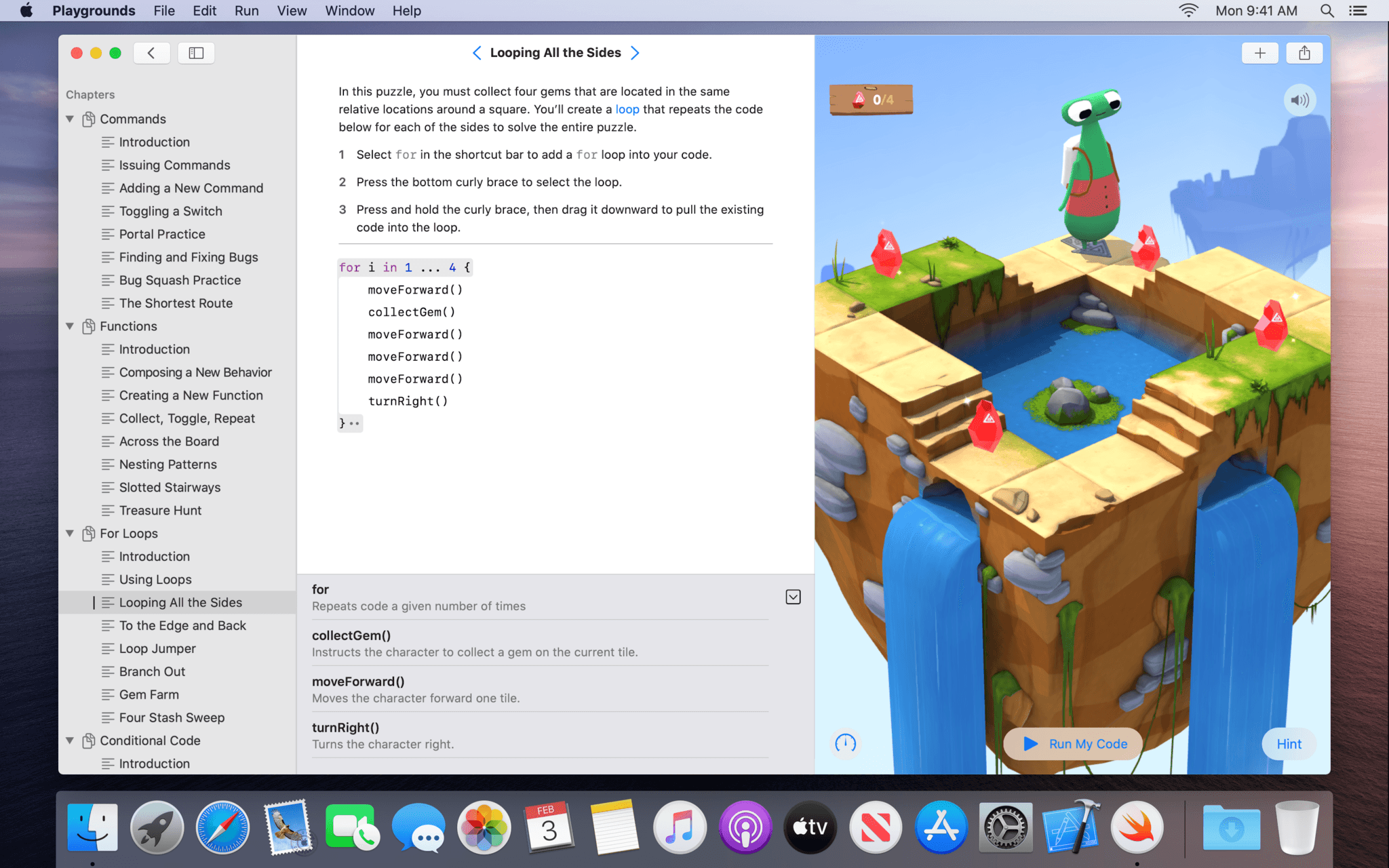
I’ve been a fan of Swift Playgrounds since it debuted. It’s a friendly, easy-to-use environment for experimenting with Swift ideas and concepts, and the lessons available are excellent. With the addition of a native Catalyst app on the Mac, anyone who wants to learn Swift can do so whether they are in front of their Mac or using an iPad. What’s more, the additional space afforded by most Macs there’s more room to navigate playground books and files. Playgrounds on the Mac includes expanded code completion functionality that allows you to navigate code suggestions with the arrow keys on your keyboard or trackpad too.

I haven’t had a chance to spend more than a few minutes with the new Swift Playgrounds yet, but it’s clear from even a cursory review of the app that a lot of thought and care has gone into it. The sidebar and Touch Bar support stand out as terrific Mac-centric additions that take advantage of the Mac’s bigger screen and keyboard and trackpad. I’m looking forward to diving spending more time with Swift Playgrounds on my Mac mini in the coming weeks.

Swift Playgrounds is available as a free download on the Mac App Store and requires macOS Catalina 10.15.3.