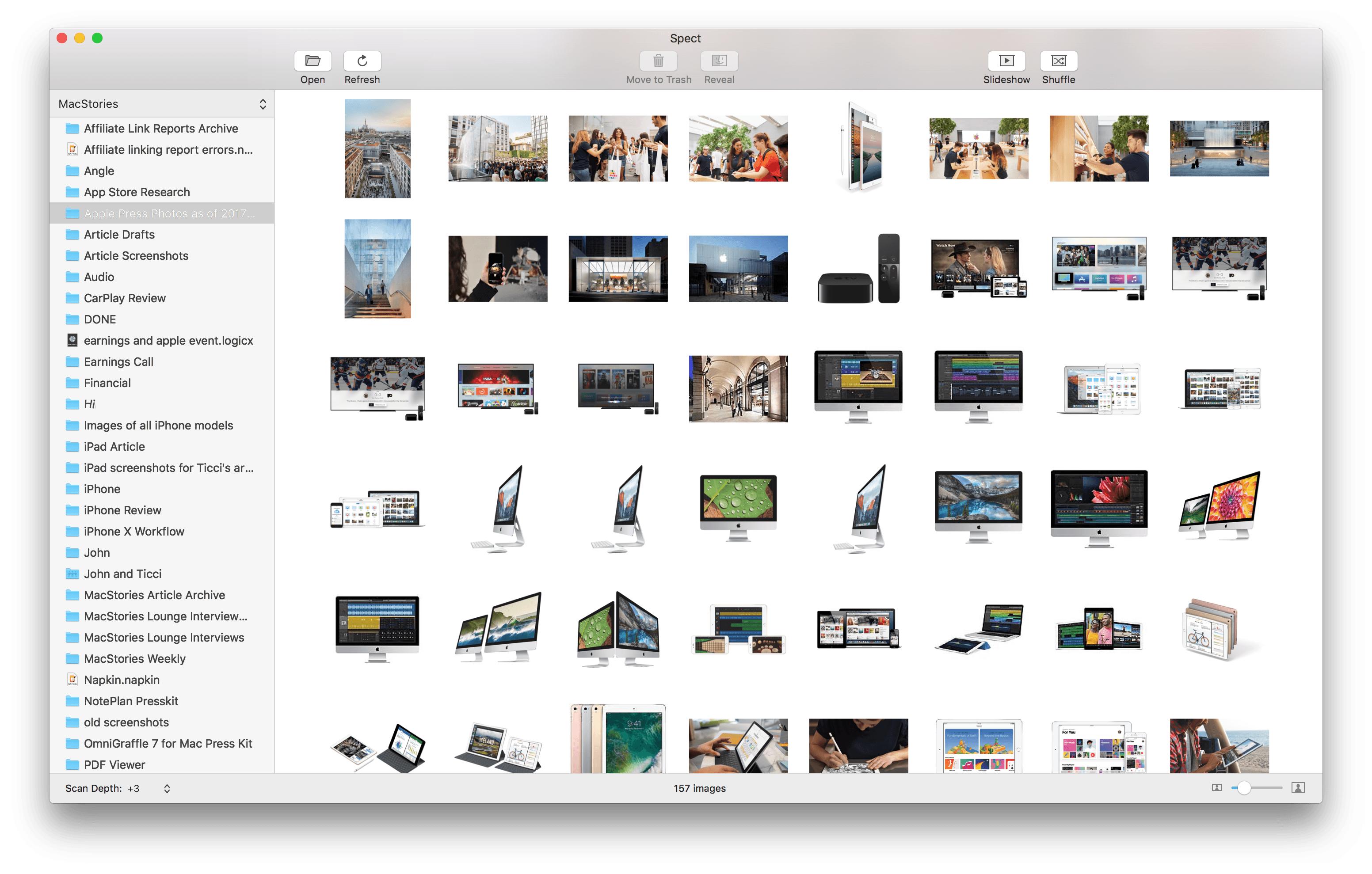
Spect from Steven Frank is based on a single, straightforward idea: separating image navigation from the Mac’s folder hierarchy. Point the app at a folder and tell it how deep to peer into subfolders and the app quickly generates thumbnails of the images to that depth of the folder structure. If you’ve ever found yourself drilling down into folders and subfolders only to have to back out and follow another path, you’ll understand the power of Spect immediately. The app saves users from a tremendous amount of clicking around.
Just like the Finder, your image thumbnails can be resized with a slider in the lower righthand corner of the window. In the bottom lefthand corner is where you specify how deep Spect should look into your folders.
Highlight an image and hit the space bar to toggle preview mode, which fills the window with the selected image. In preview mode, there are navigation arrows in the lower lefthand corner of the window so you can advance through your images one at a time.
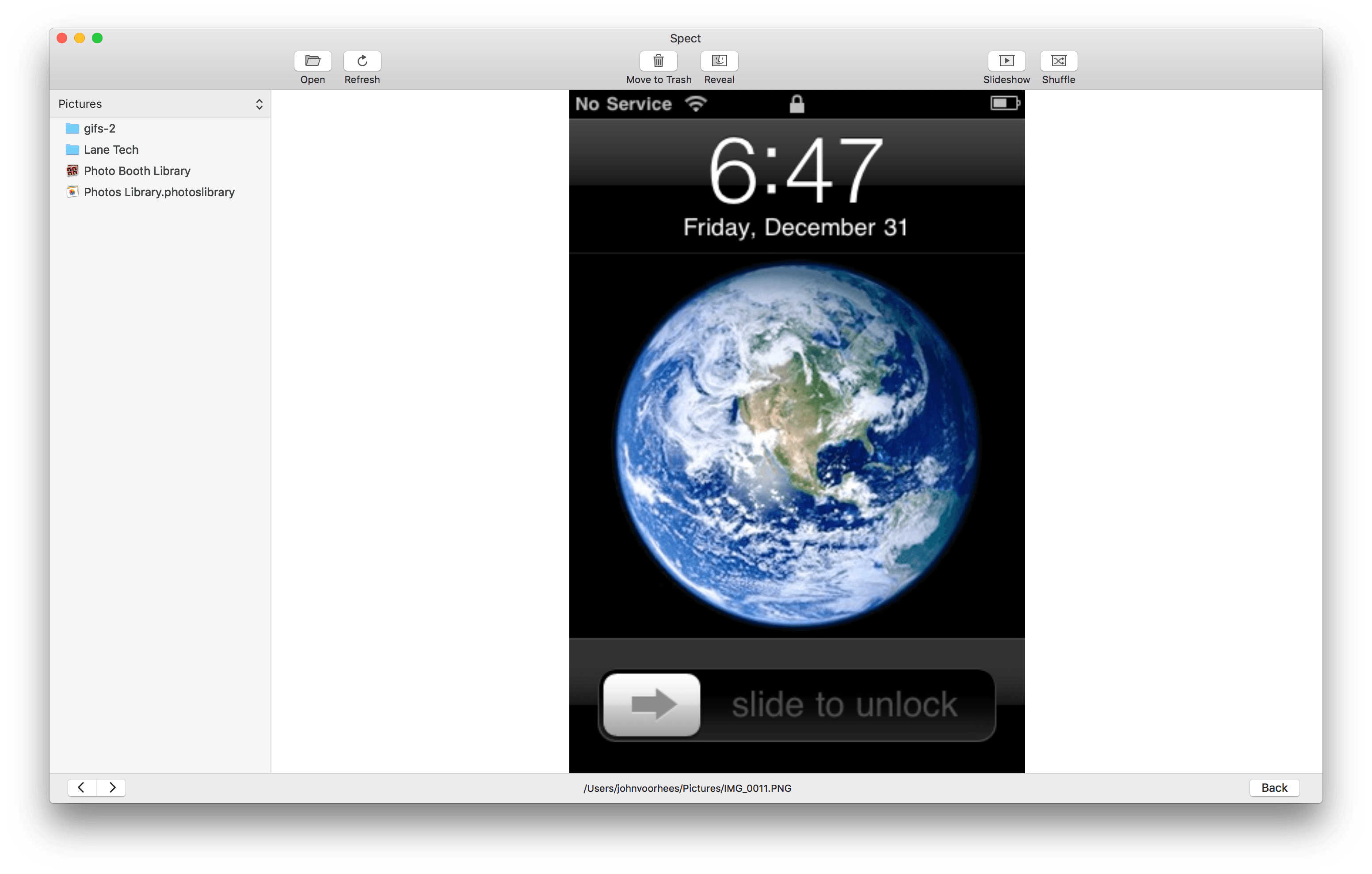
Spect can display a wide variety of image formats including JPG, PNG, HEIC, RAW, GIF, and PDF. It’s worth noting, however, that Spect is not a replacement for a PDF document viewer. The app is designed for images and can only display the first page of a document-based PDF.
The toolbar at the top of the window has buttons for moving images to the Trash and revealing them in the Finder that are excellent for basic organization. There are also Slideshow and Shuffle buttons in the toolbar, which are a handy way to create a quick slideshow of images from several folders at once. By default, images change every four seconds, but that can be adjusted in the app’s Preferences.
One preference I’d like to see added to Spect is a way to limit which types of image files are displayed in the app. For example, I’d like the option to exclude PDF files, which in my case, are usually documents that I don’t want to see when I’m browsing photos and screenshots. Spect includes drag and drop support for moving images from Spect to different Finder folders, but it would also be handy to be able to create new folders from inside Spect and move photos into them without switching to the Finder at all.
Spect isn’t designed to replace a photo management tool like Adobe Lightroom. Instead, its power lies in its simplicity and the speed with which you can triage a collection of images without getting lost in a complex folder structure. In the two days I’ve been using it, Spect has already helped me understand what images I have and organize them better. For example, I located Apple press photos scattered throughout multiple folders and consolidated them into one folder. I also quickly scanned and retrieved images I wanted to save from my Downloads folder and deleted the rest. If you work with images on a Mac, Spect is a utility you should definitely check out.







 Federico