John Voorhees

5429 posts on MacStories since November 2015

John is MacStories' Managing Editor, has been writing about Apple and apps since joining the team in 2015, and today, runs the site alongside Federico. John also co-hosts four MacStories podcasts: AppStories, which covers the world of apps, MacStories Unwind, which explores the fun differences between American and Italian culture and recommends media to listeners, Ruminate, a show about the weird web and unusual snacks, and NPC: Next Portable Console, a show about the games we take with us.

Remote for Mac: An iOS Remote Control for Your Mac [Sponsor]

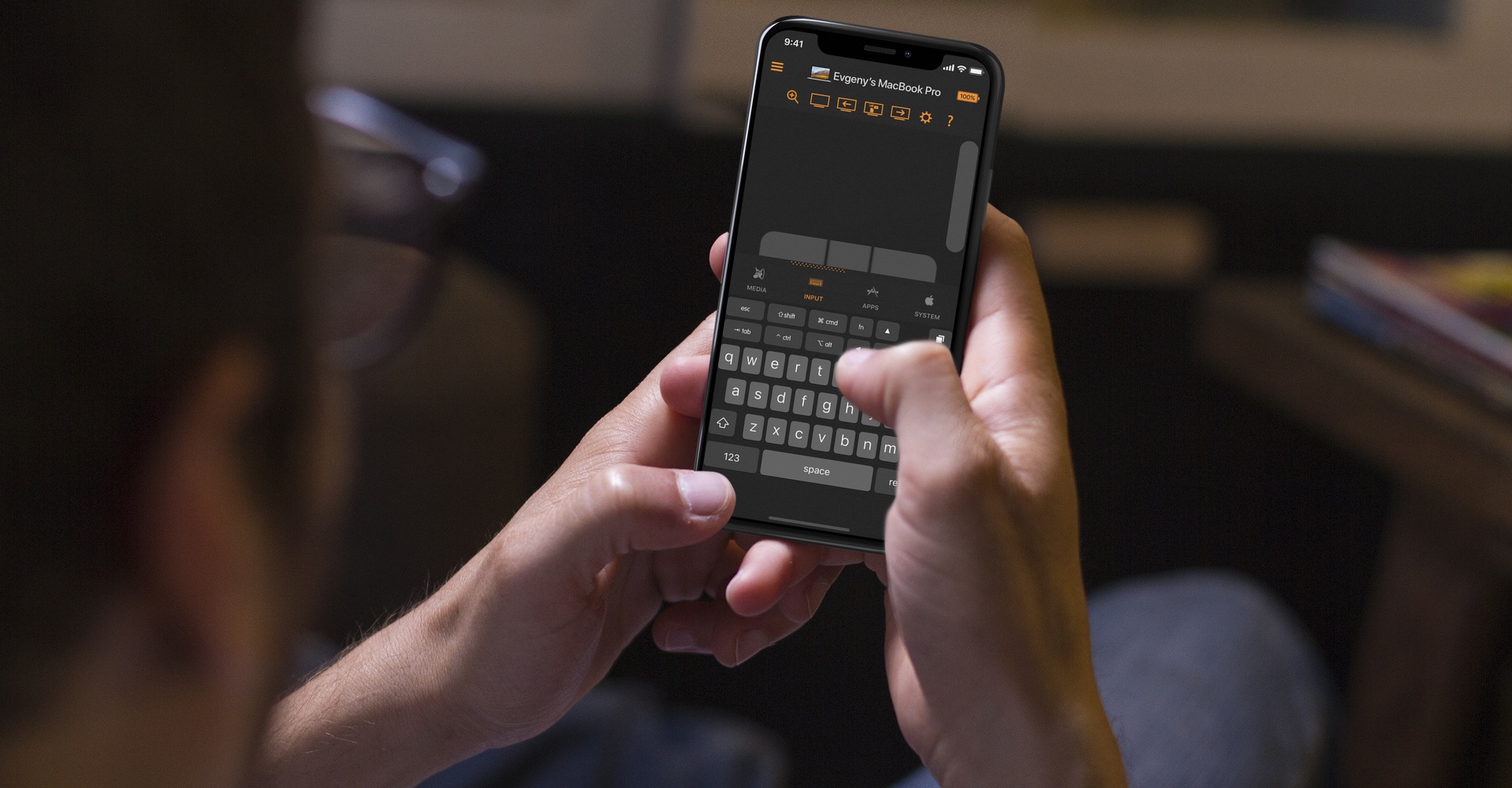
Remote for Mac is an iOS app that lets you use your Mac from anywhere on your home network. Using just your iPhone or iPad as a trackpad and keyboard, you can launch apps or control system settings on your Mac.

Remote for Mac is perfect for controlling a Mac that serves as a media center. Instead of trying to balance a keyboard and trackpad in your lap while you sit on the couch or lie in bed, use Remote for Mac to navigate your Mac from your iPhone comfortably. You can also use Remote for Mac with AirPlay Mirroring on an Apple TV to browse your Mac on a big screen TV.

All you need to do is install a helper app on your Mac and use Remote for Mac on the same WiFi network to control system settings and apps and services like iTunes, Amazon Prime Video, Netflix, YouTube, Plex, Kodi, SoundCloud, Spotify, and VLC.

Remote for Mac isn’t just for Mac media servers though. The uses are only limited by your imagination. You can just as easily use the app to browse the web or read email on a Mac connected to your TV. Using the app’s keyboard and virtual trackpad makes navigation a breeze. When you’re finished, Remote for Mac can put your Mac to sleep, turn off your display, or even shut down your Mac.

Remote for Mac has a special giveaway for MacStories readers. The first 30 readers who visit this link will get a free copy of the app.

Take control. Download Remote for Mac from the App Store today.

Our thanks to Remote for Mac for supporting MacStories this week.


Official Twitter Client for the Mac Abandoned

In the time honored tradition of releasing bad news at the close of business on a Friday, Twitter announced via its Twitter Support account that it was removing its Mac client from the the Mac App Store and discontinuing support for the app:

https://twitter.com/TwitterSupport/status/964635740444360704

Twitter gained a native Mac client when it acquired Tweetie for Mac from Loren Brichter in 2010, but the company’s support for the app over the years has been half-hearted at best. As John Gruber explained on Daring Fireball:

Twitter dumped Tweetie’s codebase years ago, of course, and their Mac app has been garbage ever since they did. It’s all fine, really, so long as they continue to allow third-party clients like Tweetbot and Twitterrific to exist. But this “Mac users should just use the website” attitude is exactly what I was talking about here as an existential threat to the future of the Mac.

Twitter’s move is not surprising given the history of the app. Most Mac users I know moved on to third-party clients years ago. However, Gruber’s broader point is an important one. There has been an increasing trend away from native Mac apps and towards web apps and cross-platform apps based on technologies like Electron. Many of these non-native solutions are resource hogs, and even the best often fail to take advantage of OS-level features, which makes them feel out of place among native apps. Perhaps the rumored Project Marzipan is designed to reinvigorate Mac development, although it’s hard to see that working if companies like Twitter simply don’t care to provide the best experience on macOS.


Shazam Updated with Synchronized Lyrics and a New Design

When Apple acquired Shazam, people wondered what would become of the popular song identification and music discovery app. It’s not unusual for an app acquired by a big company to be pulled from the App Store or for development to slow substantially. Questions were also raised about whether Shazam would continue to support Apple’s music streaming rival, Spotify.

As it turns out, Shazam has continued to be updated and support Spotify since Apple’s acquisition. In fact, there have been at least four updates to Shazam since the acquisition including one today that adds synchronized lyrics and a design refresh of the app’s results screen.

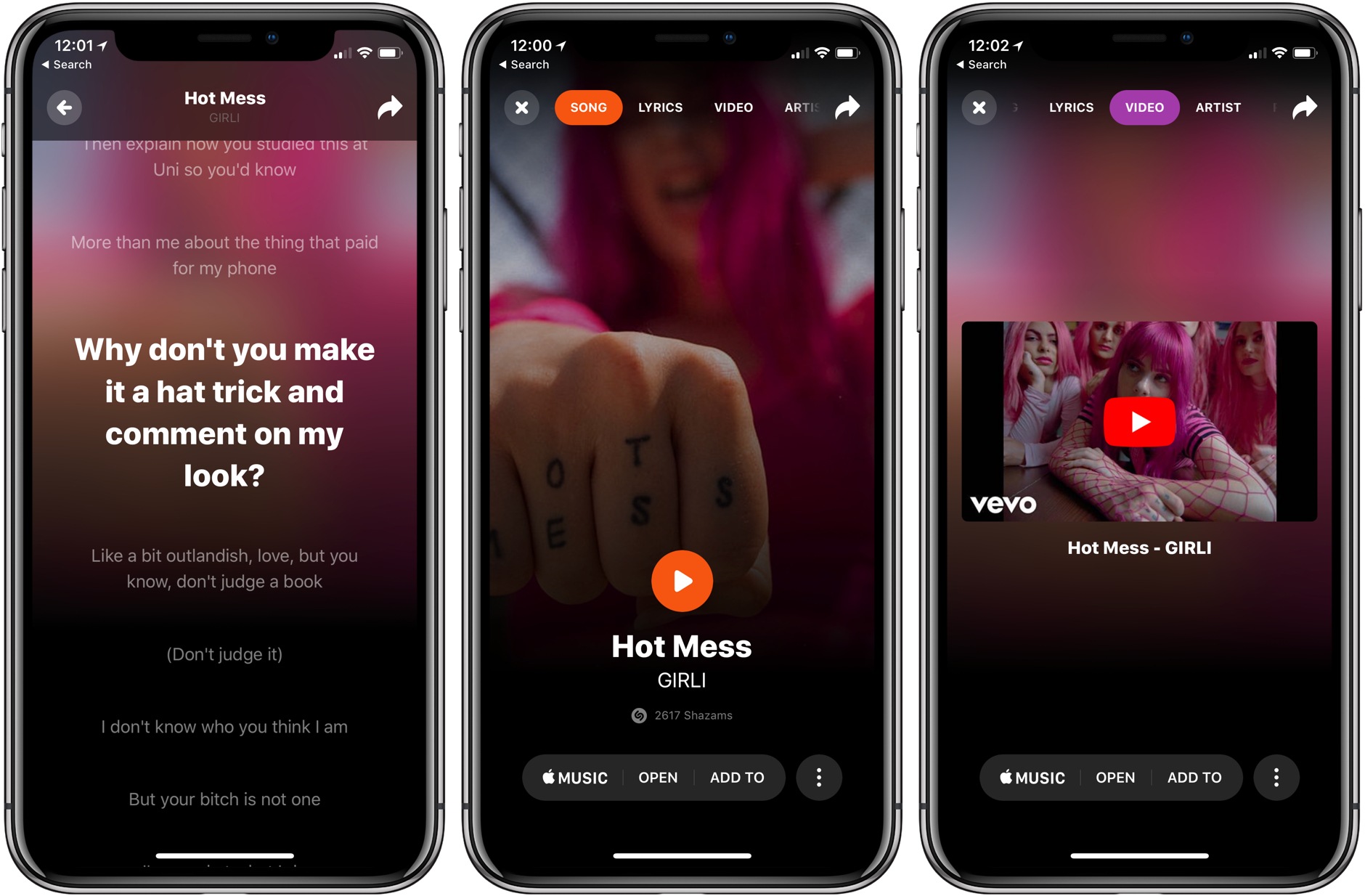
The new UI looks great. The results screen is dominated by a background image of the artist. In the foreground is a big play button, the name of the song the app recognized, and the name of the artist. If you tap on the artwork, you get an image of the artist and album in some cases, plus more details on the artist, album, song, and release date.

Along the top of the results screen is a menu you access by swiping horizontally that includes lyrics, videos, additional songs by the artist, and related artists. If you swipe over to the lyrics screen while a song is playing, they are displayed in perfect synchronization with the song that’s playing, which is perfect for impromptu karaoke moments. Adding songs to Apple Music and Spotify playlists has been streamlined too – it now takes one less tap to add a song to a playlist.

One thing to keep in mind though, is that if you’re using the iOS 11.3 beta, playback is broken throughout the app. Tapping on any play button freezes the entire UI and requires you to force quit the app. Playback works as expected if you’re not on the beta, however.

Shazam is available on the App Store.


OmniOutliner 3 for iOS Review

I think in outlines. When I was in law school, that’s how I was taught to break down legal issues and structure the enormous amount of information I needed to know to pass exams. Outlines became second nature – something I still use today to organize research, write longer articles, and organize projects.

I wish I had OmniOutliner when I was in law school. Those outlines grew as the semester wore on, adding complexity that made them harder to edit. Although the word processor I used could handle outlining, it wasn’t optimized for huge outlines the way OmniOutliner is.

Today, my outlining needs are much simpler. I’m not creating 100-page outlines. If an outline is more than a few pages long, it’s only because it’s full of detailed notes. More often than not, all I need is a quick indented list, with simple formatting, and the ability to reorder sections easily.

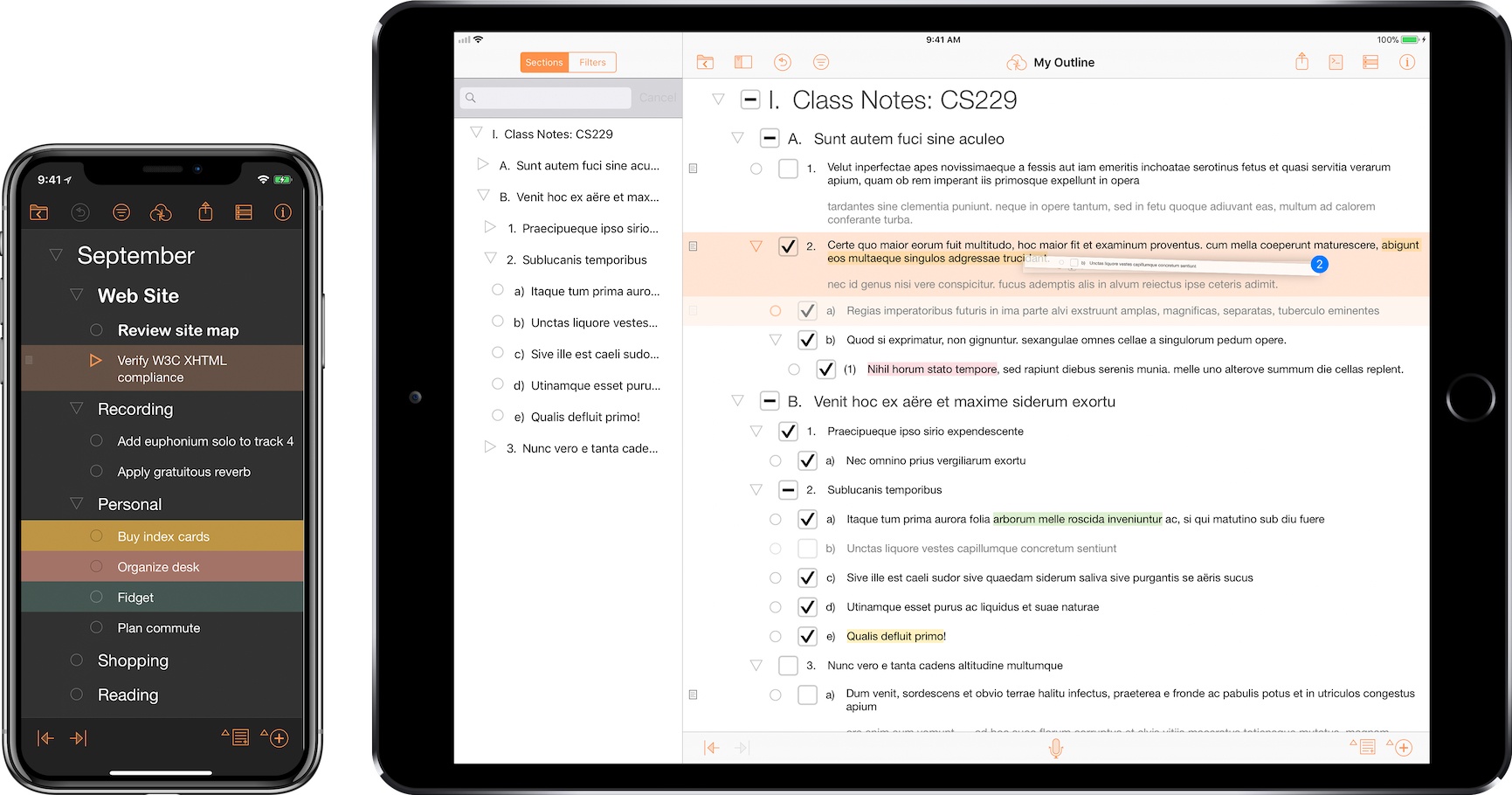
Perhaps the greatest strength of OmniOutliner 3 for iOS is that it can handle both scenarios. That’s because OmniOutliner 3 isn’t one app, it’s two: OmniOutliner Essentials and OmniOutliner Pro. Essentials includes all the tools you need for basic outlining, and Pro adds extensive customization options, section navigation, automation, and other features.

Read more


AppStories, Episode 42 – RSS Services and Apps

The RSS sync service and reader app landscape makes it difficult to find the perfect combination of features for the way you read the news. On this week’s episode of AppStories, we sift through the many options and highlight what we look for in modern iOS and Mac RSS clients.

Sponsored by:

  • GoodNotes: Stunning digital ink.
  • Outcast: Download and play podcasts without your iPhone.

https://staging.macstories.net/podcasts/appstories/episodes/42/embed/

Permalink

RSS Services and Apps

AppStories+ Deeper into the world of apps

AppStories Episode 42 - RSS Services and Apps

0:00
38:52

AppStories+ Deeper into the world of apps

The RSS sync service and reader app landscape makes it difficult to find the perfect combination of features for the way you read the news. Federico and John sift through the many options and highlight what they look for in modern iOS and Mac RSS clients.

Read more