


Twitter: @mattbirchler. Writing at BirchTree.me, creator of Today’s Forecast for iOS and the BirchTree podcast. My iPad is where I do almost all of my work, so I try my best to optimize it for what I actually use my iPad for. The essentials get thrown in the dock and everything else I use on...
Master Email with SaneBox’s Customizable Tools [Sponsor]

At its core, SaneBox is about making sure that only your most important messages hit your inbox. Other messages are safely stored in automated folders like the SaneLater, SaneBulk, and SaneNewsletter folders for reviewing later. If there’s something you never want to see ever again, send it to the SaneBlackHole, which is much easier than unsubscribing to unwanted messages.
But email sorting is just the tip of the iceberg. With custom folders, custom snooze settings, and SaneReminders, SaneBox takes email management to the next level.
Set up a custom folder and train it by dragging in a few messages. SaneBox will send all messages from the senders to your new folder. It’s a painless way to set up organize messages for a special project.
SaneSnooze folders can be customized to defer messages anywhere from hours to weeks. SaneBox comes with default snooze folders like @SaneTommorrow and SaneNextWeek, but adding custom snooze folders lets you set when messages reappear in your inbox.
SaneReminders are a great way to keep on top of tasks. Send yourself a reminder to do something later or get a reminder that someone hasn’t responded to a messages. For example, bcc: 3days@sanebox.com and the message will show up back in your inbox only if the recipient doesn’t reply within 3 days.
Also, don’t forget that SaneBox works on top of your existing email setup. There’s no app to download or new email account to set up. You can use any email client you want.
Sign up today for a free 14-day SaneBox trial to take back control of your email. MacStories readers can receive a special $25 credit automatically by using this link to sign up.
Our thanks to SaneBox for sponsoring MacStories this week.
 Up Next on MacStories’ Podcasts
Next week on AppStories, Federico and John cover their favorite iOS share and action extensions....
Previously, On MacStories
Microsoft Announces iPad Edition of Minecraft for Education Coming in September FiftyThree Apps Paper and Paste Acquired by WeTransfer Along with Its Other Assets Dark Sky Update Consolidates Weather Data in a Single Vertical View The History of Aperture Preserving macOS History: The 512 Pixels Aqua Screenshot Library Facebook’s Onavo Protect VPN App Is Removed...
Interesting Links
The New York Times explains how banks and retailers use digital fingerprinting based on users’ interaction with devices as a way to determine identity, a technology that also raises privacy concerns and is being blocked in Safari as part of iOS 12 and macOS Mojave. (Link) Casey Johnston pokes holes in claims that truly self-driving...
Interview: Mike Piontek

Twitter: @robotspacer. Founder of Junecloud, creator of Deliveries for iOS and the Mac. How did you get started as a developer and with creating Deliveries? I grew up making things on Macintosh computers. I’ve always been more into art than programming, but tools like HyperCard and Director made it easy to play around with animation...
In This Issue
Bitmoji, Recording Audio on Macs and iOS, a tip for quick list creation in Reminders, Federico’s Photos shortcuts for his iOS 12 review, an interview with Deliveries creator Mike Piontek, plus the usual Weekly Q&A, Links, App Debuts, a recap of MacStories articles, and a preview of next week’s episode of AppStories....
Turn Touch: Beautiful Control [Sponsor]
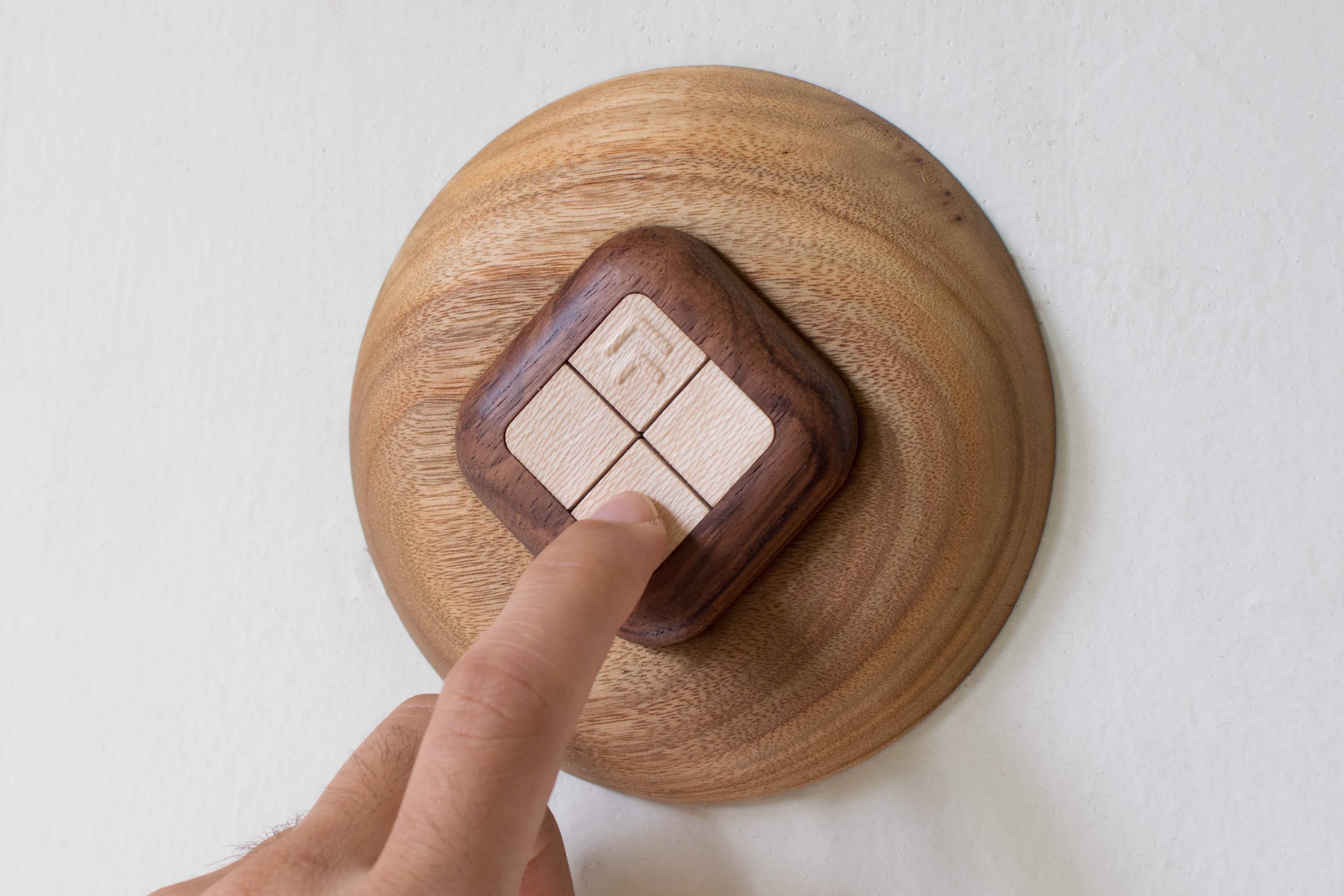
Simplify your smart home with a gorgeous wooden remote control. The Turn Touch combines natural mahogany and rosewood, a simple, elegant design, and sophisticated control of your smart home devices that is as good-looking in your home as it is useful.
The Turn Touch features just four buttons, but with taps, double taps, and tap-and-hold, the device puts an astonishing range of control at your fingertips. The Turn Touch is tough too. It’s constructed from dense, durable woods that stand up to shocks, drops, and dirt. What’s more, the Turn Touch is always on, ready to make the most of your smart home devices.
The Turn Touch works with a long list of smart devices. Control your Mac or iOS devices, Hue lights, Sonos speakers, WeMo devices, smart thermostats, and much more. Configuring the Turn Touch is simple from an iOS device or Mac, and once it’s set up, the Touch Touch’s battery lasts about a year ensuring that it’s there when you need it.
The Turn Touch Pedestal, which is sold separately, makes a perfect home base for the Turn Touch too. Rest it on a table or mount it on the wall to use it as a smart wall switch. The Turn Touch is held in place with cleverly-hidden magnets.
For a limited time, MacStories readers can purchase the Turn Touch Pedestal for 25% off at checkout by using the coupon code PEDESTAL25.
Smart devices don’t have to be made of cheap, ugly plastic. Check out Turn Touch today to learn more, and bring beautiful control to your smart home.
Our thanks to Turn Touch for sponsoring MacStories this week.
PowerPhotos - The Ultimate Toolbox for Photos on the Mac [Sponsor]

PowerPhotos is a powerful utility for the Mac that lets you merge or split Photos libraries and eliminate duplicate photos. People use multiple Photos libraries for all sorts of reasons, but one of the most common is to break an enormous library of tens of thousands of photos into smaller more manageable sub-libraries.
PowerPhotos is just the tool you need to manage all of your photos across libraries. From the creator of iPhoto Library Manager, PowerPhotos provides the same sophisticated toolset and more for Apple’s Photos app.
You can store photo libraries on external or networked drives and copy photos while maintaining and preserving albums and related metadata like keywords, titles, dates, locations, and descriptions. Not only can PowerPhotos help by splitting up your Photos library into multiple libraries, it can merge them too. The app also makes it easy to find and eliminate duplicate photos.
One of the most powerful features is the ability to search across multiple libraries at one time. It’s a great feature that allows you to search as though all you photos were in one library even when they aren’t. Finally, PowerPhotos can ease the transition to Photos helping you migrate multiple iPhoto or Aperture libraries to Photos.
We have a special limited-time deal just for MacStories readers. Receive 20% off at checkout by using the coupon code MACSTORIES18. Even if you haven’t had time to set up multiple Photos libraries yet, grab this deal now so you have PowerPhotos’ tools at your disposal when you’re ready take the plunge.
Our thanks to PowerPhotos for sponsoring MacStories this week.