Update 10/10: A newer version of this shortcut, which can apply frames to screenshots taken on multiple Apple devices, is available here.
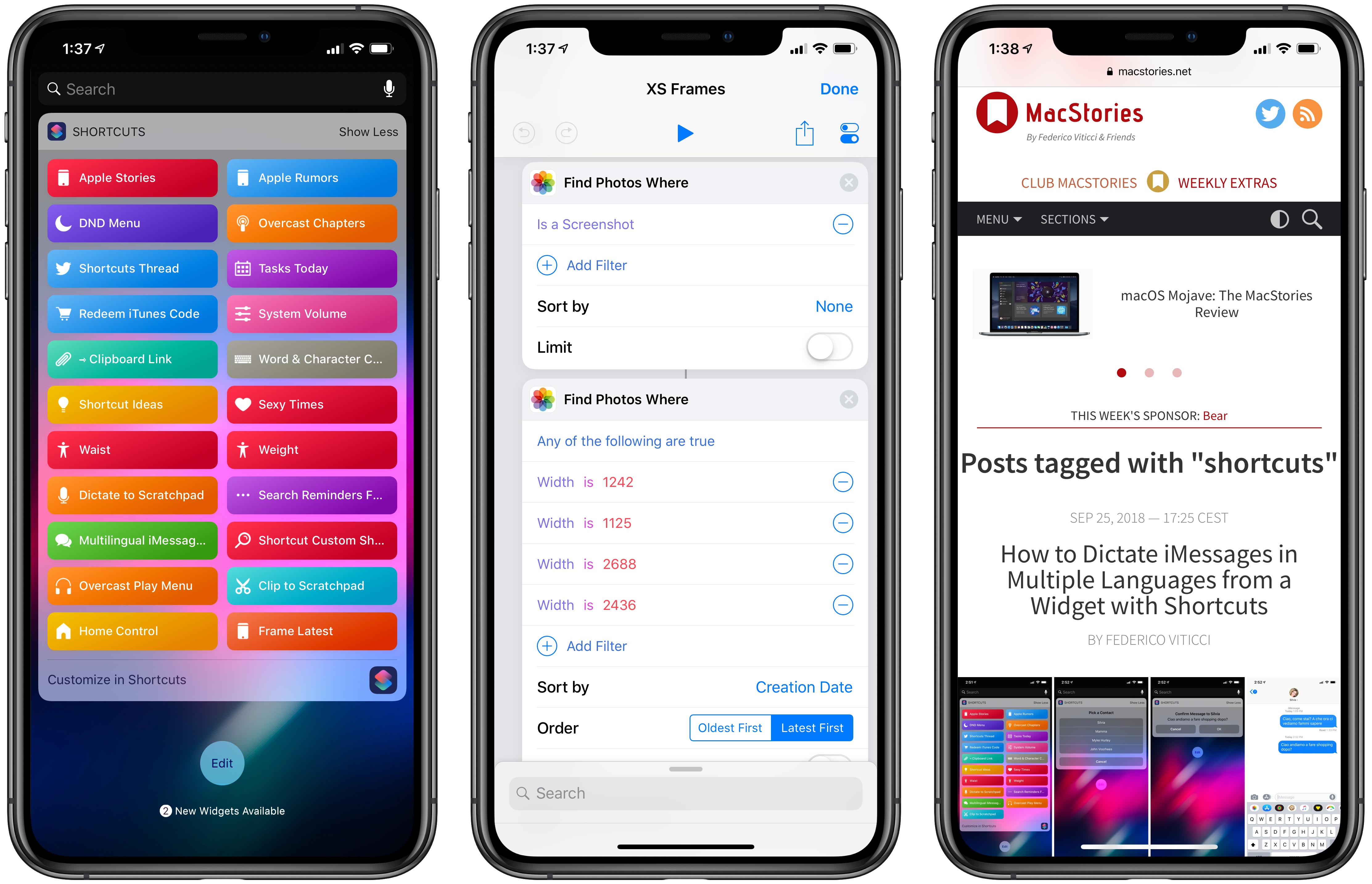
MacStories readers may be familiar with the way I like to present iPhone screenshots in app reviews and other stories – particularly for “hero” images, such as the one above, I want my screenshots to be contained in device frames that resemble official marketing images from Apple. They’re prettier, and they do a better job at communicating what an app looks like on an actual device. I could create these images manually using apps like Affinity Photo and Pixelmator on iOS, but the process would be slow, boring, and time-consuming. Instead, for years now I’ve been using Workflow and its ‘Overlay Image’ action to get this done in an automated fashion.
With Shortcuts and the new iPhone XS and XS Max, it was time for an update to my old workflow. While I could have kept using the same iPhone X assets for the XS given their physical resemblance, I upgraded to a XS Max this year, which meant that my screenshots wouldn’t have fit the old device frames natively anyway. Fortunately, Apple uploaded official marketing assets for the XS and XS Max a couple of days ago, so with the help of my girlfriend (who’s better at Photoshop than I am) I was able to update my workflow for the new devices and add a few extra options in the process as well.
Read more
Benjamin Mayo, writing for 9to5Mac:
Apple is rolling out a new TestFlight feature which enables developers to share a public URL for an app beta. Customers can simply open the link on their iPhone or iPad and automatically enroll into the beta testing group through the TestFlight app.
This feature was announced back at WWDC in June but has only just started showing up for developers inside the App Store Connect interface. Previously to public links, developers had to manually ask people for email addresses and then send out invite in emails to each person individually.
As someone who’s routinely testing dozens of apps for review purposes, this sounds a lot more convenient than the current email-based invitation system, both for developers and users. By default, developers don’t see the names and emails of users who sign up with a link. I have a feeling this option is going to be frequently used for public betas with large pools of testers.
Wallpaper: Traces by AR72014
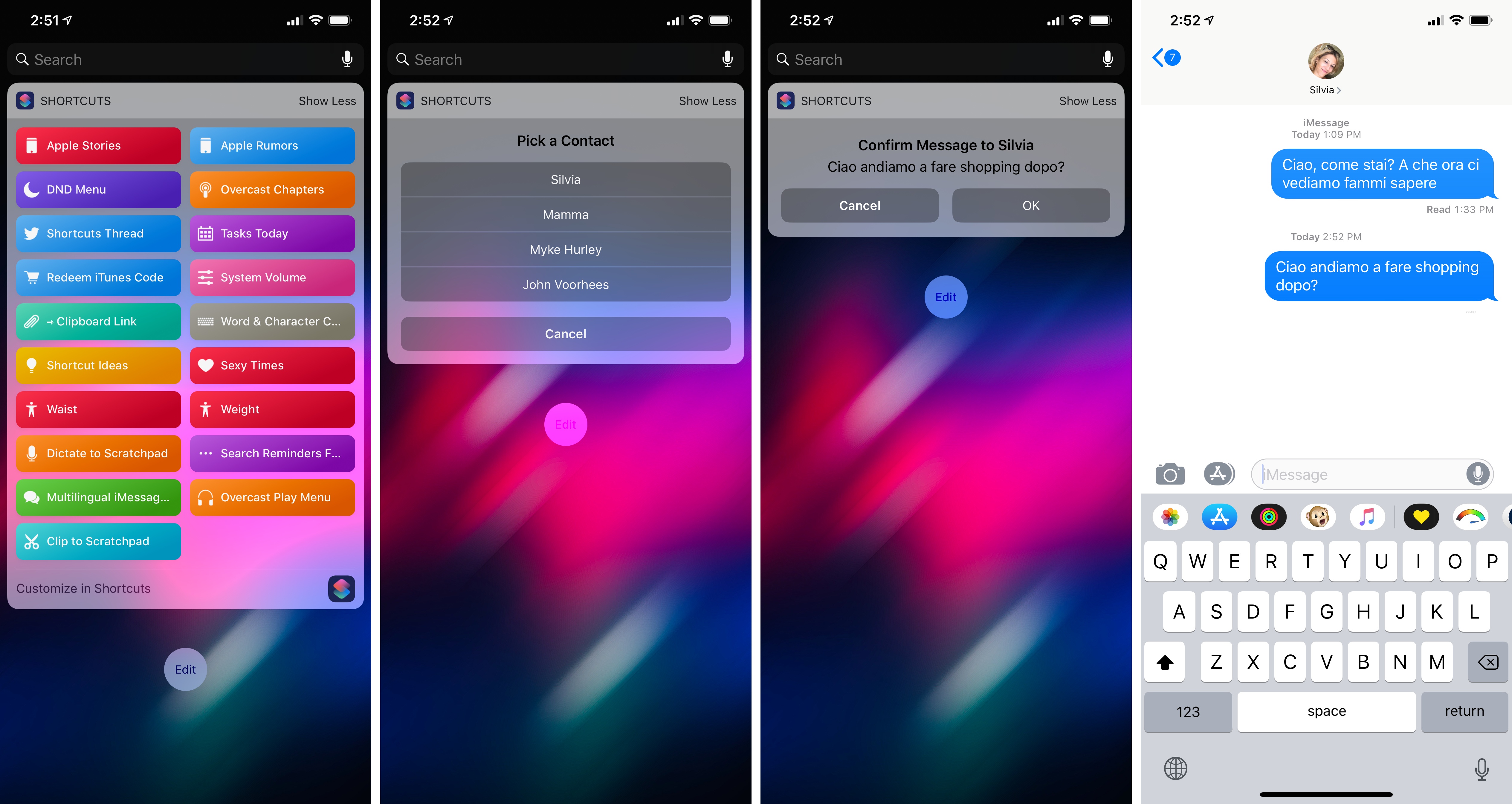
I live in Italy, but because of my work I communicate with friends and colleagues in English. All my devices are set to English, including Siri on our HomePods. As a multilingual iOS user, the addition of multilingual typing to the QuickType keyboard was, by far, one of my favorite changes in iOS 10. Besides being aware of the language used in each iMessage conversation, since 2016 the QuickType keyboard has been able to jump between multiple languages on the fly without switching keyboard layouts – which is amazing when you have conversations with people who live in different countries. I can’t believe there was a time when I was constantly switching between the Italian and English keyboards hundreds of times each day. For international users, it was as bad as not having copy and paste before iPhone OS 3.0.
With the release of Shortcuts and the ability to send iMessages in the background (without showing the Messages composer), I had an idea: what if instead of typing I could use dictation (also improved in Shortcuts) to quickly send a message from a widget? A shortcut to accomplish this seemed relatively easy to build, so I got to work. However, after a few minutes of tests, I realized that Shortcuts’ dictation didn’t support automatic language recognition – which meant I had to consider a more creative approach.
Read more
This week, Federico and John discuss more of their favorite iOS and watchOS app debuts and updates highlighting iOS 12 and watchOS 5 features.
Read more
Andrew Cunningham, writing for Ars Technica:
I’ve been testing iOS on old devices for six years, and I’ve never seen a release that has actually improved performance on old devices. At best, updates like iOS 6, iOS 9, and iOS 10 didn’t make things much worse; at worst, updates like iOS 7 and iOS 8 made old devices feel like old devices. Anyone using an older device can safely upgrade to iOS 12 without worrying about speed, and that’s a big deal. You’ll notice an improvement most of the time, even on newer devices (my iPad Air 2, which had started to feel its age running iOS 11, feels great with iOS 12).
As I noted in my review, I was hoping someone would run actual measurements for different system features on older devices running multiple versions of iOS. Cunningham did exactly that, going all the way back to iOS 10 on the iPhone 5S.
Federico has published his iOS 12 review, and the boys get nerdy talking about Siri Shortcuts and some updated apps before Stephen talks about macOS Mojave’s launch.
On last week’s episode of Connected, we covered some behind-the-scenes aspects of my iOS 12 review and the upcoming release of macOS Mojave. You can listen here.
Sponsored by:
- Away: Travel smarter with the suitcase that charges your phone. Get $20 off with the code ‘connected’.
- Pingdom: Start monitoring your websites and servers today. Use offer code CONNECTED to get 30% off.
- Molekule: The only air purifier that actually destroys pollutants. Use connected for $75 off.
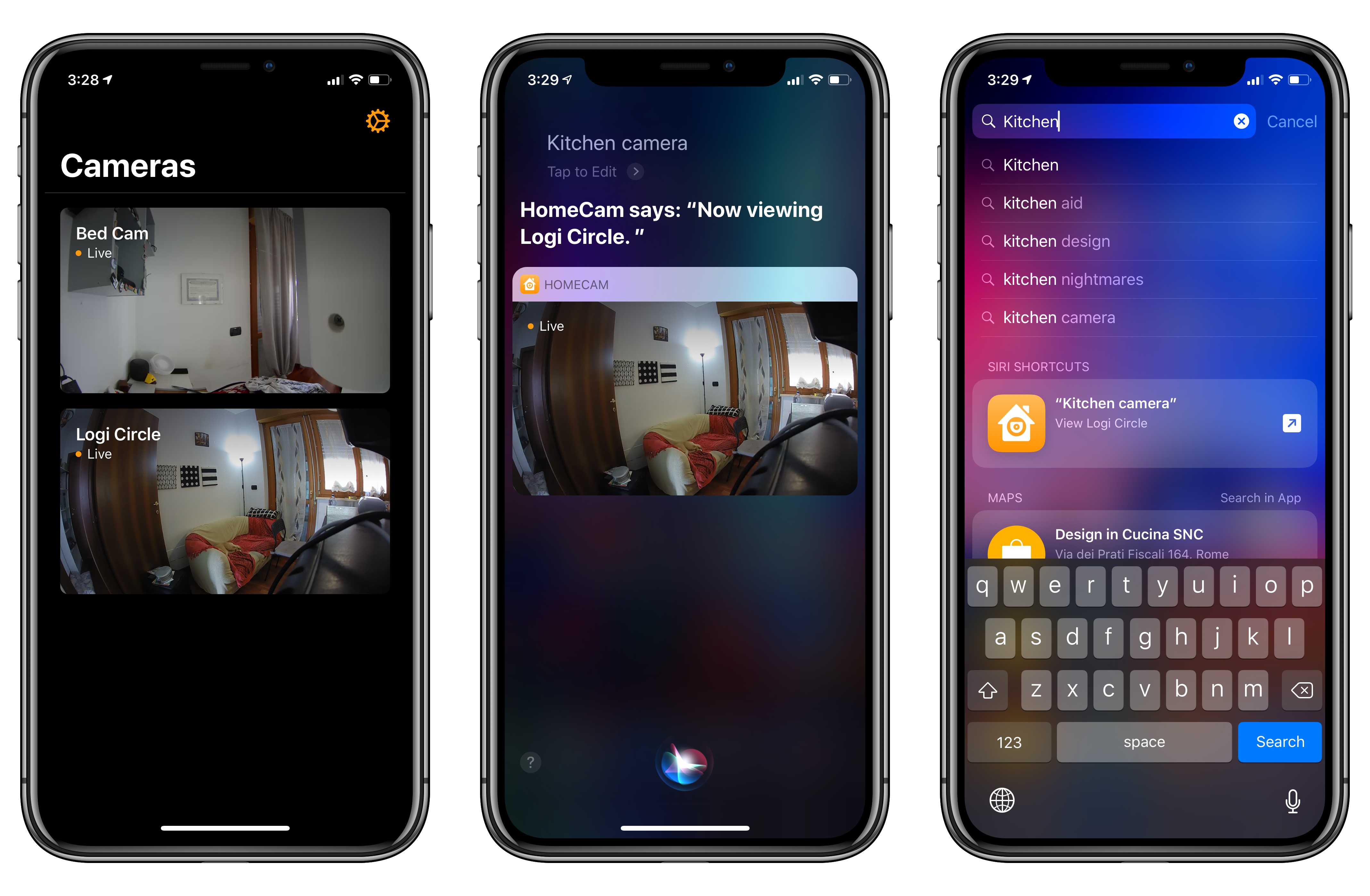
I previously covered HomeCam, a HomeKit utility by indie developer Aaron Pearce, as a superior way to watch live video streams from multiple HomeKit cameras. In addition to a clean design and straightforward approach (your cameras are displayed in a grid), what set HomeCam apart was the ability to view information from other HomeKit accessories located in the same room of a camera and control nearby lights without leaving the camera UI. Compared to Apple’s approach to opening cameras in the clunky Home app, HomeCam is a nimble, must-have utility for anyone who owns multiple HomeKit cameras and wants to tune into their video feeds quickly. With the release of iOS 12, HomeCam is gaining one of the most impressive and useful implementations of Siri shortcuts I’ve seen on the platform yet.
Read more
Apple describes the XS as sporting “dual 12MP wide-angle and telephoto cameras”. This will be obvious to most of you, but in case it’s not, they’re not just dual rear-facing lenses, they’re dual rear-facing cameras. The wide-angle and telephoto lenses each have their own sensors. As a user you don’t have to know this, and should never notice it. The iPhone XS telephoto camera is the same as in the iPhone X — same lens, same sensor.
But the iPhone XS wide-angle camera has a new lens, which I believe to be superior to last year’s, and an amazing new sensor which is remarkably better than last year’s. And last year’s was very good.
Anytime an iPhone review gets too technical about camera details and photography lexicon, I tend to gloss over it and move on. I’m not a camera expert and I usually don’t care about the nitty-gritty. But John Gruber’s analysis of the iPhone XS’ camera stack, A12 SoC, and seemingly unadvertised improved sensor is one of the most interesting camera-focused iPhone reviews I’ve read in years. I don’t want to spoil it – move past the photos at the beginning and keep reading.




 John
John