Federico Viticci

10804 posts on MacStories since April 2009

Federico is the founder and Editor-in-Chief of MacStories, where he writes about Apple with a focus on apps, developers, iPad, and iOS productivity. He founded MacStories in April 2009 and has been writing about Apple since. Federico is also the co-host of AppStories, a weekly podcast exploring the world of apps, Unwind, a fun exploration of media and more, and NPC: Next Portable Console, a show about portable gaming and the handheld revolution.

The Unarchiver AppleScript, iOS App, and Archive Browser

I have been using The Unarchiver for years now. It’s been listed in my Must-Have Mac Apps roundups, and I recommend it to every friend who, after switching from Windows to OS X, asks me about “WinRAR for Mac”. The Unarchiver is a powerful and simple extraction tool with support for multiple formats and a set of user preferences to configure in the Settings.

There have been some updates to The Unarchiver lately. The free Mac app, The Unarchiver, received initial AppleScript support with a dictionary that supports extraction and various options such as location of extracted files and originals. Whilst The Unarchiver is pretty straightforward in itself, AppleScript support means you’ll be able to put together automated workflows with loops, if conditions, and different settings than the app’s ones. More importantly, you’ll be able to extend The Unarchiver and make it communicate with other apps installed on your Mac (an example: automate downloads with Transmit and extract with The Unarchiver in AppleScript). Here’s a sample extraction script for the file currently selected in Finder:

tell application "Finder"
    set sel to the selection as text
    set the_file to POSIX path of sel
    
    tell application "The Unarchiver"
        if isRunningExtractions is false then
            unarchive the_file to Original with deleting Original
        end if
    end tell
end tell

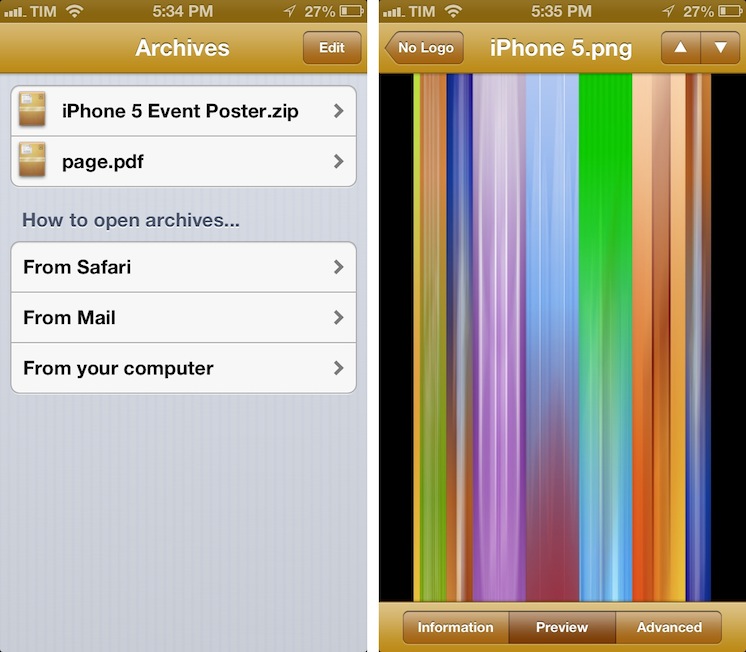
Developer Dag Agren has also released a paid iOS app for The Unarchiver. Initially buggy, Dag has been busy improving it and making it more reliable on iOS 6. Called Archives, it is based on The Unarchiver, which means you’ll get support for a plethora of formats. The app lets you look inside archives and preview files before extracting them; you can open a file in other apps that support the format using Open In, you can save images to the Camera Roll, and check out advanced information for each file. I have found Archives to be particularly useful in previewing files from Mail or Safari. Archives is $1.99 on the App Store.

Last, inspired by Archives for iOS, Archive Browser for OS X is a paid version of The Unarchiver with support for browsing and previews before extraction. It supports Quick Look, and it’s $3.99 on the App Store.

The Daily Shuts Down

The Daily Shuts Down

The Daily, one of the most discussed Apple-related rumors of late 2010 that turned out to be a poorly designed iPad-only magazine, is shutting down on December 15. AllThingsD reports, in fact, that parent company News Corp. will “cease standalone publication” of the app later this month. Technology and “assets” from The Daily will be folded into News Corp-owned The New York Post, a tabloid. News Corp.’s Murdoch was quoted in the press release:

From its launch, The Daily was a bold experiment in digital publishing and an amazing vehicle for innovation. Unfortunately, our experience was that we could not find a large enough audience quickly enough to convince us the business model was sustainable in the long-term. Therefore we will take the very best of what we have learned at The Daily and apply it to all our properties. Under the editorial leadership of Editor-in-Chief Col Allan and the business and digital leadership of Jesse, I know The New York Post will continue to grow and become stronger on the web, on mobile, and not least, the paper itself. I want to thank all of the journalists, digital and business professionals for the hard work they put into The Daily.

Quite a departure, unfortunately, from Murdoch’s original statements on the future of his venture:

The Daily is not a legacy brand moving from the print to the digital world. We have license to experiment. We believe The Daily will be the model for how stories are told.

Murdoch’s intent may have been noble enough to justify the effort, but The Daily – as an appwas flawed since the first issue. The interface was clunky and confusing; the app required large downloads, and, in just a matter of weeks, its readership substantially decreased, in spite of heavy promotions by News Corp, including a commercial that aired during the XLV Super Bowl.

The Daily was launched in early 2011 as part of Apple’s new subscription feature for App Store apps.

Permalink


Tips For Releasing and Marketing Your New App

Tips For Releasing and Marketing Your New App

Good list of tips by Brett Terpstra that new developers should keep in mind for their app releases. I especially recommend the “What To Include” section:

Bloggers like links. It saves time when doing a quick mention and provides the material for deeper research if they decide it’s worth it. Include all of the most relevant links. Link to screenshots (don’t embed them) and your homepage or a press page.

A surprising amount of developers often forget to even mention their app’s name in emails we receive on a daily basis. Others mention it, but they don’t include a direct link to the App Store. Even worse, some developers send promo codes without mentioning their app’s name or direct link, so we can’t be sure what we’re being given, exactly.

From personal experience, I can say that having links to videos is also a huge plus. I’m not saying you should prepare dedicated videos for each blogger you’d like to try your app: I would suggest picking a few, and making screencasts with voiceover and picture-in-picture where you can explain the app, show how it works, and establish a different kind of indirect “eye contact” with the person on the other side of email. It takes time, but it’s worth the effort – especially if it’s the first time you’re promoting an app.

Read Brett’s excellent list of tips here.

Permalink

Apple Releases iTunes 11 (Update: Remote 3.0 Too)


Officially announced at the iPhone 5 media event on September 12, Apple today released iTunes 11, the next major version of the media player/manager for OS X. At the end of October, Apple delayed the original release of the software, saying that it would come out “before the end of November”.

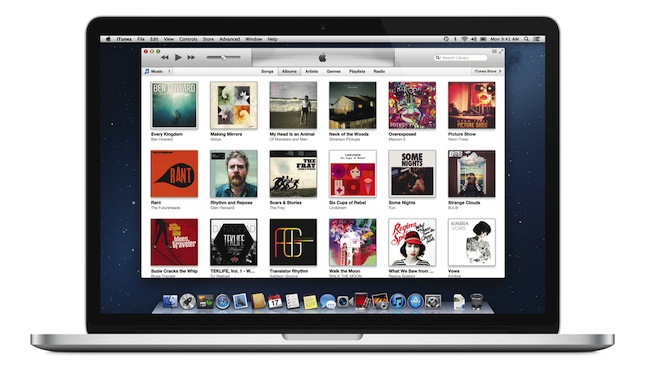
The new iTunes features a new edge-to-edge design that is reminiscent of the Music app for iPad. Album art flows across the display — clicking on an album expands album info as opening a folder does on iOS. iTunes also brings popovers that present a drop down of upcoming songs, and improved search results as you filter through music in your library. One of the big new features is expanded view, which lets users see all the songs of an album in place without opening a different view. The background of an album in expanded view is automatically generated by iTunes based on the item’s artwork.

The new MiniPlayer, unlike previous designs, shows album artwork and gives the option to manage playlists and see upcoming songs as well through the new Up Next feature. From the MiniPlayer, users can now also search for a song in their library by hitting the search button; and to go back to the main screen, all they have to do is click the “expand” icon next to the close button.


The built-in iTunes Store underwent a facelift, too. Inspired by iOS 6, the Store now comes with a cleaner look, carousel-like banners for featured items, and access to a Preview History to check out all media you’ve previewed in chronological order. iCloud integration makes sure purchases are available on every device, and, with iTunes 11, iCloud also syncs position for movies, TV shows, podcasts, iTunes U lessons, and audiobooks users are playing on a device.

iTunes 11 is available for download from Software Update. Our first impressions and screenshots directly below.

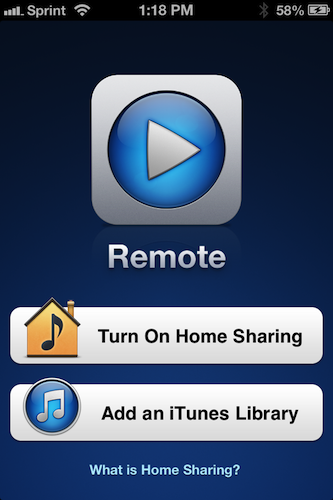
Update: Apple has also released Remote 3.0. The new app supports Up Next, it’s got new view options, and the iPad’s interface highly resembles iTunes for Mac with custom album backgrounds.

Read more


iStat Menus 4

iStat Menus 4

I often mention iStat Menus by Bjango here on MacStories: it is, in fact, one of my must-have apps for Mac. I have been using version 3.0 for years: iStat Menus 3 provided a complete, yet user-friendly and accessible way to keep an eye on your Mac’s hardware (CPU, fans, GPU, RAM, and so on) and other data (network, time zones, battery status) with a series of dropdown menubar windows.

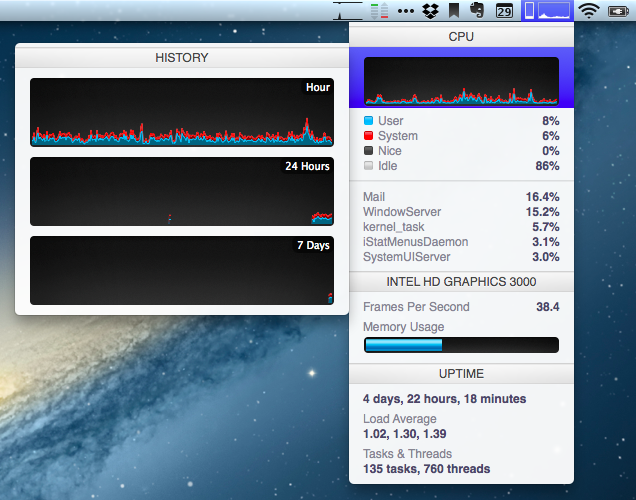
Bjango has now come out with iStat Menus 4, and the new version has some interesting and, for me, welcome changes. Aside from the usual bug fixes, Retina support and better Mountain Lion compatibility, iStat Menus 4 introduces a refreshed look that brings consistency with Bjango’s other iStat app, iStat 2. iStat Menus now features the same style for graphs and charts as iStat 2, and, even better, it comes with the same History menu to view a component’s performance over time. For instance, you can mouse over the CPU’s main graph and check out a second menu with History for the past hour, 24 hours, and 7 days. There are more time-related view options available, and there’s more to customize in the app’s Preferences (which have also been redesigned, and it took me a while to get used to them at first). I appreciate the consistency with iStat 2, and I like History because it lets me easily check my network’s conditions over time.

There are several new features in iStat Menus 4, but I’d like to mention the ones I personally use. The Network widget has a new per-process section to quickly see which process is consuming bandwidth (think a mini version of Little Snitch); the Time widget still supports different time zones (I use this on a daily basis), but it’s now cleaner and it has support for calendar events to get a quick summary of what you need to do on a specific day. It’s no Fantastical, but it’s a nice and unobtrusive addition.

I’m sure there are more powerful ways to check on the status of a Mac’s hardware components and processes. But I just need to see “what’s going on”, and in that regard iStat Menus 4 fits perfectly with my needs. iStat Menus is $16 on Bjango’s website.

Permalink

Fantastical for iPhone Review

I wouldn’t call myself a calendar power-user.

Ever since I started organizing the things I have to do with a system I can trust, I’ve faced a workflow conundrum: is this a task or a calendar event?

I know that there’s a difference between so-called “actionable items” and time-based events. Maybe I’m not hooked up right, but I’ve been looking for a way to immediately visualize, in a single interface, all the things that I have to do on a specific day. Independently from their actionable (“you need to do this”) or time-based (“you need to be here”) status, I want a software that, like a personal assistant, tells me exactly what I need to get done.

I have found such system in displaying my OmniFocus items inside my calendar. And now, the system has been enriched by the addition of Fantastical for iPhone.

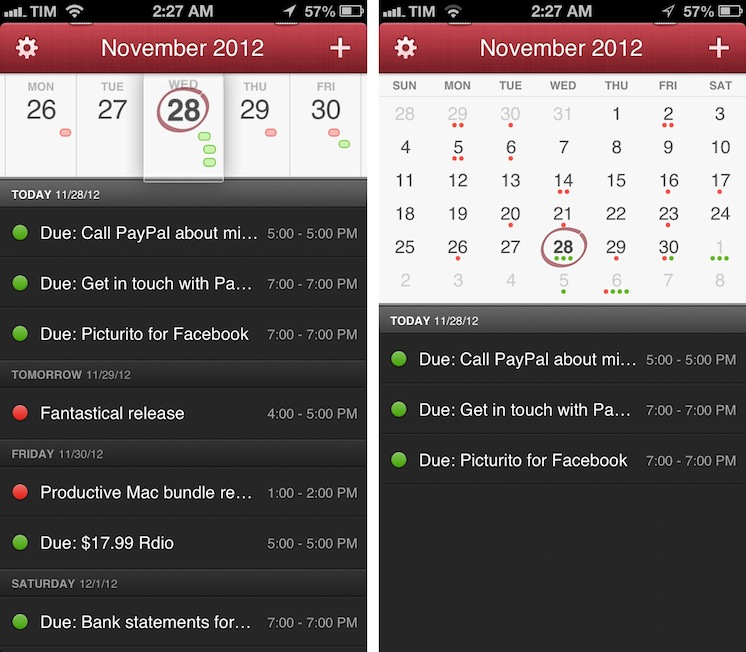
I’ve been a fan of Fantastical for Mac since I first tried it in May 2011. Replacing iCal’s overly complicated interface with a simple menubar overview of your upcoming events, not only did Fantastical show that a simpler way to access your calendar was possible, it also profoundly changed the third-party OS X development scene with its use of natural language input. Futuristic as a concept, in practice Flexibits managed to bundle a powerful language parser within Fantastical that would recognize commands like “Coffee with Chris tomorrow from 6 to 7” and deconstruct them as specific values for a calendar event. It’s not a fancy gimmick: rather than clicking buttons and menus, I constantly find myself invoking Fantastical on a daily basis, typing away like I’d normally do in a blog post or note, saving events in just a few seconds.

Fantastical is one of my must-have apps for OS X. But how could Flexibits ensure its soul wouldn’t get lost in the transition to iOS? Read more


Expedia 2.0

Expedia 2.0

Sometimes innovation comes from unexpected places. Personally, I wouldn’t have thought Expedia would turn out to be one of the most well-designed, innovative, and fun apps I’ve tried on iOS lately. But it is. Released two weeks ago, Expedia 2.0 is a universal app developed by Mobiata, and it is an example of how a hotel-booking application should scale elegantly across different displays without providing a confusing and frustrating experience (a common thread of hotel-booking apps and software).

On the iPhone, the app starts with a gorgeous mosaic of deals for hotel rooms and flights. Photos are nice and compatible with the Retina display, and even the loading indicator has been designed with a hotel theme in mind: for flight search, the same indicator changes to another design, but I won’t spoil it here. Once you tap on a hotel, information is laid out elegantly with swipable galleries, green-colored icons for services offered by the hotel (WiFi, parking, etc), price tags, and an embedded Maps view. You can check out reviews, change the number of people requesting a room, and tweak the duration of your stay with a custom date picker that allows you to select multiple days with a single swipe. On the iPad, the same information is conveyed with a “stacked panel” UI that lets you switch at any time between map view and hotel information.

For flight search, the app is possibly even more pleasant to use. With blurred backgrounds and an Apple Store-like menu that progressively collapses as you confirm your choices, Mobiata managed to make the purchasing experience incredibly natural and good-looking in spite of the amount of data they need to present to the user.

The Expedia app is full of nice touches and details. Even if you’re not interested in hotel or flight booking, you should check it out for its design choices and interaction patterns. Free on the App Store.

Permalink

Home Automation With An iPad

Home Automation With An iPad

Here’s another interesting use case for my ongoing coverage of Pythonista. From the Pythonista Community Forums, user nlecaude shares a script and a demo video showing how he managed to control the lights in his house using Pythonista (thanks, Gabe).

The Pythonista app is pretty simple, it’s basically crossfading between different images to show the current state of the lights. I have one layer for each state (3 lights so 2^3) and I have invisible layers that I use as buttons to trigger the lamps and transition on and off. I’m quite fascinated by the possibilities of Pythonista.

If you watch the video below, it basically looks like magic. This guy is tapping on a photo of his room on an iPad to turn the actual lights on and off. In practice, he’s using a Python library to control a Philips Hue system that reacts to touch input from Pythonista.

For those unaware of Philips’ product, Hue is a personal wireless lightning system that can be remotely controlled and programmed to offer different lightning settings and color combinations for every occasion. Philips isn’t offering an SDK for developers yet, but the Python library manages to directly connect to the Hue wireless bridge and send input commands.

As nlecaude writes, this is just a script put together in 10 minutes with an unofficial library. The possibilities for home automation programmed from an iPad are seriously intriguing.

Permalink