Federico Viticci

10804 posts on MacStories since April 2009

Federico is the founder and Editor-in-Chief of MacStories, where he writes about Apple with a focus on apps, developers, iPad, and iOS productivity. He founded MacStories in April 2009 and has been writing about Apple since. Federico is also the co-host of AppStories, a weekly podcast exploring the world of apps, Unwind, a fun exploration of media and more, and NPC: Next Portable Console, a show about portable gaming and the handheld revolution.

Panic Updates Transmit, Candybar, Coda and Unison for Lion

Panic, makers of popular software for the Mac like website creation tool and code editor Coda or UI & icon customization manager Candybar, have released four updates to their flagship applications for OS X tonight, adding Lion compatibility ahead of the upcoming Mac App Store release for the new OS. As tweeted a few minutes ago by the company’s Twitter account, Transmit, Candybar, Coda and Unison have all been updated with a series of bug fixes and 10.7-related improvements.

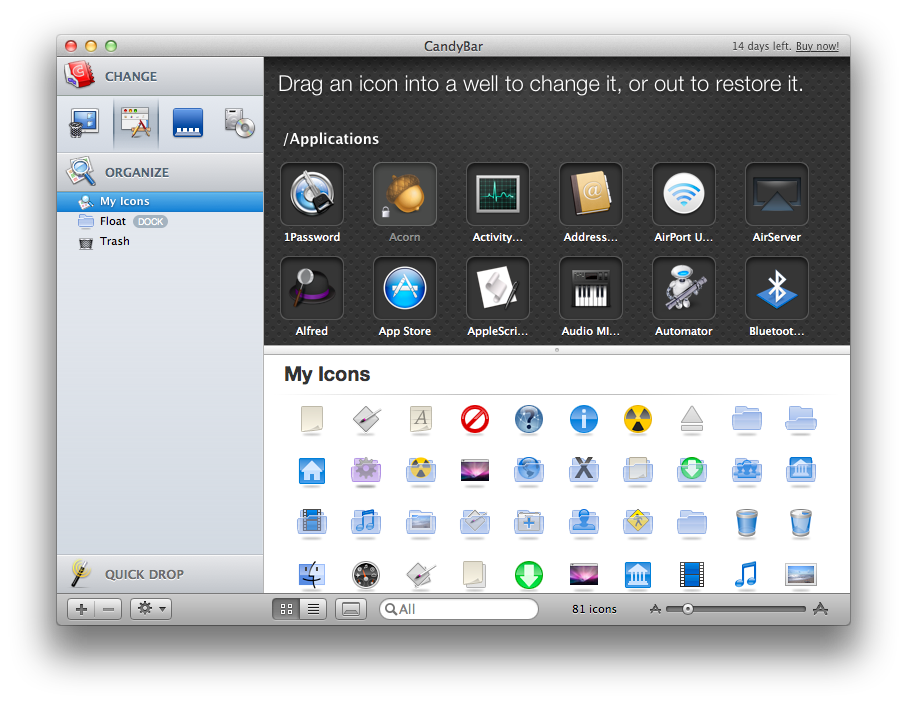
Candybar, the desktop app to change system icons and other graphical files, has received a substantial update to version 3.3 that prevents the application from doing “harmful customization” to Mac App Store icons (this has been an issue since January when the Mac App Store came out and users found out changing applications’ resources could be a problem for the Store’s update mechanism) and also introduces other interface changes. Candybar was last updated on October of last year, and today’s new version brings a smarter slider that presents common export sizes as you interact with it, and copy of icons onto Collections in the Info window.

Other changelogs for the updates Panic released today:

Transmit 4.1.6

  • Improved compatibility with Mac OS X 10.7 (Lion)
  • Added support for AWS Tokyo region
  • Added bookmark importing from Cyberduck 4
  • Dates are now read properly on SabreDAV servers
  • Improved Unicode filename support with download Syncing

Coda 1.7.1

  • Improves compatibility with Mac OS X 10.7 (Lion)

Unison 2.1.5

  • Fixed an issue that could cause preferences to be reset
  • Fixed a possible crash when playing an audio file
  • Improved decoding of Chinese messages
  • Sped up the performance of header loading with lots of “Ignore Sender” rules
  • Images without filenames in HTML messages are now shown properly

Currently, the new updated versions can be only downloaded from Panic’s website. The Mac App Store counterparts will likely receive the updates as soon as Apple processes them, so make sure to keep an eye on the developers’ Mac App Store page.

Bing for iPad Gets New “Lasso” Search Feature

Originally released in April and quickly acclaimed by the press as one of Microsoft’s best examples of innovation in user experience in the past months, the official Bing app for the iPad has managed to capture the attention of both regular Bing users and the blogosphere thanks to its compelling set of features that turned a rather simple activity like searching the web into a visually rich experience that combined local information, images, weather data and search trends to lay out beautiful search results based upon an intuitive interface and fast animations.

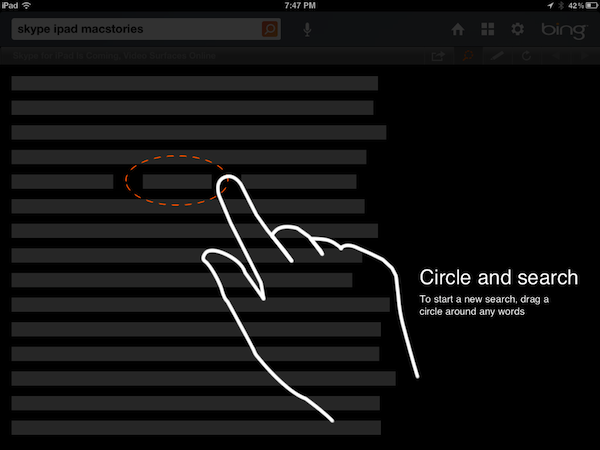
Today, Microsoft is announcing the release of Bing for iPad 1.1 which, among some interface optimizations and various bug fixes, brings a new search functionality called Lasso that, according to the company, should allow users to search for any keyword on the web by simply drawing a circle around it. Lasso sounds like a very innovative project and it looks good from Microsoft’s own promo video that you can check out here, but on my two iPads running the stable iOS 4.3.3 and the iOS 5 beta, I could only get it to work a couple of times in all my tests. When it did work, Lasso indeed matched the keyword I marked with a circle with a search result on Bing. As usual, the Bing app for iPad comes with an elegant design that makes it easy to swipe between searches and webpages, or jump to smart results like weather info and movie theater showtimes which, in this version, can be viewed with multiple days and theaters at once.

Microsoft writes on its blog:

In this release we made some improvements that you asked for and are excited to introduce a new feature called Lasso. Designed for touch-friendly devices, Lasso is a new way to search with the touch of a finger.

From our research, we know that many searches are inspired by things people see on the web. Today, it can be somewhat painful to search on a tablet when you’re engaged in reading something; just copying and pasting pieces of text from a webpage to a search box can take up to nine steps on the iPad. With Lasso you can circle and search in just two steps.

Microsoft keeps innovating with its Bing apps for iOS and I’m sure the issues I’ve stumbled into when testing the new Lasso capture tool can be easily fixed with an update. You can find the Bing app for iPad on the App Store. Check out more screenshots of the app after the break. Read more


The New Brain Behind Your Photos

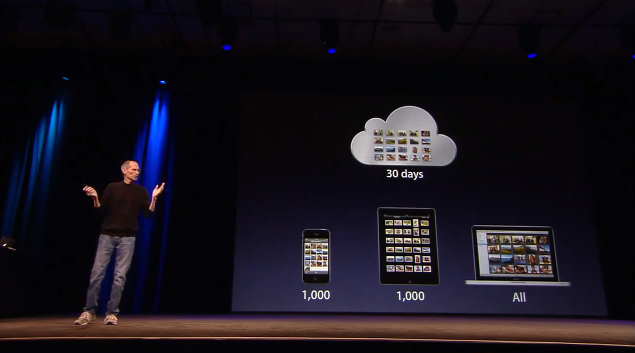
One of the new features of iCloud that was announced at WWDC but was slightly overlooked by bloggers and iOS users is Photo Stream. Built into the native Photos app for iOS devices, iPhoto for Mac and the Pictures folder on Windows PCs, Photo Stream will allow you to automatically find on any device the photos you’ve taken on an iPhone, iPod touch or iPad. With the addition of the Apple TV 2nd gen, Photo Stream will let you watch these photos on the bigger screen with your friends and family. How does it work? For those that missed the announcement, here’s a quick recap: because iCloud automatically stores, updates and pushes your content on all your registered devices (be them iPhones, iPads, or Macs and PCs running the iCloud control panel), Photo Stream acts as an extension of the mobile Camera Roll that, rather than just storing pictures locally, also pushes them to the cloud as soon as they’re taken, provided you’re on a WiFi connection. If you’re not on WiFi, Photo Stream will upload the photos from the Camera Roll to iCloud as soon a a new connection is established.

As explained by Steve Jobs on stage, and later demoed by Eddy Cue, the main purpose of Photo Stream is that of easing the process of importing photos shot on, say, an iPhone to an iPad or Mac for better viewing. With previous versions of iOS, users were forced to email pictures themselves and open the message on OS X to save the photos (facing at the same time a risk of quality loss due to email limitations); create an account on social services like Flickr or Facebook to upload photos from their mobile devices to avoid a desktop transfer process; even worse, users had to go home, find a USB cable, connect their iPhone to a computer, launch iPhoto or Image Capture and manually import the most recent photos. That’s a long and tedious process Apple wants to eliminate with a smart, automatic system that always puts the most recent photos on all your devices. In fact, Photo Stream can display the 1,000 most recent photos on iOS devices, whilst files are stored on iCloud for 30 days due to storage limitations on both ends (iOS and Apple’s server farms). On desktop computers, which come with more storage, Photo Stream stores all photos. Again, this new functionality works out of the box with any iOS 5 device configured with an iCloud account, and Photo Stream can be enabled in the Settings app. On the desktop’s side, right now Apple is requiring developers to download a special beta version of iPhoto and the iCloud control panel to test Photo Stream, but once iCloud publicly launches this fall everything will be baked in with no further configuration needed.
Read more


BeachWeather: A Weather App To Check On Your Favorite Beaches (With A Huge Database)

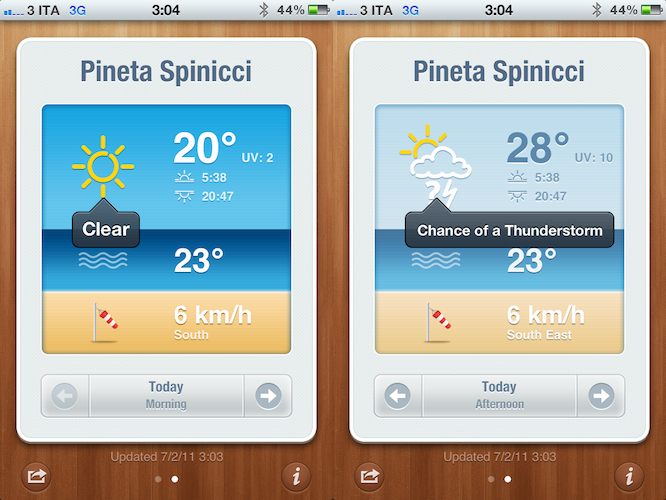
In the past few weeks, I’ve bought, reviewed and overall enjoyed a couple of different weather apps for my iPhone. Let alone the useful weather widget Apple is introducing with iOS 5, I’ve found myself going back to apps like WeatherSnitch and the recently updated Shine (which now includes data for international locations) to check on forecasts and the simple weather data I need to get by on a daily basis. This new app by StudioDalton, however, called BeachWeather, might just be what I was looking for this summer’s vacation: rather than a new default weather app to tweak by adding the locations of the beaches I’ll visit throughout this summer, a beautiful and focused weather utility that’s specifically aimed at checking how’s weather like…at the beach. By weather, I mean forecasts, UV index, wind speeds, and air & sea temperature – not the most complex data points when having to check on whether or not you can go to the beach with your friends and family.

BeachWeather, released today, impressed me because of its colorful design (which kind of reminded me of Robocat’s Outside for the general color scheme) and, more importantly, huge database of locations available inside the app. See, every year I go with my friends to a beach 45 minutes away from my town, and that’s not exactly a “popular” beach. Not one of those you see on television or rendered on tourist guides. It’s next to the camping I spent most of my summers in, and I still enjoy going there when I’ve got some free time. But it’s certainly not one of those beaches you constantly stumble upon on Google Image Search when you’re looking for “vacation in Italy”. Yet, BeachWeather’s database had this very specific beach available, alongside others a few miles away from it. None of those can be deemed as “popular”, nor do they often appear in other weather apps for the iPhone. In fact, unlike other weather apps, BeachWeather is, well, focused on beaches, not cities and towns. I don’t know what kind of online database/service the developers are using, but I was definitely impressed with my (local) results. Obviously, your mileage may vary depending on your location, but after taking a peek inside other countries’ locations I can say the database is really, really huge.

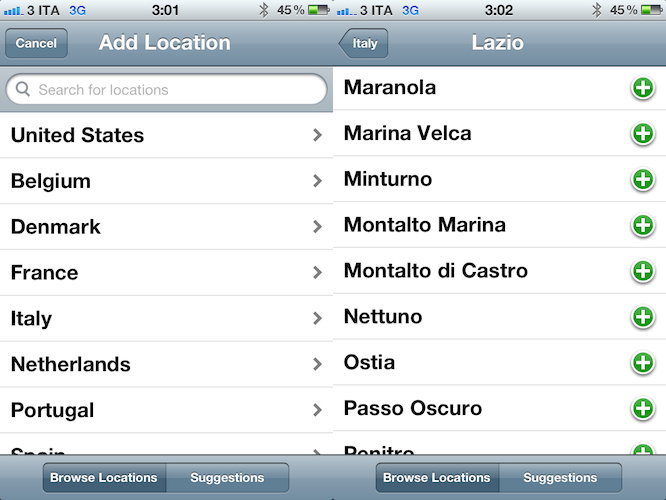
In the app, you can add multiple locations by browsing by country, or getting recommendations based on your location. Recommendations were accurate and, in fact, I added the first three ones the app suggested. When dealing with multiple locations configured in BeachWeather, the app presents a “card” interface to swipe between available beaches and check on weather forecasts. The app provides a 3 day forecast with data organized in tabs and associated with an icon or color depending on what’s the weather like. At the bottom of the card, you can navigate between Today: Morning, Today: Afternoon, Tomorrow: Morning, Tomorrow: Afternoon, and a forecast for the third day. A screenshot of the card can be shared on Twitter, Facebook, or via email, and you can tap on the forecast’s icon to get a translucent black popup telling you what does it mean – e.g. “clear” or “mostly cloudy”. In my tests, weather data from BeachWeather seemed to fall in line with those of other websites like the Italian Meteo.it or the universal Yahoo Weather. Other apps like WeatherSnitch, Apple’s Weather and Shine reported forecasts similar to BeachWeather.

BeachWeather is a real gem if you’re like me and you need an answer to the question “What’s the weather like at the beach today?”. You can download BeachWeather at $0.99 on the App Store.


PhotoForge 2 Update: iPad Version and iOS 5 Fixes

Back in May I covered the release of PhotoForge 2, the successor of a popular image editor for iOS that, with the point-upgrade, gained a completely redesigned user interface, as well as a broader set of options aimed at turning the application into the most powerful image editing software for iPhone and iPod touch. Released as a standalone app (as the App Store doesn’t allow for paid upgrades) and sporting revamped social sharing functionalities with an OS X-like dock UI, PhotoForge had an incredibly successful launch – but one piece was missing: the iPad version. The developer teased the app ahead of the launch as a universal application for iPhone and iPad, yet in May users only got the “smaller” iPhone counterpart that, due to the limitations of the device, couldn’t fully take advantage of real screen estate for image editing.

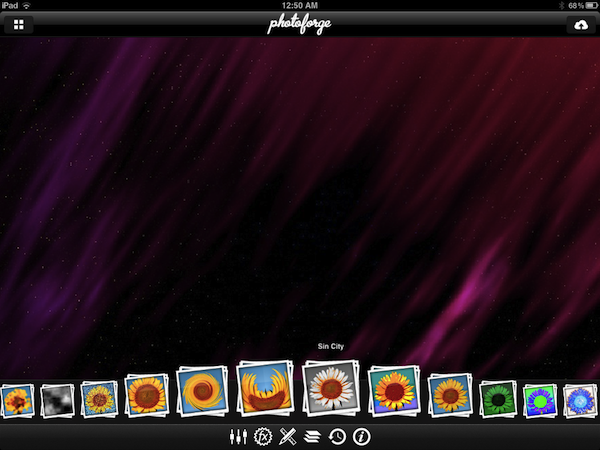
Released today as the promised universal update, PhotoForge 2 now runs on the iPad as well and it’s available for download right now at $1.99. The iPad version of PhotoForge 2 doesn’t surprise, but it’s better than the iPhone version: whereas most of the times I’d despise an iPad porting that only makes the iPhone UI bigger, this time the conversion seems appropriate for PhotoForge: controls are made bigger but don’t get in the way because of the iPad’s large screen, toolbars provide a nice minimal frame around the photo you’re editing. And because the iPad 2 comes with cameras, this means you’ll be able to edit and improve photos shot with your device. Furthermore, the new PhotoForge 2.0 fixes several bugs reported by developers running iOS 5. The same features of the iPhone version have been ported over: layers, exposure control, brightness and contrast, or standard RGB levels are all there. The app comes with a selection of effects similar to those seen in Instagram and Camera+ that you can apply to your files in real time, in seconds. As also tested on the iPhone’s original version, the app has full layer management capabilities with handy controls on the side, a detailed info panel to check metadata of an image, and various sliders and menus to tweak the appearance of a file with levels, curves, brightness and noise regulation, or noise reduction. There’s a lot to explore and play with in PhotoForge 2, and I like I said the iPad’s screen makes the whole experience ultimately better when it comes to tapping, sliding and moving your finger around to edit an image.

Other changes in this release include:

  • Mask painting has been dramatically improved. Painting is now incredibly fast even on super large images.
  • New composition mode while mask painting allows you to see the layers below, making masking the easiest way to selectively apply filters and effects to your photos.
  • Cropping handles have been redesigned and implemented making cropping much easier to control than before.
  • The rotation gesture in the cropping tool has been removed and replaced with 1 degree rotation buttons.
  • Added ability to save photos back to the documents directory. Making it very easy to get your images back onto your computer.
  • Can now save images in JPEG, PNG and TIFF. PNG and TIFF will maintain any transparency in your images. (Not all upload locations support all image formats).
  • Can now control compression quality of JPEG.

PhotoForge 2 was the image editor to have on the iPhone, and the universal update is simply a must-have at this point. You can download PhotoForge 2 at $1.99 on the App Store. Check out more screenshots of the app after the break. Read more


OS X Lion GM Now Available

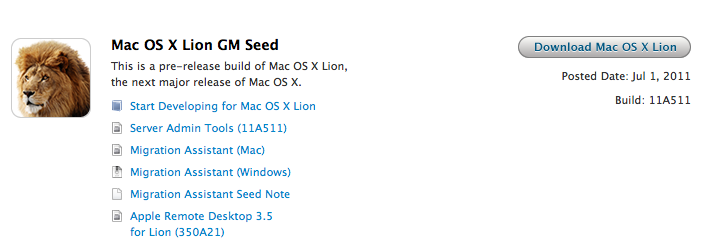
Apple has just released the GM seed for OS X Lion. It’s available now for registered developers in the Mac Dev Center. Build number is 11A511, and Lion is expected to be released publicly later this month. A GM seed is usually seeded to developers a few weeks ahead of the final release. At the WWDC ‘11, Apple announced that the upcoming version of OS X would be released exclusively on the Mac App Store as a digital download priced at $29.99. The company said Lion would come out in July, without specifying an exact release date. With over 250 new features including the Launchpad – a new way to launch and manage apps in iOS-style – Mission Control, new Mail and extensive usage of multitouch gestures, Lion is set to refine the desktop OS adding elements and user interactions heavily borrowed from Apple’s success on the iPhone and iPad.

Apple has already detailed the Lion upgrade process for businesses and education, and confirmed that new Macs bought after June 6 will be capable of getting Lion for free through a request within 30 days of Lion’s release.

In addition to the OS X Lion Golden Master, Apple has also released Xcode 4.1 Developer Preview 7 and OS X Lion Server GM seed. Both GM seeds of Lion need to be redeemed in the Mac App Store with a redemption code – previously, Apple had made available builds both through the Dev Center and Software Update for minor changes to the developer preview code. Read more


Captio 2.0 Released, Adds iPad Version

Back in September I reviewed Captio, a simple utility for the iPhone aimed at letting you easily send an email to yourself with just one tap. What’s the deal with sending emails to yourself, when you can take a note in apps like Simplenote, Evernote, or Apple’s Notes app itself? For some people, quickly sending an email with apps like Captio, or Note 2 Self, is faster than opening up a full note-taking app and creating a new note with the proper formatting options, tags, or more. Captio allows you to launch the app, type, and hit the Send button to find the note later in your inbox. When combined with desktop tools like OmniFocus, which has excellent support for email integration, Captio and similar apps become simple yet powerful solutions to get thoughts out of your brain and into your trusted GTD system. The same applies to online services like Basecamp, Evernote or Remember The Milk, which support quick email input.

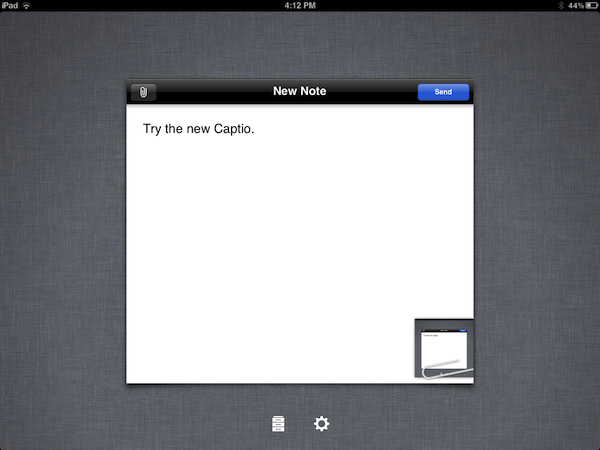
Captio 2.0, released today, finally adds native iPad support to send notes from your device to your preferred email account, and – this is also new in version 2.0 – lets you configure an IMAP account in-app if you don’t want notes to be delivered using the developers’ email system. I found that notes delivered via IMAP took a few seconds more than the developers’s built-in account, but if you don’t want to route your notes through an external service now you have an option. The interface designed for the iPad is very straightforward, with the popular linen background sitting below a floating panel to write your note and insert attachments. In spite of its simplicity, Captio’s design is elegant and pleasant. In this new version, you can also access a notes archive to see old emails you sent for one month. In the preferences located in the Settings app (not the account settings in Captio), you can choose to disable the message footer, repeat the first line of the note in the email body, and tweak the subject prefix. On top of that, TextExpander Touch support has been enabled in Captio 2.0 as well.

At this point, with local storage, IMAP options and a native iPad version, Captio has become the best way to send an email to yourself from any iOS device. You can download Captio at $1.99 on the App Store. Check out more screenshots of the app after the break. Read more


Inside Google+ Mobile Web App

Two days ago Google launched Google+, the company’s latest effort to get into the social networking space and build a platform to share content and connect people. For those who missed the coverage (you can find some detailed reports here and here), here’s the gist of Plus: it’s a social network connected to your Google account that looks a lot like Facebook but it’s got a cleaner design and a set of different “apps” tied together by the Plus brand. What does it mean for consumers? It means that whilst Circles, Huddle, Hangouts and Sparks could be seen as separate services and concepts, they’re in fact sections of the entire Google+ website. Yesterday, Google started allowing people to send invites to other users, which resulted in a massive explosion of invite requests on Twitter and thousands of new sign-ups. After a few hours, Google was forced to close invites due to “insane demand” and promise more coming in the next few weeks as the service scales to accomodate new users and more content.

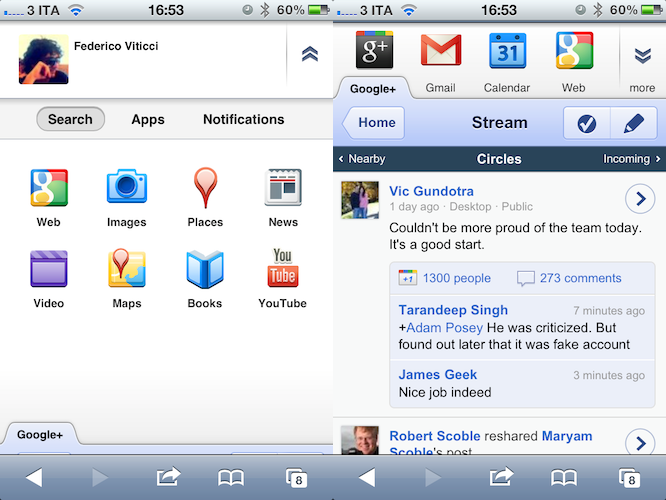
Google+ has a strong mobile counterpart, too. As the service aims at empowering Google users to share and connect at any time from anywhere, Google built native apps for Android and iOS devices to let users enjoy the Google+ experience on the go, and upload media such as photos and videos shot with their phones. Furthermore, the mobile apps get access to Huddle, a group messaging feature built into Google+ that some are already eyeing as Google’s response to iMessage, only it works on both iOS and Android. However, the official iPhone app is not available yet, and Google says it’s “coming soon”. In the meantime though, users can try a mobile optimized web app, which relies on Google’s recent mobile UI changes to lay out a unified interface to access Google+ and switch between various Google services.

Last night, I signed up for Google+ and played around with the website. Today, I decided to take a look at the mobile web app which, surprisingly enough, might just be the nicest thing Google has ever done on iOS’ Mobile Safari. Read more


The iPad: Now With 100,000 Apps Available

At the end of March we ran a story on the iPad App Store reaching the 75,000 apps milestone in less than 365 days since the original iPad came out in April 2010. Considering the competition the iPad had to face in the past year (though some people say there really isn’t a tablet market) and the options given to developers when it came to choosing which platform to develop for, seeing iPad users gaining access to almost 100,000 apps in roughly 12 months was a surprise – looking back at those statements from tech pundits who claimed the iPad was “dead in the water”, the 75,000 milestone surely helped putting things in perspective.

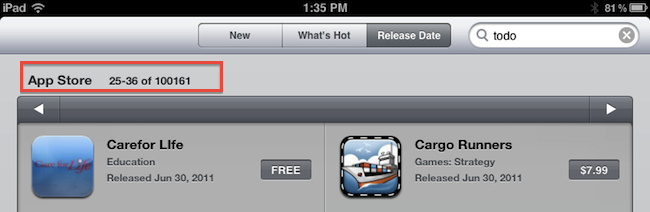
Yet Apple and third-party developers have set a new record: in 453 days since the original iPad came out on April 3, 2010, the App Store has more than 100,000 iPad-exclusive apps available. Either specifically targeting the tablet, or released as universal updates to existing iPhone apps, at the moment of writing this there are 100,161 iPad apps in the Store. How do I know? The App Store app itself on my iPad shows that.

Obviously, one could argue that the iPad’s development scene was “helped” by the success of the iPhone in the previous years. The original iPhone came out with no SDK in 2007, and developers were told to create web apps for it. Apple listened, and months later they released the first developer tools to create native apps for the iPhone. With the release of the iPhone 3G in 2008, Apple also launched the App Store, a unified marketplace to browse and download apps. The rest is history: a few graphical enhancements, sections, and 10 billion downloads later, the App Store is Apple’s crown jewel as far as digital downloads go. A success that has inspired the company to create an OS X version and name it Mac App Store which, unsurprisingly, is once again helping developers sustain their business because of the ease of use of the whole process. On the other hand, users love discovering and buying apps from the App Store because it’s simple, it’s full of apps, and it’s regularly updated. It’s a win-win scenario for Apple (who keeps a 30% cut off every transaction), the developers, and the users.

What’s next for the App Store and, more specifically, apps for the iPad? 100,000 is an important milestone, but don’t expect things to change dramatically in a short period of time. Considering how Apple rolls, the App Store will be slightly tweaked to accomodate new sections as it’s always been, more apps will be released in the next weeks, and users will keep buying apps and games. Don’t expect a revolution because Apple has reached 100,000 apps for the iPad. But that’s not to say the result isn’t remarkable or that new things aren’t coming: with iCloud going public this fall and Automatic Downloads already set in place, Apple wants to make the process of buying and syncing apps to iOS devices even simpler. With Lion approaching its public launch on the Mac App Store in July, it’s clear Apple is betting on the App Store brand as the de-facto solution for downloading software for iOS and OS X devices.

Congratulations, developers. Now onto 200,000 apps.