

One of my favorite companion utilities for Apple Music I’ve discovered lately isn’t a new third-party client (I still love and use Marvis) or a new smart home speaker (we’re still rocking the original HomePod in our kitchen and it’s great): it’s Picture in Picture for iPhone and iPad. Let me explain. A few months...
 Starting the New Year with New Shortcuts, Workflows, Apps, and More
 John
John
AppStories Episode 258 - Starting the New Year with New Shortcuts, Workflows, Apps, and More
0:00
40:28
40:28
This week, Federico and John look back at their MacStories Starter Pack coverage last week, digging into the themes and details of each of the stories they wrote and the ways you can incorporate everything into your own workflows.
 An Update to Save YouTube Link, a Technique for Updating Obsidian YAML with a Single Hotkey, and an AirBuddy Shortcut
It was a busy week on the Club MacStories+ Discord, and I’ve tried my best to collect highlights from the community below. There isn’t a Discord URL scheme to reopen these links in the Discord app directly; my preferred approach for these is to view them as separate tabs in Safari for iPad or Mac....
MacStories Starter Pack: Reverse-Engineering the Matter API and My ‘Save to Matter’ Shortcut
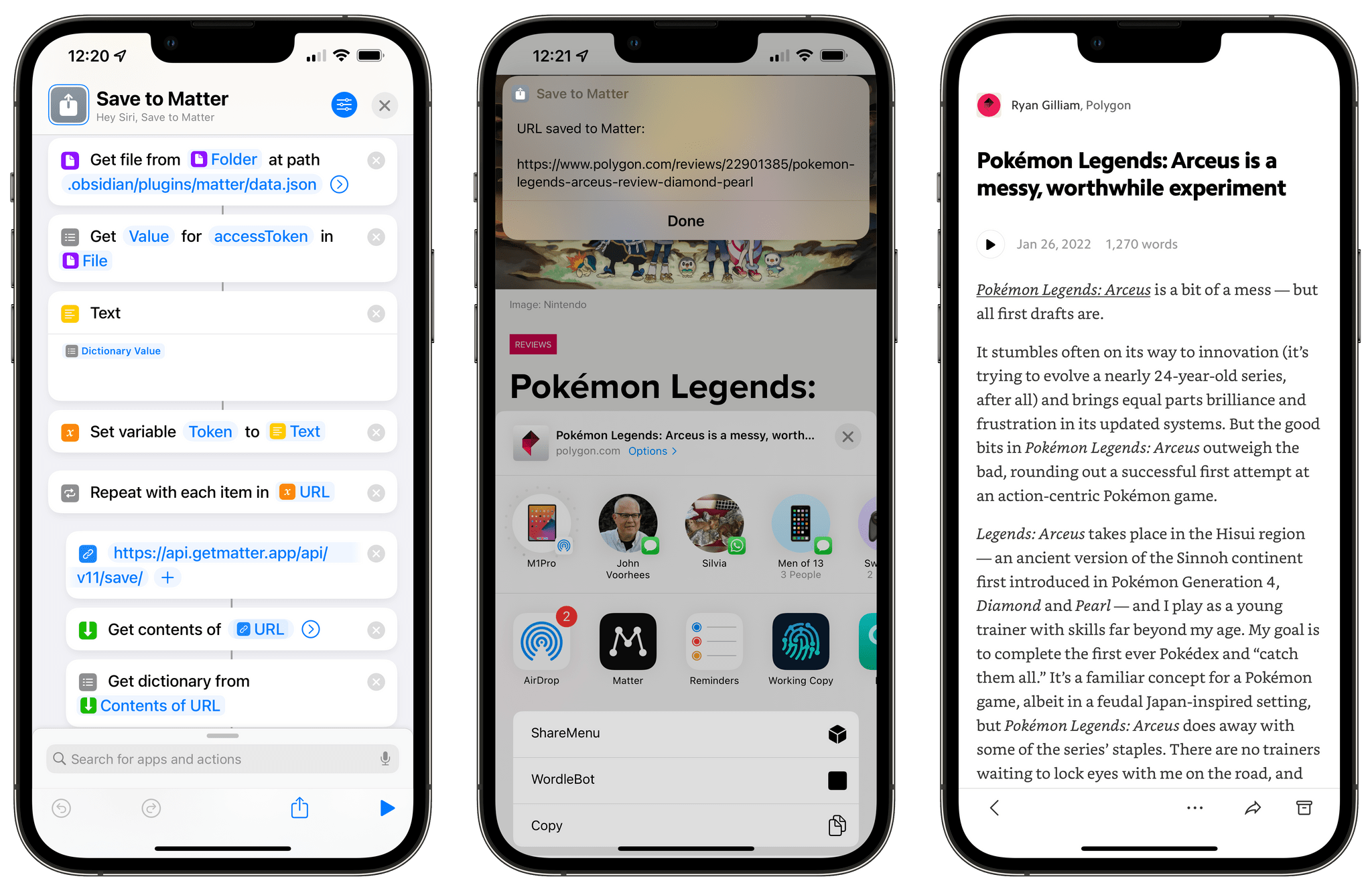
Editor’s Note: Reverse-Engineering the Matter API and My ‘Save to Matter’ Shortcut is part of the MacStories Starter Pack, a collection of ready-to-use shortcuts, apps, workflows, and more that we’ve created to help you get the most out of your Mac, iPhone, and iPad.
For the past few months, I’ve been enjoying and keeping an eye on the development of Matter, a new read-later service that aims to combine a powerful text parser with elegant design, social discovery features, annotations, and the ability to listen to articles as audio. I’m not one to typically care about the latest VC-backed startup that promises to revolutionize reading articles with social features, but Matter struck me for a few reasons: the app’s reader mode is gorgeous; the ability to annotate articles with highlights is great; and, more importantly, it has the best, most human-sounding text-to-audio conversion engine I’ve ever tested.
Something else happened a few months ago: Matter introduced an official plugin to sync your article highlights as Markdown notes to Obsidian. Integration with PKM-style apps is a hot trend right now in the modern crop of read-later services (John covered this very topic here), so I wasn’t shocked to see that Matter joined Readwise in supporting Obsidian with a plugin. Something about it piqued my interest though:
If Matter didn’t have a public API, how could the Obsidian plugin even sync to the Matter service?
Obviously, there had to be an API involved behind the scenes, which Matter hadn’t announced yet, but which I could potentially reverse-engineer and integrate with Shortcuts. And that’s exactly what I’ve been doing for the past month.
My experiments with the still-unannounced Matter API have developed on three separate fronts, and I’m going to share the results in three different places:
- Today on MacStories, I’m going to share a one-click shortcut called Save to Matter that lets you save any article to your Matter queue directly from the share sheet or anywhere else on iOS, iPadOS, or macOS without having to use the Matter extension;
- Tomorrow on MacStories Weekly for Club MacStories members, I will share MatterBot, an advanced Matter shortcut that lets you take complete control over your Matter queue with support for exporting annotations as Markdown or even downloading articles as MP3 files;
- Next week for Club MacStories+ and Premier members only, I will share MatterPod, another advanced shortcut that lets you turn your Matter queue into a Matter podcast feed hosted on your own web server.
Before we dive in, I also want to confirm that I privately reached out to the folks at Matter weeks ago about my experiments, and they were cool with me writing about my findings and sharing shortcuts I’ve built for the Matter API.
With that being said, let’s take a look at how you can get started with the Matter API and the Save to Matter shortcut.
MacStories Starter Pack: Introducing Obsidian Shortcut Launcher, A Free Plugin to Trigger Shortcuts from Obsidian
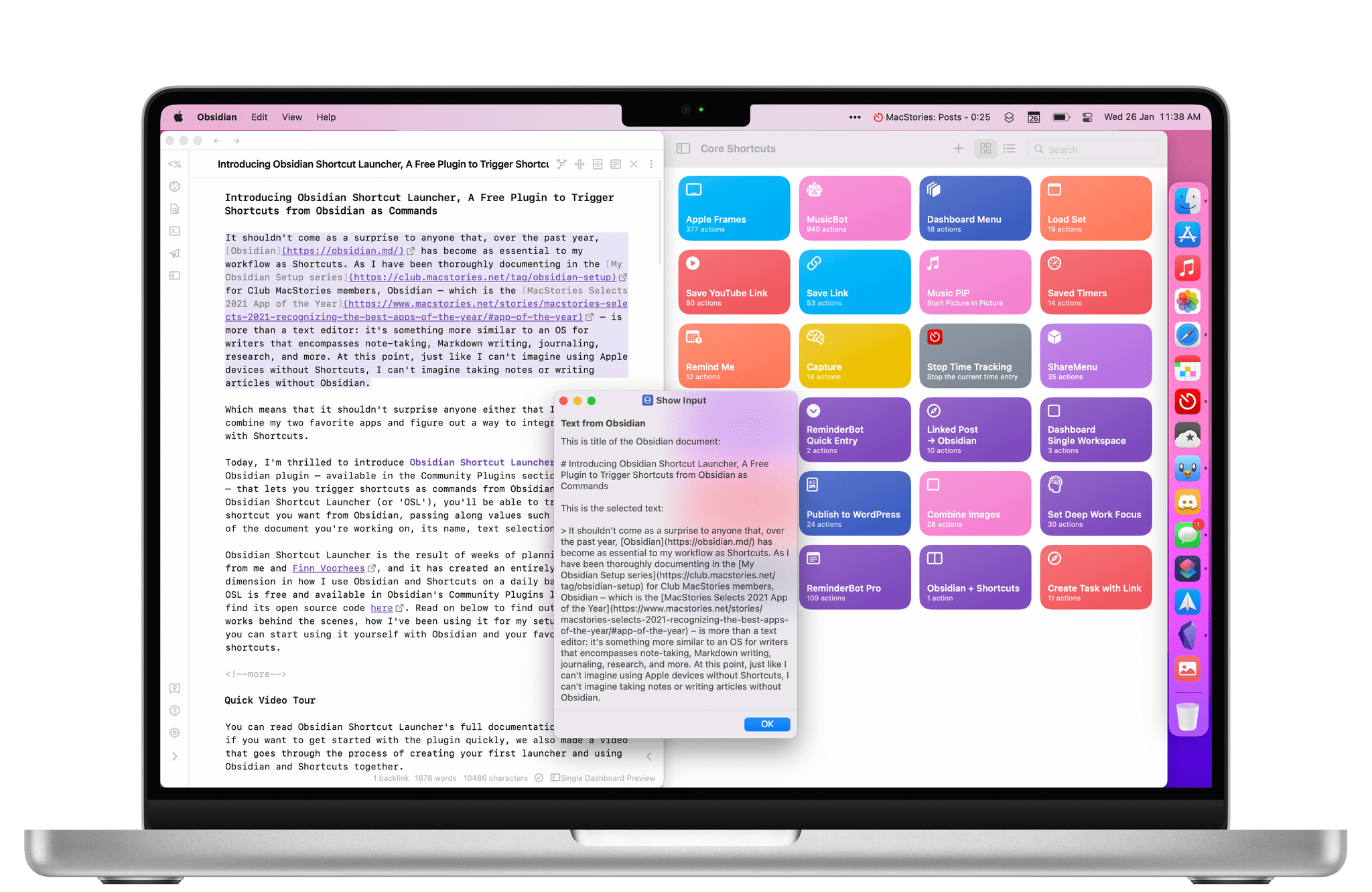
Editor’s Note: Obsidian Shortcut Launcher is part of the MacStories Starter Pack, a collection of ready-to-use shortcuts, apps, workflows, and more that we’ve created to help you get the most out of your Mac, iPhone, and iPad.
It shouldn’t come as a surprise to anyone that, over the past year, Obsidian has become as essential to my workflow as Shortcuts. As I have been thoroughly documenting in the My Obsidian Setup series for Club MacStories members, Obsidian – which is the MacStories Selects 2021 App of the Year – is more than a text editor: it’s something more similar to an OS for writers that encompasses note-taking, Markdown writing, journaling, research, and more. At this point, just like I can’t imagine using Apple devices without Shortcuts, I can’t imagine taking notes or writing articles without Obsidian.
Which means that it shouldn’t surprise anyone either that I wanted to combine my two favorite apps and figure out a way to integrate Obsidian with Shortcuts.
Today, I’m thrilled to introduce Obsidian Shortcut Launcher, a free Obsidian plugin – available in the Community Plugins section of the app – that lets you trigger shortcuts as commands from Obsidian. With Obsidian Shortcut Launcher (or ‘OSL’), you’ll be able to trigger any shortcut you want from Obsidian, passing along values such as the text of the document you’re working on, its name, text selection, and more. Obsidian Shortcut Launcher is free to use and works on iOS, iPadOS, and macOS.
Obsidian Shortcut Launcher is the result of weeks of planning and work from me and Finn Voorhees, and it has created an entirely new dimension in how I use Obsidian and Shortcuts on a daily basis. Because OSL is available in Obsidian’s Community Plugins list, you can find its source code here. Read on below to find out how OSL works behind the scenes, how I’ve been using it for my setup, and how you can start using it yourself with Obsidian and your favorite shortcuts.
MacStories Starter Pack: Frame Nintendo Switch Screenshots with SwitchFrame

Editor’s Note: Frame Nintendo Switch Screenshots with SwitchFrame is part of the MacStories Starter Pack, a collection of ready-to-use shortcuts, apps, workflows, and more that we’ve created to help you get the most out of your Mac, iPhone, and iPad.
Following the release of version 11.0 of the Nintendo Switch firmware in December 2020, I released ShortSwitch, a shortcut that simplified the process of importing screenshots and videos from a Nintendo Switch console on the same Wi-Fi network as your iPhone or iPad. ShortSwitch continues to be one of my favorite utilities I’ve built in the Shortcuts app, and it’s become my default way of transferring media from the Switch to my iPhone before tweeting it. With ShortSwitch, you don’t need to scan the second QR code displayed on the console, and you can quickly preview or save multiple files at once. It still works reliably, and you can download it here.
That said, I’ve always wondered if I could improve another aspect of screenshots captured on the Nintendo Switch: framing them with a physical device template of a Switch console, just like I can frame iPhone, iPad, and Mac screenshots with Apple Frames. So a few months ago, Silvia and I got to work. After finding a Switch template we liked, Silvia modified it, and I was able to put together SwitchFrame – a shortcut that frames Switch screenshots with a classic Nintendo Switch console featuring red and blue Joy Cons.
MacStories Starter Pack: Clean Up URLs and Remove Tracking Parameters with URL Cleaner
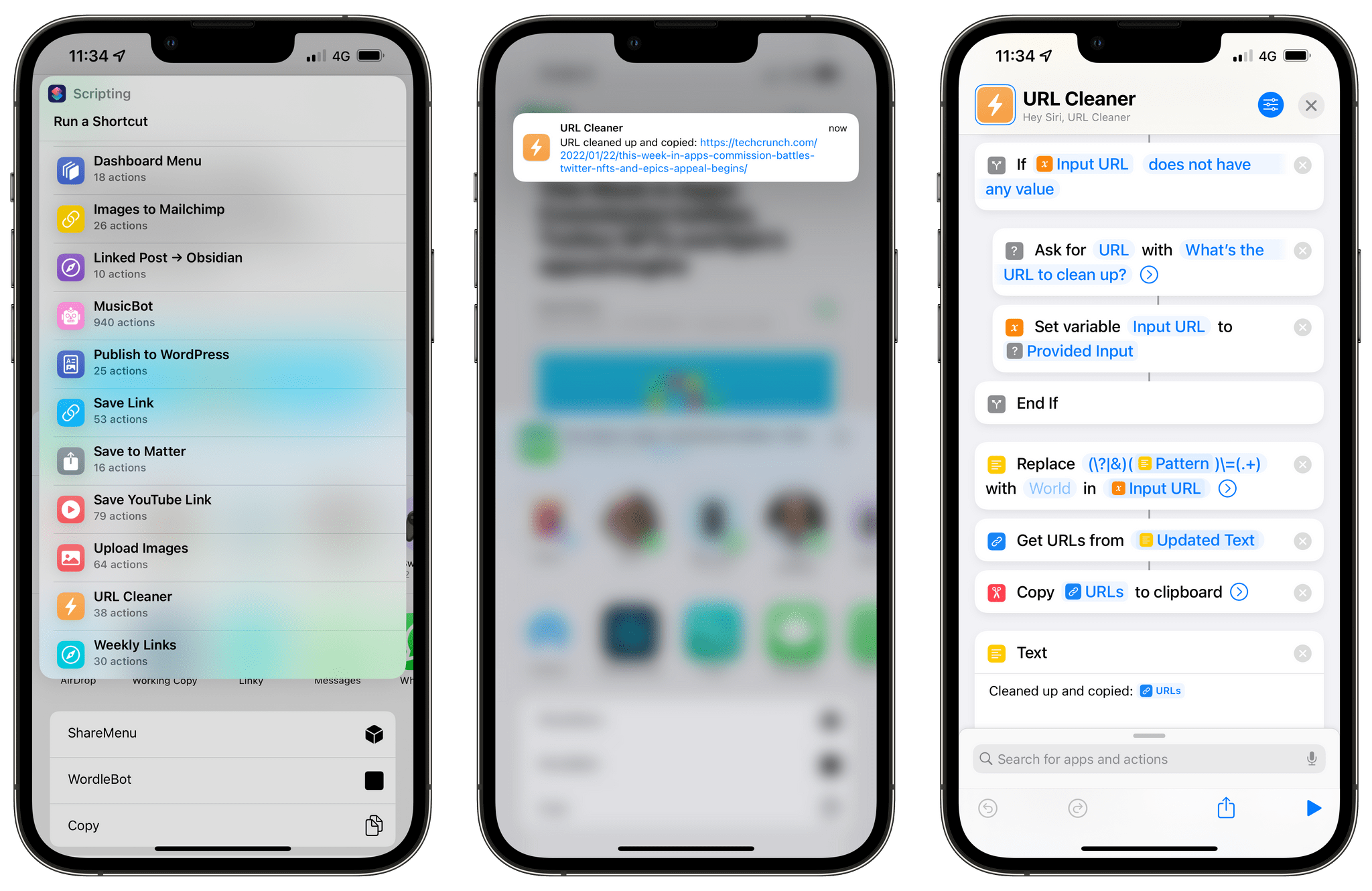
Editor’s Note: Clean Up URLs and Remove Tracking Parameters with URL Cleaner is part of the MacStories Starter Pack, a collection of ready-to-use shortcuts, apps, workflows, and more that we’ve created to help you get the most out of your Mac, iPhone, and iPad.
Picture this:
You’ve just come across an interesting article or product you want to share with someone, so you copy the URL and you’re ready to send it over iMessage, tweet it, link it on your site – you name it. Then, you notice that the URL has a bunch of ugly tracking parameters appended to the end of it. I’m sure you’ve seen them too: it’s those ?utm and soc_src1 and similar strings of text that some web publishers rely on to monitor where traffic is coming from and track other parameters about clicked URLs. For a publisher, those bits of data can actually be useful; for the end user, however, I’ve always wished there was an easy way for apps or extensions to “clean up” URLs and return the vanilla version of a link without any tracking parameter attached.
So, for the debut of our MacStories Pack event, I decided to fix the problem myself with a shortcut I appropriately called URL Cleaner. With this shortcut, which you can download for free at the end of the story and find in the MacStories Shortcuts Archive, you’ll be able to instantly remove popular tracking parameters from any URL and get a “cleaned up” version of it copied into the system clipboard. Best of all, URL Cleaner has been specifically optimized for iOS, iPadOS, and macOS, taking advantage of desktop-specific actions in macOS Monterey all while remaining integrated with the share sheet and Siri on iPhone and iPad.
Let’s take a look.
New Apps We Are Trying or Revisiting
AppStories Episode 257 - New Apps We Are Trying or Revisiting
0:00
40:27
40:27
This week, Federico and John share a collection of apps they are trying for the first time or revisiting, including email apps, a new Mac launcher, an Apple Music utility, a podcast player, and a read-it-later app.
My Obsidian Setup, Part 7: A YouTube Watch-Later System, Powered by Shortcuts and Dataview
In last week’s issue of MacStories Weekly, I explained how I turned my Dashboard note into a richer, more interactive hub thanks to Dataview snippets displayed as cards, which show me a grid of links I’ve recently saved, plus a collection of recently modified notes. As I covered last week, the cards displayed in my...