AppStories Episode 199 - Workflows Revisited: Task Management
48:39
This week Federico takes listeners along on his recent tour of modern task managers, and he and John discuss the app they have settled on to keep track of their projects and to-dos.
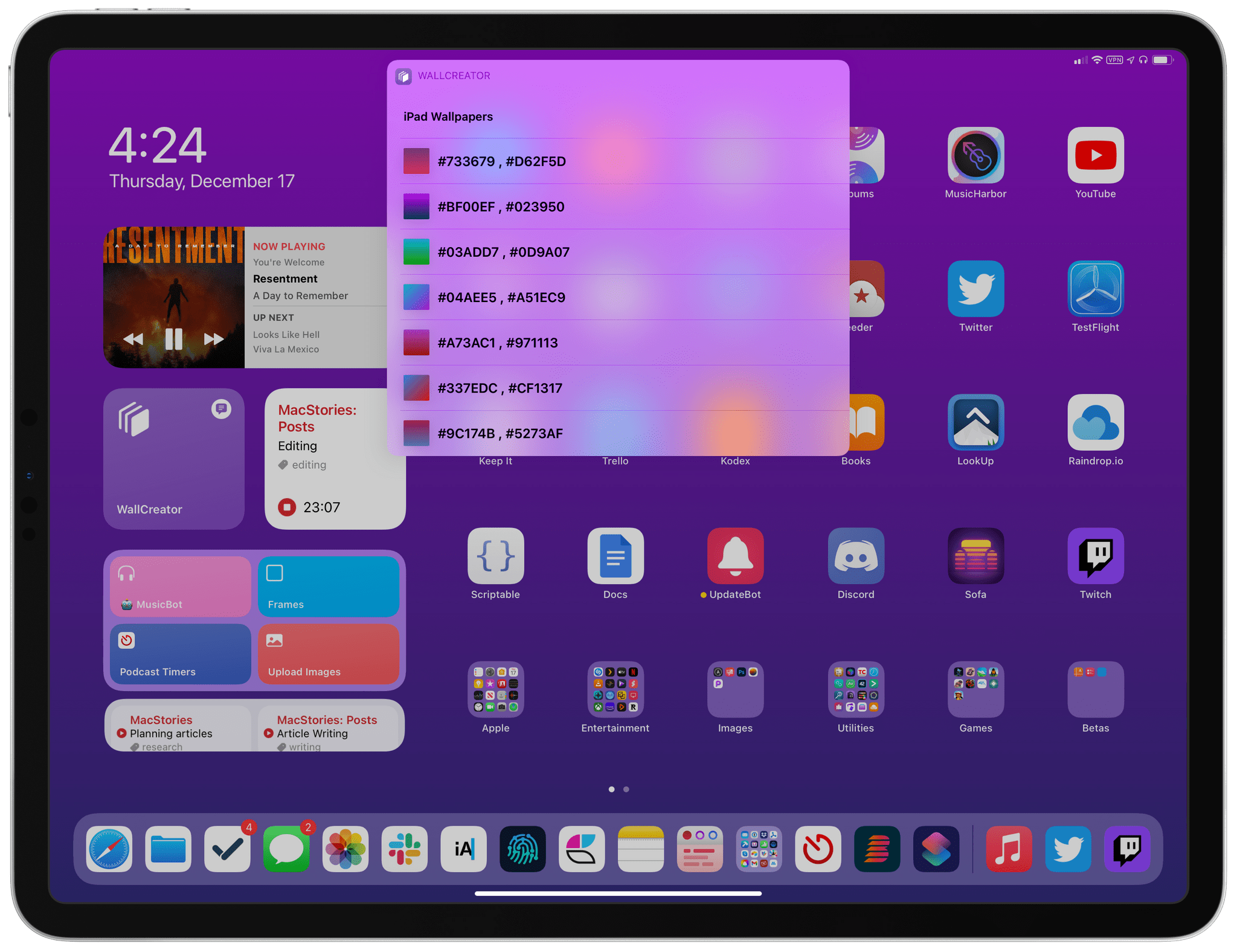
In September, I shared WallCreator, a shortcut to generate wallpapers for iPhone and iPad using gradients or solid colors. The first version of WallCreator allowed you to generate randomized wallpapers with just a couple taps from either the Shortcuts app or Home Screen widget. Because it was built entirely with native HTML and CSS actions, the shortcut had no external dependencies and didn’t require any third-party apps or connections to web servers. Here’s what I wrote:
Here’s the gist of what WallCreator can do: with just a few taps, you can either generate a wallpaper with a solid color or gradient. You can choose to enter your own colors (using their English names or Hex codes) or, even better, let WallCreator generate random solid colors or gradients for you.
You don’t need to worry about anything else: WallCreator will create the right version of a wallpaper for different iPhone and iPad models automatically, without having to specify any option; at the end of the shortcut, you can preview the newly-generated wallpaper and, if you like it, save it as an image to the Photos app. Otherwise, you can tell WallCreator you want to generate another image and start over.
Today, I’m pleased to announce the release of WallCreator 2.0, which has been updated for iOS and iPadOS 14.3 and Shortcuts’ new ‘Set Wallpaper’ action. Among other additions (which I’m going to detail below), WallCreator can now both save and install wallpapers on your device for you. Furthermore, thanks to the comeback of the ‘Set Wallpaper’ action, I’ve been able to create a WallCreator “spin-off” that runs as a headless automation and can change either your Home Screen or Lock Screen wallpaper (or both) on your behalf, with no manual interactions required. This is a pretty big update to WallCreator, so let’s dive in.
When I released the updated version of Apple Frames, my shortcut to quickly put screenshots inside physical frames of Apple devices, in late October, I was only able to add support for the iPhone 12 and 12 Pro. Unlike other shortcuts you may find on the Internet, Apple Frames is based on Apple’s official device images, which are available on the company’s Marketing page here. At the time, the .zip file labeled ‘iPhone 12’ only contained assets for the iPhone 12 and 12 Pro, and I promised I’d add support for the smallest and biggest iPhone models as soon as possible.
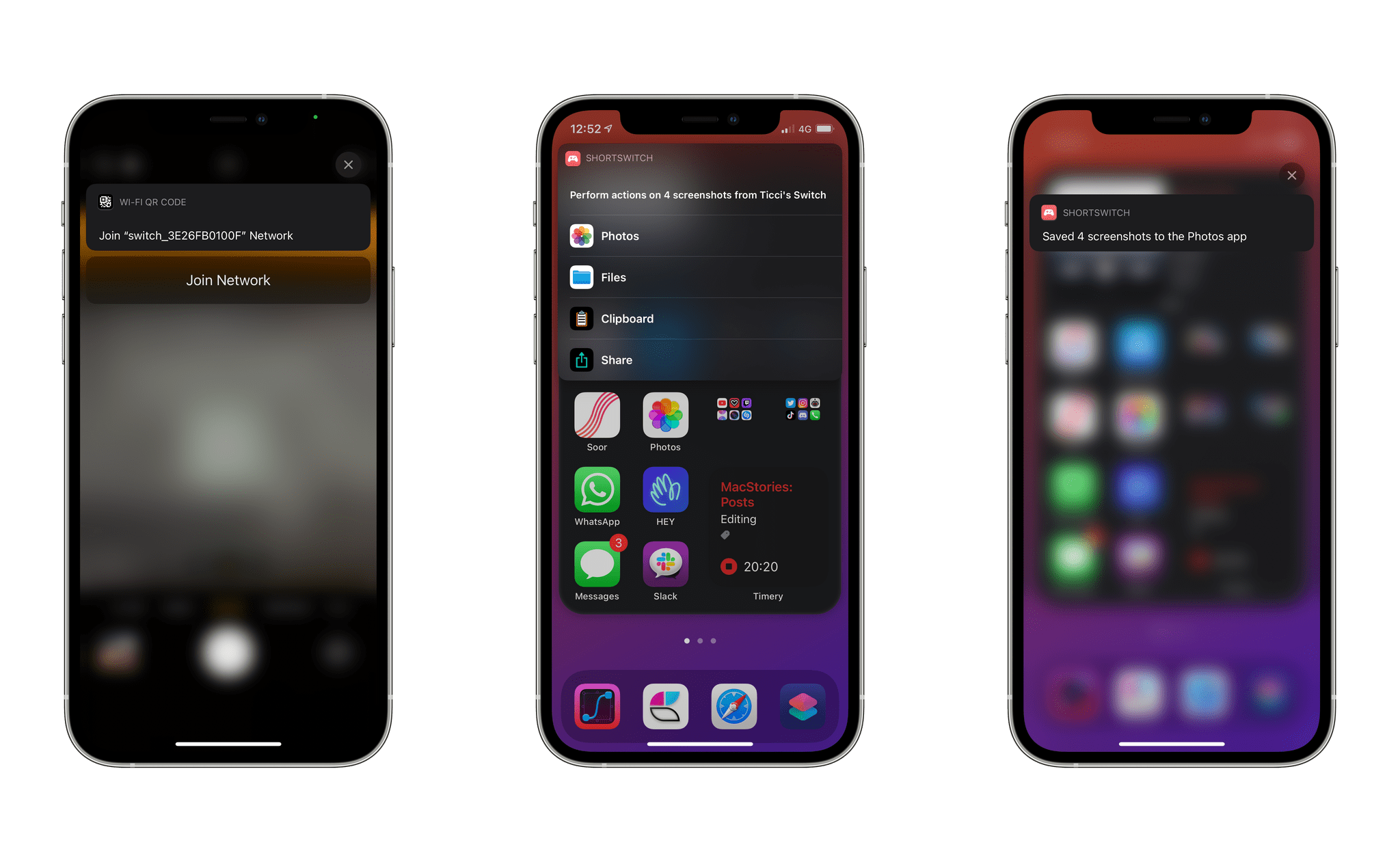
Last week, Nintendo rolled out a new feature that simplifies importing screenshots and videos taken on a Nintendo Switch on any smart device. As part of the console’s 11.0 firmware, you can now share up to 10 screenshots or a single video capture from the Nintendo Switch media gallery and, by scanning a series of QR codes with your phone or tablet, wirelessly connect your device to the console and save them via a web browser. Although Nintendo’s approach may not be as intuitive or modern as, say, Microsoft automatically saving all screenshots you take on an Xbox console and uploading them to your Xbox account, it is a clever, platform-agnostic solution that will keep working with any device that can scan a QR code and connect to the console’s Wi-Fi network.1
As someone who plays a lot of Nintendo Switch games2 and has always disliked having to share screenshots via Nintendo’s Twitter integration on the Switch, I’ve long wanted an easier way to send images and videos from the console to my iPhone and iPad. As soon as I tested Nintendo’s new feature, I had a feeling I could further speed up the process with Shortcuts and remove the (little) friction left in Nintendo’s system for sharing media between the console and smart devices.
The result is ShortSwitch, a shortcut that automatically recognizes media being shared by a Nintendo Switch over Wi-Fi and which gives you the option to save all items at once in Photos or Files, share them via the share sheet, or copy them to the clipboard. ShortSwitch does this by directly accessing the local web server created by the Nintendo Switch to share media; because it doesn’t need to connect to the Internet or use third-party apps, ShortSwitch runs instantly and allows you to save multiple items at once in just a couple seconds. Even better, you can configure ShortSwitch to run as a Personal Automation on your iPhone and iPad, which means the shortcut will run automatically as soon as you connect your iPhone or iPad to a Nintendo Switch.
You can download ShortSwitch at the end of this article and find it (alongside 220+ other free shortcuts) in the MacStories Shortcuts Archive. Now, allow me to explain how ShortSwitch works and how I put it together.
This week, Federico and John continue their mini-series focused on breaking down and rethinking the core workflows behind MacStories by tackling note-taking and their adoption of Craft for personal and collaborative notes.