
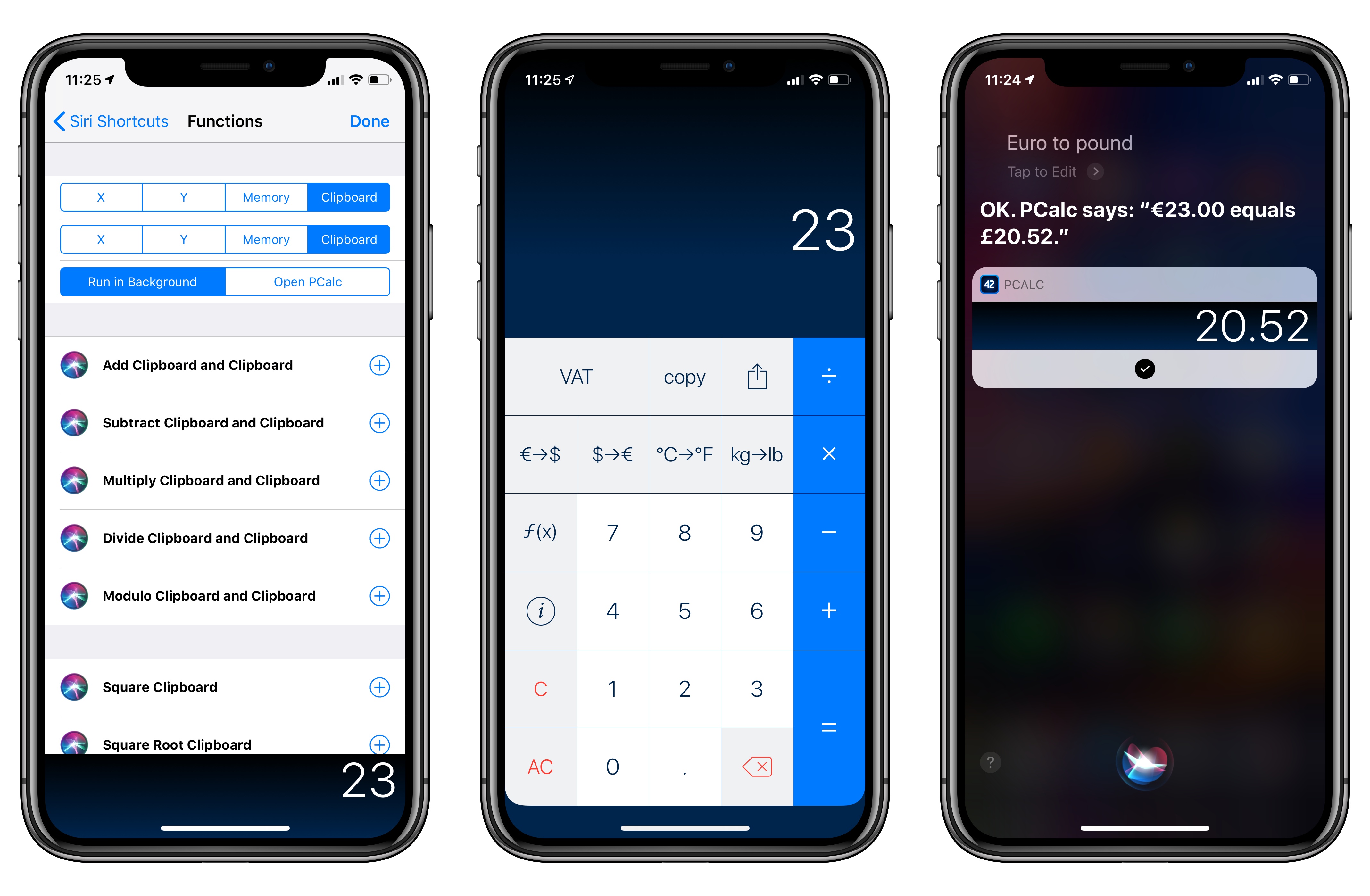
PCalc, James Thomson’s advanced calculator for iPhone and iPad, has been updated this week to version 3.8. I’ve been testing PCalc 3.8 for the past couple of months on my devices running iOS 12, and it features one of the best implementations of Siri shortcuts I’ve seen from a third-party developer yet. Even more than the app’s excellent widget, shortcuts have enabled me to integrate PCalc features into different aspects of my daily workflow, including conversations with Siri via my HomePods.
PCalc 3.8 Adds Support for iOS 12’s Siri Shortcuts, Including Powerful Clipboard Commands
Club MacStories Is Celebrating Its Third Anniversary with Exclusive Discounts on Apps and Services
It’s hard to imagine that Club MacStories is already three years old. In that time, the Club has grown steadily allowing us to expand its offerings every year. Today, Club MacStories is a cornerstone of MacStories allowing us to share more about apps and the people who make them every week through the Club newsletters and on MacStories.
The success of the Club wouldn’t be possible without its members, many of whom have been part of it since the very first day. Thank you. We sincerely appreciate your support and for helping make it possible for us to do what we love.
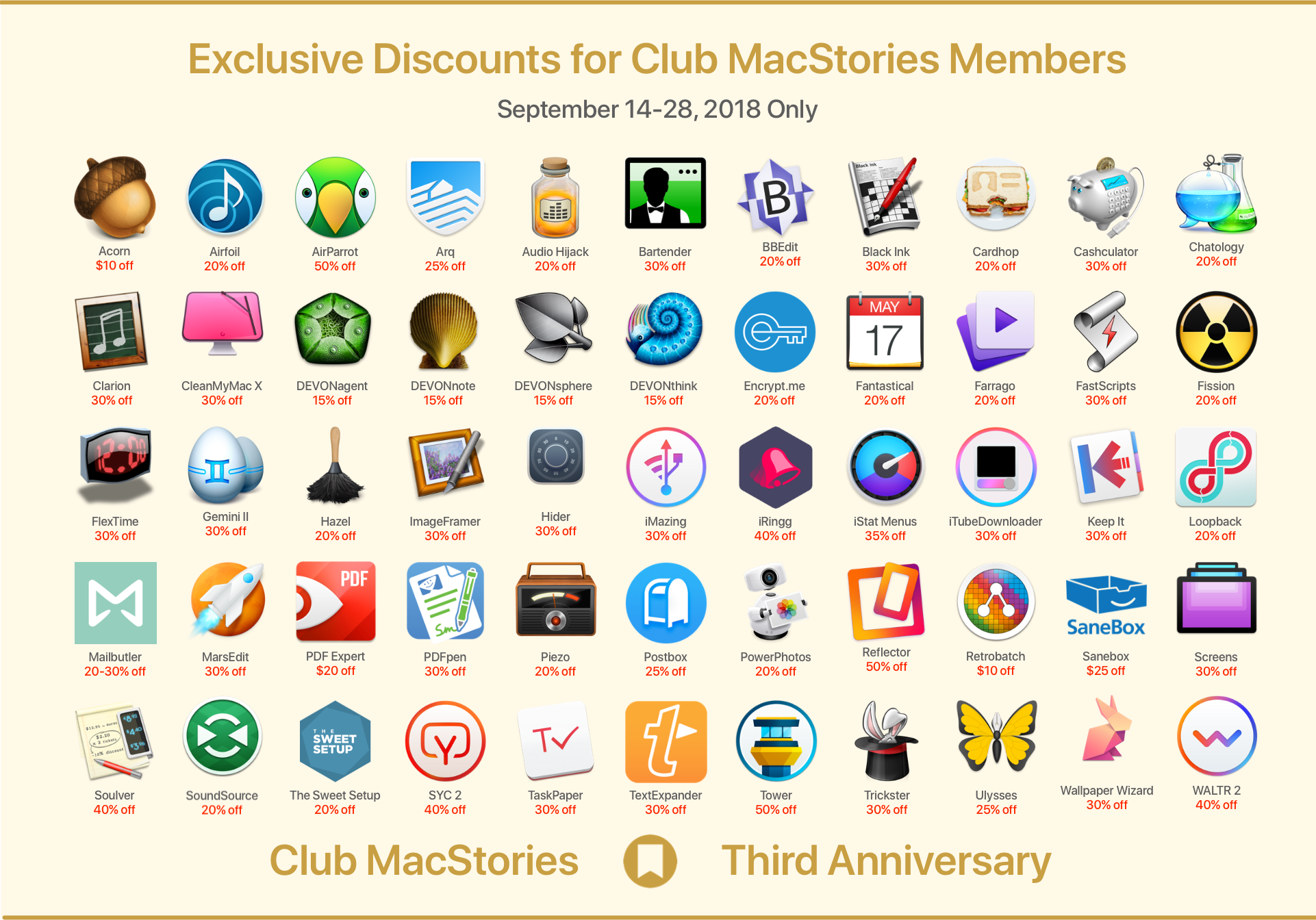
To celebrate the Club’s anniversary this year, we have assembled a stellar list of exclusive Club discounts on apps and service from our friends in the developer community. Their generosity has been overwhelming, and we can’t thank them enough for contributing to the celebration. This year we have over 50 apps and services from 30 developers, including:
- Apparent Software - 30% off all apps
- Arq - 25% off
- Bartender - 30% off
- BBEdit - 20% of
- DEVONtechnologies - 15% off all apps
- Encrypt.me - 20% off
- Flexibits - 20% off all Mac apps
- Flying Meat - $10 off all apps
- Hazel - 20% off
- iMazing - 30% off
- iStat Menus - 35% off
- iTubeDownloader - 30% off
- Keep It - 30% off
- MacPaw - 30% off all Mac apps
- Mailbutler - 20% off the Professional Plan and 30% off the Business Plan
- PDF Expert - $20 off for everyone and 50% off for students
- Postbox - 25% off
- PowerPhotos - 20% off
- Red Sweater Software - 30% off all apps
- Reflector and AirParrot - 50% off
- Rogue Amoeba - 20% off all apps
- SaneBox - $25 off
- Screens - 30% off
- Smile - 30% off PDFpen and TextExpander
- Softorino - 40% SYC 2, iRingg, and WALTR 2
- Soulver - 40% off
- The Sweet Setup - 20% off all courses and 10% of sales donated to St. Jude
- TaskPaper - 30% off
- Tower - 50% off 1-year plans
- Ulysses - 25% off an annual subscription
(See //staging.macstories.net/club/anniversary/ for the terms and conditions regarding each deal)
Club members can log into their membership account and access these deals from a special webpage that we’ve set up just for you. The discounts will be available for two weeks from today through September 28th.
There are even more perks coming for Club members, including a free edition of the eBook version of Federico’s iOS 12 review, the ‘Making Of’ the review, a bonus episode of AppStories, and other special surprises.
Thanks again to our Club members. We appreciate the hard-earned money you spend to be part of our growing community. We love making the newsletters for you every week. If you’re an annual member and your subscription is expiring, we hope you’ll join us for year four. We’ve got big plans for the Club and would love for you to be part of them.
Jony Ive Talks About Users’ Personal Connection with the Apple Watch→
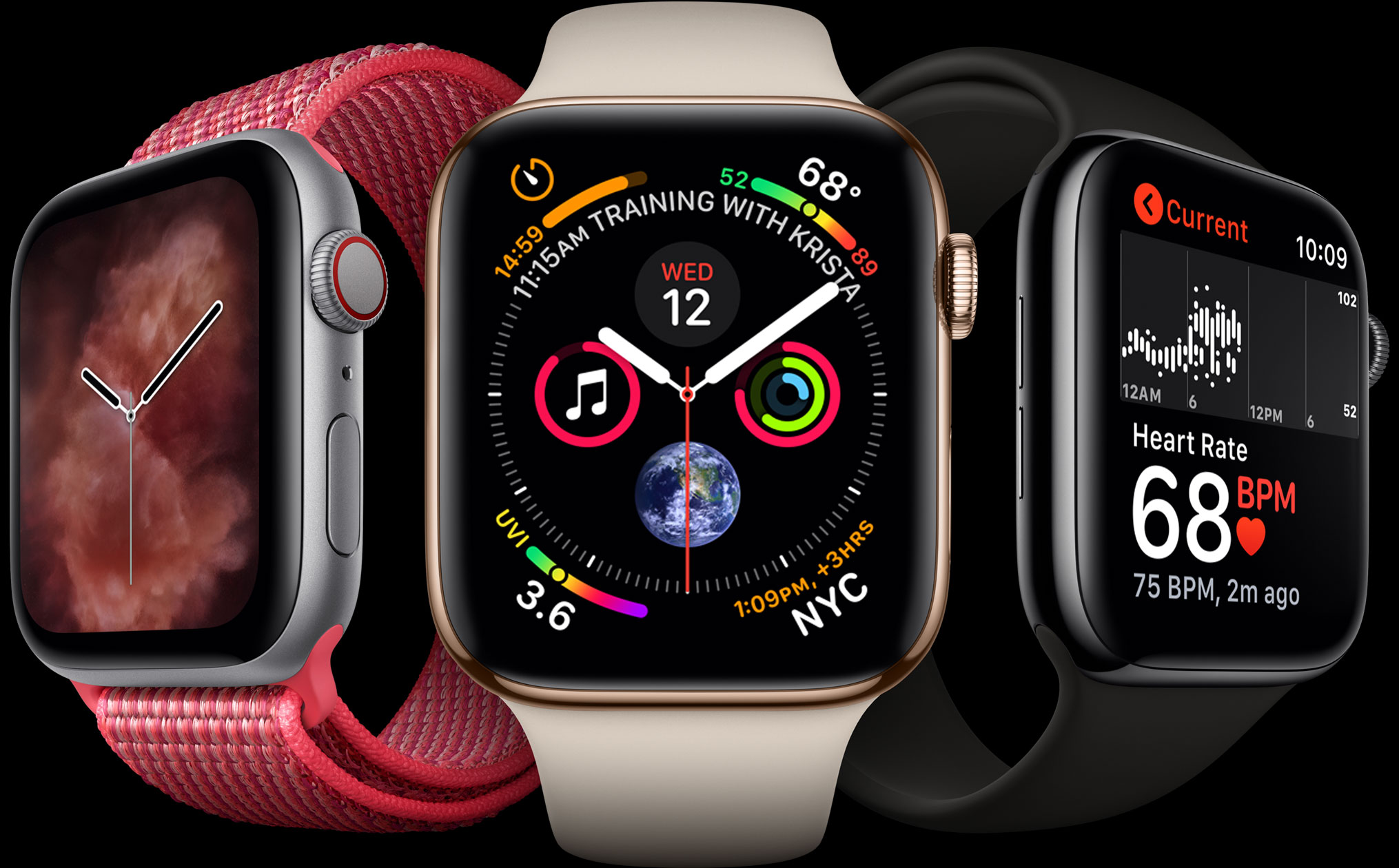
After the keynote Wednesday, Chief Design Officer Jony Ive was interviewed by The Washington Post about the Apple Watch Series 4. Ive told the Post:
“Every bone in my body tells me this is very significant”
What seems to have Ive most excited about the new Watch is its increasing independence from the iPhone:
“The clues for the future are when you can have a high degree of confidence that you personally are connected to the Net — not your phone, you,” said Ive.
The addition of a cellular radio to the Series 3 made a big difference in freeing the Watch from the iPhone. This year, I expect the difference will be felt more on the software side as developers implement apps that take advantage of the new watchOS 5 APIs.
Despite the Series 3’s cellular radio, I almost always took my iPhone with me for runs because I wanted to listen to podcasts. More than anything else, the ability to listen to my favorite shows untethered has the potential to free me from my iPhone.
 MacStories Weekly: Issue 143
Screen Time for Kids Puts Powerful iOS Monitoring Tools and Use Restrictions in Parents’ Hands
For the past couple of years, the tech industry has grappled with the consequences of people carrying a tiny computer with them all day long. When it comes to Apple, iOS devices have long had a Do Not Disturb setting and notifications can be adjusted, but over time, it became apparent that the existing tools were not enough.
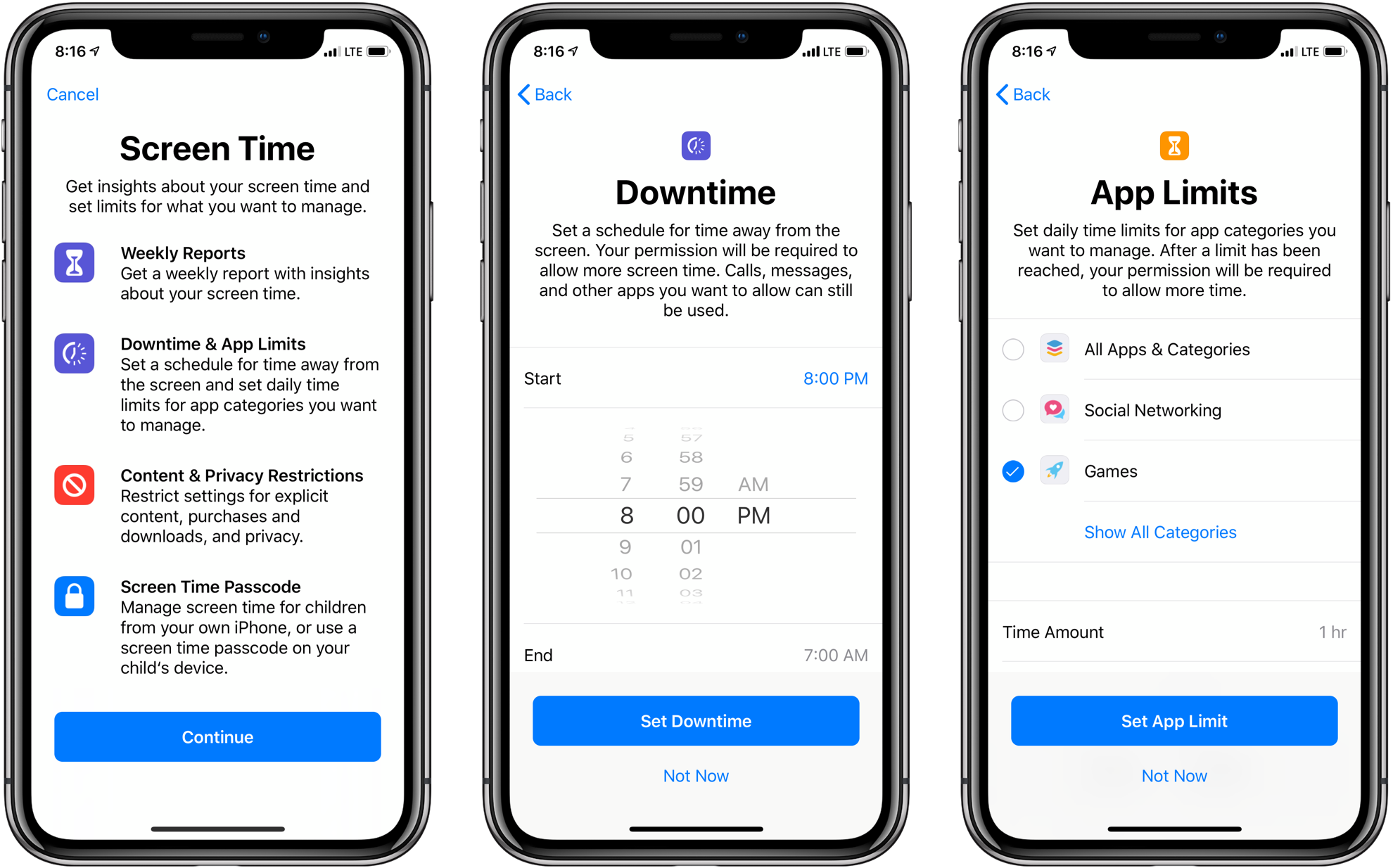
Screen Time is Apple’s solution to the information gap about how we use our iOS devices. The new feature, which is found in the Settings app in iOS 12, provides a wide array of metrics that give an unforgiving and eye-opening look into exactly how you use your devices each day.
Screen Time is also the means for acting on that information. Users can impose restrictions on when and how they use their devices.
The same tools are available to parents through Apple’s Family Sharing feature. Although Screen Time for kids is complex in some respects and lacking in others, it’s an excellent first step. The feature may require a time investment to master, but it succeeds on two levels. First, by working the same way it does for individuals, which Federico will cover in his iOS 12 review, managing the feature for a child will be familiar to anyone who uses Screen Time themselves. Second, although I’d like to see Apple implement some age-appropriate default settings in places, on balance, I’m satisfied that the complexity of Screen Time is a fair trade-off for the customization that it enables.
September 12 Event Roundup: All the Little Things
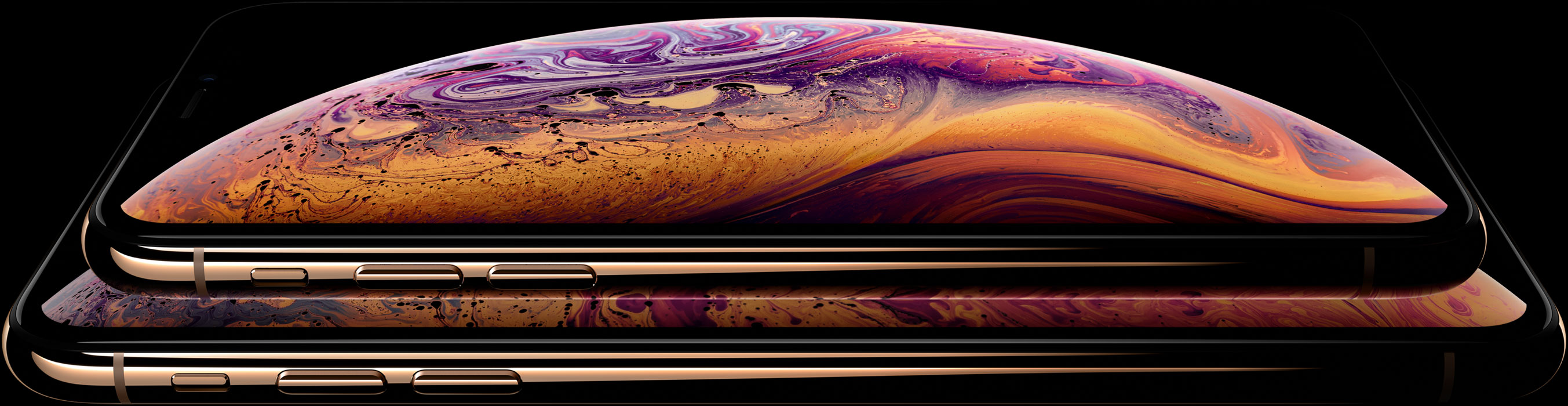
Yesterday’s keynote event at the Steve Jobs Theater featured the debut of new iPhones and the Apple Watch Series 4, but there were a lot of small details revealed outside the keynote. Below is a roundup of some of the most interesting extra details from the day.
iPhone XR, XS, and XS Max
It wasn’t mentioned during the keynote, but the iPhone XS, XS Max, and XR can read NFC tags in the background without the aid of an app.
Dual SIM functionality, which includes one physical SIM and one eSIM, won’t be activated until later this year with an update to iOS 12.
The new iPhones still ship with an increasingly inadequate 5W charger.
Apple posted a new Tech Talk dedicated to building apps for the new iPhones.
Split View on the iPhone XS Max means new layout considerations for developers.
Each of the default wallpapers on the iPhone XR is customized to match its color and has a unique texture.
https://twitter.com/BradEllis/status/1040106430492073984
Apple shows off the video capabilities of the new iPhone XS models on YouTube with Shot on iPhone XS - Experiments in 4K, Slo-mo, and Time-lapse.
Apple dropped the price of battery replacements after CPU throttling made many customers unhappy. Beginning on January 1, 2019, those prices will increase from $29 to $49.
All new apps and updates must be built with the iOS 12 SDK and support the iPhone XS Max starting in March 2019. Apple imposed the same deadline for building apps with the watchOS 5 SDK and supporting the Series 4 Watch.
Apple Watch Series 4
Apple posted two new Tech Talks about designing and developing apps for the Apple Watch Series 4.
Some of the new watch faces announced by Apple will be available for the Series 3 and earlier models of Apple Watches.
The Nike+ version of the Apple Watch Series 4 is not launching until October 5, 2018, two weeks after the standard Series 4 model.
Among the films Apple created to show off the new Apple Watch Series 4 is one called Real Stories that details how the Apple Watch has saved lives.
Third-party developers can create large Watch complications with Apple’s ClockKit API.
https://twitter.com/stroughtonsmith/status/1040146828610686976
You can also follow all of our Apple event coverage through our September 12, 2018 hub, or subscribe to the dedicated September 12, 2018 RSS feed.
Google Is Discontinuing Its Inbox Email App in March 2019→
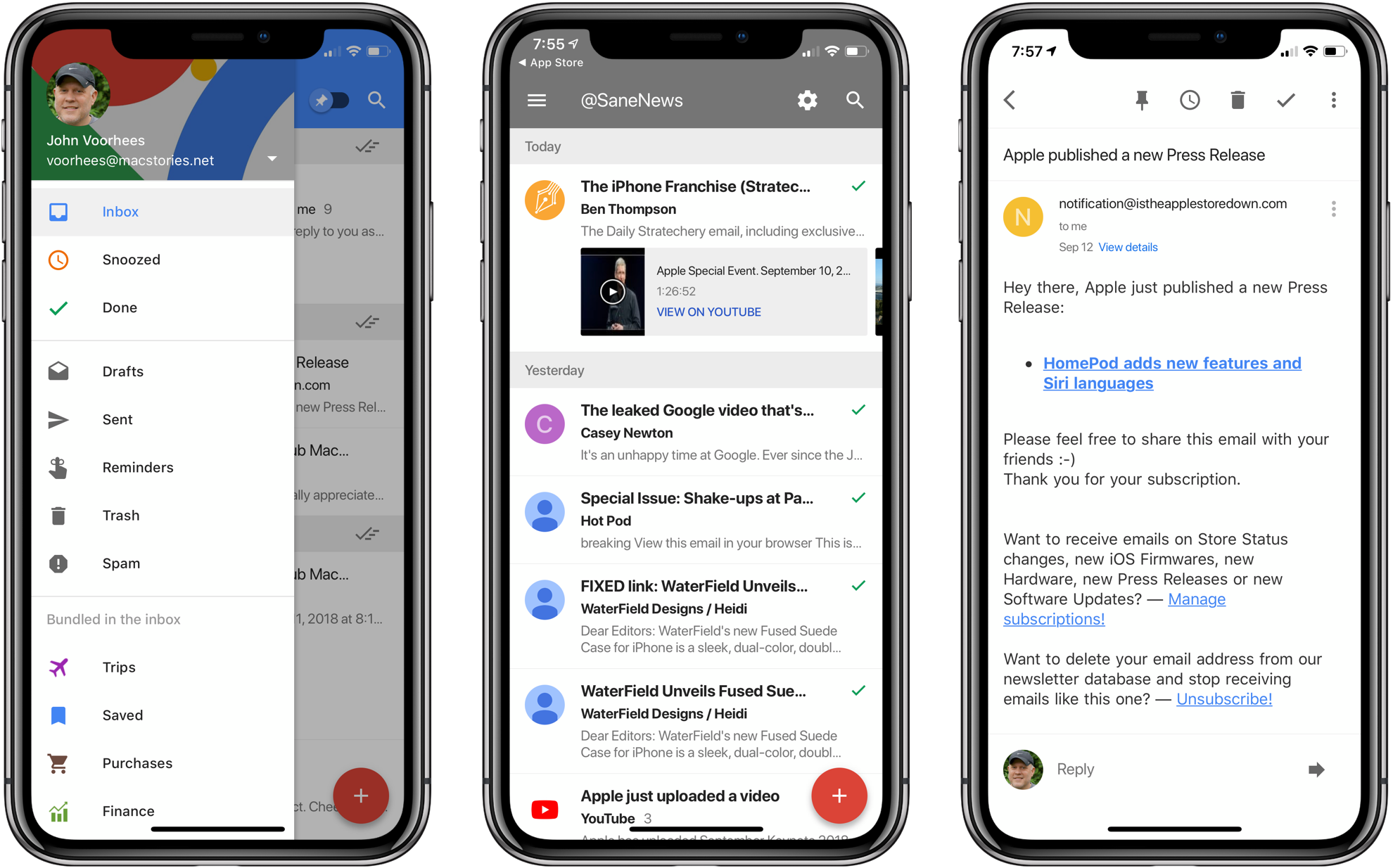
Google launched Inbox in 2014 as a place to experiment with new email features, some of which made their way into the company’s Gmail app eventually. Although it served as a sandbox for trying new features like email snoozing, Smart Replies, and Nudges, Inbox was not updated nearly as frequently as Gmail. So, it wasn’t surprising to hear from Google yesterday that it plans to end support for Inbox at the end of March 2019.
If you are an Inbox user and want to move your email accounts to Gmail, Google has created a transition guide.
iPhone XR, XS, and XS Max: The MacStories Overview
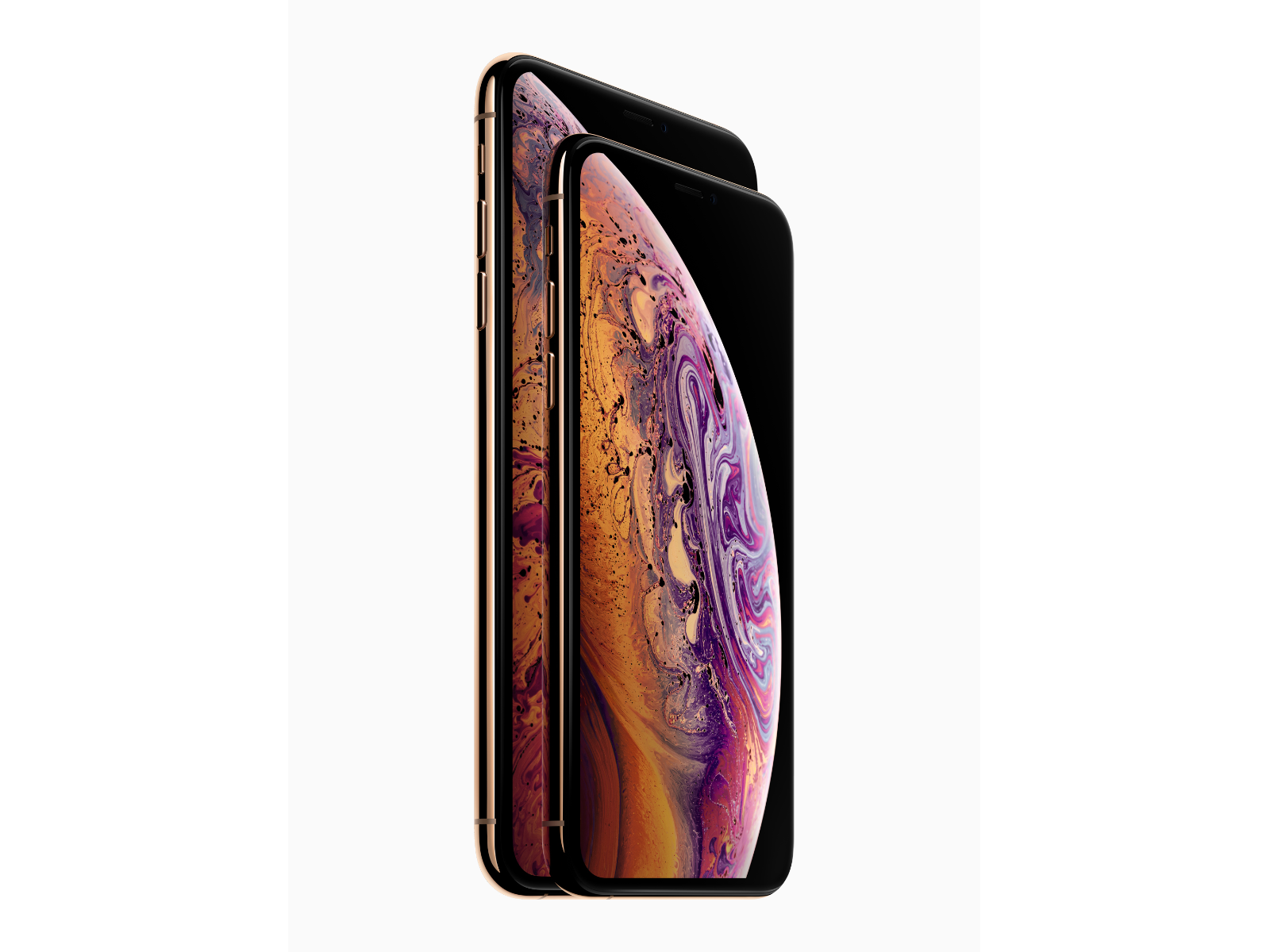
Earlier today, Tim Cook took the stage at Apple Park’s Steve Jobs Theater to announce Apple’s fall product lineup. As with past fall keynotes, Apple’s announcements included all-new iPhones. Some of the details of the new iPhone XR, XS, and XS Max leaked earlier this morning, but as usual, there were still surprises.
Design
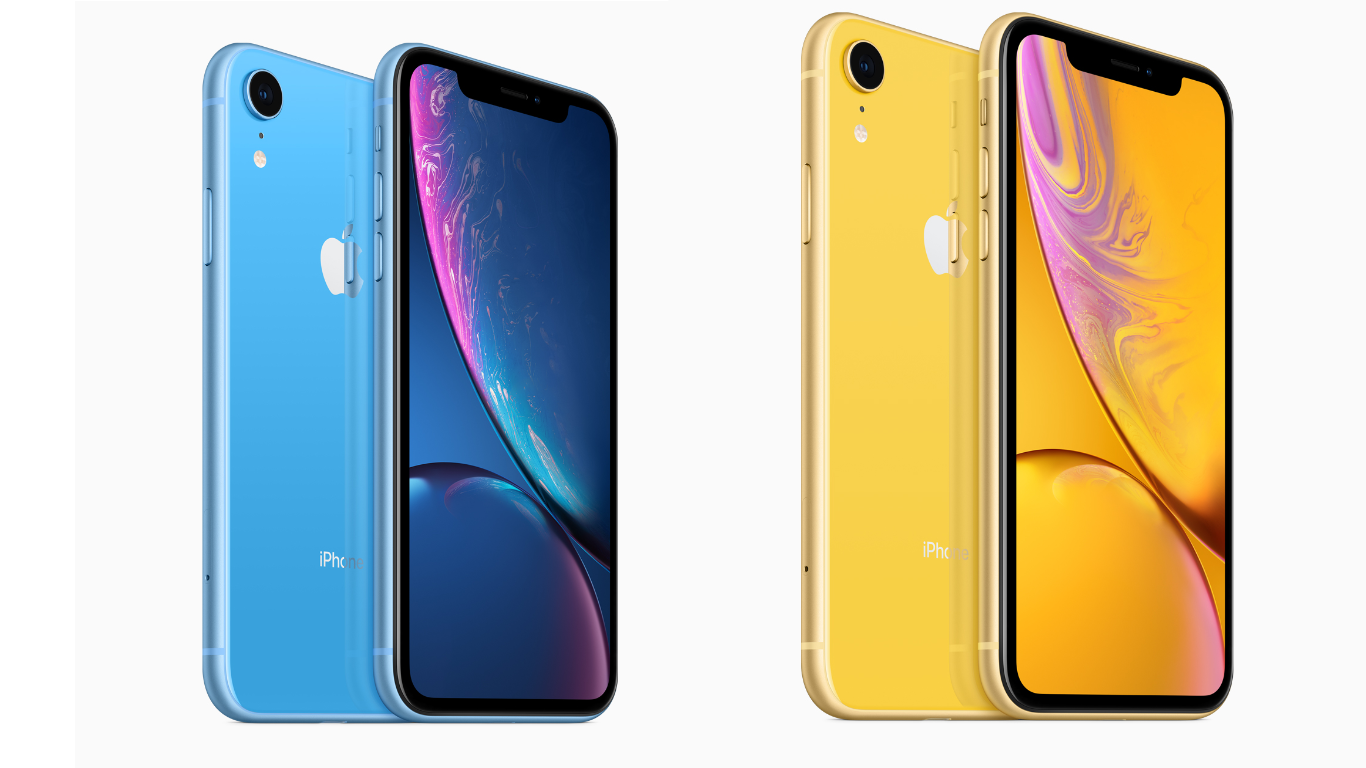
The iPhone XR marks the completion of Apple’s transition to the new form factor introduced last fall with the iPhone X. The iPhone XR will take some people by surprise. At 6.1 inches diagonally, the new XR has a bigger screen than the XS, but it’s also more affordable than the smaller 5.8-inch device. In contrast, the iPhone XS and XS Max are an evolution of the design of the iPhone X.
The iPhone XR is also differentiated visually from the XS and XS Max by its new color options. The new phone is available in six colors: black, white, red, yellow, coral, and blue. That’s one more color than the iPhone 5c, Apple’s last foray into a large selection of colors. When you account for the four carriers and three storage sizes, that means a whopping 72 variations in the US.
Like the XS, the back of the iPhone XR is glass, but instead of a stainless steel band around the edge of the device, Apple has used aluminum that’s colored to match the back of the device. The XR’s aluminum frame looks good but lacks the shine of the steel used on the XS and XS Max, which sets it apart visually from the more expensive models.
The other design difference between the XR and its new siblings is the camera. As discussed further below, the XR is a single-lens, 12 MP, wide-angle camera, and, like the iPhone 8 it succeeds, it has a flash that’s outside the camera assembly. Instead of being next to the camera’s lens as it was on the iPhone 8 and 8 Plus though, the flash on the XR is just below it.
In contrast, the design of the new iPhone XS is nearly identical to last year’s iPhone X, as is the iPhone XS Max, except for the fact that it is larger. The other visual differentiator between the new models and the iPhone X is the addition of a new color option. The XS and XS Max come in three colors: Space Gray, Silver, and a new Gold model.
Apple has also designed the iPhone XS and XS Max with the greatest water resistance yet. Both devices have an IP68 rating which means they can withstand submersion in water up to 2 meters deep for 30 minutes. The iPhone XR, in contrast, is rated IP67, which means it can withstand up to 1 meter of water for 30 minutes.
Apple Watch Series 4: The MacStories Overview
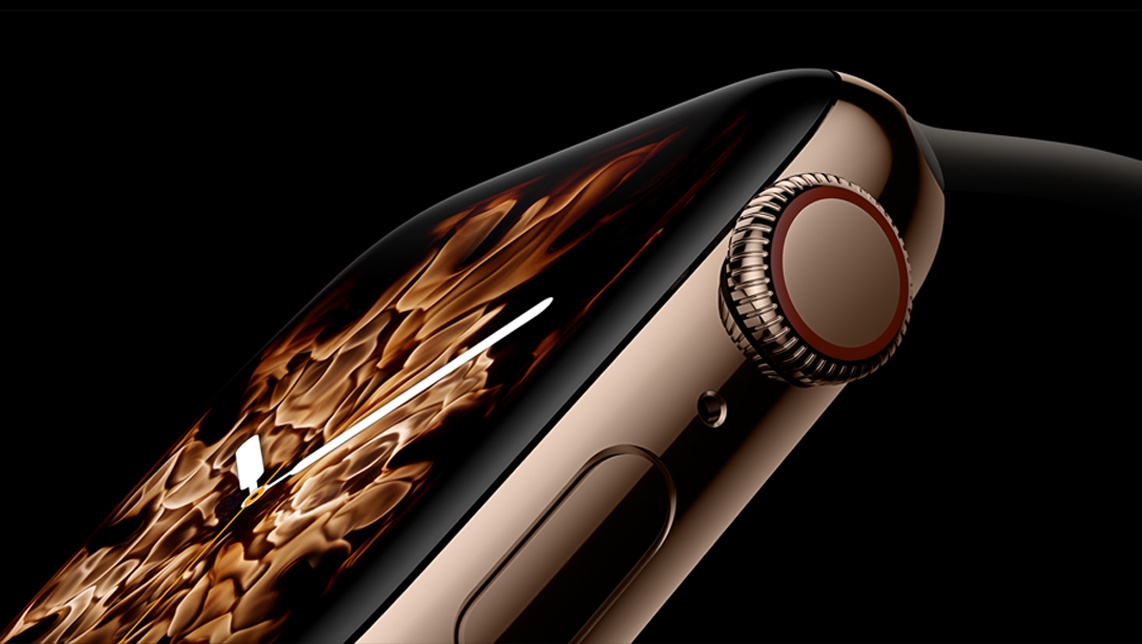
This morning at Apple’s annual September event at the Steve Jobs Theater in Apple Park, Jeff Williams took the stage to announce the Apple Watch Series 4. The new Watch lineup boasts larger and thinner chassis, more than 30% larger displays with rounded corners, a breakthrough ECG sensor, and more.
This is the first major change to the shape of the Watch’s enclosure since the debut of the original Apple Watch, but thankfully Apple has maintained compatibility with existing watch bands. The new models will be sold in 40mm and 44mm varieties, each size 2mm larger than the 38mm and 42mm of previous generations. Stainless steel and aluminum varieties are offered as usual, but it looks like we’ve seen the end of the “Edition” Apple Watch line.
On the software side, the larger Apple Watch models are launching with a swath of new watch faces. Many of these faces take advantage of the new increased screen size by allowing a greater number of complications than we’ve seen on any face before. According to Apple the entire operating system has been revamped to take advantage of the new screen with its curved edges. These changes will ship in watchOS 5 on the new Series 4 Watch. There’s no word yet on whether all or any of the new faces will make appearances on older models of Apple Watch – they have not been included in any watchOS 5 beta builds thus far.