


Happy Fat Tuesday, it’s Mardi Gras season again! Here are today’s deals on iOS, Mac, and Mac App Store apps that are on sale for a limited time, so get ‘em while they’re hot!
Posts tagged with "mac"
#MacStoriesDeals - Tuesday
Flash 10.3 Beta for Mac: Now In Your System Preferences, Too
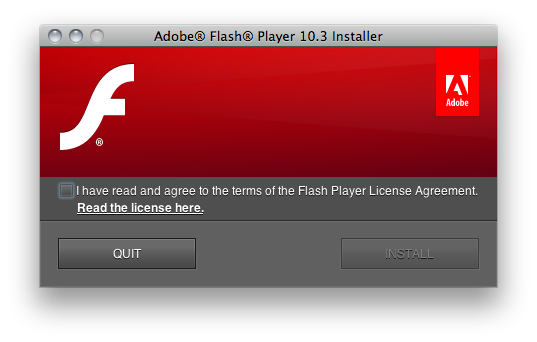
If you’ve always been wondering why Adobe’s Flash Player don’t let you easily manage privacy and storage settings, then you must be pleased to know that’s about to change with the beta of Flash 10.3 for Windows, Mac and Linux. As noted by Lifehacker, version 10.3.180.42 (let’s just call it 10.3 beta) allows you to directly modify Flash Player’s cache, privacy and other settings (such as the microphone or camera) without having to visit a special web link to a webpage hosted on Adobe’s servers.
With Flash 10.3, it all (finally) happens with a settings window that appears to be accessible from the Control Panel in Windows, and a prefpane in your Mac’s System Preferences (see screenshots below). The panel has got a tabbed interface to switch between Storage, Camera and Mic, Playback and Advanced settings with lots of options to delete private data, de-authorize a computer from protected content, tweak the camera’s settings on a site-by-site basis.
Clearing out your Flash cache will be much easier in the new version, currently available for download and testing on Adobe’s website. These new user and OS-friendly settings will also be integrated into each browser’s own Preferences. Go download Flash 10.3 beta for Mac here. Read more
Seventh Beta of 10.6.7 Now Available in Mac Dev Center
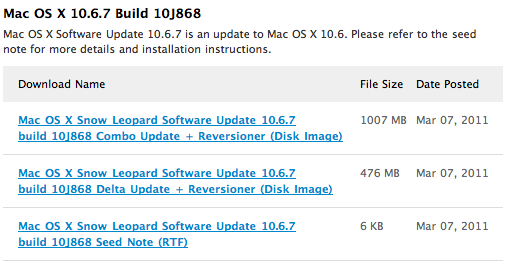
Earlier today Apple seeded the seventh beta of OS X 10.6.7 (a Snow Leopard update, not Lion) and is available for developers at the Mac Dev Center. The build number is 10J868.
There are no known issues with the build and as has been a similar case with previous betas, Apple is asking developers to focus on Safari, Mac App Store, AirPort, Bonjour, SMB, and Graphics Drivers.
[Via 9to5 Mac]
#MacStoriesDeals - Monday

Super sweet Mac App Store deals today! Here are today’s deals on iOS, Mac, and Mac App Store apps that are on sale for a limited time, so get ‘em while they’re hot!
Put Screenshots In Your Sights With Crosshairs For Mac

Want to take screenshots with precision and adjustable controls? Crosshairs for Mac is what you’ll need if you want a friendly menubar utility that slaps screenshots right onto the desktop. Crosshairs is really simple to use:
- Click on the menubar icon to activate Crosshairs
- Drag the overlay anywhere and achieve a pixel-perfect with the graphic counter
- Press the spacebar to take the screenshot
- Press the escape key to deactivate Crosshairs
Simple, no? You might be wondering why you’d use Crosshairs over Snow Leopard’s built in screenshot utility, and the answer is simple. With Crosshairs, you can readjust and take multiple snaps consecutively in one row, making readjustments as needed.
There’s quite a few keyboard commands for Crosshairs, and its main purpose is to get dimensions of anything on screen. For pixel pushers measuring apps or windows for Photoshop, Crosshairs conveniently sits above your workspace so you can quickly rule what you need. If you’re working with a dark background, you could always change that overlay from black to white.
You’ll be set back a meager $4.99 in the Mac App Store for an aiming cursor with mad screenshot & measuring skills. Check it out at Giant Comet for more information.
Snap for Mac Assigns Keyboard Shortcuts to Apps In Your Dock

If you use the OS X Dock as much as I do, then it’s likely that you’ve always wondered why there’s no easy way to assign a keyboard shortcut for apps placed in the Dock. Snap, a $0.99 app available in the Mac App Store, solves this problem by providing an easy solution to cycle through Dock apps using the keyboard.
Once downloaded, Snap will let you assign numeric shortcuts to Dock apps starting from the Finder and the app right next to it. All you have to do is choose a modifier key that, together with the numbers, will enable you to switch between apps in seconds. The modifier key can be Command, Control, Shift or Option. Personally, I chose Option so I can switch between tabs in Chrome using CMD. If you don’t want to have shortcuts for Dock apps, however, you can also manually pick an app from the “Other” menu and virtually create shortcuts for any app on your Mac.
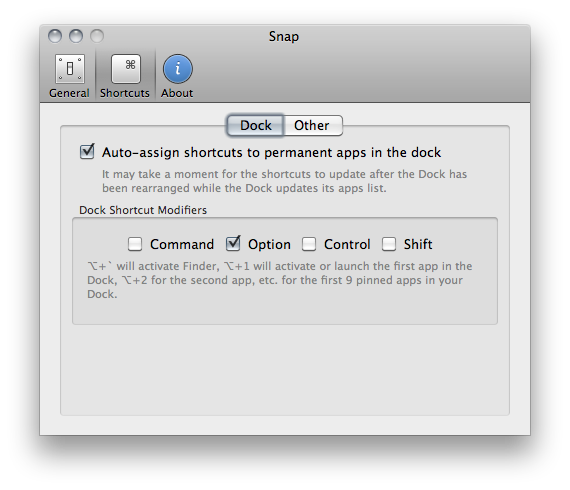
I like Snap because it’s simple and allows me to quickly open apps using easy to remember shortcuts – always faster than heading over an icon with your mouse cursor. Go download it here.
New µTorrent Beta for Mac Adds Remote Web Access, Scheduler
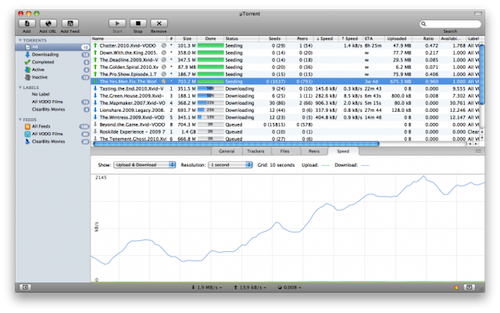
Popular BitTorrent client µTorrent was updated in its beta version for Mac last night adding support for a series of features that have made the app a must-have among Windows users. Namely, the latest beta for Mac adds the ability to control torrents remotely from any desktop or mobile browser, without having to mess with complicated network and firewall settings. It’s quite handy if you’re that kind of user who likes checking on his torrents on the go and wouldn’t mind adding new ones as well. Everything happens with a Web interface that’s completely accessible from anywhere. Together with the web UI, the application’s design has been improved as well.
Other important features in the 1.5 beta include feeds and the scheduler. While the second option is pretty obvious as it lets you schedule start and stop times for µTorrent (so your internet service provider will be happy), the RSS support is interesting. It allows you to subscribe to torrents’ feeds to automatically download them as new ones become available.
µTorrent is a free download for Mac, and the beta version is available here. [via Cult of Mac]
#MacStoriesDeals – Friday

What a great week for Apple news! Here are today’s deals on iOS, Mac, and Mac App Store apps that are on sale for a limited time, so get ‘em while they’re hot!
CalendarBar Tucks Event Reminders In Your Menubar
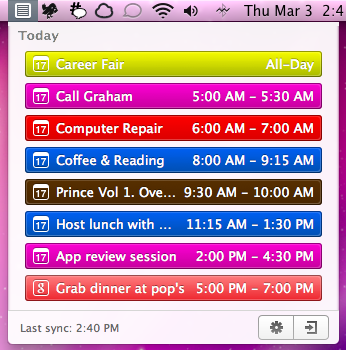
Clean Cut Code is known for making beautiful apps like Cloud Calendar, and it was only a matter of time before they brought some of their talent to the OS X desktop. CalendarBar takes on the inefficiencies of a traditional calendar client by providing a quick list of events in a beautiful timeline that can grab events from iCal, Google Calendar, and Facebook. Clicking on an event takes you to the event listing in its parent application – CalendarBar removes the distraction of busy calendar utilities, but provides shortcuts so you can add entries and gather additional information. The app features a some iOS overtones in its design, most obviously via the settings and exit button that adorn the bottom of the pop-up panel. Launching yesterday, the app is only $1.99 in the Mac App Store.