Posts tagged with "mac"

Cathode Is A Vintage Terminal For OS X

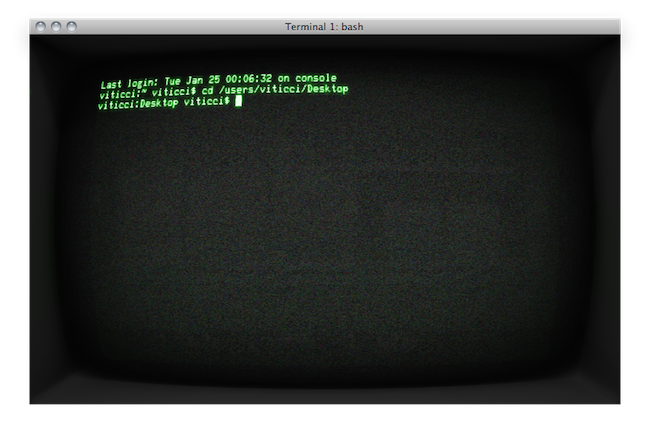
Here’s an interesting new Mac app for you Terminal junkies looking for new shiny this morning. Cathode came out of beta a few weeks ago, and it’s an alternative Terminal app for OS X with lots of “vintage” themes to apply to the regular session window. As the name suggests, Cathode emulates those old TV screens you might have seen (and owned, too) in the 1970s and 1980s – indeed cathodic monitors.

In spite of its vintage look, the app is entirely written in modern OpenGL and Cocoa, with graphic processing done by the Mac’s GPU. The app, in fact, uses a lot of animations to replicate the behavior of old televisions with flickering fonts, interlacing, curvatures and flashes. It really resembles the old monitor your grandparents might still be using today. You can choose between different themes and adjust fonts and colors, enter fullscreen mode and set the curvature of the screen to your liking.

The licensing method is clever as well: you can use the app for free, but the picture quality will slowly degrade until Cathode is relaunched. If you purchase a license ($20), you can customize the interface and avoid picture degradation.

Go download Cathode here. More screenshots below. Read more


BootXChanger Revitalizes Your Mac Boot Screen

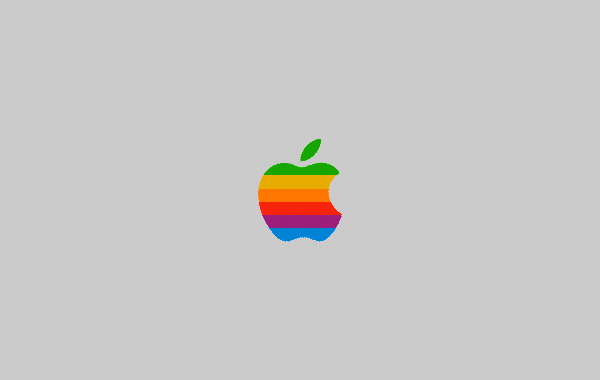
Apple’s default boot screen is an admittedly bland and very grey affair, luckily BootXChanger (which has had more than three years of development) offers a simple drag and drop way to add your own image and change the background color.

It’s recommended that the image you use to replace the Apple logo should be 90x90 pixels, any larger and depending on your Mac it may be resized or not show up at all. Images can have transparency and this is a good way to ensure the image matches the background. As a nice extra touch, BootXChanger comes with some sample images such as the old rainbow Apple logo and the Finder logo.

Read more


Free “Plus” Widget Turns Dashboard Into A Launchpad

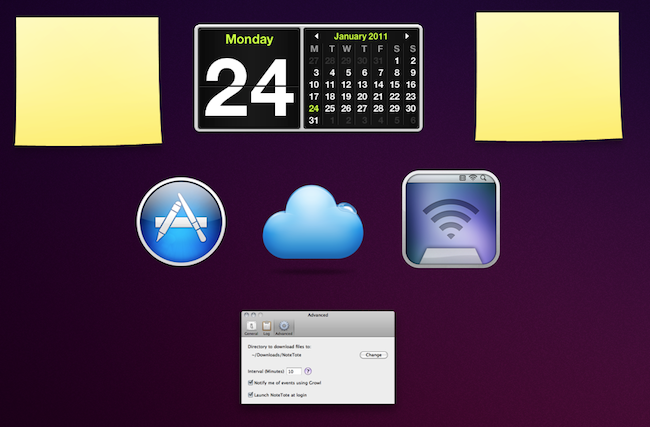
Launchpad is a feature of the upcoming Lion operating system that will allow users to have quick access to all their apps and folders through an iPad-like overlay interface. A few weeks ago, we saw developers already trying to imitate this functionality on Snow Leopard as I covered QuickPick, an app that brings a Launchpad-like UI to OS X 10.6. Plus, a new widget by Junecloud, takes a similar approach to QuickPick but it’s free and works with the system’s Dashboard.

Plus can turn anything into a Dashboard widget. That’s right: a widget to create other widgets; sort of meta, and it works. You can in fact drop multiple instances of Plus on to the Dashboard, and make each one a different shortcut to something else. Like an app, a screenshot, a document, a web address or a folder. Anything that you can drag out of the Finder can be dropped into Plus and become a widget of its own; Plus even lets you decide the size of the item’s preview. With a bit of organization and time, you can thus turn the Dashboard into a grid of most used apps and shortcuts, although you won’t be able to expand folders within the overlay the way we’ve seen in the Launchpad preview.

All things considered, Plus is a cool widget that’s being given away for free and definitely works as expected. Give it a try.


NoteTote: Download Files Remotely Using Simplenote

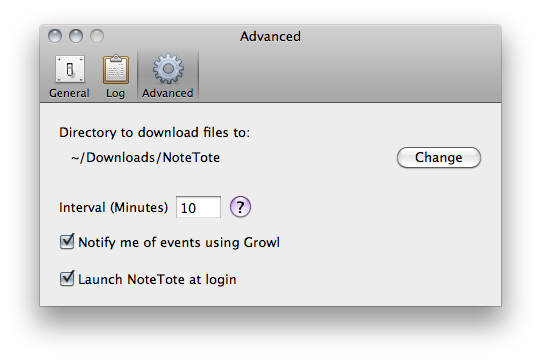
Previously known as MobileDL and now available at $8.99 in the Mac App Store, NoteTote is an interesting solution to trigger downloads remotely on your Mac using the iPhone, iPad or any other device that has access to Simplenote. For as simple as it sounds, all you have to do to start a download on your Mac is paste a URL into a specific note. NoteTote, in fact, upon logging into the service with your credentials will create a “special” NoteTote_Downloads note that will always stay there, monitored by the app running on your Mac’s menubar. While you’re away from your Mac and you want to start a download remotely, open the Simplenote app, paste the link and that’s it. On a regular interval (which can be adjusted in the Preferences) NoteTote will look for URLs inserted in the special note and try to download them. All of this while you don’t have access to your Mac. Read more


Extra Security For Your Mac with Hands Off

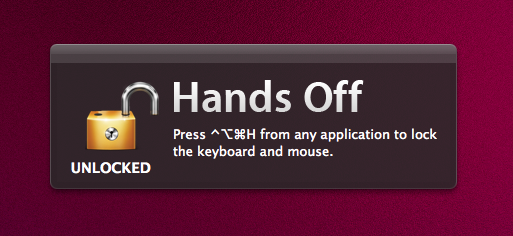
Available at $0.99 in the Mac App Store, Hands Off is a very simple, yet clever utility that will come in handy if you’ve always wanted an easy way to block access to your Mac when you’re not around – without having to turn the computer off or log out. How does that happen? Well, Hands Off can block the keyboard and the trackpad with a shortcut that can be activated at any time. Say you’re going away from your Mac for a few minutes and you don’t want your kids, or anyone, to press keyboard keys and create problems, Hands Off can help you by completely blocking keystrokes and trackpad recognition. When in “Locked” mode, the keyboard and trackpad won’t do anything.

For extra security or “keyboard cat” prevention, Hands Off is just great. You can use “readable hotkeys” (CMD instead of ⌘), change the global shortcut and even turn on Growl notifications. Combine this with Prowl, and you’ll get remote notifications if someone ever finds the right combination to unlock your Mac’s keyboard and mouse.

Hands Off works as advertised, although I noticed things can get pretty messy if a VNC client tries to remotely access your Mac when the computer is locked. I had to kill the app from the VNC client before actually being able to use my Mac, but it took a minute for the app to quit because it started beachballing in the dock. I guess an update is needed to fix this little inconvenience with VNC clients and local blocking. Anyway, Hands Off just works and it’s available at .99 cents.

Go get it.


The AppSumo “That’s Entertainment!” Bundle Giveaway

Just because we overslept Sunday and messed up some homemade DVDs doesn’t mean you should miss out on the latest AppSumo bundle. We’re into day two of yet another fantastic package, which includes everything you need to start enjoying your Mac as a writer, a movie enthusiast, or a casual gamer. There’s a little something for everyone this time around, so we advise you to click past the break to check out our latest giveaway where you can win one of five AppSumo bundles.

Read more


Sparrow Email Client Is Coming To The Mac App Store

Sparrow Email Client Is Coming To The Mac App Store

Here at MacStories, we’ve been following the development of the Sparrow email client for Mac very closely. The app first came out as public beta in October of last year, and many quickly dismissed it as a “clone of Tweetie” built for Gmail. The developers listened, improved the client and fixed bugs. The app really grew to become a full-featured Gmail client for the desktop.

With a blog post this morning, the developers announced Sparrow is coming to the Mac App Store in the next weeks, with the app already submitted to Apple for approval.

2 versions of Sparrow will be released. They’ll both be available in the Mac AppStore and on our website:
Paid: Sparrow will cost $24,99 but early birds will benefit from the $19,99 introductory price.
Free: Sparrow Lite will be ad-supported. Carbon Ads is providing the nice ads you have certainly seen in the latest Beta version. The free version will allow one-account creation only.
We can’t provide any precise release date yet as the application has to be approved by Apple.

We are looking forward to the debut of Sparrow in the Mac App Store. Also, the new application icon you see above looks pretty sweet.

Permalink

MacStories Product Review: Sonos S5 Wireless Music System

I can’t live without my music. Every day, I need to get my “fix” either through iTunes, Youtube (it’s good for rare live performances) or Spotify. I also scrobble the songs I listen to towards last.fm, although I’m no huge fan of the service as a social platform. I just keep an archive of my musical tastes in there. Still, as far as music is concerned, most of the times it’s not the system or the platform that really matters. It’s the quality. And for quality, you need good gear.

Over the years, I’ve always tried to save money and purchase great-quality earbuds to ensure high-fidelity playback while on the go. I’m still happy with my Sennheiser CX 300 bought years ago, but home stereo systems have been a dilemma for me, in spite of my obsession for top-notch hardware. I’ve changed setups too many times, jumped from speakers to stereos and all-in-one solutions without really sticking to one for more than 6 months. When music becomes an obsession, good gear is a necessity. Recently, the audio technologies implemented by Apple in iOS forced me to reconsider everything once again.

See, wireless streaming spoiled all the fun I had accomplished. First came audio via Bluetooth, then Airport Express stations and AirPlay. I changed devices: I went from a classic iPod to an iPod touch to iPhone + iPad. I subscribed to Spotify Premium to use the mobile app (with streaming and offline access), I became addicted to Apple’s own iPod app and third party replacements like My Artists, or external controllers like Coversutra, Bowtie and SongSwiper. Put simply: music became deeply integrated with iOS, and iOS grew at the same time to accomodate features like AirPlay. Music became connected.

So when I was offered the chance to review the Sonos S5, I immediately said “yes” and eagerly started waiting for the two review units to show up at my doorstep. The Sonos S5, for those unaware of this mythical gadget, is a wireless speaker internally powered by a series of amps that a) provides great sound quality and b) is truly connected with iOS, OS X and the Internet. The S5 offers the best of both worlds: local playback backed up by high-quality manufacturing and remote functionalities that allow users to “log into” the speaker and customize the entire experience. After the break, you’ll find my impressions of two months with two Sonos S5 units and a Sonos ZoneBridge connector. Read more