Posts tagged with "mac"

Rubbernet Monitors Your Mac Apps’ Network Usage

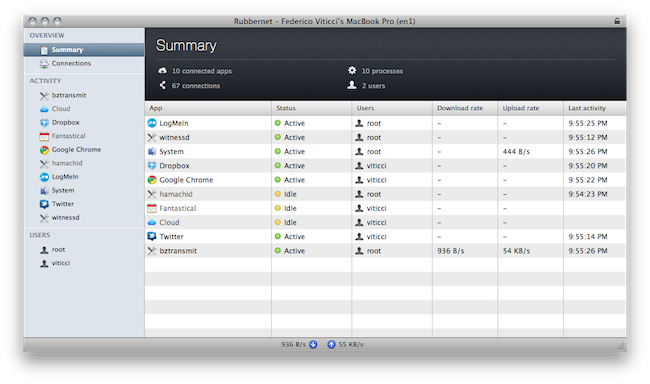
If monitoring bandwidth and network usage on a Mac is your thing, Conceited Software’s latest app might just be what you need. Rubbernet is a €30 tool that can be installed on a local machine and networked Macs (unfortunately, there doesn’t seem to be support for Hamachi computers just yet) and provides an easier solution to more complex applications like Little Snitch, which besides network monitoring also offers firewall functionalities and lots of settings to play with on an app-by-app basis. Rubbernet, powered by a nice interface design and a daemon that runs in the background all the time on your Mac, allows you to see what apps are consuming bandwidth on your computers, and what kind of connections to remote servers are being established.

The app supports multiple accounts (as you can see in the screenshot above), but I haven’t been able to test it with another Mac on my local network. The Summary app gives you a glimpse of all the active apps that are connected to the Internet, including upload and download rates. The Connections and Activity tabs, on the other hand, will show you all the single IP addresses your Mac is connecting to including, in the case of single applications under Activity, a breakdown of all remote hosts, open ports, and a graphical visualization of downloads and uploads over time. These graphs update in real-time, with a minimal footprint on your Mac’s memory.

You can download Rubbernet here. A free trial is available, so you should check it out and see whether the app can recognize your networked Macs and improve the way you keep network usage under control. No one wants to let Dropbox eat all the bandwidth during an Apple event.

[Disclaimer: Conceited Software’s Rubbernet is a MacStories advertiser. This is not a sponsored review, as it’s entirely based on my personal experience with the app.] Read more



The Problems with a Retina Display on the Mac

The Problems with a Retina Display on the Mac

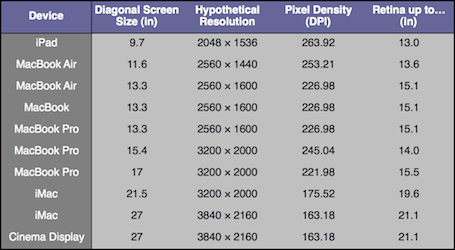
If Apple were to do something like the above, the biggest question I would have is whether or not they’d put something into place for users who genuinely do want much smaller UI elements and much more screen real estate. That is, if Apple were to double their UI, and then use the 2×1080p resolution for the 27-inch iMac, there’s a sense in which current 27-inch iMac users would feel like they were actually losing screen real estate from their current 2560 × 1440 displays. But that’s why Apple’s Apple and I’m a guy writing about them: if and when Retina Displays do come to the Mac, they will have thought that issue through and either solved it, or decided that the set of users who would be upset by it isn’t a large enough group to hold other users back.

Tim Ricchuiti at The Elaborated makes a great case for the issues Apple would have to overcome in implementing higher resolution displays (let’s just call them Retina Displays for the sake of the argument) on Macs: at 3200 x 2000 pixels (that’s the resolution of the default wallpaper image found in the Lion betas, and no Mac or Apple-branded screen currently ships with such pixel density), UI elements on a MacBook Pro 15” would look small, unless Apple comes out with a solution to offer same-size graphics, on a higher-res screen. On the iPhone 4, for example, they allowed developers to create “2x” graphics that, with double the pixels on the iPhone 4, look the same size of iPhone 3GS graphics. But how would you do that on a Mac, where users can decide to install apps both from the web and the Mac App Store, thus preventing Apple from enforcing a 2x standard? Plus, how could Apple offer a way to switch between bigger and smaller UI elements? A desktop ecosystem like OS X with computers featuring much bigger displays than iOS devices raises more questions over the implementation and usage of Retina Display.

Make sure to check out Tim’s full article here. Whilst “HiDPI display modes” were previously rumored to be finding their way to new Mac screens relatively soon, we think Apple will have to find a solution to the problems with a Retina Display on the iPad first. [via Daring Fireball]

Permalink


#MacStoriesDeals - Wednesday

We’ll tweet the daily deals at @MacStoriesDeals as well as exclusive weekend deals too, so please follow! Here are today’s deals on iOS, Mac, and Mac App Store apps that are on sale for a limited time, so get ‘em while they’re hot!

Read more


CalendarBar for Mac Updated with New Features

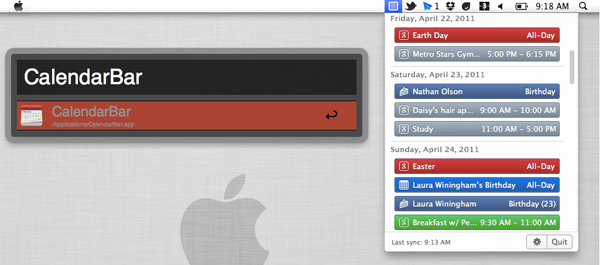
Clean Cut Code’s CalendarBar, a great menu bar app for OS X, lets you see events from iCal, Facebook and Google Calendar all inside one great looking app. We reviewed CalendarBar back in March and we really like it.

Today, Clean Cut Code has updated the app to version 1.1 with some very nice additions. iCal tasks/todos are now supported from the preferences pane and it now also supports Alfred / LaunchBar / QuickSilver quick launch applications. When CalendarBar is running, simply start typing “CalendarBar” into Alfred (LaunchBar or QuickSilver as well), and it forces the app to dropdown from the menu bar so you can access the app without using your mouse. (Thanks to Don Southard for helping us test multiple launch apps.)

The developers also added support for BusyCal and Google Calendar multiple sign-ins. You can now configure relative day formatting (today, tomorrow, etc) and make timed events not span multiple days. CalendarBar also received a new app icon along with some bug fixes. If you still haven’t picked up CalendarBar from the Mac App Store, maybe you should mark your calendar to do so. Check for updated via the Mac App Store or buy the app now for $2.99.


Enhance Your Mac’s Clipboard with CmdVees

When it comes to quickly jotting items into my Mac’s clipboard and being able to access them later in a neatly organized folder view, Clipmenu is my app of choice. I’ve been using the app for years, it’s free, and it provides a lightweight yet powerful way to copy anything into your OS X clipboard – text, images, URLs, you name it. Clipmenu, also thanks to snippets and keyboard shortcuts, makes it super-easy to retrieve at any time information you copied with the standard Cmd+C. The application, however, is limited in the way it enables you to paste multiple items at once: say you’ve copied three different URLs for the ultimate Rebecca Black rickrollin’ tweet, you’ll have to hit Clipmenu’s shortcut three time (and navigate with the arrow keys) to paste those items. Open, copy, open, copy – you get it. The app keeps track of your clipboard, but it’s not aimed at letting you paste all at once with ease. CmdVees, a $0.99 app available in the Mac App Store, wants to fix this.

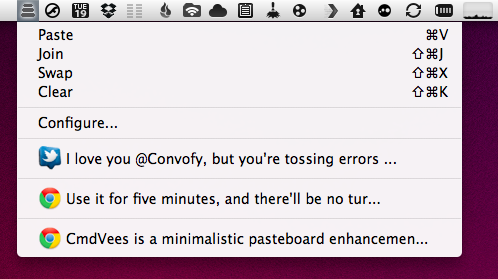
CmdVees’ concept is really simple: as you copy items into your clipboard, the app creates a stack. This stack lives in your menubar. Once you’re done copying and you want to paste all these items in a single location (say, a TextEdit window), you don’t need to invoke the application with a specific shortcut for every single item. No, you just keep hitting the default Cmd+V until you’ve pasted all the items. The cool thing is, as you hit Cmd+V the app will remove the most recent item from the stack and go to the next one – by default, hitting Cmd+V on OS X over and over simply pastes the most recent clipboard entry. CmdVees is meant for those users (like me) who copy a lot of material on a daily basis, and would like to be able to paste things all at once.

But there’s more: if you don’t feel like pressing the Cmd+V shortcut several times, you can “join” items with a single paste through a keyboard shortcut you can configure in CmdVees’ preferences. You can also swap items in the stack with a shortcut, or clear your queue entirely. Older items are accessible from a dropdown menu, plus you can specify how many items to keep in CmdVees’ history and set a time out for copied items.

At $0.99, CmdVees is a no-brainer if you’re looking for a utility that collects your clipboard items and is able to paste them all at once. I’ve noticed some compatibility issues with Clipmenu while using it, but I think customizing the settings a little bit should fix that – just in case, download a free trial here.


#MacStoriesDeals - Tuesday

We’ll tweet the daily deals at @MacStoriesDeals as well as exclusive weekend deals too, so please follow! Here are today’s deals on iOS, Mac, and Mac App Store apps that are on sale for a limited time, so get ‘em while they’re hot!

Read more