Finder Customizations
App Debuts
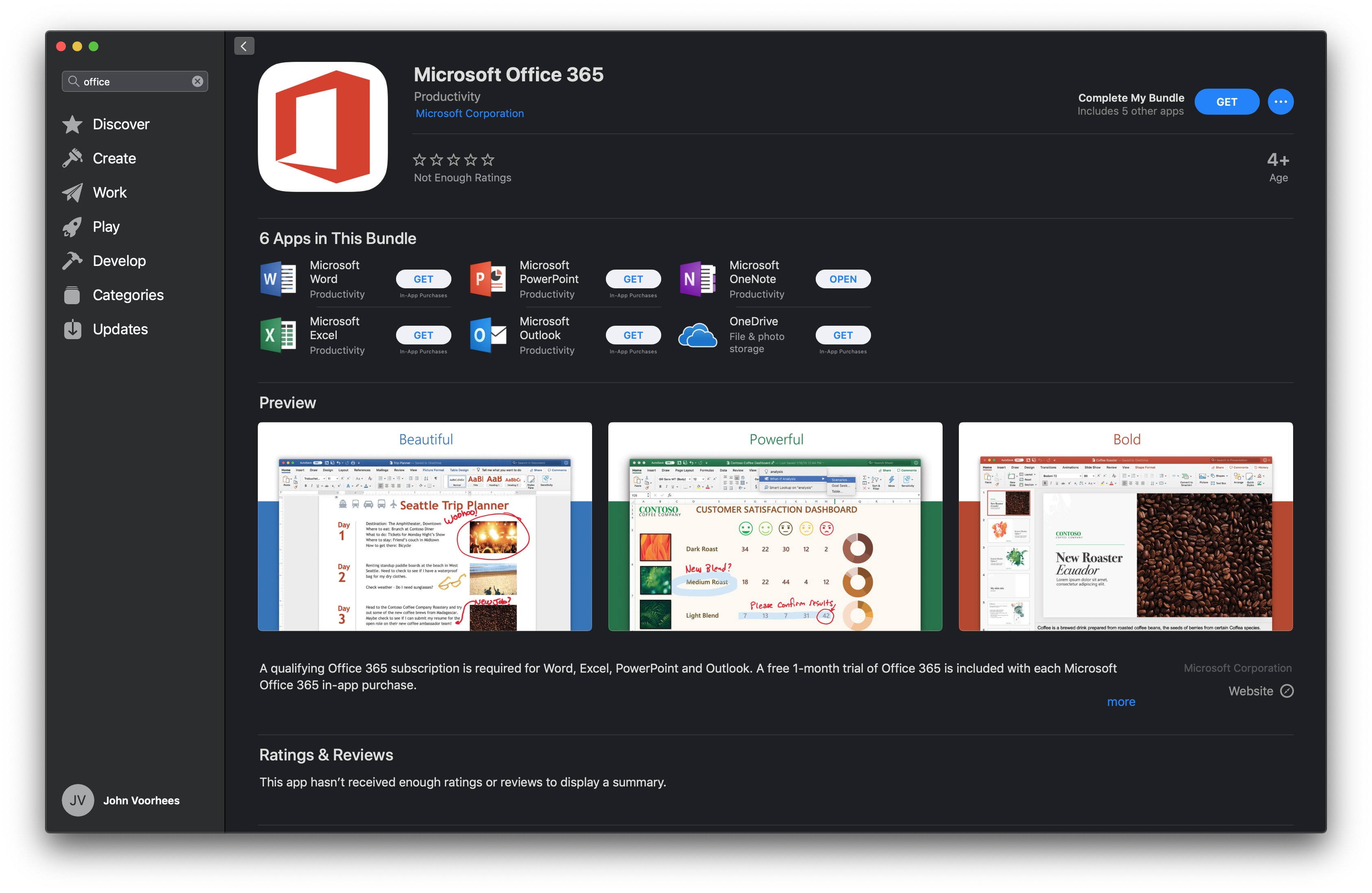
Microsoft Office Debuts on the Mac App Store
Promised at WWDC last June, Microsoft Office 365 has arrived on the Mac App Store today. Office 365, which includes the company’s flagship Word, Excel, PowerPoint, and Outlook productivity apps are free to download but require a subscription available via an In-App Purchase to create and edit documents and to send and receive email messages. Before today, the Mac versions of the apps were only available as direct downloads from Microsoft.
At WWDC 2018, Apple announced a redesign of the Mac App Store. During the presentation, the company said the following apps would be coming to the Mac App Store:
- Microsoft’s Office 365
- Adobe’s Lightroom CC
- Panic’s Transmit
- Bare Bones’ BBEdit
- Snap’s Live Studio
- Houseparty
The addition of the apps announced has been slow. Houseparty debuted on the Mac App Store several months ago, but Transmit didn’t appear until last November. With today’s addition of Office 365, that leaves Lightroom, BBEdit, and Live Studio to go.
Office is a significant addition to the Mac App Store. The apps in the suite are used by millions of people worldwide, and the convenience of downloading them and updating the apps from the Mac App Store alongside other apps should be a welcome addition for many users. Hopefully, the remainder of apps promised aren’t far behind and will help reinvigorate the Store, which has not seen the same level of success as its iOS sibling.
Office 365 is available on the Mac App Store as a bundle. Word, Excel, PowerPoint, and Outlook can also be downloaded individually.
AppStories, Episode 95 – Interview: Directing Animated Feature Films Using an iPad Pro with Yarrow Cheney→
On this week’s episode of AppStories we interview Yarrow Cheney, whose animated feature film credits include directing The Grinch and The Secret Life of Pets and production design for the Despicable Me movies and The Lorax, about the role the iPad plays in his filmmaking process.
Sponsored by:
- Toggl – Hassle-free time tracking, wherever you are.
- Linode – High-performance SSD Linux servers for all of your infrastructure needs. Get a $20 credit.
https://staging.macstories.net/podcasts/appstories/episodes/95/embed/
Apple Announces ‘Shot on iPhone’ Photography Challenge
For longer than I can remember now, Apple has plucked photos taken by iPhone users from the vast sea of images posted online and featured them on billboards, in print advertising, and online. Today, the company announced that through February 7th, it’s running a Shot on iPhone Challenge. Apple says that:
A panel of judges will review worldwide submissions and select 10 winning photos, to be announced in February. The winning photos will be featured on billboards in select cities, Apple retail stores and online.
Apple’s announcement also introduces the contest’s 11 judges, 6 of whom are from Apple and 5 of whom are outsiders with backgrounds in photography. The Apple team includes Phil Schiller, members of his marketing team, and others who work on Apple’s photo software. The rest of the judges include former White House photographer Pete Souza, travel photographer Austin Mann, who we recently interviewed for Club MacStories, Annet de Graaf, a travel photographer and author of iPhone photography books, Luisa Dörr who shot TIME magazine’s special Firsts issue entirely on an iPhone, and Chen Man, a visual artist and creator of photography-based social apps.
If you’d like to submit your iPhone photos, here’s what to do:
Post your best photo taken on iPhone to Instagram or Twitter with the #ShotOniPhone hashtag to participate in the the Shot on iPhone Challenge. Weibo users can participate as well using #ShotOniPhone#. In the image caption, note which model was used. Alternatively, you can also submit the photo in its highest resolution to shotoniphone@apple.com with the file format ‘firstname_lastname_iphonemodel.’ Photos can be straight from the camera, edited through Apple’s editing tools in the Photos app or with third-party software. Submissions for photos begins at 12:01 a.m. PST on January 22 and ends at 11:59 p.m. PST on February 7. You must be 18 years of age or older to participate, and this challenge is not open to Apple employees or their immediate families.
I’ve always enjoyed Apple’s Shot on iPhone ad campaigns. It will be fun to see which shots its judges pick from what I can only imagine will be a huge number of submissions.
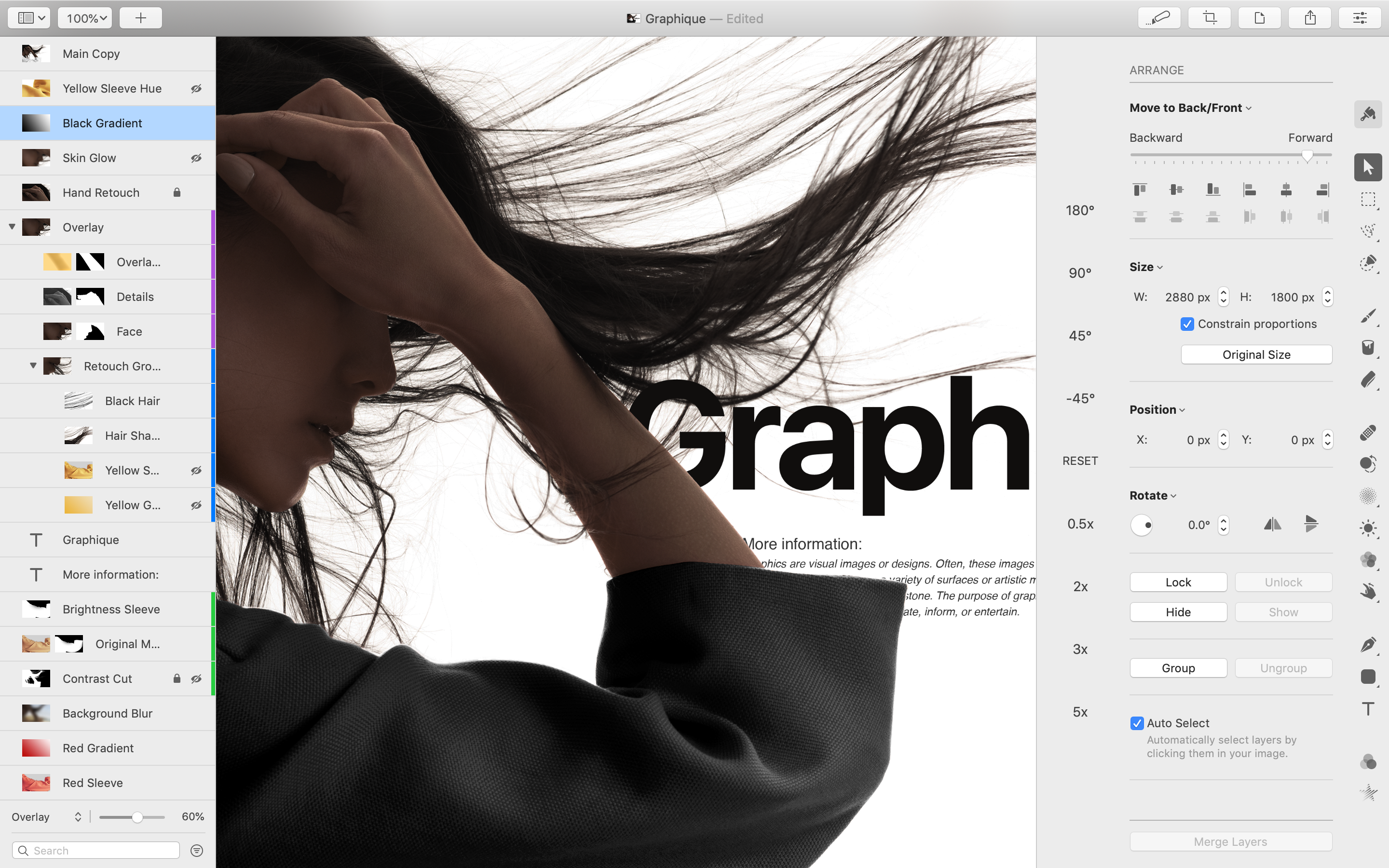
Pixelmator Pro Updated with New Layers Features
Today the Pixelmator team released a layers-focused update to Pixelmator Pro, their Mac image editor.
The update allows users to add any of seven colored tags to a layer to help identify them. The feature also supports Adobe PSD color tags on import and export.
To make navigating projects with lots of layers easier, users can now filter layers based on several criteria including the new color tags, images, shapes, text, RAW, and groups. At the bottom of the layers sidebar, there is also a search field for locating layers by name.
Pixelmator Pro 1.3 supports clipping masks too. The feature allows users to apply the contents of one layer to the shape of another layer or group of layers. Clipping masks can be created from text, shapes, groups of layers, or nested shapes.
Finally, you can also adjust a layer’s opacity and blending mode using the controls at the bottom of the layers sidebar. Adjustments made are previewed live in the app’s main window.
Pixelmator Pro is available on the Mac App Store.
Interview: Directing Animated Feature Films Using an iPad Pro with Yarrow Cheney
AppStories Episode 95 - Interview: Directing Animated Feature Films Using an iPad Pro with Yarrow Cheney
44:15
This week, Federico and John interview Yarrow Cheney, whose animated feature film credits include directing The Grinch and The Secret Life of Pets and production design for the Despicable Me movies and The Lorax, about the role the iPad plays in his filmmaking process.
Concepts for iPad: An Adaptable Infinite Canvas to Suit Anyone’s Needs
Concepts, an iOS drawing app featuring an infinite canvas, sat untouched on my iPad forever. I’d seen some buzz about it online, and the idea of an infinite canvas intrigued me. I’m not much of an artist though, so I was unsure how I’d use the app.
What broke my mental logjam was the new Apple Pencil. Attached to the side of my iPad Pro, the Pencil is always within easy reach, so I use it more now than ever. That, in turn, set me on a quest for the best apps that support the Pencil.
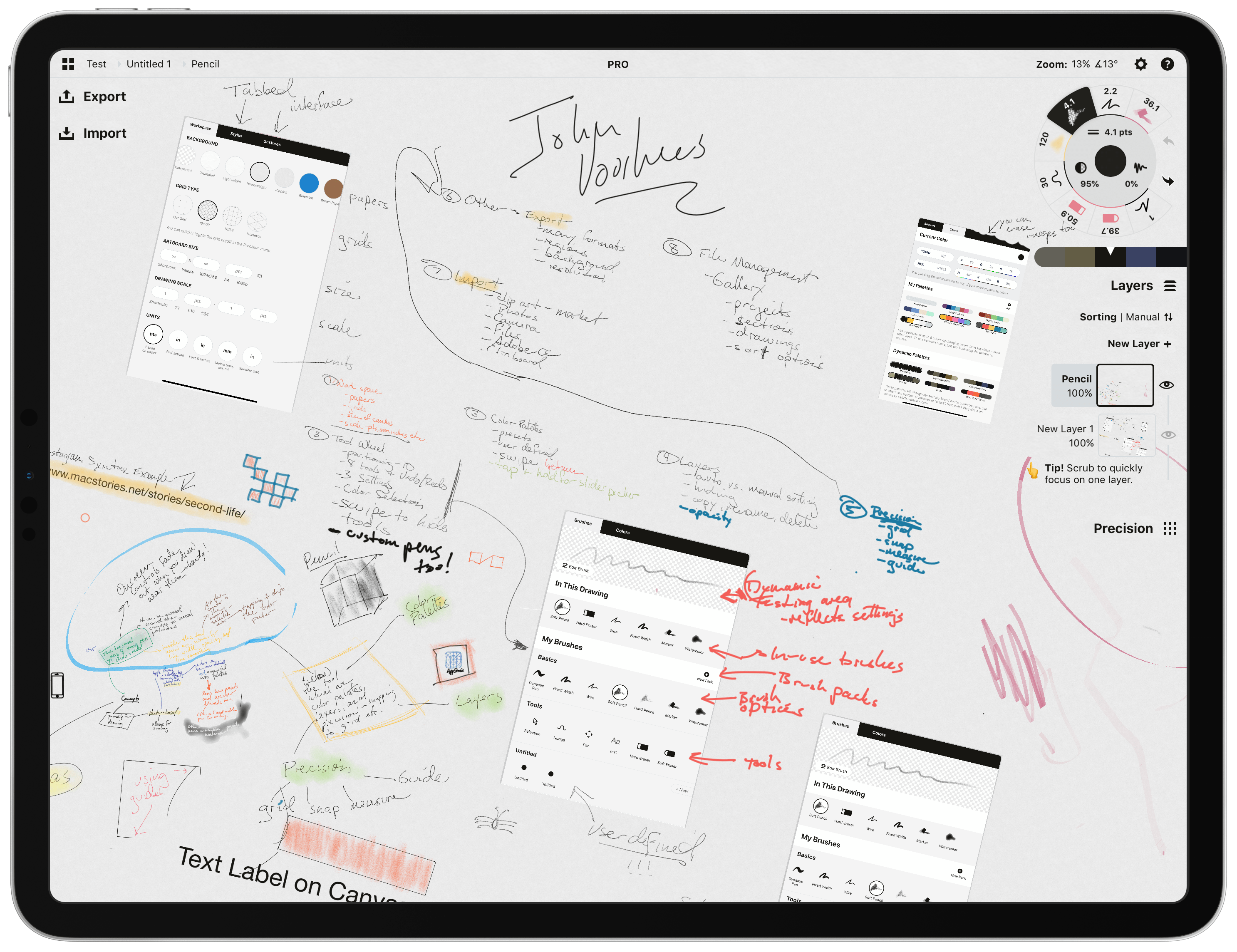
I started with familiar apps like GoodNotes, which I reviewed last week, and Linea Sketch from The Iconfactory, two of my long-time favorite apps. I’d used both apps for a long time, but with the new Apple Pencil, I found myself using them more often. Especially with Linea Sketch, I found myself using the Pencil to map out articles and other projects in a loose, free-form style consisting of lots of handwritten notes embellished with splashes of color and doodles. Free from the constraint of orderly lines of text, ideas evolved more organically, which I’ve found works exceptionally well during the early stages of a project.
What led me to dive into Concepts though was a single wall I hit with Linea and GoodNotes. The canvas of both apps is constrained to a single digital sheet of paper. That’s not a deal-breaker in some circumstances, but for more sprawling projects and loosely-defined brainstorming, it’s problematic. The one-page-at-a-time interface of both apps also made it hard to annotate more than a single screenshot per page without running out of space.
Concepts affords me an infinite canvas free of space constraints. It also offers a level of control over the tools I use that fits well with how I approach text editors. Like many writers I know, I like to adjust every detail of how my words appear onscreen, including the typeface I use, its size, the line height, and column width. As I’ll explain in more detail below, Concepts allows a similar level of control over its tools, which I love. I may not take advantage of those tools or their customizations to the same extent as an artist might, but I appreciate their power nonetheless.
So, I spent time over the holidays sketching out plans for 2019 in Concepts. The more I used the app, the more I became convinced that it merited a place in my iPad workflow. Still, I wondered if a review from my non-artist’s perspective made sense for an app so focused on drawing. What finally convinced me to write the review was the interview Federico and I did with Yarrow Cheney that we released on AppStories today.
https://staging.macstories.net/podcasts/appstories/episodes/95/embed/
Cheney co-directed The Grinch and The Secret Life of Pets, was the production designer for the Despicable Me movies and The Lorax, and has been involved in many other animated feature films since the 90s. He’s a fantastic artist and uses Concepts to create the concept art for the films on which he’s worked.
What struck me most about our conversation though was Cheney’s insight that he uses the iPad Pro with an Apple Pencil and Concepts because the combination reduces the distance between the idea in his head and recording it onscreen. That allows him to iterate more quickly and evolve ideas organically in an ever-expanding canvas from which he then pulls the best ideas.
Listening to Cheney’s explanation, I realized that the primary value of an app like Concepts lies in helping users record and refine their ideas. Whether your ideas result in something like Cheney’s whimsical concept art for The Grinch or my messy soup of notes, screenshots, and highlighting, the core utility of Concepts, which is right there in its name, is the way it facilitates the exploration of ideas. That’s an important distinction that makes Concepts an appropriate choice for iPad users regardless of whether you’re an artist.